


Agilien is an AI-powered extension for Jira, developed by Visual Paradigm, that transforms high-level project concepts into a detailed, consistent, and ready-to-develop backlog in seconds. This tool automates backlog creation, ensures clarity with structured user stories, provides smart prioritization, and generates visual aids like diagrams and roadmaps. It’s designed to integrate seamlessly with your existing Jira workflow, saving hours of manual work and bridging the gap between product planning and engineering.
This tutorial is based on the provided Agilien overview and draws from practical usage guides to walk you through setup, backlog generation, visualization, integration, customization, and best practices. By the end, you’ll be equipped to revolutionize your product planning process.
Introduction to Agilien
Agilien acts as an intelligent partner in your product development lifecycle. Key advantages include:
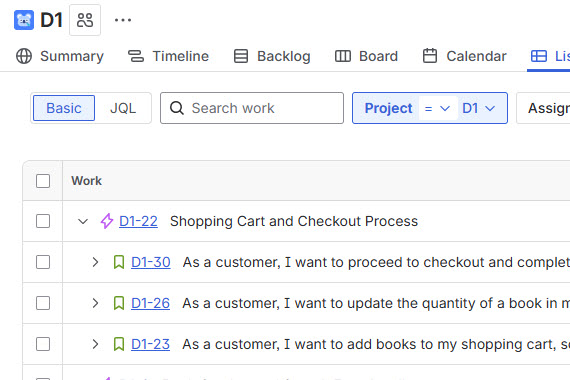
- AI Backlog Strategy: Generate a hierarchical backlog (epics, user stories, sub-tasks) from a simple goal statement, with 3C (Card, Conversation, Confirmation) elements for consistency.
- Smart Prioritization: Automatically ranks items based on value and effort.
- AI-Optimized Roadmapping: Assigns realistic timelines with start/end dates.
- Requirements Visualization: Creates technical diagrams (e.g., Sequence, Activity, Class) and dynamic Gantt charts.
- Jira Integration: Bi-directional sync for importing existing items and exporting new ones.
- Customization: Edit generated content before syncing to ensure it fits your needs.
Agilien supports Jira Cloud and Jira Data Center (Server) via API tokens and works with both team-managed and company-managed projects. No separate AI model subscription (e.g., Gemini) is needed—it’s included. Data security is ensured with TLS encryption in transit and at rest.
To get started, you’ll need a Visual Paradigm Online account (free trial available) and access to your Jira instance.
Prerequisite: Creating a Blank Jira Space
Before using Agilien, set up a new Jira space to serve as your project environment. This ensures a clean slate for syncing AI-generated backlogs.
- Visit your Jira site (e.g., yourcompany.atlassian.net).
- Click the + icon next to Spaces in the left menu.
- In the template list, select Software development and choose the Scrum template.
- Click Use template.
- Choose either Team-managed space or Company-managed space based on your organization’s setup.
- Enter a name for the space and proceed.
- Optionally invite team members or skip this step.
- Optionally connect the space to Confluence, then click Continue.
Your Jira space is now ready. Reload the page if needed to confirm.
Getting Started with Agilien in Visual Paradigm Online
Agilien is accessed through Visual Paradigm Online, where the AI tools reside.
- Go to Visual Paradigm Online and log in to your workspace (sign up for a free trial if you don’t have an account).
- Click the AI Tools button in the interface.
- Locate Agilien: AI-Powered Jira Backlog Planner and click Start Now.
This launches the Agilien interface, where you’ll input your project details.
Generating the Project Plan (Backlog)
Agilien’s core feature is turning a high-level goal into a structured backlog.
- In the Agilien interface, enter the Project Domain (e.g., “E-commerce platform for sustainable goods”).
- Provide System Context & Goals (e.g., “Build a user-friendly online store with inventory management, user authentication, and payment integration to increase sales by 20% in the first quarter”).
- Specify the Project Start Date (e.g., “2026-01-01”) and Project Duration (e.g., “3 months”).
- Click Generate Project Plan.
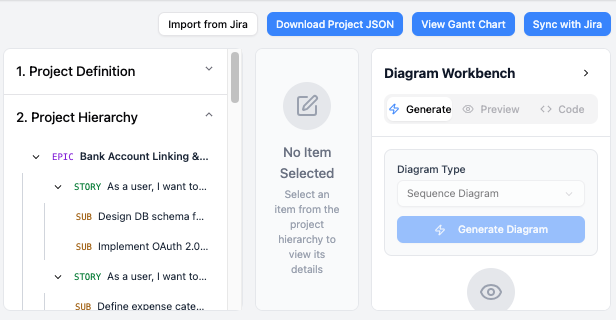
The AI will process your input and create a hierarchical structure:
- Epics: High-level themes.
- User Stories: Detailed, 3C-formatted items (Card: Summary; Conversation: Discussion points; Confirmation: Acceptance criteria).
- Sub-tasks: Actionable breakdowns.
Review the output:
- Click on any item to expand details.
- The backlog includes smart prioritization (based on value/effort scores) and AI-optimized roadmapping with assigned dates.
If the output isn’t perfect, you can regenerate by tweaking inputs or editing manually (see Customization section).
To visualize the timeline:
- Click View Gantt Chart to see a dynamic Gantt chart of the entire plan.
Generating UML Diagrams for Requirements Visualization
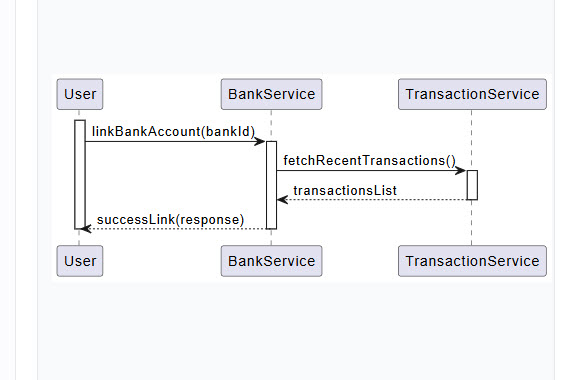
Agilien bridges requirements to architecture by generating professional diagrams instantly.
- Select a project plan item (e.g., an epic or user story) in the backlog.
- Under Diagram Workbench, click Generate.
- Choose a Diagram Type (e.g., Sequence Diagram for interactions, Activity Diagram for workflows, Class Diagram for data models).
- Click Generate Diagram.
The AI creates the diagram based on the item’s description. Review it:
- Make adjustments if needed using the built-in editor.
- Click Attach to link the diagram to the plan item.
Repeat for other items to build a comprehensive set of visuals. This eliminates manual diagramming and provides clear oversight for engineering teams.
Syncing the Project Plan to Jira
Once your backlog and diagrams are ready, sync them seamlessly to Jira.
- In Agilien, click Sync with Jira at the top right.
- In the dialog, click Authenticate with Jira.
- Log in to your Jira account if prompted.
- Accept the authorization popup to grant Agilien access (via API token).
- Select the Jira space you created earlier.
- Click Start Sync.
The sync process runs automatically:
- Epics, stories, and sub-tasks are created in Jira.
- Prioritization and timelines are applied.
- Attached diagrams are exported as artifacts (e.g., images or links).
- When complete, click Finish to close the dialog.
- Switch to Jira, reload the space, and verify the imported backlog.
For existing projects:
- Use Import from Jira to pull in epics/stories/tasks, then enhance them in Agilien before pushing back.
This bi-directional integration ensures zero-friction adoption.
Customization and Best Practices
Agilien’s AI output is a strong starting point, but customization ensures it aligns perfectly:
- Edit titles, descriptions, acceptance criteria, priorities, or dates directly in the interface.
- Rearrange hierarchy or add/remove items.
- Regenerate specific sections if the initial output needs refinement.
- For diagrams, use the editor to tweak elements before attaching.
Best Practices:
- Start with clear, concise goals to get the best AI results.
- Review prioritization for strategic alignment—adjust value/effort scores as needed.
- Use Gantt charts for stakeholder presentations.
- Sync incrementally to avoid overwhelming your Jira space.
- Combine with Jira’s built-in tools for ongoing management (e.g., sprints, boards).
Frequently Asked Questions
- What exactly is Agilien? An AI extension for Jira that automates backlog creation from high-level goals, generating epics, stories, and sub-tasks.
- Do I need a separate subscription for the AI model? No, it’s included in Agilien—no extra API keys or fees.
- Is my data secure? Yes, encrypted in transit (TLS) and at rest. See Visual Paradigm’s security page for details.
- Can I customize the generated backlog before syncing to Jira? Absolutely—full editing interface available.
- Which versions of Jira are supported? Jira Cloud and Data Center (Server), with team-managed and company-managed projects.
- Can I use Agilien with an existing Jira project? Yes, import existing items to build upon them.
Recommendation: Visual Paradigm AI for Streamlining Jira and Modeling Capabilities
To further enhance your workflow, I highly recommend exploring Visual Paradigm AI’s broader suite of tools. Beyond Agilien’s Jira-specific backlog planning, Visual Paradigm AI offers powerful features for modeling and integration that streamline complex projects:
- Agilien (Jira Integration): As covered, it excels at AI-driven backlog automation and seamless Jira sync.
- DBModeler AI: Converts English descriptions into ready-to-use databases, ideal for data modeling in Jira-linked projects.
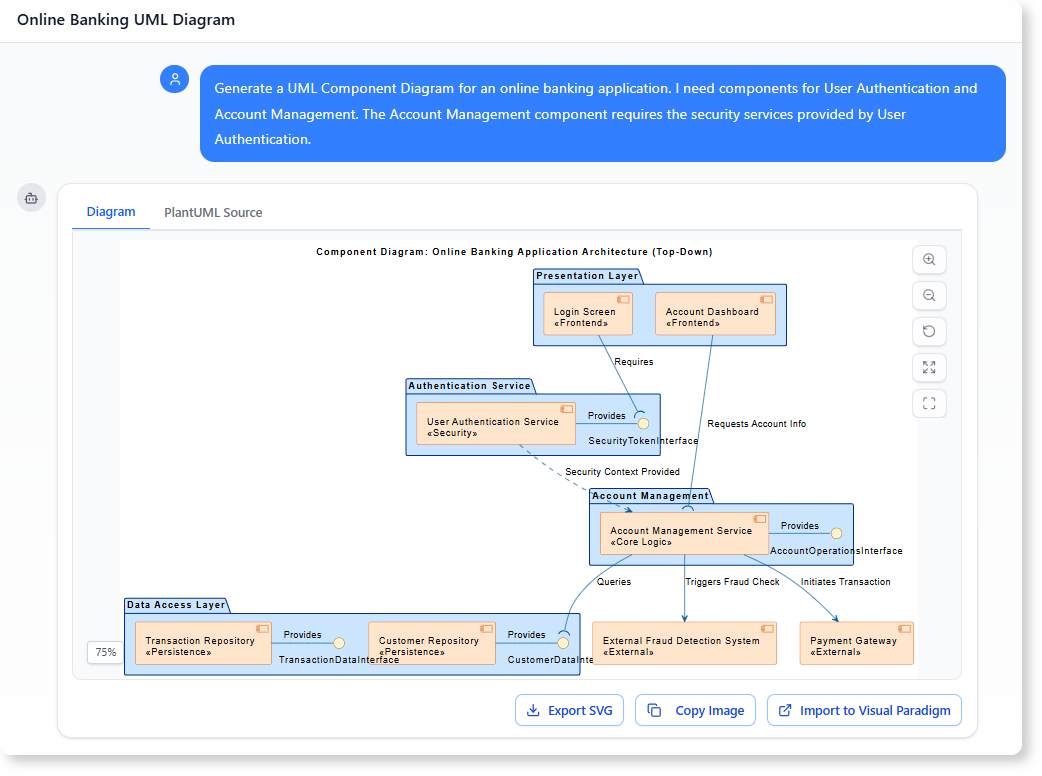
- AI-Powered C4 PlantUML Studio: Generates standardized architecture diagrams from text, complementing Agilien’s UML capabilities for system design.
- Intelligent BPM and Analysis Suite: Visualizes and analyzes business processes, perfect for aligning Jira workflows with enterprise strategies.
- AI Chatbot for Diagrams: Instantly creates presentation-ready models from prompts, speeding up requirements visualization.
- AI Business Model Canvas Tool: Helps visualize ideas from strategy to execution, enhancing roadmapping in Jira.
These tools integrate AI to reduce manual effort in modeling, making them excellent for teams handling Jira alongside advanced diagramming needs. Start with a free trial at Visual Paradigm AI to boost efficiency in product development and beyond.

 English
 Arabic
 Chinese (Simplified)
 Dutch
Dutch French
 German
 Italian
 Japanese
 Korean
 Portuguese
 Russian
 Spanish