


This tutorial provides a step-by-step guide to Visual Paradigm’s Development Plan Generator, an AI-powered tool designed to streamline project planning. Based on the announcement from August 6, 2025, we’ll cover key concepts, access instructions, a detailed workflow with examples, and a summary. This tool is ideal for project managers, team leads, and entrepreneurs who need to quickly create detailed development plans complete with objectives, tasks, resources, deadlines, and visual timelines.
Introduction to the Development Plan Generator
The Development Plan Generator is an intelligent AI tool integrated into Visual Paradigm’s ecosystem. It automates the creation of comprehensive project plans by transforming a simple description of your problem or goal into a structured plan and a visual timeline diagram. This eliminates the manual effort typically involved in planning, reducing risks like scope creep, missed deadlines, and inefficient resource use.
The tool leverages AI to act as an “expert project manager,” providing both granular details (e.g., task breakdowns) and high-level overviews (e.g., timelines). It’s available through Visual Paradigm Online (Combo Edition or higher) or Visual Paradigm Desktop (Professional Edition or higher with active maintenance).
Key Concepts
Understanding these core concepts will help you maximize the tool’s potential:
- AI-Powered Plan Generation: The AI analyzes your input (a description of a problem or goal) and generates a textual plan. This includes:
- Objectives: High-level goals defining what success looks like.
- Tasks: A breakdown of actionable steps, often organized into phases.
- Resources: Recommendations for personnel, tools, budget, or materials needed.
- Deadlines: Estimated timelines for each task or phase.
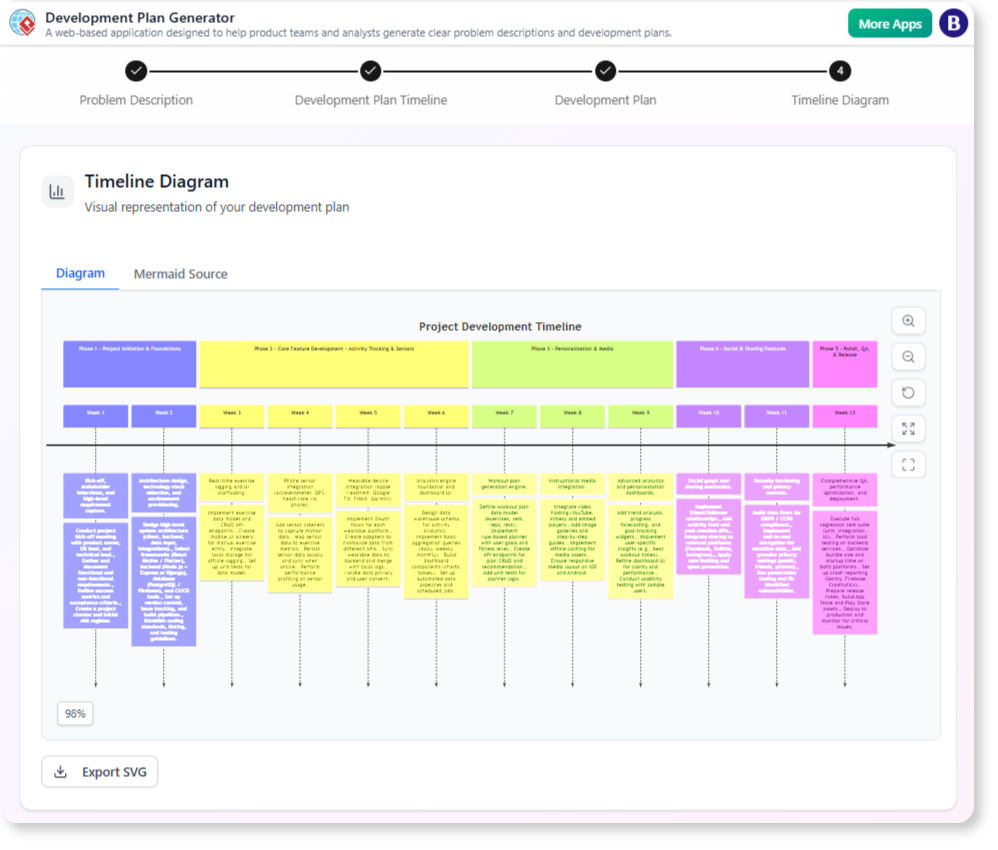
- Instant Visual Timeline Diagram: Automatically created alongside the plan, this diagram visualizes project phases, dependencies, milestones, and timelines. It uses Gantt-chart-like elements for clarity, making it easy to spot bottlenecks or overlaps.
- Streamlined Project Planning: The tool reduces planning time from hours or days to minutes, allowing faster transitions from ideation to execution. It’s particularly useful for agile environments where plans need frequent updates.
- Clarity and Communication: The output (plan + timeline) serves as a shared artifact for stakeholders, improving alignment and reducing misunderstandings.
- Edition Requirements:
- Visual Paradigm Online: Requires Combo Edition or higher subscription.
- Visual Paradigm Desktop: Requires Professional Edition or higher with active software maintenance.
- Customization and Export: Plans and timelines are editable post-generation, and you can export them in formats like PDF, images, or integrated into other Visual Paradigm diagrams for further refinement.
These concepts address common planning challenges by combining automation with human oversight.
How to Access the Tool
Before starting, ensure you meet the edition requirements. If not, upgrade via the Visual Paradigm website.
- For Visual Paradigm Online Users:
- Log in to your Visual Paradigm Online account.
- Navigate to the app directly at: https://ai-toolbox.visual-paradigm.com/app/development-plan-generator/.
- For Visual Paradigm Desktop Users:
- Open the Visual Paradigm Desktop application.
- Go to the Tools menu.
- Select App > Development Plan Generator.
Once accessed, the interface is intuitive, featuring a input field for your description, a generate button, and preview areas for the plan and timeline.
Step-by-Step Tutorial: Generating a Development Plan and Timeline
Follow this workflow to create your plan. The process is designed to be iterative, so feel free to refine as needed.
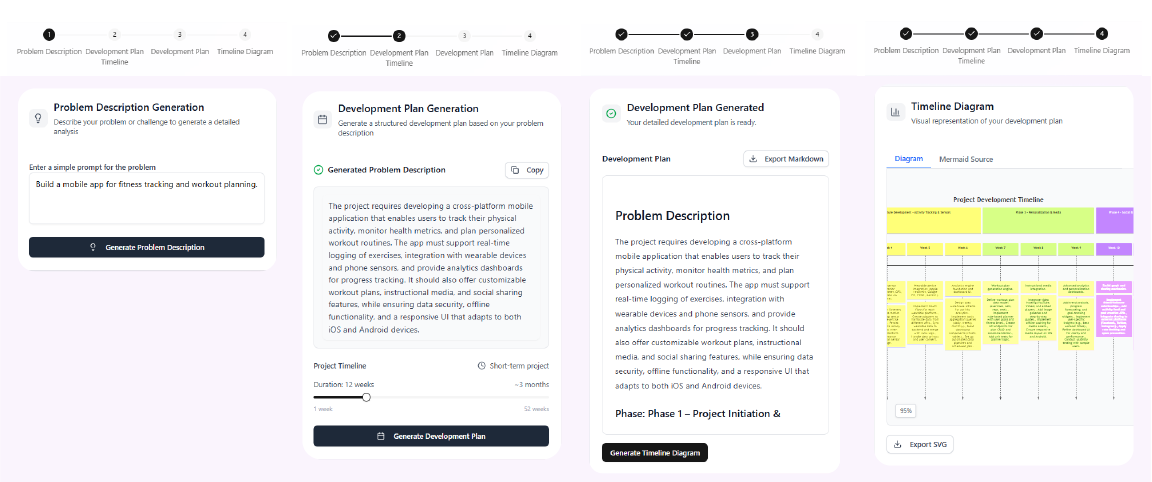
Step 1: Describe Your Problem or Goal
- What to Do: In the tool’s input field, provide a clear, concise description of your project. Be specific about the goal, scope, constraints, and any key details (e.g., team size, budget, or deadlines).
- Tips:
- Use natural language, but structure it for clarity (e.g., start with “The goal is to…” followed by details).
- Include context like industry, target audience, or risks to get more tailored outputs.
- Avoid vagueness; the AI performs better with specifics.
- Example Input: “Develop a mobile app for fitness tracking that includes user registration, workout logging, progress analytics, and integration with wearables. Target launch in 3 months with a team of 5 developers and a budget of $50,000.”
Step 2: Generate the Plan and Timeline
- What to Do: Click the “Generate” button (or equivalent). The AI will process your input and produce:
- A detailed textual plan, typically structured as sections (e.g., Objectives, Tasks, Resources, Risks).
- A visual timeline diagram showing phases (e.g., Planning, Development, Testing) with start/end dates, dependencies, and milestones.
- Tips:
- Generation is instant but may take a few seconds for complex inputs.
- The timeline is auto-synced to the plan; changes in one may update the other.
- What to Expect: The output is professional-grade, ready for immediate use or refinement.
Step 3: Review and Refine
- What to Do: Examine the generated content.
- Edit the textual plan directly (e.g., adjust task descriptions, add subtasks, or modify resources).
- Customize the timeline diagram (e.g., drag to change durations, add dependencies, or color-code phases).
- Tips:
- Check for accuracy: Ensure tasks align with your goals and timelines are realistic.
- Iterate if needed: Regenerate with refined input if the output misses key elements.
- Collaborate: Share drafts with team members for feedback within the tool.
Step 4: Export and Execute
- What to Do: Once satisfied, export the plan and timeline.
- Options may include PDF for sharing, image for presentations, or integration into Visual Paradigm projects.
- Begin project execution by assigning tasks and tracking progress against the timeline.
- Tips:
- Use exports in tools like Microsoft Project or Trello for ongoing management.
- Revisit the tool for updates as the project evolves.
Examples
Here are two hypothetical examples to illustrate the tool in action. These are based on typical outputs inferred from the tool’s description.
Example 1: Small Business Website Launch
- Input Description: “Launch a new e-commerce website for a boutique clothing store. Include design, development, content creation, and marketing. Budget: $10,000; Timeline: 2 months; Team: 3 people.”
- Generated Plan (Sample Excerpt):
- Objectives: Create a user-friendly online store to increase sales by 20% in the first quarter.
- Tasks:
- Phase 1: Planning (Week 1) – Define requirements and wireframes.
- Phase 2: Design & Development (Weeks 2-5) – Build UI/UX and backend integration.
- Phase 3: Content & Testing (Weeks 6-7) – Add products and QA.
- Phase 4: Launch & Marketing (Week 8) – Go live and promote via social media.
- Resources: Web developer ($4,000), Designer ($3,000), Marketing tools ($1,000), Hosting ($2,000).
- Deadlines: Launch by end of Month 2.
- Visual Timeline: A horizontal Gantt chart showing overlapping phases (e.g., Design starts after Planning), with milestones like “Beta Testing Complete” marked.
This example shows how the tool handles straightforward projects with budget constraints.
Example 2: Software Product Update
- Input Description: “Update an existing CRM software to include AI-driven analytics. Address data privacy concerns. Team: 10 engineers; Deadline: 6 months.”
- Generated Plan (Sample Excerpt):
- Objectives: Enhance user experience with predictive insights while ensuring GDPR compliance.
- Tasks:
- Phase 1: Research & Design (Months 1-2) – Analyze requirements and prototype AI features.
- Phase 2: Implementation (Months 3-4) – Code integration and privacy audits.
- Phase 3: Testing & Deployment (Months 5-6) – Beta testing, bug fixes, and rollout.
- Resources: AI specialists, legal consultant for privacy, testing tools.
- Risks: Potential delays from compliance reviews; Mitigation: Buffer 2 weeks.
- Visual Timeline: Diagram with dependencies (e.g., Implementation can’t start until Design approval), color-coded for risk levels.
This demonstrates the tool’s ability to incorporate complexities like risks and compliance.
Summary
Visual Paradigm‘s Development Plan Generator revolutionizes project planning by using AI to generate detailed plans and visual timelines from simple descriptions. Key concepts include automated generation, visual aids, and customization, making it a must-have for efficient project management. By following the access steps and workflow outlined, you can quickly create professional plans, as shown in the examples.
This tool not only saves time but also enhances clarity and stakeholder communication, ultimately leading to better project outcomes. For more details, visit the source announcement or try the tool at the provided links. If you encounter issues, check your edition subscription or contact Visual Paradigm support. Start generating your plans today to accelerate from concept to execution!

 English
 Arabic
 Chinese (Simplified)
 Dutch
Dutch French
 German
 Italian
 Japanese
 Korean
 Portuguese
 Russian
 Spanish