


Visual Paradigm‘s Use Case to Activity Diagram tool is an AI-driven feature that automatically converts textual use case descriptions into UML Activity Diagrams. This bridges the gap between narrative requirements and visual workflows, making it easier for teams to understand, communicate, and refine system behaviors. It’s particularly useful for turning detailed user stories or use case narratives into structured, visual models without manual diagramming from scratch.
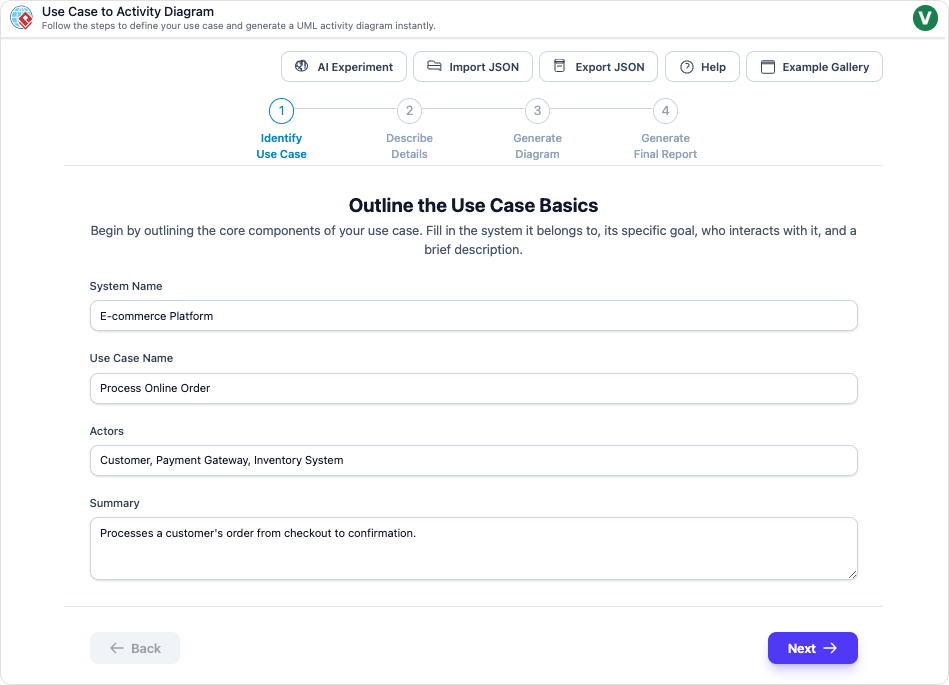
The tool leverages AI to generate diagrams instantly, detect potential issues (like missing steps), suggest improvements, and even produce reports. It’s integrated into Visual Paradigm’s suite (available in desktop, online, and enterprise versions).
Purpose and Benefits
This tool is ideal for:
- Business Analysts: To visualize processes from requirements.
- Developers: To translate use cases into implementable workflows.
- Educators and Students: To teach or learn UML concepts interactively.
Key advantages:
- Automation: Saves time by generating diagrams directly from text.
- Accuracy and Completeness: AI analyzes flows for gaps and suggests enhancements.
- Visualization: Turns abstract text into clear flowcharts.
- Documentation: Auto-generates reports summarizing logic and optimizations.
- Collaboration: Integrates with team features in Visual Paradigm.
How the Tool Works: Step-by-Step Guide
The process follows a guided four-step workflow to ensure structured and accurate results.
Step 1: Define the Use Case
Start by clearly describing the use case from the user’s perspective.
- Use Case Name: Give it a concise, descriptive title (e.g., “User Login” or “Place Order”).
- Actors: Identify primary and secondary actors (e.g., “Customer”, “System Administrator”).
- Preconditions: State what must be true before the use case starts (e.g., “User is registered”).
- Postconditions: Optional – what should be true after successful completion.
Tip: Use structured text fields in the tool for this input.
Step 2: Detail the Flows
Provide detailed textual descriptions of the scenarios:
- Main (Basic) Flow: The happy path – the primary sequence of steps (numbered, e.g., 1. User enters credentials, 2. System validates, etc.).
- Alternative Flows: Variations from the main flow (e.g., “At step 3, if user selects ‘Forgot Password’…”).
- Exception Flows: Error handling (e.g., “If credentials are invalid, display error message and return to step 1”).
Best Practice: Use clear, sequential numbering and reference points (e.g., “Alternative from step 4”). Be specific about conditions, actions, and system responses.
Step 3: Generate the Activity Diagram
Click the “Generate” or “Launch Generator” button.
- The AI processes your text and renders a UML-compliant Activity Diagram in real-time.
- Elements include: Initial/Final nodes, Actions, Decisions (for branches), Merges, Forks/Joints (for parallel activities), and Swimlanes (if actors are involved).
- AI Assistance: It may highlight missing steps, suggest adding guards on transitions, or recommend restructuring for better flow.
You can then edit the diagram:
- Customize labels, add/remove nodes, adjust transitions.
- Use Visual Paradigm’s drag-and-drop tools for refinements.
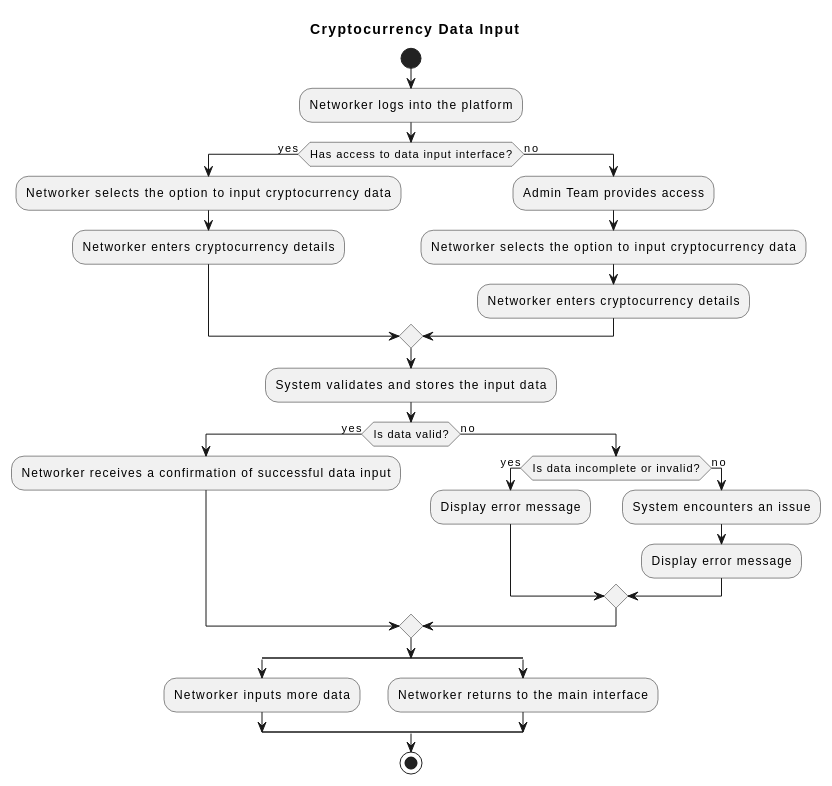
Step 4: Review and Export
- Review the diagram for accuracy – validate against requirements and stakeholder feedback.
- The AI can analyze flow quality and generate a Comprehensive Report: This includes a summary of the workflow, identified logic issues, and optimization suggestions.
- Export Options:
- Diagram: PNG, SVG, PDF.
- Full documentation: Word/PDF reports with embedded diagrams.
Example Walkthrough: “User Login” Use Case
- Define:
- Name: User Login
- Actor: User
- Preconditions: User has a registered account.
- Flows:
- Main: 1. User navigates to login page. 2. Enters username/password. 3. Clicks Submit. 4. System authenticates. 5. Grants access.
- Alternative: At step 3, user selects “Remember Me” – system saves session.
- Exception: At step 4, invalid credentials – show error, allow retry (up to 3 times), then lock account.
- Generate: AI creates a diagram with a decision node for authentication success/failure, a loop for retries, and parallel actions if needed.
- Review/Export: Edit guards (e.g., “[valid]” on success transition), then export.
Tips & Best Practices
- Write Clear Text: Use action-oriented language (e.g., “System validates credentials” instead of vague descriptions).
- Be Comprehensive: Include all flows early to get better AI suggestions.
- Iterate: Generate, review AI feedback, refine text, and regenerate.
- Consistency: Use verb-noun phrases for activities (e.g., “Validate Credentials”).
- Validate Regularly: Share diagrams with stakeholders as requirements evolve.
- Access the Tool: Visit Visual Paradigm Online (free edition available) or the desktop app. Look for the AI features section or directly at the “Use Case to Activity Diagram” generator.
This tool streamlines UML modeling, reducing errors and enhancing clarity. For hands-on practice, sign up for Visual Paradigm Online and try with your own use cases! Source: Based on Visual Paradigm’s official feature description (as of late 2025).

 English
 Arabic
 Chinese (Simplified)
 Dutch
Dutch French
 German
 Italian
 Japanese
 Korean
 Portuguese
 Russian
 Spanish