


The following is a step-by-step tutorial detailing the product demo for the Agilian AI powered Jira backlog planner, focusing on how Visual Paradigm enhances visual modeling for the Jira Agile process.
Part 1: Initial Setup in Jira
Before using Agilian, you must prepare a Jira space:
- Create a New Space: In Jira, press the plus button next to “spaces”.
- Select Development Type: Select “software development”.
- Choose Template: Choose “scrum,” and then press “use template”.
- Specify Space Details: Select either a team-managed or company-managed space. Specify the name of your space, optionally add teammates, and connect works with Confluence. Press “continue” to finalize the space creation.
Part 2: Generating the Project Plan using Agilian
Once the Jira space is ready, switch to Visual Paradigm online to utilize the Agilian AI planner:
- Access Agilian: Log into your Visual Paradigm online workspace, select “AI tools,” locate the “Agilian AI powered Jira backlog planner,” and press the “start now” button.
- Define Project Context: Enter the project domain, the system context and goals, the project start date, and the duration.
- Generate Plan: Press the “generate project plan” button. The plan will be generated in an epic, user story, and subtask structure.
- Review Details: Click on individual items, such as a user story, to review AI-generated details like the description, acceptance criteria, and priority. You can also review the different details generated for a subtask. A Gantt chart of the entire project can be viewed by clicking the “view Gant chart” button.
Part 3: Enhancing Visual Modeling (UML Diagrams)
Agilian’s AI engine can generate UML diagrams corresponding to the generated project plan, which enhances the visual modeling aspect of the Agile process:
- Select an Item: Select a specific item in the project plan, such as a subtask (e.g., “design GPS data schema subtask”).
- Select Diagram Type: Choose the desired diagram type (e.g., class diagram).
- Generate Diagram: Press the “generate diagram” button. A UML class diagram related to the subtask will be generated.
- Attach Diagram: Press the “add” button to add the generated diagram to the subtask.
- Generate Additional Diagrams (Optional): You can generate multiple diagrams if needed. For instance, you could select another item, like “develop mobile UI for location display,” and choose to generate and attach a sequence diagram.
Part 4: Synchronization with Jira
Once the plan is generated and visual models (diagrams) are attached, the project plan can be synchronized to the Jira space:
- Start Synchronization: Press the “sync with Jira” button.
- Authenticate: Press the “authentication with Jira” button. You may be prompted to log in to Jira if your browser is not already logged in.
- Grant Permissions: The dialogue will request you to grant permission to Agilian to send the project plan to Jira; scroll down and press “accept”.
- Final Sync: Select the target Jira space and press the “start sync” button. Agilian will synchronize the project plan to Jira. Close the dialogue when synchronization is finished.
Part 5: Verification in Jira
Finally, switch back to Jira to view the synchronized items, including the visually modeled diagrams:
- Reload and Review: Reload the Jira page and navigate to the summary tab, where you will see the created items.
- View Timeline: Go to the timeline tab, where all items are listed.
- Access Details and Diagrams: Clicking on an item will display the AI-generated details. If the item has diagrams attached, you can click on the thumbnail to see the detailed diagram. You can also open the item in a new page to browse its details, including the AI-generated diagrams.
Why Visual Paradigm and Visual Modeling Matter in Agile and Jira Workflows
1. Visual Paradigm: Bridging the Gap Between Ideas and Execution
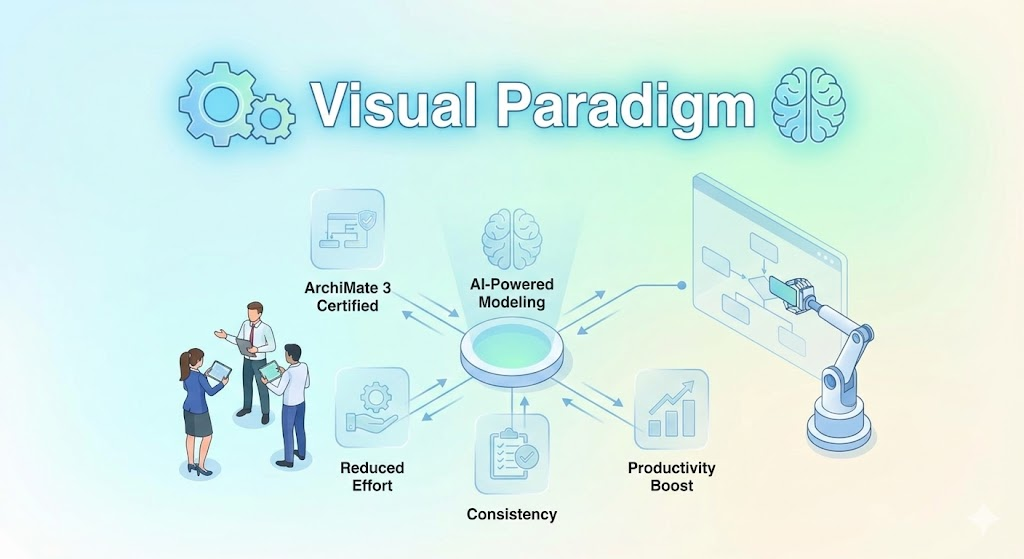
Visual Paradigm is a comprehensive visual modeling and Agile project management tool designed to simplify complex processes. Here’s why it stands out:
-
: Tools like Agilian leverage AI to generate project plans, user stories, and even UML diagrams. This reduces manual effort, minimizes errors, and accelerates the planning phase. Teams can focus on execution rather than administrative tasks.
-
: Visual Paradigm doesn’t replace Jira—it enhances it. By syncing AI-generated plans and diagrams directly into Jira, teams maintain a single source of truth. This eliminates silos and ensures everyone works from the same up-to-date information.
-
Collaboration-Friendly: Visual Paradigm supports real-time collaboration, allowing teams to co-create diagrams, review plans, and align on goals. This is especially valuable for distributed or hybrid teams.
-
Flexibility: Whether you’re using Scrum, Kanban, or a hybrid Agile approach, Visual Paradigm adapts to your workflow. Its customizable templates and AI-driven suggestions make it versatile for different project types and industries.
2. The Power of Visual Modeling
Visual modeling transforms abstract ideas into tangible, easy-to-understand visuals. Here’s why it’s a game-changer:
-
Clarity and Alignment: UML diagrams (e.g., class diagrams, sequence diagrams, use case diagrams) provide a for technical and non-technical stakeholders. They clarify requirements, architecture, and workflows, reducing misunderstandings and rework.
-
Better Decision-Making: Visual models help teams . For example:
- A class diagram can reveal missing attributes or relationships in a system design.
- A sequence diagram can expose inefficiencies in a workflow before coding begins.
-
Enhanced Communication: Diagrams break down complex concepts into digestible formats. This is critical for:
- Onboarding new team members.
- Aligning developers, product owners, and business stakeholders.
- Documenting decisions for future reference.
-
Agile Adaptability: In Agile, requirements evolve rapidly. Visual models are easier to update than lengthy documents. Teams can iterate on diagrams in real time, keeping everyone aligned during sprints.
-
Improved Documentation: Visual models serve as . Unlike static text, diagrams can be updated alongside the codebase, ensuring documentation stays relevant and useful.
3. Why Combine Visual Paradigm with Jira?
-
: From high-level epics to granular subtasks, Visual Paradigm’s integration with Jira ensures every piece of work is linked to its visual context. This makes it easier to track progress and understand the “why” behind tasks.
-
Reduced Cognitive Load: Developers and product owners can (e.g., system architecture) while drilling down into specifics (e.g., user story details). This holistic view reduces context-switching and improves focus.
-
: Visual models enable quicker feedback during sprint reviews and planning sessions. Stakeholders can see how changes impact the system, leading to more informed discussions and faster iterations.
-
Consistency Across Teams: Standardized diagrams and templates ensure consistency, whether you’re working with in-house teams, contractors, or offshore partners.
4. Real-World Impact
-
For Product Owners: Visual modeling helps prioritize features and validate assumptions with stakeholders before development begins.
-
For Developers: Diagrams act as a , reducing ambiguity in requirements and speeding up development.
-
For Business Analysts: Visual tools bridge the gap between business goals and technical implementation, ensuring solutions meet user needs.
5. Use Cases Where Visual Paradigm Shines
| Scenario | Benefit |
|---|---|
| Sprint Planning | AI-generated user stories and diagrams ensure the backlog is detailed and actionable. |
| System Design | UML diagrams clarify architecture, APIs, and data flows. |
| Onboarding | New team members grasp the system faster with visual aids. |
| Stakeholder Reviews | Diagrams make it easier to explain technical decisions to non-technical audiences. |
| Legacy System Modernization | Visual models help teams understand and refactor complex systems. |
Key Takeaway
Visual Paradigm and visual modeling by making them more collaborative, transparent, and efficient. By integrating with Jira, teams can leverage the best of both worlds:
- Jira’s robust task management and tracking.
- Visual Paradigm’s AI-driven planning and visual clarity.
The result? Faster delivery, fewer misunderstandings, and higher-quality products.

 English
 Arabic
 Chinese (Simplified)
 Dutch
Dutch French
 German
 Italian
 Japanese
 Korean
 Portuguese
 Russian
 Spanish