


In the evolving landscape of software architecture and business analysis, Visual Paradigm has established itself as a frontrunner in AI-powered visual modeling. As of 2026, the platform has transcended simple text-to-diagram generation, offering a suite of tools that create editable, semantic, and interconnected models. Unlike generic image generators, Visual Paradigm’s AI integrates deeply into professional workflows, supporting UML, SysML, ArchiMate, and C4 models that developers and architects can actually refine and maintain.

This guide provides a comprehensive tutorial on utilizing these capabilities to accelerate diagram creation, ensure consistency across complex projects, and leverage the power of conversational AI for iterative refinement.
Key Concepts
To maximize the potential of Visual Paradigm’s AI suite, it is essential to understand the core terminology and technological shifts that define modern modeling.
- Editable Visual Models vs. Static Images: Standard AI tools often produce static PNGs or JPEGs. Visual Paradigm generates fully editable models where every class, actor, and relationship is a distinct object that can be renamed, moved, or linked to other views within the software.
- Interconnected Diagrams: In complex systems (like C4 architectures), a change in a high-level context diagram should reflect in lower-level component diagrams. Visual Paradigm’s AI maintains these semantic links, unlike standalone prompting tools.
- Conversational Refinement: The ability to modify a diagram through dialogue (e.g., “Add a cache layer between the API and Database”) rather than deleting and re-generating the entire model from scratch.
- Prompt Engineering for Modeling: The practice of structuring natural language descriptions to accurately convey architectural requirements, constraints, and relationships to the AI engine.
Guidelines: Step-by-Step Diagram Generation
Visual Paradigm offers multiple entry points for AI generation depending on your environment (Desktop vs. Cloud) and specific needs. Follow these workflows to generate professional-grade models.
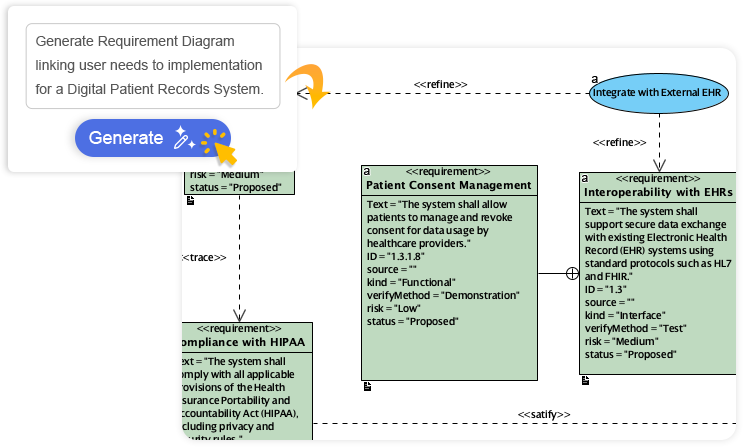
Method 1: Using the Desktop Embedded AI (Professional Edition+)
The desktop application is ideal for power users requiring deep integration with existing project files.
- Access the Tool: Open Visual Paradigm. Navigate to the main menu and select Tools >AI Diagram.
- Select Diagram Type: Choose the specific notation you require. Options include UML Class, Sequence, State Machine, Use Case, PERT Charts, or full C4 suites.
- Input Prompt: Enter a descriptive text prompt. For example: “An Online Retail System featuring customer management, inventory tracking, and payment processing with third-party gateways.”
- Generate and Edit: Click generate. The AI will construct the diagram automatically, placing elements and routing connectors. Once complete, the diagram opens in the full editor. You can now manually drag elements, change attributes, or link them to other project artifacts.
Method 2: The Online AI Diagram Generator
For teams prioritizing accessibility and speed, the cloud-based platform offers a streamlined experience.
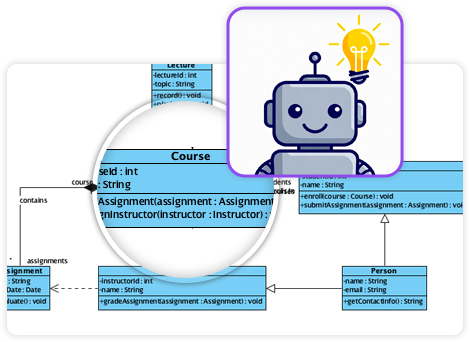
- Navigate to Workspace: Log in to Visual Paradigm Online.
- Describe the Scenario: Use natural language to describe the desired output. This tool supports business frameworks (SWOT, Organization Charts) alongside technical UML/SysML diagrams.
- Review and Share: The AI generates a presentation-ready diagram instantly. You can share this via URL for real-time collaboration or export it for documentation.
Method 3: Utilizing the Innovation Hub Web Apps
For specific architectural patterns, such as the C4 model, use the specialized web apps found in the Innovation Hub.
- Select the Studio: Launch the AI-Powered C4 PlantUML Studio.
- Define Hierarchy: Enter the system name and description. Use the AI-Assist feature to generate an initial outline if you are starting from scratch.
- Generate Views: The app acts as a wizard, generating the Context, Container, and Component diagrams in sequence. This ensures that the “Container” view accurately reflects the “Context” view, maintaining drill-down consistency without manual alignment.
Refining Models with the AI Chatbot
One of Visual Paradigm’s most powerful features is the AI Chatbot, acting as an intelligent co-pilot. This workflow demonstrates how to refine a model iteratively.
- Initial Generation: Start a chat session (at chat.visual-paradigm.com or inside the tool) and request a base model: “Generate a Sequence Diagram for a User Login flow.”
- Iterative Updates: Instead of manual editing, issue commands to refine the logic:
- “Add a step for Two-Factor Authentication after password validation.”
- “Show an alternative flow for invalid credentials.”
- “Rename the ‘User’ actor to ‘Guest’.”
- Analysis: Ask the chatbot to validate the model. “Are there any security risks in this flow?” or “Explain the difference between the aggregation and composition used in this class diagram.”
- Final Export: Once satisfied, export the model to the desktop environment for final polish and inclusion in official documentation.
Examples: From Text to Architecture
The following table illustrates how a vague requirement is transformed into a concrete technical artifact using Visual Paradigm’s AI.
| Project Stage | User Input / Action | AI Output / Result |
|---|---|---|
| Initial Prompt | “Create a Class Diagram for a Hospital Management System handling Patients, Doctors, Appointments, and Prescriptions.” | A structured UML Class Diagram showing classes for Patient, Doctor, Appointment, and Prescription with standard relationships (e.g., One Doctor has many Appointments). |
| Refinement | “Add a detailed inheritance structure for Doctors to include Specialists and General Practitioners.” | The diagram updates to show ‘Specialist’ and ‘GP’ extending the base ‘Doctor’ class, preserving existing relationships. |
| Interconnection | “Generate a Database Schema based on this Class Diagram.” | The AI translates the object-oriented class model into an Entity Relationship Diagram (ERD), automatically mapping classes to tables and associations to foreign keys. |
Tips and Tricks
To get the most out of Visual Paradigm’s AI capabilities, consider these advanced strategies:
- Leverage C4 Hierarchy: When using C4 model tools, let the AI handle the “drill-down” logic. Generating a System Context and then asking the AI to “Expand the Core System into Containers” ensures the boundaries remain consistent.
- Use AI for Migration Roadmaps: If you have an existing diagram of a legacy system, ask theChatbot to “Suggest a migration path to a microservices architecture” based on that visual model.
- Markdown & PlantUML Integration: In the Web App studios, you can toggle between visual views and code views (Markdown/PlantUML). If you are comfortable with coding, you can edit the text definition, and the AI will update the visual model immediately—and vice versa.
- Contextual Exports: Don’t just export images. Use the integration features to send generated diagrams directly to Jira or Confluence to keep development teams aligned with the latest architecture.
-
AI-Powered Visual Modeling and Design Solutions by Visual Paradigm: AI-driven tools for visual modeling, diagramming, and software design that accelerate development workflows.
-
Visual Paradigm – All-in-One Visual Development Platform: A unified platform for visual modeling, software and business process design, and AI-powered development tools.
-
AI Chatbot Feature – Intelligent Assistance for Visual Paradigm Users: AI-powered chatbot that delivers instant guidance, automates tasks, and boosts productivity in Visual Paradigm.
-
Visual Paradigm Chat – AI-Powered Interactive Design Assistant: An interactive AI interface for generating diagrams, writing code, and solving design challenges in real time.
-
AI Textual Analysis – Transform Text into Visual Models Automatically: AI analyzes text documents to automatically generate UML, BPMN, and ERD diagrams for faster modeling and documentation.
-
Visual Paradigm AI Chatbot Enhances Multi-Language Support …: AI chatbot supports multiple languages, enabling seamless diagram generation in Spanish, French, Chinese, and more.
-
AI -Powered BI Analytics by Visual Paradigm – ArchiMetric: Start using AI-powered BI analytics in under a minute—no installation or signup required for most features.
-
Discover the Power of Visual Paradigm ’s AI -Powered… – Visualize AI: Visual Paradigm’s AI-powered Image Translator leads the market with advanced capabilities beyond standard tools.
-
AI Chatbot for Diagramming: How It Works with Visual Paradigm: The AI chatbot converts natural language into diagrams, eliminating the need to learn modeling syntax or standards.
-
AI Brainstorming Features – Visual Paradigm: Visual Paradigm’s AI-powered brainstorming tools deliver intelligent idea generation and collaborative workflows to enhance creativity and productivity.
-
AI Brainstorming Tool – Visual Paradigm AI: Generate and organize ideas quickly with AI-driven insights and smart templates in Visual Paradigm’s AI Brainstorming tool.
-

 English
 Arabic
 Chinese (Simplified)
 Dutch
Dutch French
 German
 Italian
 Japanese
 Korean
 Portuguese
 Russian
 Spanish