


Introduction
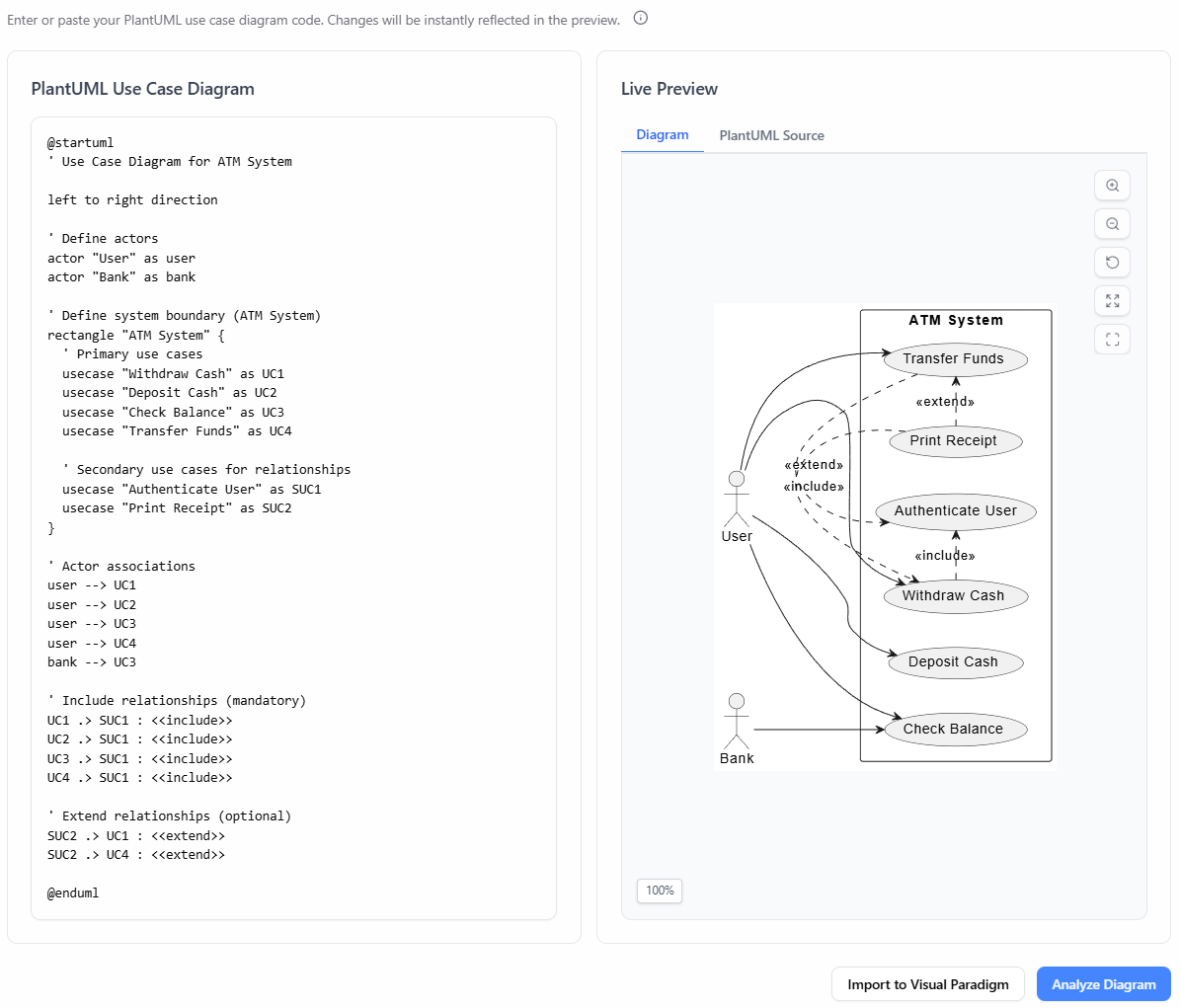
Use case diagrams are , helping teams visualize interactions between actors and system functionalities. However, as projects grow, extend and include relationships can clutter diagrams, making them hard to interpret. The AI Extend/Include Use Case Analyzer by Visual Paradigm simplifies this process by automating the creation of focused sub-diagrams, ensuring clarity and reducing misunderstandings.
Key Concepts
1. Use Case Diagrams
- Purpose: Illustrate system functionality from the user’s perspective.
- Components:
- Actors: Entities interacting with the system.
- Use Cases: Actions or services the system provides.
- Relationships:
Include: A use case explicitly depends on another (e.g., “Place Order” includes “Validate Payment”).Extend: A use case conditionally extends another (e.g., “Apply Discount” extends “Checkout” if a promo code is entered).
2. The Challenge
- Complex diagrams with multiple
extend/includerelationships become difficult to read. - Manual creation of sub-diagrams is time-consuming and error-prone.
3. Solution: AI Extend/Include Use Case Analyzer
- AI-Powered: Automates diagram generation and sub-diagram creation.
- Focused Sub-Diagrams: Isolates and clarifies
extend/includerelationships. - Accessibility: Free for both Visual Paradigm Online and Desktop users.
Step-by-Step Guide
Step 1: Define Use Cases
- Input: List primary use cases, actors, and their relationships.
- Example:
- Use Case: “Process Order”
- Actor: Customer
- Include: “Validate Payment”
- Extend: “Apply Discount” (if promo code is valid)
- Example:
Step 2: Generate Main Diagram
- The tool converts your input into PlantUML code and renders a main use case diagram.
- Review: Ensure all use cases and relationships are accurately represented.
Step 3: Generate Sub-Diagrams
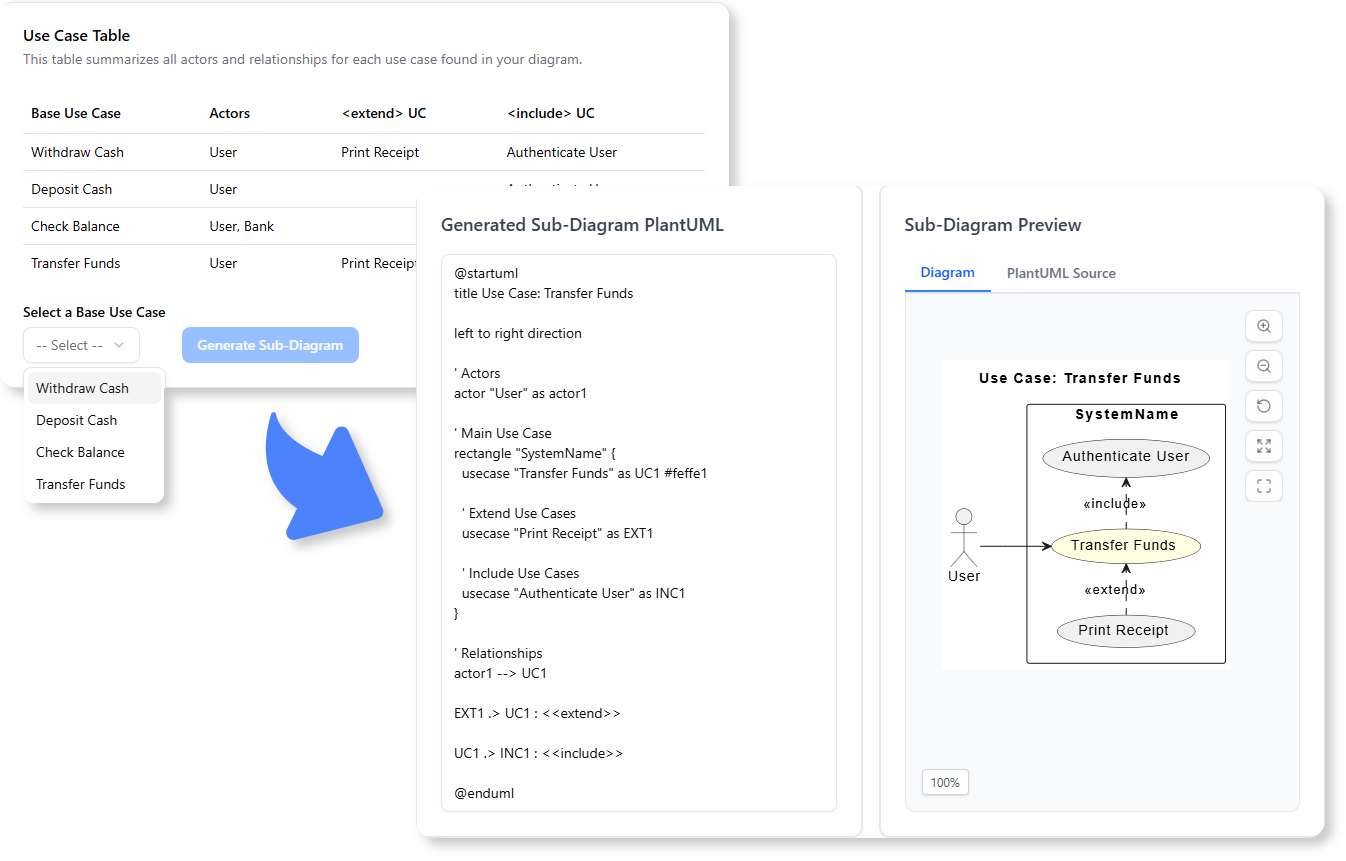
- The AI analyzes the main diagram and automatically creates sub-diagrams for each
extend/includerelationship. - Example Output:
- Sub-diagram for “Process Order → Validate Payment”
- Sub-diagram for “Process Order ← Apply Discount”
Example Workflow
Scenario: E-Commerce System
-
Define Use Cases:
- Main Use Case: “Checkout”
- Include: “Process Payment”
- Extend: “Apply Gift Card” (if applicable)
-
Main Diagram:
- Shows all use cases and actors.
-
Sub-Diagrams:
- Include Sub-Diagram: Focuses on “Checkout → Process Payment.”
- Extend Sub-Diagram: Highlights “Checkout ← Apply Gift Card.”
Tips and Tricks
1. Maximize Clarity
- Use Descriptive Names: Clearly label use cases and actors (e.g., “Customer” instead of “User”).
- Limit Scope: Avoid overloading a single diagram; use sub-diagrams for complex relationships.
2. Collaboration
- Share Sub-Diagrams: Use focused diagrams to explain specific interactions to stakeholders.
- Iterate: Refine diagrams based on feedback.
3. Integration
- Visual Paradigm Online: Access the tool here.
- Desktop Users: Navigate to Tools > App > Extend/Include Use Case Analyzer.
4. PlantUML Customization
- Edit the generated PlantUML code to adjust layouts or add annotations.
Benefits
- Time-Saving: Automates tedious manual work.
- Improved Communication: Clear visuals reduce ambiguity.
- Free and Accessible: No additional cost for Visual Paradigm users.
Summary
The AI Extend/Include Use Case Analyzer into clear, actionable diagrams. By automating sub-diagram creation, it , and fosters better collaboration.
Ready to simplify your use case modeling?

 English
 Arabic
 Chinese (Simplified)
 Dutch
Dutch French
 German
 Italian
 Japanese
 Korean
 Portuguese
 Russian
 Spanish