


Using AI.Visual-Paradigm.com Tool (Free & Instant)
This tutorial will guide you step-by-step through the entire process of turning a textual use case into a professional UML Activity Diagram and a full written report — in just a few minutes.
Tool URL: https://ai.visual-paradigm.com/tool/use-case-to-activity-diagram/
Step 0: Access the Tool
- Open your browser and go to: https://ai.visual-paradigm.com/tool/use-case-to-activity-diagram/ No sign-up or login is required for basic use (you can use it completely free right away).
The page looks exactly like the screenshot you provided.
Step 1: Identify – Set Up Basic Information
Fill in the top section “Identify Your Use Case”
Fields:
- Use Case Name (required) → e.g., “Withdraw Cash”
- System (required) → e.g., “ATM System”
- Primary Actor (required) → e.g., “Customer”
- Secondary Actors (optional) → e.g., “Bank System”
Example:
- Use Case Name: Withdraw Cash
- System: ATM Machine
- Primary Actor: Bank Customer
- Secondary Actors: Bank Server
Click anywhere outside the fields or press Tab to continue.
Step 2: Describe – Write the Use Case in Simple Natural Language (Line-by-Line)
This is the most important part. The AI is extremely good at understanding plain English written line-by-line.
Best practices for writing:
- Write one action per line
- Start with the actor or system (e.g., “Customer inserts card”)
- Use imperative form
- Separate Main Success Scenario, Alternative Flows, and Exception Flows clearly with headings
Recommended structure inside the big text box
Use Case Description: Withdraw Cash
- Name: Withdraw Cash
- Actor: Customer (Primary)
- System: ATM System
- Purpose: To allow a customer to withdraw cash from an ATM using their account credentials and PIN.
- Preconditions:
- The customer must be authenticated (logged in) to the ATM system.
- The customer’s account must have sufficient balance to cover the requested amount.
- The ATM must be operational and have sufficient cash in the machine.
- Postconditions:
- The requested cash amount is dispensed to the customer.
- The account balance is updated accordingly.
- A receipt is printed (if applicable).
- The transaction is recorded in the transaction history.
- Flow:
- The customer inserts their card into the ATM.
- The system prompts the customer to enter their PIN.
- The customer enters the PIN and submits it.
- The system verifies the PIN and authenticates the customer.
- The customer selects the “Withdraw Cash” option.
- The system asks for the amount to withdraw.
- The customer enters the desired amount.
- The system checks if the balance is sufficient and if the machine has enough cash.
- If valid, the system dispenses the cash and updates the account balance.
- A receipt is printed (optional).
- The customer removes the card and exits.
- Extensions (Optional Behaviors):
- If the balance is insufficient, the system displays an error message and prompts the customer to enter a smaller amount.
- If the machine runs out of cash, the system notifies the customer and suggests alternative options (e.g., balance check or cash advance).
- A “Print Receipt” action may be triggered as an optional extension.
- Included Use Cases:
- Login (to authenticate the customer)
- Verify PIN
- Notes:
- This use case is mandatory for all ATM transactions.
- It must be executed in the context of a secure, authenticated session.
- The system must validate inputs to prevent fraud or invalid transactions.
Step 3: Generate Diagram
After you finish writing the description:
Click the big blue button “Generate Diagram”
In less than 5 seconds you will see two tabs appear:
- Activity Diagram (Mermaid)
- Report
Step 4: View and Download the UML Activity Diagram
Switch to the “Activity Diagram” tab.
You will see:
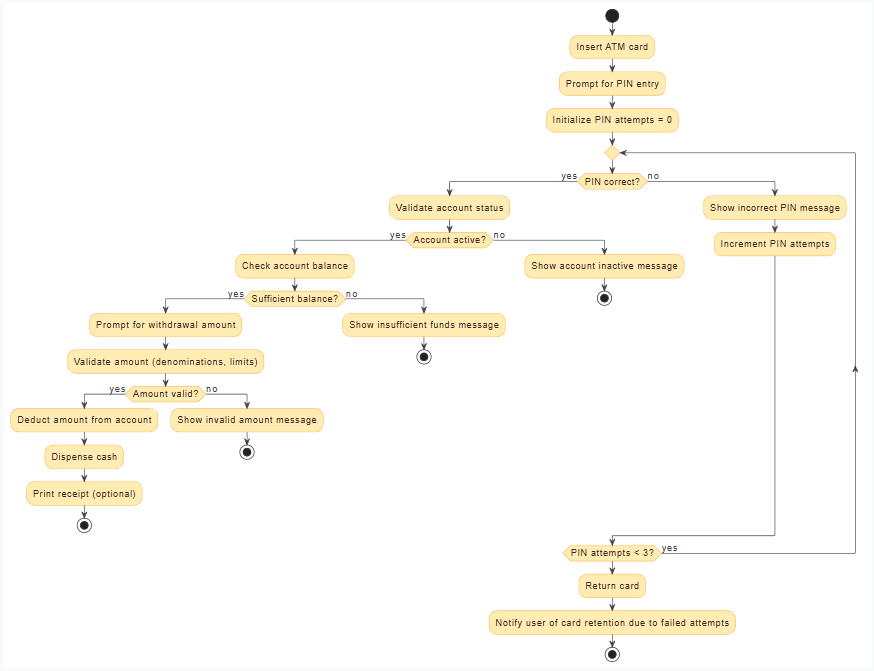
- A live preview of the UML Activity Diagram (perfectly formatted)
- The raw Mermaid.js code in a box below
Options available:
- Copy Mermaid code (for GitHub, GitLab, Notion, Obsidian, Mermaid Live Editor, etc.)
- Download as SVG
- Download as PNG
- Zoom in/out
The diagram follows official UML 2.5 activity diagram notation (start/end, actions, decisions, forks/joins, swimlanes for actors if needed).
Step 5: View and Download the Professional Report
Switch to the “Report” tab.
The AI automatically generates a complete, well-structured requirements document that includes:
- Use Case Name & ID
- Actors
- Preconditions & Postconditions (inferred)
- Trigger
- Main Success Scenario (numbered steps)
- Extensions / Alternative Flows (with conditions)
- Exception Flows
- Business Rules (if detected)
- Non-functional requirements (if mentioned)
You can:
- Copy the entire report (Markdown or plain text)
- Download as DOCX (Microsoft Word)
- Download as PDF
Example of What You Get in Seconds (Withdraw Cash)
Bonus Tips for Best Results
- Write in active voice and one step per line → highest accuracy
- Use words like “if”, “when”, “unless” to trigger decision diamonds automatically
- You can add <<include>> or <<extend>> relationships by writing them naturally
- For multiple actors, mention the actor name at the beginning of the line: “Teller verifies customer ID”
- The tool automatically creates swimlanes/partitions
- Works perfectly with Agile user stories too: “As a customer, I want to withdraw cash so that I can have physical money”
Common Use Cases People Convert Daily
- Login / Authentication
- Register New User
- Place Order (e-commerce)
- Book Flight / Hotel
- Submit Expense Report
- Approve Purchase Request
- Patient Check-in (healthcare)
- Generate Invoice
Conclusion
You now know how to go from a plain-text use case → professional UML Activity Diagram + full report in under 3 minutes.
No installation No drawing skills required 100% free for unlimited use
Start now: https://ai.visual-paradigm.com/tool/use-case-to-activity-diagram/
Happy diagramming!

 English
 Arabic
 Chinese (Simplified)
 Dutch
Dutch French
 German
 Italian
 Japanese
 Korean
 Portuguese
 Russian
 Spanish