Visual Paradigm’s AI ecosystem revolutionizes use case modeling, transforming it from a painstaking manual drawing task into an efficient, automated, text-driven process. This guide outlines the key features, workflows, and capabilities of Visual Paradigm’s Use Case Modeling Studio, designed to streamline your modeling efforts.
Introduction to Use Case Modeling Studio
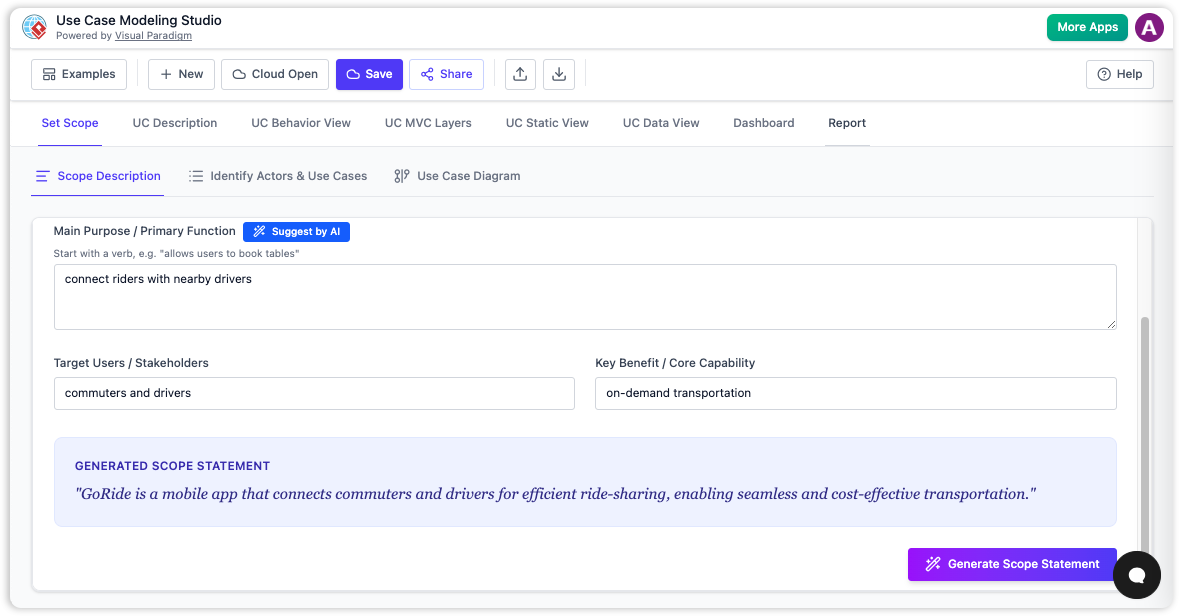
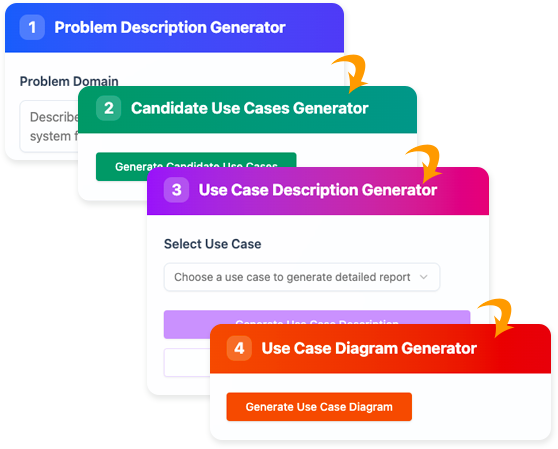
The Use Case Modeling Studio employs a structured, AI-guided workflow to facilitate the creation of use cases, diagrams, and associated documents. By using natural language prompts, you can generate various components, from high-level system boundaries to detailed test scripts.
Key Capabilities in Use Case Modeling
1. Automated Use Case Descriptions
When you input a simple goal statement (e.g., “ATM System”), the AI generates a comprehensive use case specification, including:
-
Preconditions and Postconditions: The necessary conditions for a use case to begin and the state of the system after execution.
-
Standard Flows: Detailed sequences outlining the typical or “happy path” scenarios.
-
Alternative and Exception Flows: AI identifies edge cases and error scenarios to ensure thorough coverage.
2. Instant Diagram Generation
The AI analyzes textual descriptions and automatically creates Use Case Diagrams, managing everything from layout to the inclusion of actors and system boundaries.
3. Intelligent Relationship Refinement
The ecosystem incorporates specialized tools to analyze your models and propose UML relationships like <<include>> and <<extend>>, ensuring that your diagrams maintain professional quality and adherence to standards.
4. Behavioral Modeling
With a single click, the AI can convert a use case narrative into various UML diagrams, displaying the system’s logic through Activity Diagrams or Sequence Diagrams.
5. Built-in Test Planning
The AI generates comprehensive Test Cases, including Test ID, Scenario, and Expected Results, directly derived from your use case descriptions.
6. Professional Reporting
After completing the modeling process, you can create a full Software Design Document (SDD) in PDF or Markdown format. This document consolidates all diagrams, descriptions, and test plans for easy sharing and reference.
Workflow Overview
-
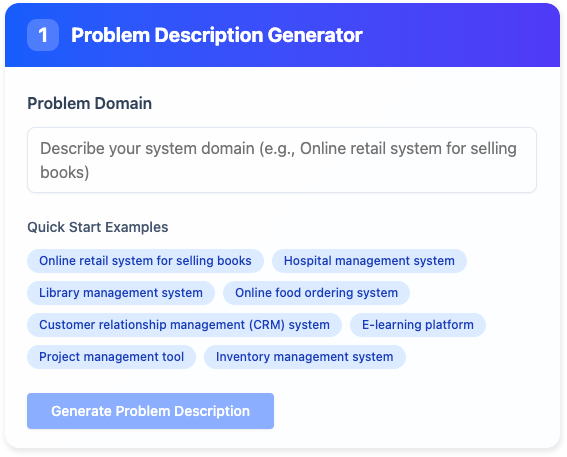
Define Scope: Start by providing a brief prompt about your system’s purpose.
-
Identify Actors: Allow the AI to suggest users and external systems involved in the use case.
-
Elaborate: Utilize the Use Case Description Generator to detail specific interactions and behaviors.
-
Visualize & Refine: Generate diagrams and engage with the AI chatbot to iteratively add features or manage exceptions.
Example Prompt for Generating a Specific Diagram
Suppose you would like to create a Use Case Diagram for an ATM System. An example prompt could be:
“Generate a Use Case Diagram for an ATM System, including actors such as Bank Customer, Bank Teller, and ATM System, with use cases such as Withdraw Cash, Deposit Cash, and Check Balance.”
Exporting Models to Development Tools
Visual Paradigm allows easy export of your models to various development tools. You can integrate the generated diagrams and documents directly into your project management suite, enhancing collaboration and workflow efficiency. Export formats typically include:
-
UML diagrams in formats such as PNG, SVG, or PDF.
-
Comprehensive reports as Markdown or PDF files suited for documentation needs.
These export options ensure that your modeling efforts align seamlessly with your development lifecycle.
Conclusion
Visual Paradigm’s AI-powered Use Case Modeling Studio streamlines the process of creating detailed use case models by leveraging automated textual prompts. By transforming manual tasks into efficient workflows, this tool enhances productivity and improves the quality of software design.
References
- How AI Chatbot Can Help You Learn UML Faster: This article details how the AI chatbot provides an interactive environment to practice UML, offering instant visualization and feedback for learners.
- Use Case Diagrams in Visual Paradigm: A comprehensive overview of use case diagrams, including their purpose, elements, and best practices for modeling system functionality in Visual Paradigm.
- Use Case Modeling Studio – Visual Paradigm: An in-depth look at Visual Paradigm’s Use Case Modeling Studio, highlighting its role in creating, managing, and generating use cases with AI assistance.
- Use Case Description – Visual Paradigm: A guide to documenting use cases with detailed specifications, including preconditions, postconditions, and flow of events.
- Use Case Diagrams – Visual Paradigm User Guide: A step-by-step tutorial from the official Visual Paradigm user guide on drawing and refining use case diagrams.
- Writing Effective Use Cases – Visual Paradigm: Best practices and tips for writing clear, actionable, and well-structured use cases that align with system requirements.
- Beginner’s Guide to Use Case Diagrams – Visual Paradigm Blog: A beginner-friendly tutorial introducing the fundamentals of use case diagrams and their practical application in software modeling.
- AI-Powered Use Case Modeling Studio – Visual Paradigm: Explore how AI automates use case creation, generates activity diagrams, and produces test cases from simple natural language inputs.
- Comprehensive Guide to Creating Use Case Diagrams with Visual Paradigm: A detailed resource covering the full lifecycle of use case modeling, from identifying actors to elaborating flows and relationships.
- Video Tutorial: Beginner’s Guide to Use Case Diagrams: A visual walkthrough demonstrating how to create and refine use case diagrams in Visual Paradigm, ideal for visual learners.
This guide covers the essentials of utilizing Visual Paradigm’s AI ecosystem for effective use case modeling, positioning you to fully leverage its capabilities for your projects.

 English
 Arabic
 Chinese (Simplified)
 Dutch
Dutch French
 German
 Italian
 Japanese
 Korean
 Portuguese
 Russian
 Spanish