


Enterprise Architecture (EA) modeling is a critical practice for aligning business strategies with IT infrastructure, enabling organizations to visualize complex relationships between processes, systems, and technologies. ArchiMate, a standard modeling language from The Open Group, provides a structured way to represent these elements through diagrams and viewpoints tailored to specific stakeholders. However, traditional manual creation of ArchiMate models can be labor-intensive, requiring in-depth knowledge of the specification and significant time investment.
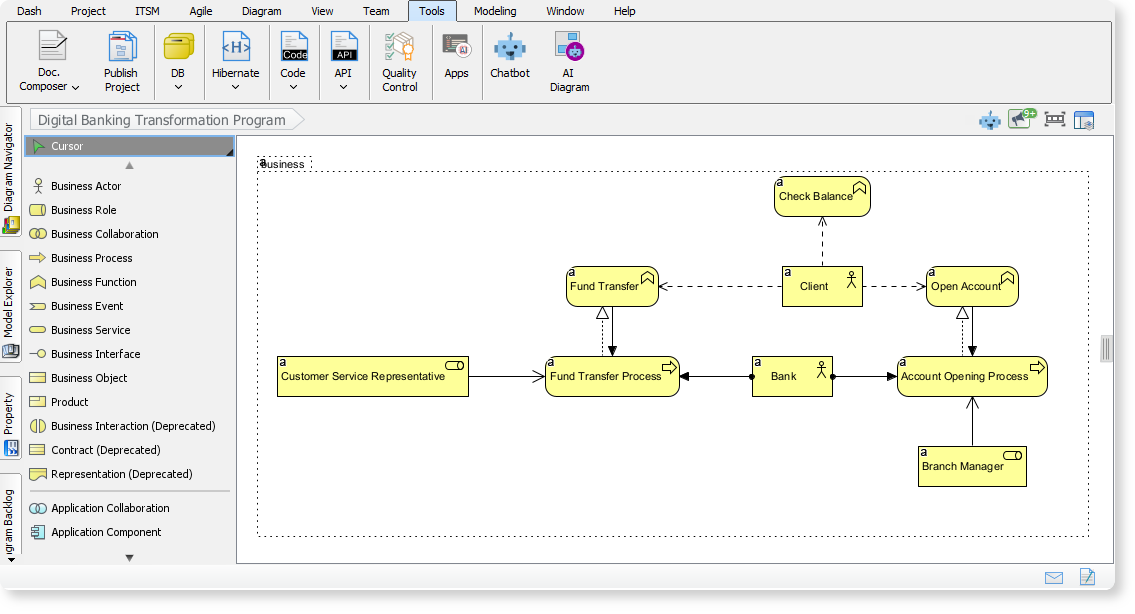
Visual Paradigm Desktop (Enterprise Edition) addresses this with its innovative AI Diagram Generator, which now fully supports ArchiMate modeling and all official viewpoints. This AI-powered feature leverages generative AI to instantly create compliant, editable ArchiMate diagrams based on simple inputs like topics or requirements. It dramatically accelerates the modeling process, allowing architects, analysts, and teams to focus on strategic insights rather than manual drawing. In this tutorial, we’ll walk through how to use this feature step by step, explore its capabilities, and provide practical examples. Throughout, I’ll highlight why Visual Paradigm’s AI-powered tool is a game-changer for efficient EA modeling.
Why Use ArchiMate and Visual Paradigm’s AI Feature?
ArchiMate diagrams help depict enterprise architectures across layers such as business, application, technology, and physical infrastructure. Viewpoints are specialized perspectives within ArchiMate that tailor the diagram to a particular audience or purpose, ensuring clear communication. For instance, a “Capability Map” viewpoint might suit executives, while a “Technology Usage” viewpoint is ideal for IT engineers.
Manual modeling often involves:
- Starting from a blank canvas.
- Manually selecting and connecting elements.
- Creating multiple viewpoints for different stakeholders.
This can delay projects and hinder agility. Visual Paradigm’s AI Diagram Generator solves these issues by:
- Automating diagram creation with AI intelligence.
- Ensuring full compliance with ArchiMate standards.
- Supporting all 25 official viewpoints (listed below).
- Allowing customization for audience, tone, and specifics.
- Providing editable outputs for refinement.
I highly recommend Visual Paradigm’s AI-powered feature for any EA professional or team. It reduces diagramming time by up to 90%, promotes consistency, and enhances collaboration—making it an essential tool for modern, agile architecture practices.
Prerequisites
- Software: Visual Paradigm Desktop (Enterprise Edition). Ensure you’re using the latest version (as of December 3, 2025, or later) to access the AI ArchiMate support.
- Access: This feature is available in the Desktop Enterprise edition. If you’re on a lower tier, upgrade via the Visual Paradigm website.
- Basic Knowledge: Familiarity with ArchiMate concepts is helpful but not required, as the AI handles much of the complexity.
Step-by-Step Guide to Generating ArchiMate Diagrams
Follow these steps to create your first AI-generated ArchiMate diagram. The process is intuitive and takes just minutes.
Step 1: Launch Visual Paradigm Desktop
- Open Visual Paradigm Desktop on your computer.
- Create a new project or open an existing one where you want to add the ArchiMate diagram.
Step 2: Access the AI Diagram Generator
- From the main menu, click on Tools.
- In the dropdown, select AI Diagram. This opens the AI Diagram Generator interface.
Step 3: Select an ArchiMate Viewpoint
- In the generator window, look for the viewpoint dropdown menu.
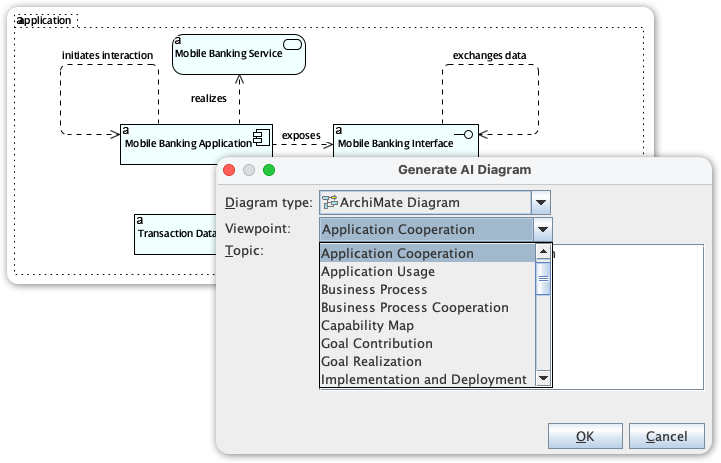
- Choose a specific ArchiMate viewpoint that aligns with your needs. Visual Paradigm supports all official viewpoints, including:
- Application Cooperation
- Application Usage
- Business Process
- Business Process Cooperation
- Capability Map
- Goal Contribution
- Goal Realization
- Implementation and Deployment
- Implementation Migration
- Information Structure
- Introductory
- Migration
- Motivation
- Organization
- Outcome Realization
- Physical
- Principles
- Product
- Project
- Requirements Realization
- Resource Map
- Service Realization
- Stakeholder
- Technology
- Technology Usage
Tip: If you’re new to viewpoints, start with “Introductory” for a general overview or “Motivation” for strategy-focused models. The AI ensures the generated diagram adheres to the selected viewpoint’s structure and elements.
Step 4: Enter Your Topic or Requirement
- In the input field, type a high-level topic, business requirement, or description. Keep it concise yet descriptive for best results. Examples:
- “5G network rollout for a telecom company”
- “Digital transformation in banking services”
- “Secure healthcare information exchange platform”
- Optionally, customize further:
- Specify the audience (e.g., “for IT engineers” or “for executive stakeholders”) to tailor the model’s focus.
- Define the tone (e.g., “formal and technical” or “high-level overview”) to influence the accompanying explanations.
Step 5: Generate the Diagram
- Click OK or the equivalent generate button.
- The AI will process your input and produce a complete, editable ArchiMate diagram in seconds. This includes:
- Relevant ArchiMate elements (e.g., actors, processes, applications, nodes).
- Structured relationships (e.g., associations, realizations, aggregations).
- A tailored viewpoint perspective.
- An optional explanatory narrative.
Step 6: Review and Refine
- The generated diagram appears in your workspace as an editable draft.
- Inspect it for accuracy: Fact-check elements against your organization’s standards.
- Use Visual Paradigm’s editing tools to tweak shapes, connections, colors, or add details.
- If needed, regenerate by adjusting your input and repeating steps 2-5.
Step 7: Export and Share
- Once satisfied, export the diagram as an image (PNG/JPG), PDF, or integrate it into reports.
- Share with stakeholders via Visual Paradigm’s collaboration features or external tools.
Practical Examples
To illustrate the power of Visual Paradigm’s AI feature, here are three real-world scenarios based on the announcement. These demonstrate how the tool transforms abstract ideas into structured models.
Example 1: Telecom 5G Network Rollout
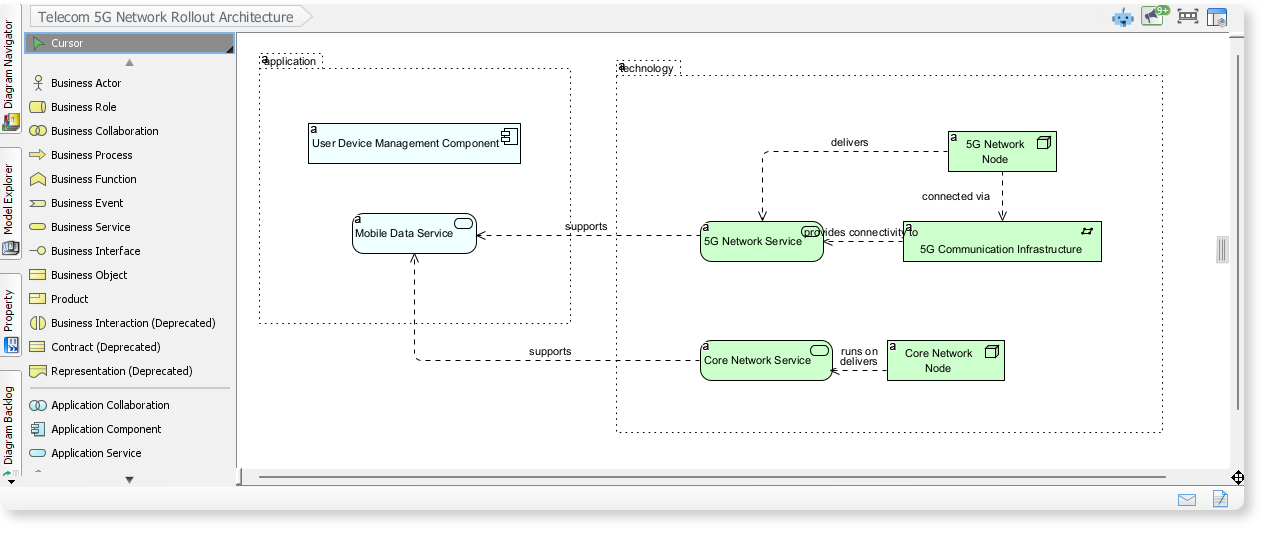
- Input: Topic: “Telecom 5G Network Rollout Architecture”. Viewpoint: “Implementation and Deployment”.
- AI Output: The generator creates a diagram showing application services (e.g., network management apps), network services (e.g., 5G core), and infrastructure elements (e.g., base stations, servers). It highlights how they collaborate to deliver mobile data and connectivity.
- Why AI Excels Here: Manual creation might take hours; AI does it instantly, ensuring compliance and allowing quick iterations for rollout planning.
Example 2: Digital Banking Transformation Program
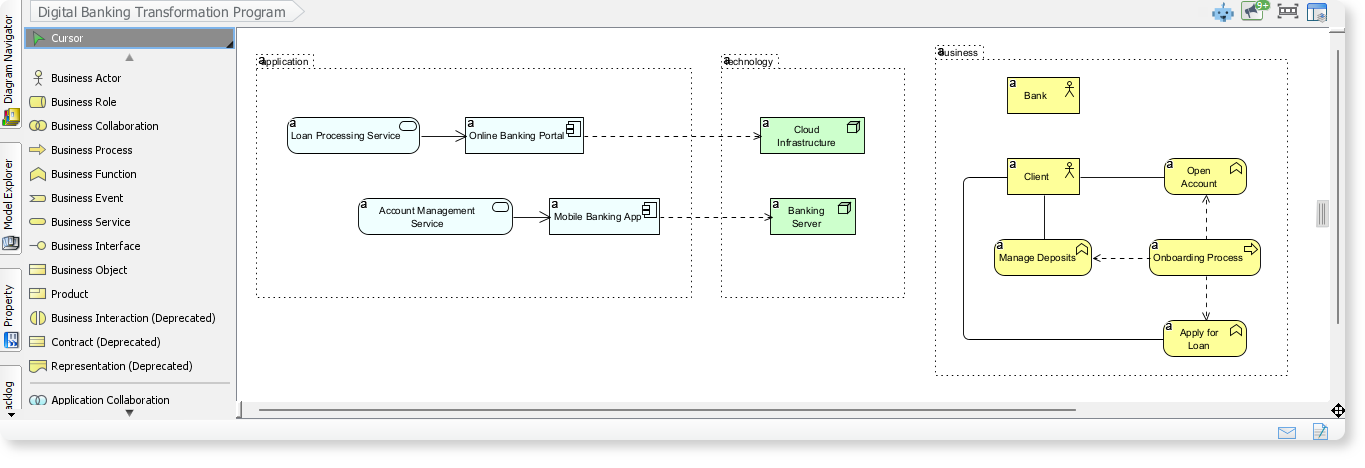
- Input: Topic: “Digital Banking Transformation Program”. Viewpoint: “Business Process Cooperation”.
- AI Output: A diagram illustrating interactions between business processes (e.g., customer onboarding), application services (e.g., mobile banking apps), and technology components (e.g., cloud servers). It emphasizes seamless digital experiences.
- Why AI Excels Here: Ideal for agile teams needing to visualize transformations without delaying projects—recommend this for banking IT alignments.
Example 3: Healthcare Information Exchange Platform
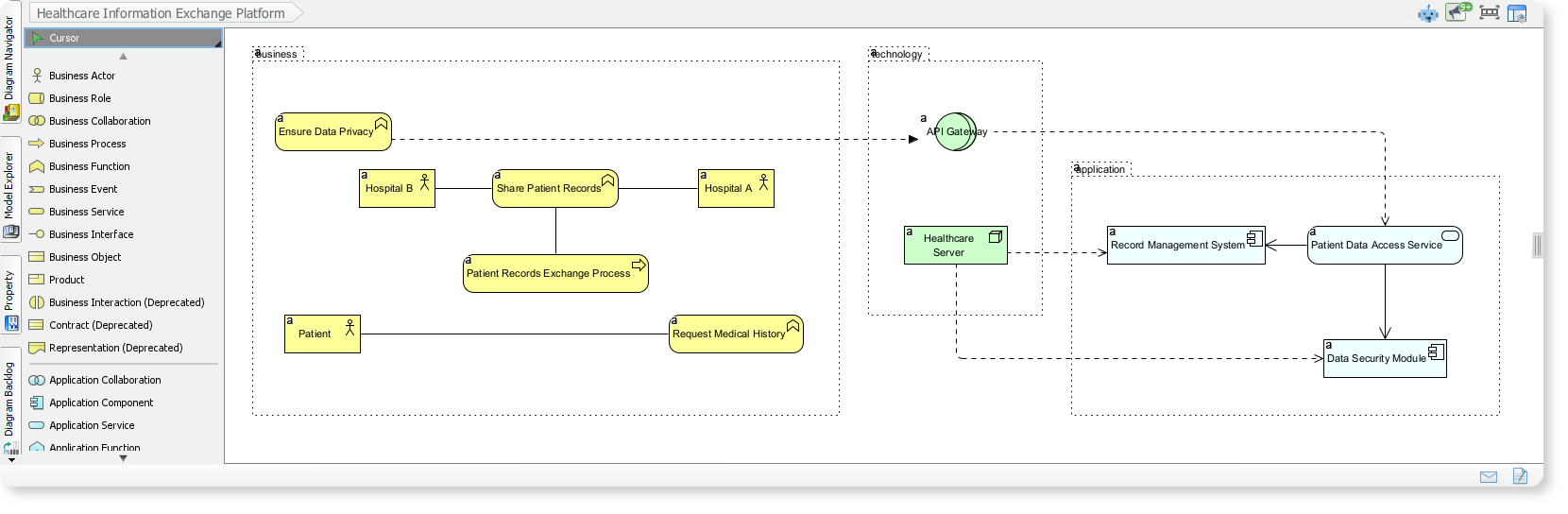
- Input: Topic: “Healthcare Information Exchange Platform”. Viewpoint: “Service Realization”.
- AI Output: Depicts collaborations between hospitals, patients, and applications for secure record exchange, including business workflows, application layers, and secure technology components.
- Why AI Excels Here: Ensures sensitive data flows are modeled accurately, reducing errors in compliance-heavy sectors like healthcare.
Tips and Best Practices
- Start Simple: Begin with broad topics and refine iteratively. The AI handles complexity, but specific inputs yield more precise outputs.
- Customization for Impact: Always include audience and tone in your prompt for stakeholder-ready models.
- Integration with Other Tools: Combine AI-generated diagrams with Visual Paradigm’s other features, like simulation or requirements tracing.
- Quality Assurance: While AI is powerful, always validate outputs—it’s a draft accelerator, not a replacement for expertise.
- Performance: For large-scale models, break topics into sub-components and generate viewpoints separately.
- Troubleshooting: If the output doesn’t match expectations, try rephrasing the topic or switching viewpoints.
Recommendation: Embrace Visual Paradigm’s AI-Powered Feature
Visual Paradigm’s AI Diagram Generator is a must-have for anyone involved in Enterprise Architecture. By automating ArchiMate diagram and viewpoint creation, it eliminates the tedium of manual work, fosters faster business-IT alignment, and empowers teams to deliver high-quality models with minimal effort. Whether you’re an architect kickstarting a project or a manager communicating strategies, this feature saves time, reduces errors, and enhances productivity. I strongly recommend upgrading to the latest Visual Paradigm Desktop Enterprise edition today—it’s the future of AI-assisted EA modeling, making complex visualizations accessible and instantaneous. For more details, visit the Visual Paradigm website or explore their documentation.
Here’s a focused recommendation for Visual Paradigm’s AI ArchiMate Viewpoint Generator, including real URLs and key features to help you get started:
Visual Paradigm AI ArchiMate Viewpoint Generator: Key Features & URLs
| Feature | Description | URL |
|---|---|---|
| AI-Powered ArchiMate Generator | Instantly generate ArchiMate diagrams and official viewpoints (e.g., Product, Strategy, Technology) from natural language prompts. Supports all 23 official ArchiMate 3.1 viewpoints. | Visual Paradigm AI ArchiMate Generator 6-0,30,60 |
| AI Chatbot for Diagramming | Use conversational commands to create, refine, and analyze ArchiMate models. Export diagrams directly to Visual Paradigm Desktop (Enterprise Edition required for ArchiMate). | Visual Paradigm AI Chatbot 8-63,69 |
| Official Viewpoints Guide | Explore all 23 ArchiMate viewpoints with examples and explanations, certified by The Open Group. | Full ArchiMate Viewpoints Guide 10-2 |
| Online ArchiMate Tool | Free browser-based tool to draw ArchiMate diagrams manually or with AI assistance. No download required. | Free Online ArchiMate Tool 12-1,33,61 |
| Enterprise Edition | Import AI-generated ArchiMate diagrams into Visual Paradigm Desktop for advanced modeling, collaboration, and compliance with ArchiMate 3.1 standards. | Visual Paradigm Features 14-3,38,62 |
How It Works
- Natural Language Input: Describe your architecture goal (e.g., “Create a Business Viewpoint for customer onboarding”), and the AI generates a compliant ArchiMate diagram.
- Viewpoint Selection: Choose from official viewpoints (e.g., Strategy, Implementation & Migration) or let the AI recommend one.
- Export & Refine: Import diagrams into Visual Paradigm Desktop for further editing or share them as interactive links
Why Choose Visual Paradigm?
- : Ensures compliance with ArchiMate 3.1 standards.
- Time-Saving: Automates manual diagramming, for agile team.
- Collaboration: Cloud workspace for team feedback and real-time update.
Ready to try? Start with the AI Chatbot or explore the free online tool. Would you like a ?

 English
 Arabic
 Chinese (Simplified)
 Dutch
Dutch French
 German
 Italian
 Japanese
 Korean
 Portuguese
 Russian
 Spanish