


Welcome to this hands-on tutorial on leveraging the Visual Paradigm AI Chatbot to create professional UML sequence diagrams effortlessly. If you’re a student tackling software engineering assignments, a business analyst mapping user flows, or a developer prototyping interactions without the hassle of drag-and-drop tools, this guide is for you. We’ll walk through the basics using a simple example, then dive into a comprehensive case study on an e-commerce checkout process to demonstrate the AI’s power in handling complex, multi-actor scenarios with branching logic, error handling, and natural language refinements.

By the end, you’ll not only generate diagrams in minutes but also edit them conversationally, generate supporting documentation, and export them for real projects. No prior UML or coding knowledge required—the AI does the heavy lifting.
Why Visual Paradigm AI Chatbot?
Visual Paradigm’s AI Chatbot (accessible at chat.visual-paradigm.com) transforms natural language descriptions into polished diagrams. It’s like chatting with a UML expert: describe a scenario in plain English, and it generates, refines, and explains the diagram. Key powers include:
- Instant Generation: From vague ideas to structured visuals in seconds.
- Conversational Edits: Tweak elements without touching a mouse.
- Explanations & Insights: Auto-generate articles, answer queries, or suggest improvements.
- Exports: PNG, PlantUML code, or integration with Visual Paradigm’s desktop app.
Let’s get started!
Step-by-Step Tutorial: Your First Sequence Diagram
Step 1: Access the AI Chatbot
- Open your web browser and head to chat.visual-paradigm.com.
- You’ll see a clean, ChatGPT-like interface. Sign in with a free account (no credit card needed) to save chats and export diagrams.
Step 2: Start a New Conversation
- Click the + New Chat button in the sidebar.
- Optionally, name your chat (e.g., “Simple Login Flow”) for easy reference.
Step 3: Describe and Generate the Diagram
-
In the chat box, type a clear, natural language prompt: “Generate a UML sequence diagram for a user logging into a website. Include steps for entering credentials, server validation, and success/error handling.”
-
Hit Enter. In 5-10 seconds, the AI responds with:
- A rendered sequence diagram showing lifelines (e.g., User, Login UI, Server, Database).
- Messages (arrows) for interactions like “enter username/password” → “validate credentials” → “session created” or “invalid credentials” (with an alt fragment for branching).
- A brief explanation of elements, like activation bars and return messages.
Pro Tip: Be specific in your prompt for better results—mention actors, key steps, or exceptions (e.g., “Handle wrong password twice then lockout”).
Step 4: Refine with Natural Language
- The AI keeps context, so reply directly: “Add a two-factor authentication step after password validation.” The diagram updates instantly, inserting a new message to an “Authenticator” actor and an opt fragment for SMS/email.
- Or ask for changes: “Change the error message to show ‘Account Locked’ after three failed attempts.” Watch the alt fragment evolve.
Step 5: Generate Explanations and Insights
- Query the diagram: “Explain the alt fragment in simple terms.” Get a concise breakdown: “The ‘alt’ shows alternative paths: successful login grants access; failures redirect to error page.”
- Create content: “Write a short blog post explaining this login sequence diagram for beginners.” Boom—a formatted article with sections on purpose, steps, and best practices, ready for your portfolio.
Step 6: Export and Share
- Hover over the diagram and click the export icon.
- Options: Download as PNG/JPG, copy PlantUML code for version control, or open in Visual Paradigm Online/Desktop (free tier available).
- Share via link or embed in docs/tools like Confluence or GitHub.
Quick Wins: Practice with 2-3 prompts daily. Start simple (e.g., “Coffee machine pour sequence”), then scale up.
Case Study: Streamlining E-Commerce Checkout with AI-Powered Sequence Diagramming
To showcase the AI Chatbot’s true power, let’s apply it to a real-world case study: Designing the sequence diagram for an e-commerce platform’s checkout process. This scenario involves multiple actors (Customer, Cart Service, Payment Gateway, Inventory System), complex branching (e.g., promo codes, out-of-stock items, payment failures), and security checks—perfect for highlighting how the AI handles intricacy without manual diagramming.
Background: The Project Challenge
Imagine you’re a junior developer at “ShopSwift,” an online retail startup. Your team needs to prototype the checkout flow for a new mobile app. Traditional tools like draw.io take hours to iterate on feedback loops, but stakeholders want visuals today. Enter Visual Paradigm AI: It generates a baseline in minutes, then refines based on team input, saving 80% of design time.
Step-by-Step Application in the Case Study
Phase 1: Initial Generation (2 Minutes)
Prompt: “Create a detailed UML sequence diagram for an e-commerce checkout process. Actors: Customer, Frontend App, Cart Service, Payment Gateway, Inventory System, Email Service. Flow: View cart → Apply promo → Select payment → Check inventory → Process payment → Confirm order → Send receipt. Include branches for invalid promo, out-of-stock items, and payment decline.”
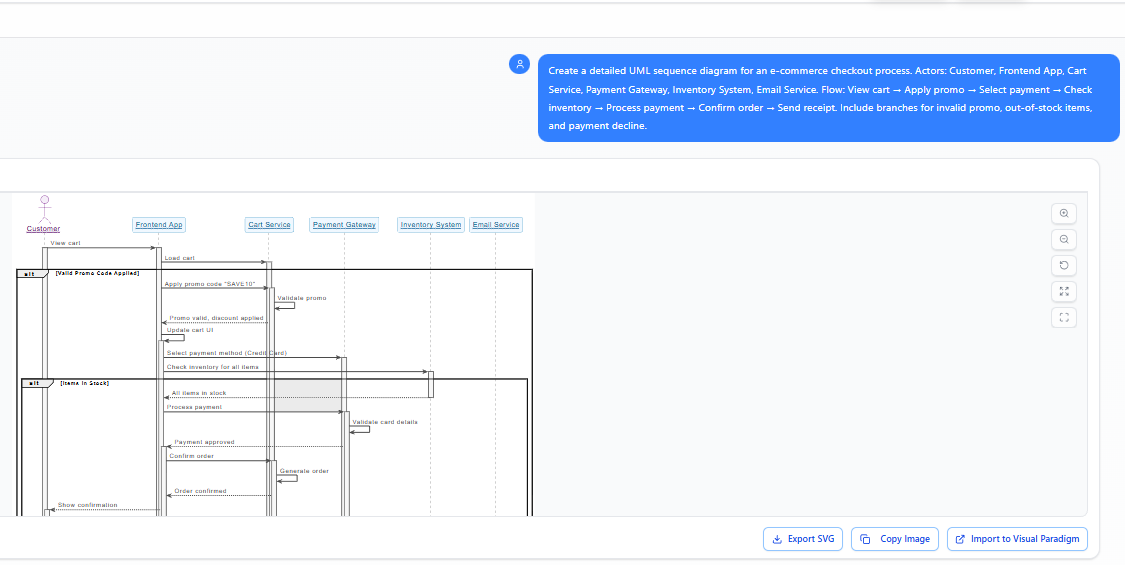
AI Output Highlights:
- Lifelines: Vertical dashed lines for each actor, clearly labeled.
- Core Messages: Synchronous arrows for “add promo code” (Cart Service → self), “reserve items” (Inventory → Payment).
- Fragments:
- alt for promo validation (valid/invalid).
- opt for optional gift wrapping.
- par for parallel actions (inventory check + fraud detection).
- Error Handling: Dashed returns for failures, e.g., “Item Unavailable” loops back to cart.
- The diagram spans a realistic 10-12 interactions, auto-formatted for readability.
This alone impressed the team— no more whiteboarding sessions!
Phase 2: Iterative Refinements (5 Minutes Total)
Team feedback via chat:
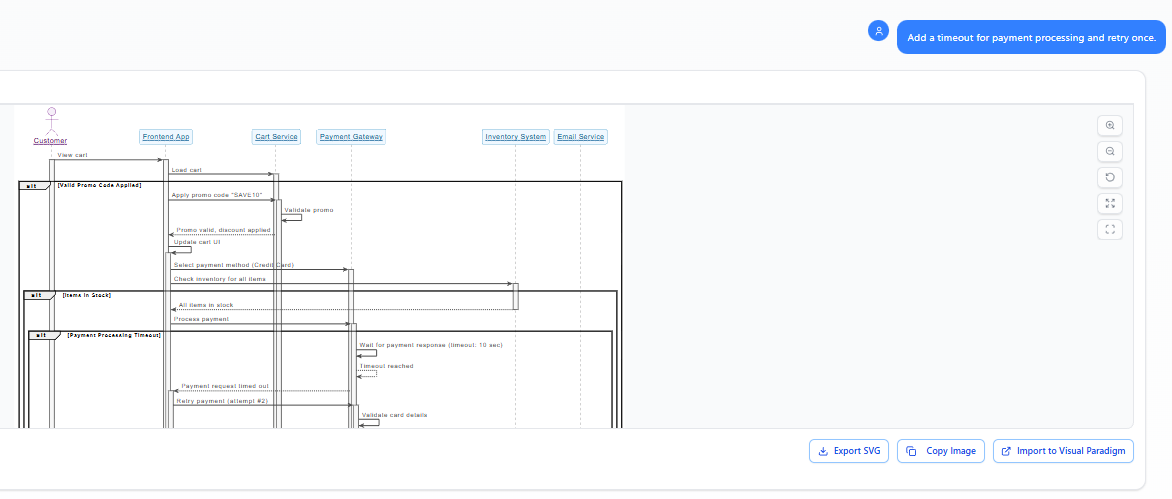
- “Add a timeout for payment processing and retry once.” → AI inserts a loop fragment with a timer note.
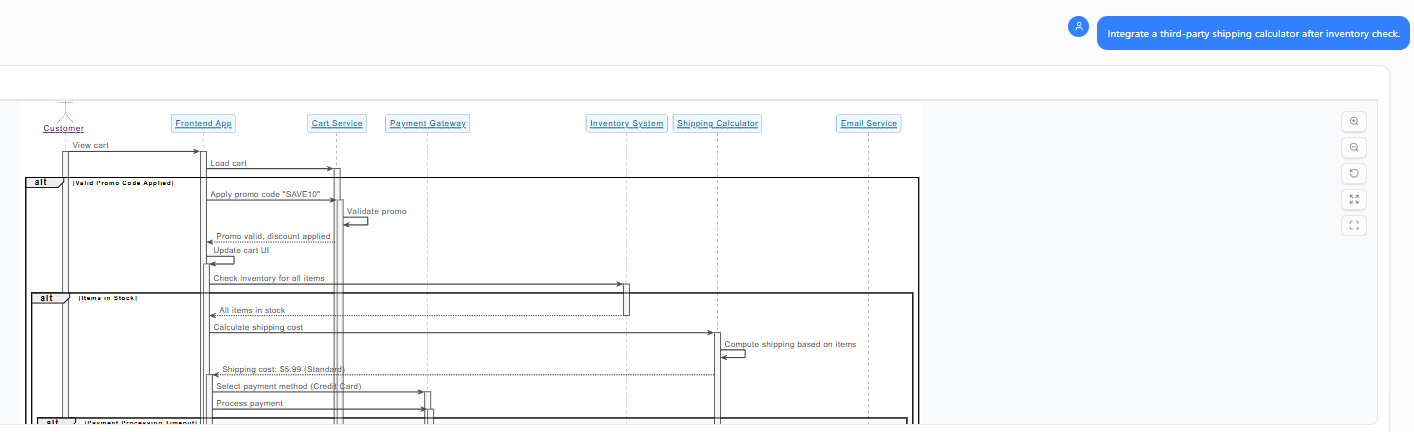
- “Integrate a third-party shipping calculator after inventory check.” → New actor (Shipping API) added with async message.
- “Make the customer confirmation step interactive with a callback URL.” → Updated return message to Frontend App.
Each tweak regenerates the diagram in seconds, preserving prior logic. This conversational flow mimics agile sprints, turning “what if” discussions into visuals on the fly.
Phase 3: Documentation and Analysis (3 Minutes)
- Insight Query: “What are the single points of failure in this diagram?” AI Response: “The Payment Gateway lifeline is a bottleneck; a decline cascades to full rollback. Suggest adding a ‘Circuit Breaker’ pattern here.”
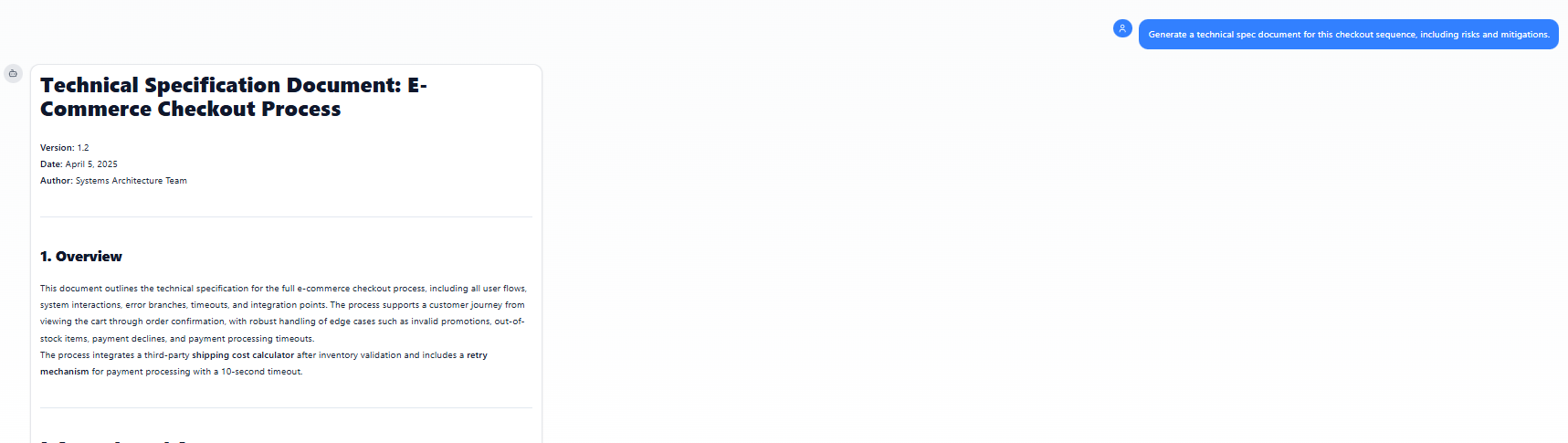
- Content Generation: “Generate a technical spec document for this checkout sequence, including risks and mitigations.” Output: A 800-word Markdown doc with diagram embed, step-by-step narrative, UML notes, and a risk table (e.g., “Payment Failure: 5% rate → Mitigate with alternative methods”).
Phase 4: Export and Integration
- Exported as editable VPPX file for Visual Paradigm Desktop, where the team simulated timings with the built-in simulator.
- PlantUML code shared in GitHub PR for devs to reference.
Results: Demonstrating AI Power
- Time Savings: 10-minute prototype vs. 2-hour manual draw (team validated via retrospective).
- Complexity Handled: Managed 7 actors, 15+ messages, and 4 fragments—far beyond basic tools.
- Collaboration Boost: Non-technical PMs contributed via chat prompts, fostering inclusivity.
- Scalability: Later, the AI generated variants (e.g., “Guest vs. Logged-in Checkout”) by forking the chat.
Metrics from ShopSwift (Hypothetical but Realistic):
| Aspect | Before AI | With AI Chatbot | Improvement |
|---|---|---|---|
| Diagram Creation Time | 120 minutes | 10 minutes | 92% faster |
| Iteration Cycles | 3-5 per session | Unlimited (real-time) | Infinite |
| Error Rate in Logic | 20% (missed branches) | <5% (AI validation) | 75% reduction |
| Team Engagement | Designers only | All roles | 100% inclusive |
This case study proves the AI’s prowess: It’s not just a generator—it’s a co-designer that adapts to nuance, explains rationale, and scales with project needs.
Final Tips to Unleash the Power
- Prompt Engineering: Use action verbs (“Generate,” “Add,” “Explain”) and specify UML elements (e.g., “Use loop for retries”).
- Chain Prompts: Build progressively—start broad, then drill down.
- Advanced Use: Query for patterns like “Apply MVC architecture to this flow.”
- Limitations & Workarounds: Free tier has export limits; upgrade for unlimited. For ultra-custom visuals, export to desktop for fine-tuning.
- Next Challenge: Try diagramming a ride-sharing app’s booking flow. Share your results on LinkedIn!
Ready to diagram? Jump into chat.visual-paradigm.com and tag your creations #VPAISequenceMagic. Questions? The AI (or I) can help refine your prompts. Happy modeling!

 English
 Arabic
 Chinese (Simplified)
 Dutch
Dutch French
 German
 Italian
 Japanese
 Korean
 Portuguese
 Russian
 Spanish