


The ultimate knowledge management platform for IT professionals — streamline your technical documentation, architecture diagrams, and system documentation with AI-powered automation and professional diagramming tools.
Introduction to OpenDocs for Developers {#introduction}
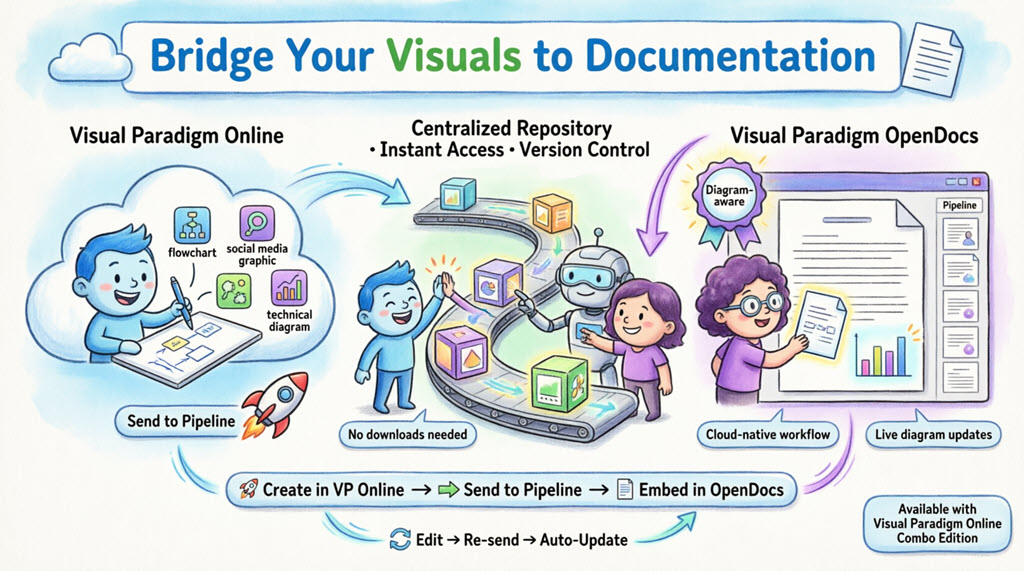
OpenDocs is an AI-powered knowledge management platform specifically designed to meet the complex documentation needs of IT developers, system architects, and DevOps teams. As a “visual knowledge engine,” it eliminates the friction of switching between documentation tools, diagram editors, and code repositories.
For IT developers, OpenDocs solves critical challenges:
- Fragmented Documentation: No more scattered Confluence pages, Visio diagrams, and README files
- Outdated Architecture Diagrams: AI-powered updates keep your system visuals current
- Knowledge Silos: Centralized, searchable knowledge base accessible to your entire team
- Time-Consuming Diagramming: Generate UML, ERDs, and flowcharts from natural language
OpenDocs: Your centralized hub for technical documentation, system architecture, and code references
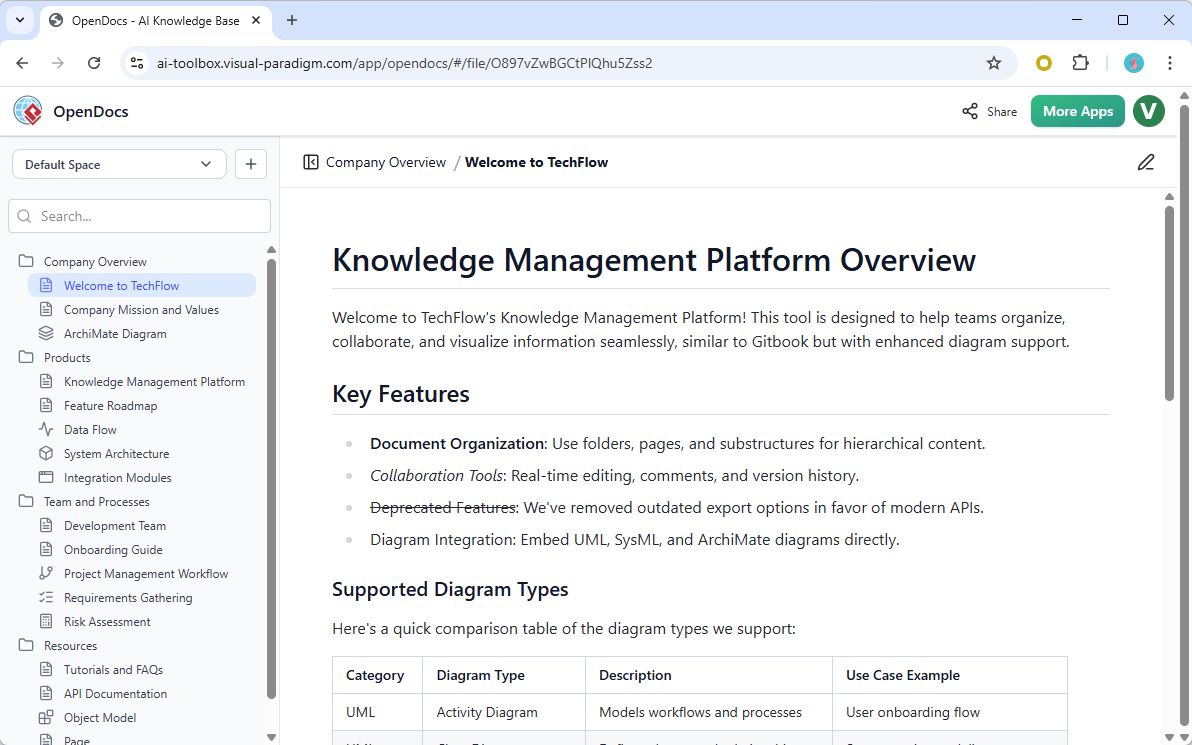
Core Features for IT Professionals {#core-features}
Rich Text Editor
The editor is optimized for technical content:
- Live Preview: Real-time rendering as you type
- Rich Content Support: Tables, lists, code blocks, blockquotes, and technical formatting
- Keyboard-First Workflow: Format without touching your mouse—essential for developers
Document APIs, write technical specs, and create code examples with professional formatting
Integrated Professional Diagram Editor
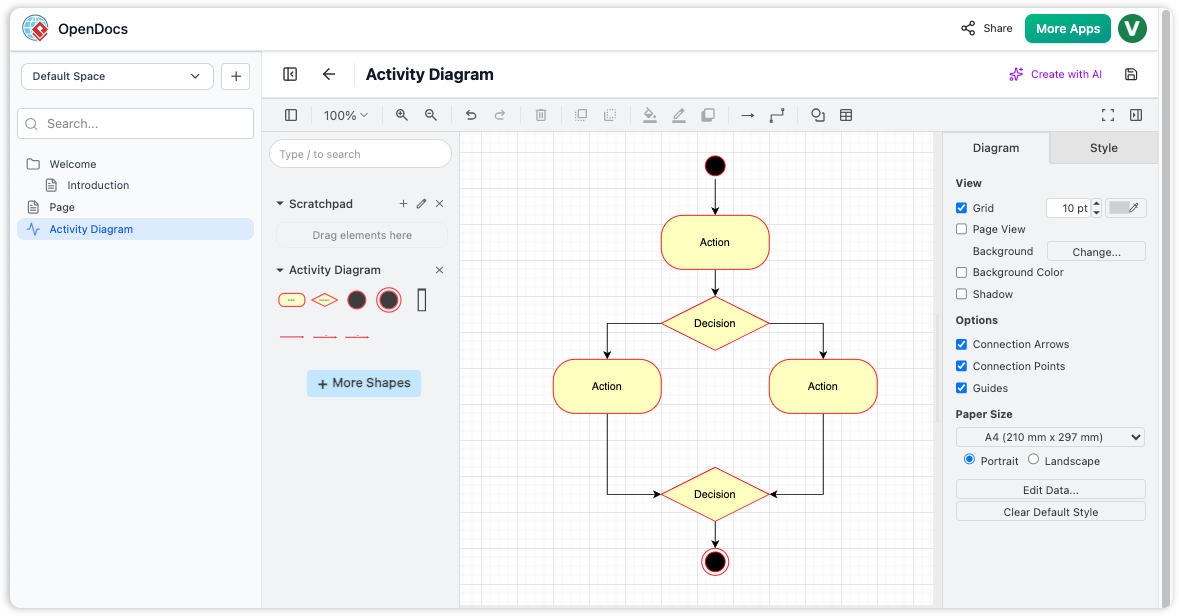
Create system architecture diagrams, flowcharts, and UML models directly in your documentation
Stop context-switching between Lucidchart, Draw.io, and your documentation. OpenDocs includes:
- Comprehensive Diagram Types:
- UML Diagrams (Class, Sequence, Use Case, Activity, Component)
- Entity-Relationship Diagrams (ERDs)
- BPMN Process Flows
- Network Architecture Diagrams
- Flowcharts and System Workflows
- Mind Maps for brainstorming architecture decisions
- Professional Shape Libraries: Hundreds of stencils for cloud services, databases, APIs, and infrastructure components
- Drag-and-Drop Interface: Intuitive visual editing with snap-to-grid alignment
- Seamless Embedding: Insert diagrams directly into pages
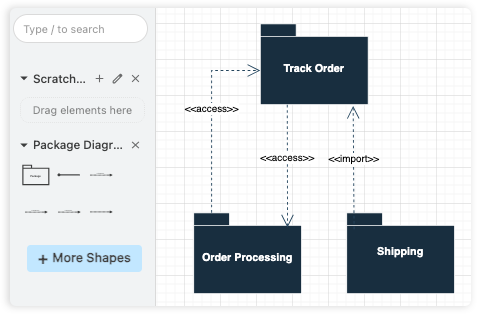
Build system architecture diagrams without leaving your documentation
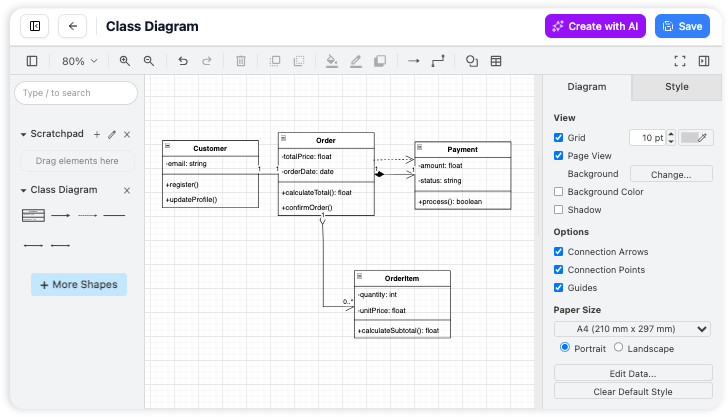
All-in-one workspace: write technical specs and visualize architecture in the same place
AI-Powered Diagram Generation
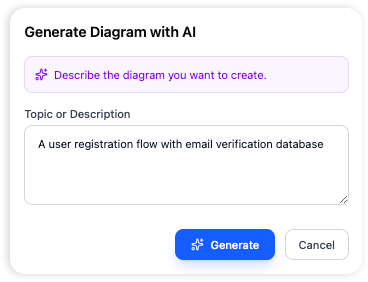
Transform plain English descriptions into professional architecture diagrams instantly
This is where OpenDocs becomes a game-changer for developers:
How It Works:
- Describe your system in natural language: “Create a microservices architecture diagram with API Gateway, User Service, Order Service, and PostgreSQL database”
- AI generates a complete, editable diagram in seconds
- Refine using the visual editor or regenerate with updated prompts
Developer Use Cases:
- System Architecture: Generate high-level architecture diagrams from feature descriptions
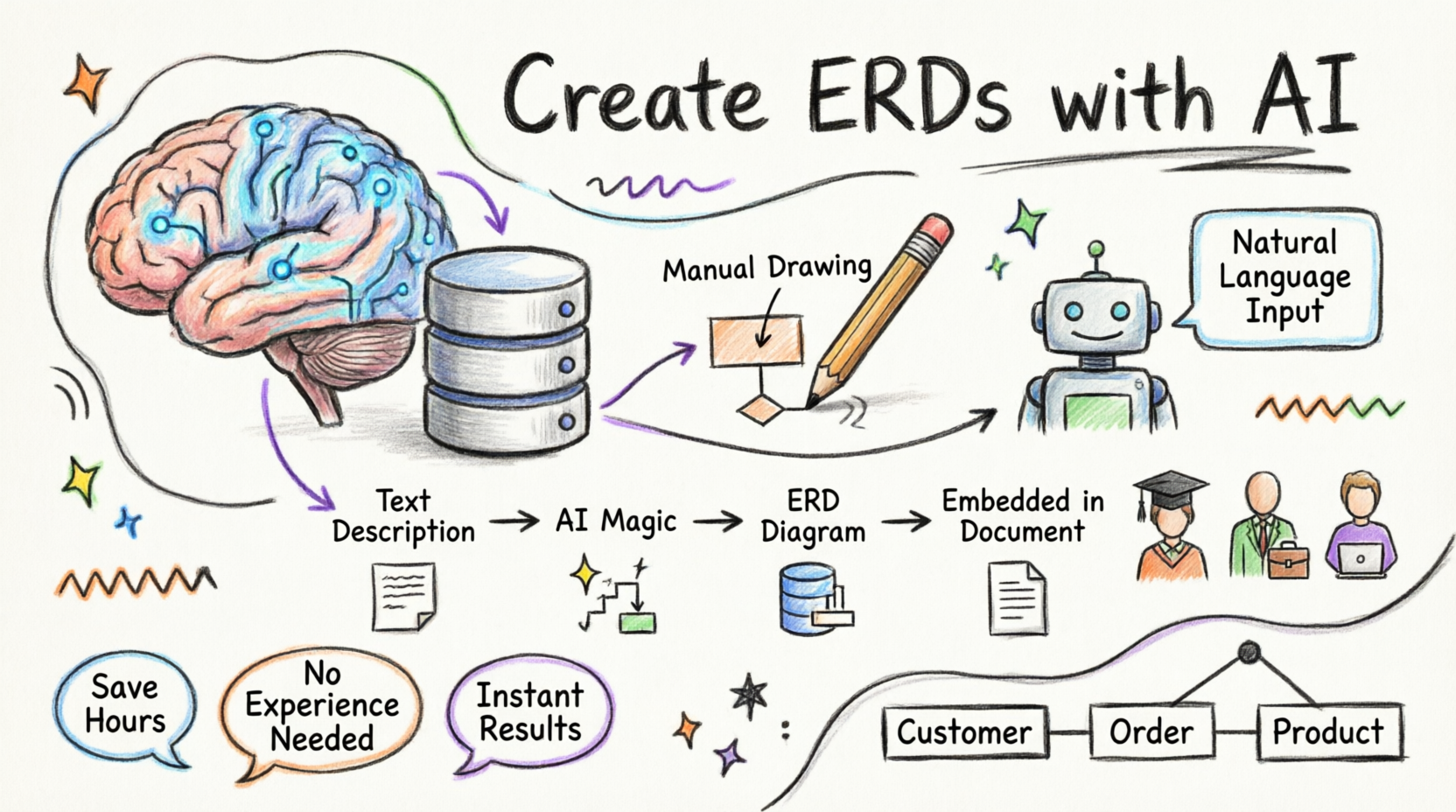
- Database Design: Create ERDs by describing entities and relationships
- API Workflows: Visualize REST API request/response flows
- Deployment Diagrams: Map out cloud infrastructure and service dependencies
- Sequence Diagrams: Document interaction flows between microservices
Supported AI Diagram Types:
- Flowcharts & Process Maps
- Entity-Relationship Diagrams (ERDs)
- UML Diagrams (Use Case, Class, Sequence, Activity, Component)
- Mind Maps & Decision Trees
- Network Diagrams & Cloud Architecture
- BPMN Workflows
Hierarchical Folder Structure for Project Organization
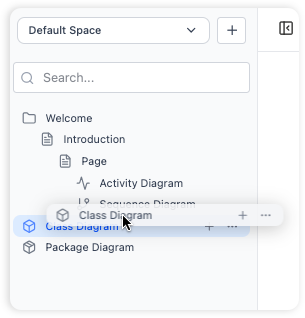
Organize complex projects with nested folders for microservices, APIs, and documentation
Manage large codebases and multi-service architectures with:
- Nested Folder Architecture: Create logical hierarchies (e.g.,
/Backend/APIs/UserService/Documentation) - Drag-and-Drop Reorganization: Restructure as your project evolves
- Scalable Design: From single-service docs to enterprise microservices documentation
- Visual Navigation: Expand/collapse sections to focus on specific components
Build a documentation structure that mirrors your codebase architecture
Getting Started: Developer Workflow
Follow this optimized workflow for technical documentation:
1️⃣ Initialize Your Technical Documentation Workspace
Open OpenDocs in your browser. Create a workspace named after your project (e.g., “E-Commerce Platform Documentation” or “Microservices Architecture”).
2️⃣ Set Up Your Documentation Structure
Create a folder hierarchy that matches your development workflow:
📁 Project Root
  ├── 📁 Architecture
  │   ├── 📄 System Overview.md
  │   ├── 📄 High-Level Design.vpp
  │   └── 📄 Deployment Diagram.vpp
  ├── 📁 APIs
  │   ├── 📄 REST API Reference.md
  │   ├── 📄 Authentication Flow.md
  │   └── 📄 API Sequence Diagrams.vpp
  ├── 📁 Database
  │   ├── 📄 Schema Design.md
  │   ├── 📄 ERD Diagram.vpp
  │   └── 📄 Migration Guide.md
  ├── 📁 Services
  │   ├── 📁 User Service
  │   ├── 📁 Order Service
  │   └── 📁 Payment Service
  └── 📁 DevOps
      ├── 📄 CI/CD Pipeline.md
      └── 📄 Infrastructure Setup.md
3️⃣ Write Technical Documentation
Use the rich text editor to create rich technical content. Here is an example of API documentation:
Example: API Reference Template
| Section | Content |
|---|---|
| Overview | Service purpose and scope |
| Base URL | Production and staging endpoints |
| Authentication | Token requirements and headers |
| Endpoints | Method, path, parameters, examples |
| Error Codes | HTTP status codes and resolutions |
| Rate Limits | Throttling policies and headers |
4️⃣ Generate Architecture Diagrams with AI
Click “New Diagram” → “AI Generate” and use prompts like:
- “Create a sequence diagram showing user login flow with JWT token generation”
- “Generate an ERD for e-commerce platform with Users, Orders, Products, and Payments tables”
- “Draw a deployment diagram for microservices on AWS with ECS, RDS, and ElastiCache”
5️⃣ Organize and Link Documentation
Use internal linking and folder structure to create a navigable knowledge base. Drag and drop to reorganize as your architecture evolves.
Technical Documentation Best Practices
Structure Your Technical Knowledge
For Microservices Architecture:
- Create one folder per service
- Document service contracts and APIs
- Include sequence diagrams for inter-service communication
- Maintain deployment configurations
For API Documentation:
- Use consistent endpoint documentation format
- Include request/response examples
- Document error codes and edge cases
- Add sequence diagrams for complex workflows
For Database Design:
- Maintain ERDs with cardinality notation
- Document migration strategies
- Include indexing and performance notes
- Version your schema changes
Rich Text Editing for Developers
Create documentation that developers actually want to read:
Recommended Documentation Structure:
- Service Name and Version
- Architecture Decision Record (ADR) with context, decision, and consequences
- API Reference with endpoints, schemas, and examples
- Error Handling with codes and resolution guidance
- Deployment Notes with environment variables and configuration
Visual Documentation Standards
Complement text with diagrams:
- System Context Diagrams: Show how your service fits into the larger ecosystem
- Container Diagrams: Illustrate high-level technology choices
- Component Diagrams: Detail internal service architecture
- Sequence Diagrams: Document request flows and service interactions
- Deployment Diagrams: Map infrastructure and service placement
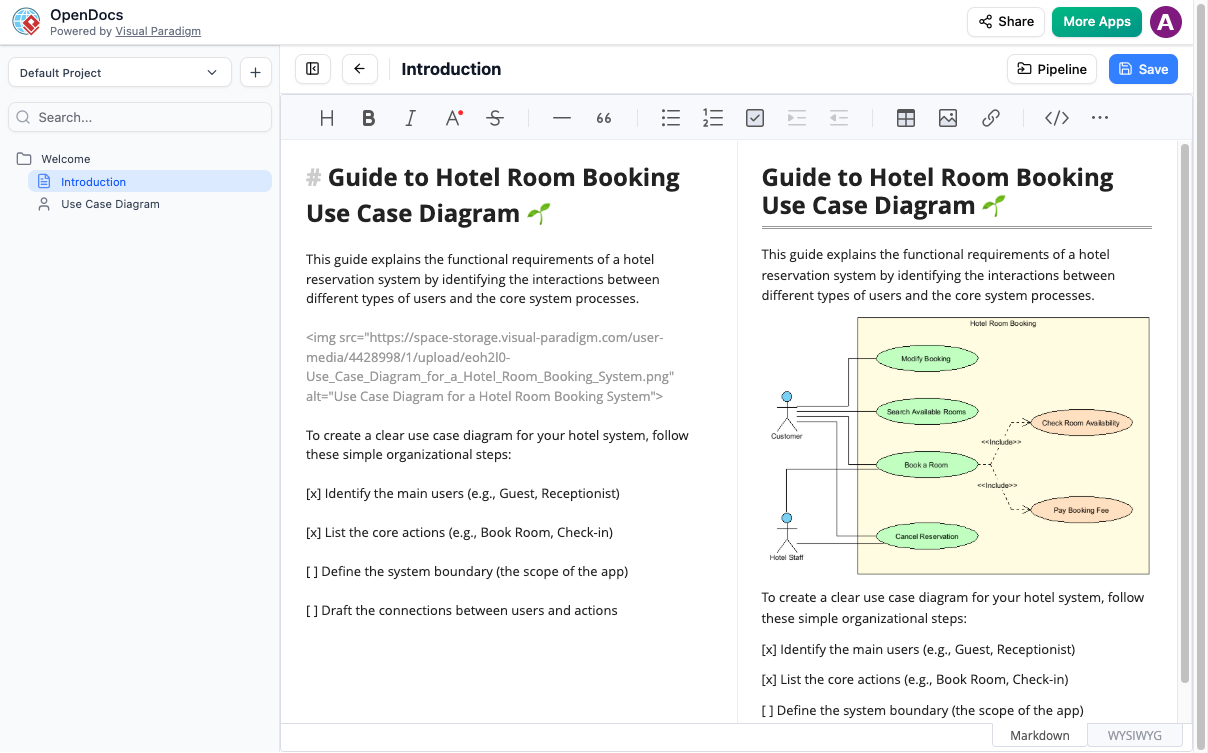
Example: Use Case Diagram for system requirement analysis
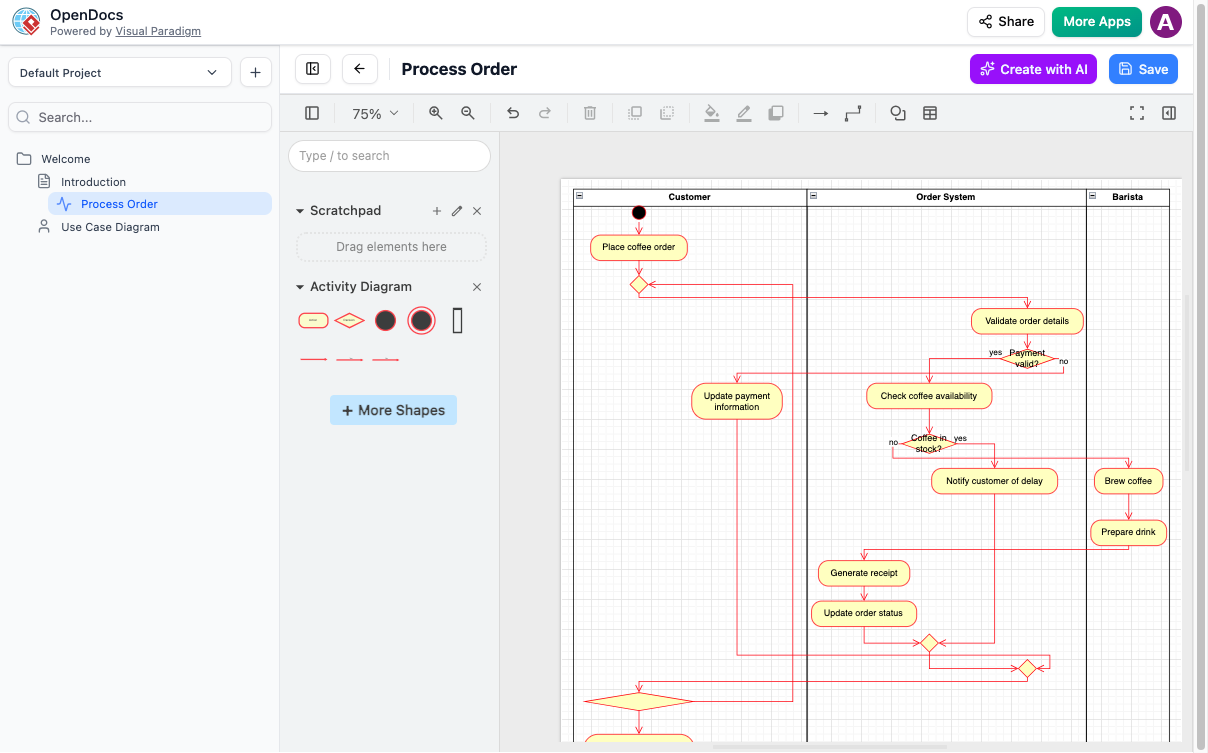
Example: Order processing workflow with decision points and error handling
AI-Powered Diagram Generation for System Architecture
From Text to Architecture Diagram in Seconds
“Describe your system architecture in plain English, and let AI generate the visual model. Then refine it using professional diagramming tools.”
Effective AI Prompts for Developers:
System Architecture Prompts:
- “Generate a microservices architecture diagram with API Gateway, User Service, Order Service, Inventory Service, and PostgreSQL database. Show REST API connections and message queue for async communication.”
Database Design Prompts:
- “Create an ERD for a blog platform with Users, Posts, Comments, Categories, and Tags. Show many-to-many relationships and foreign keys.”
Workflow Diagram Prompts:
- “Draw a BPMN diagram for CI/CD pipeline: code commit → linting → unit tests → build → deploy to staging → integration tests → production deployment.”
Network Architecture Prompts:
- “Generate a network diagram showing VPC with public and private subnets, NAT Gateway, Application Load Balancer, ECS cluster, and RDS instance.”
Sequence Diagram Prompts:
- “Create a sequence diagram for OAuth2 authorization code flow with user, browser, client app, authorization server, and resource server.”
Refining AI-Generated Diagrams
After AI generation, follow these steps:
- Adjust Layout: Use auto-layout or manually position components for clarity
- Add Technical Details: Include IP addresses, ports, protocols, or version numbers
- Apply Style Consistency: Use color coding for different environments (dev/staging/prod)
- Add Annotations: Document design decisions, constraints, and trade-offs
- Version Control: Save iterations as your architecture evolves
Database Design and ERD Modeling {#database-design}
AI-Powered ERD Generation
OpenDocs excels at database design documentation:
Example Workflow:
- Describe Your Schema:
“Create an ERD for an e-commerce database with these entities: Customers (id, name, email), Orders (id, customer_id, order_date, total), OrderItems (id, order_id, product_id, quantity, price), Products (id, name, description, price, stock). Show relationships with cardinality.” - AI Generates Initial ERD: The system creates entities with attributes and relationships
- Refine in Visual Editor:
- Add indexes and constraints
- Specify data types (VARCHAR, INT, TIMESTAMP, etc.)
- Add primary/foreign key notation
- Include triggers or stored procedures
- Embed in Documentation: Insert the ERD into your database design document with additional notes on normalization, indexing strategy, partitioning approach, and migration plan
Database Documentation Best Practices
For each database or table, document:
- Schema version and change history
- ERD with relationships and cardinality
- Index definitions and their purposes
- Performance considerations and query optimization notes
- Backup and recovery procedures
- Sample queries for common operations
API and System Integration Documentation {#api-docs}
Comprehensive API Documentation
Create API reference documentation that developers love:
Structure Your API Docs:
| Section | Purpose | Example Content |
|---|---|---|
| Base URL | Endpoint root | https://api.example.com/v1/payments |
| Authentication | Security requirements | OAuth2 Bearer token in Authorization header |
| Endpoints | Available operations | POST /payments/intent, GET /payments/{id} |
| Request Schema | Input validation | JSON body with required/optional fields |
| Response Format | Output structure | Success and error response examples |
| Error Codes | Troubleshooting | 400 Bad Request, 401 Unauthorized, 404 Not Found |
Integration Sequence Diagrams
Document complex integrations with sequence diagrams:
Example: Sequence diagram showing payment processing flow
Use AI to Generate:
“Create a sequence diagram for payment processing: Customer → Frontend → API Gateway → Payment Service → Stripe API → Webhook → Order Service → Database”
Code Documentation
Editing for Developers
Code Blocks with Syntax Highlighting:
Use triple backticks followed by the language identifier for proper syntax highlighting.
Tables for API Parameters:
Use pipe-delimited tables to document parameters, types, requirements, and descriptions in a scannable format.
Callouts and Warnings:
Use blockquotes with emoji indicators for important notices:
- ⚠️ Warning: Rate limits, breaking changes, or security considerations
- 💡 Tip: Best practices, optimization suggestions, or debugging guidance
- ℹ️ Note: Additional context or references
Documenting Code Architecture
Use diagrams to complement code:
- Class Diagrams: Document object-oriented design patterns and relationships
- Component Diagrams: Show module dependencies and interface contracts
- Package Diagrams: Illustrate code organization and namespace structure
- Deployment Diagrams: Map code artifacts to infrastructure components
Pipeline Integration and DevOps Workflows {#pipeline}
Connecting Visual Paradigm Desktop & Online
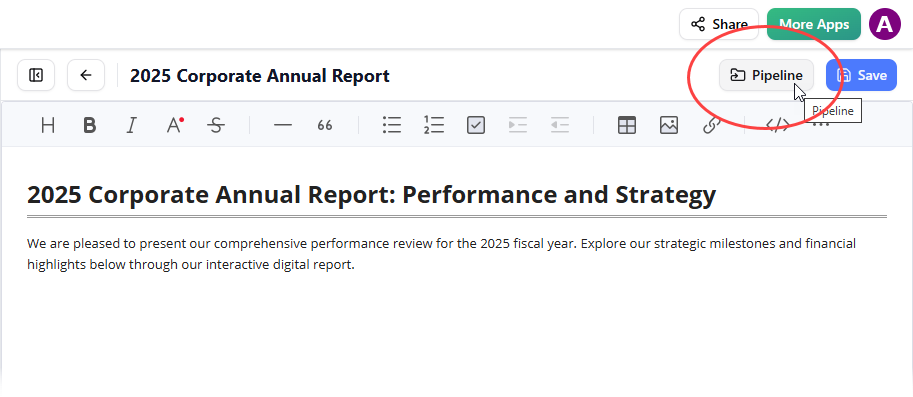
Use the Pipeline to sync diagrams across Visual Paradigm tools
The Pipeline feature bridges your development tools:
Workflow:
- Design in Visual Paradigm Desktop: Create detailed UML models and architecture diagrams
- Send to OpenDocs: Use Pipeline button to push diagrams to documentation
- Maintain Single Source of Truth: Updates sync automatically between tools
- Share with Stakeholders: Non-technical team members access via OpenDocs
Use Cases:
- Architecture Reviews: Design in Desktop, present in OpenDocs
- Sprint Documentation: Keep diagrams current with code changes
- Onboarding: New developers access centralized documentation
- Compliance: Maintain audit-ready architecture documentation
- DevOps Documentation
Document your CI/CD pipelines with clear workflow descriptions, environment variables, and deployment procedures. Use diagrams to visualize the pipeline stages and decision points.
Flipbooks for Technical Manuals {#flipbooks}
Creating Interactive Technical Documentation
Announced April 1, 2026
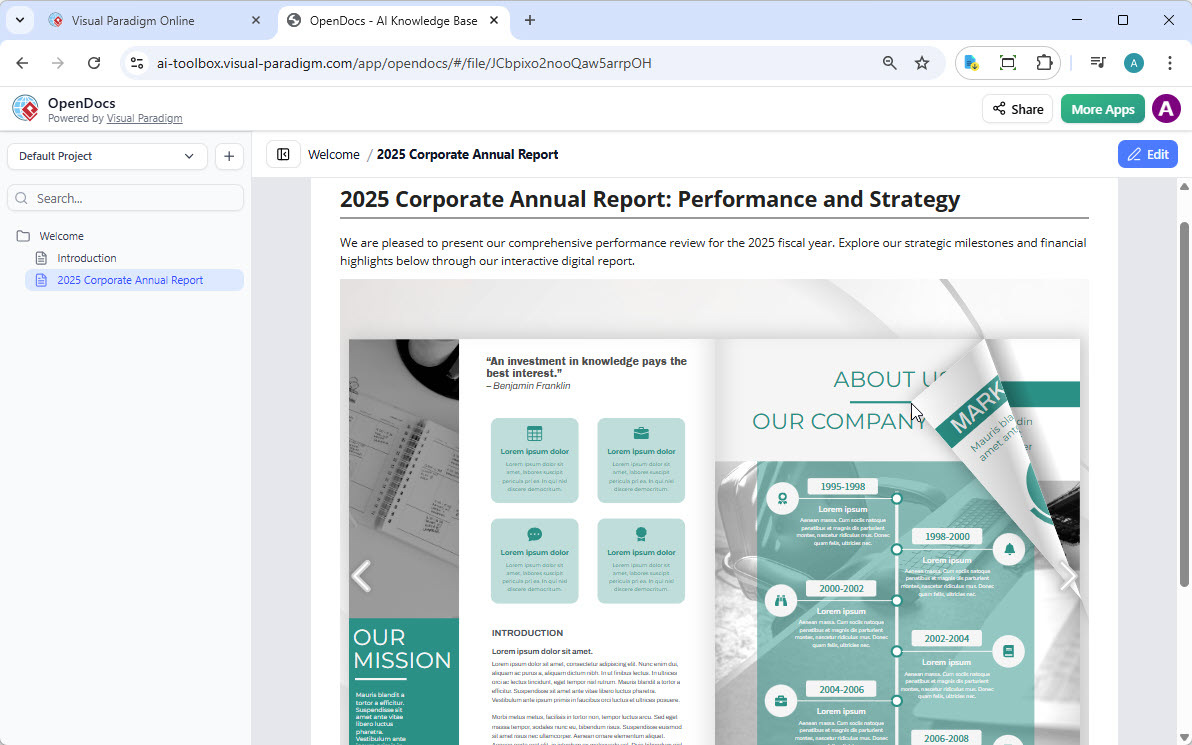
Embed interactive technical manuals and user guides as flipbooks
Transform static PDFs into engaging technical documentation:
Use Cases for Developers:
- API Reference Manuals: Convert PDF specs to interactive flipbooks
- System Architecture Guides: Create visual technical documentation
- Onboarding Guides: Interactive new developer orientation
- Release Notes: Version-specific documentation with page-flipping UX
What You Can Do
✅ Convert & Create: Transform existing PDFs, Word docs, and PowerPoint presentations into flipbooks
✅ AI-Powered Generation: Use AI to generate book outlines, write technical content, and create diagrams
✅ Interactive Elements: Embed code examples, video tutorials, and clickable navigation
✅ Professional Branding: Customize with your company’s technical documentation style
✅ Mobile-First: Responsive design for developers reading on any device
Sharing Flipbooks to OpenDocs
From Visual Paradigm Online:
- Open Visual Paradigm Online
- Navigate to Flipbooks in the left menu
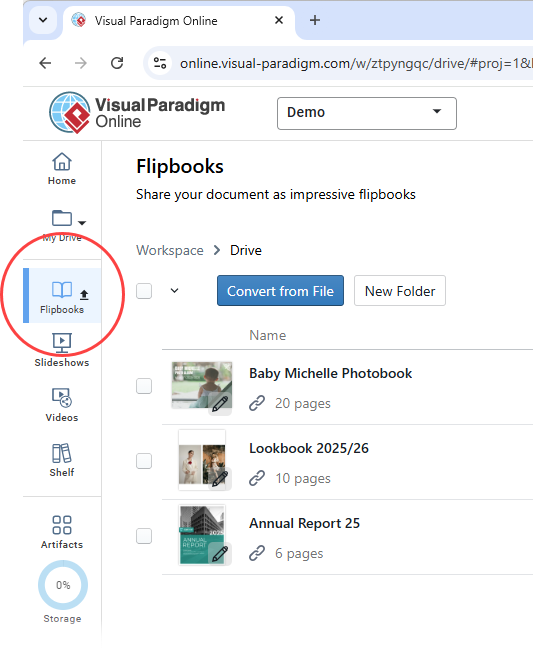
- Select your flipbook → More… → Send to OpenDocs [Pipeline]
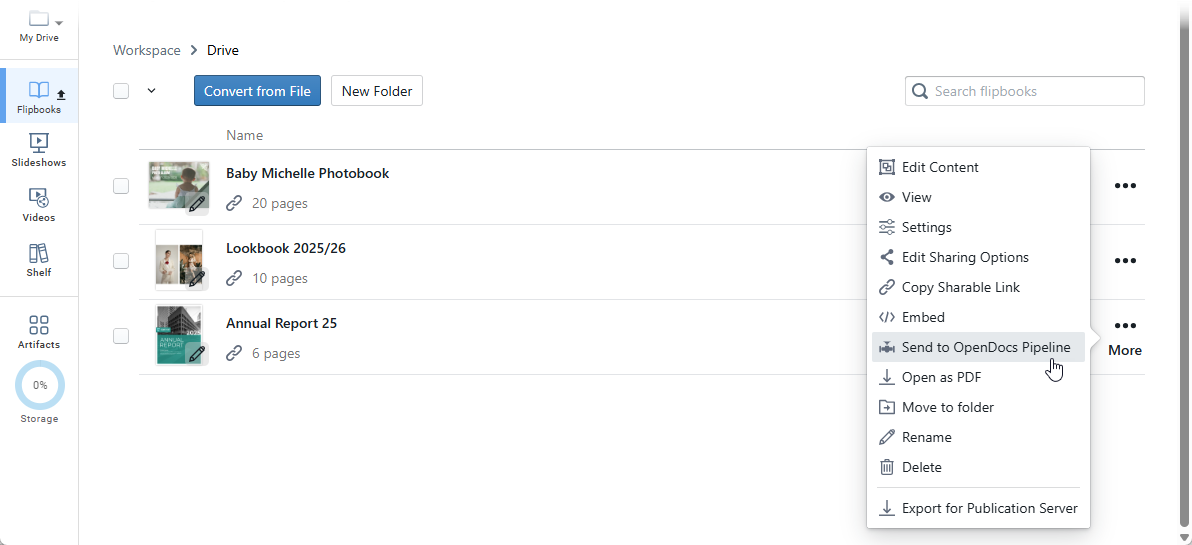
- Add optional comment → Click OK
Embedding in OpenDocs:
- Open your target page → Click Edit
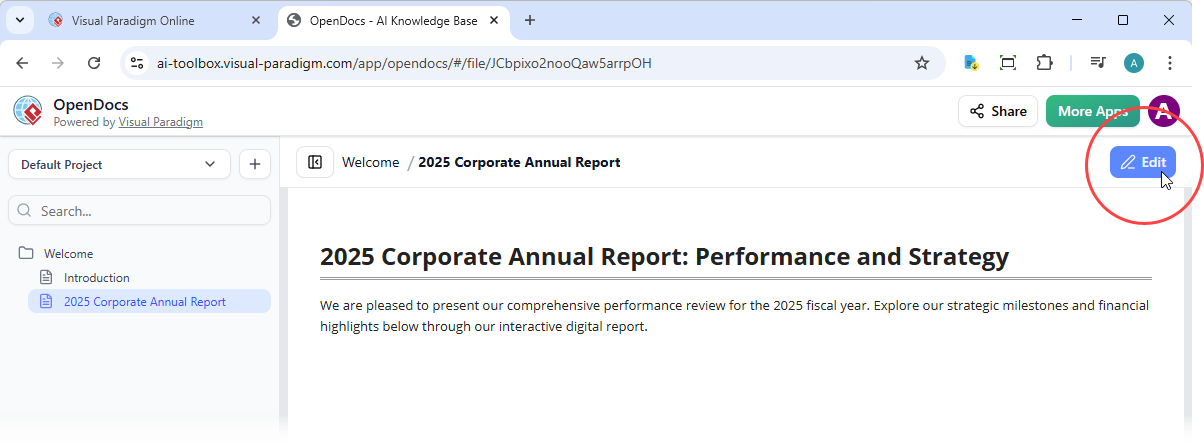
- Position cursor where flipbook should appear
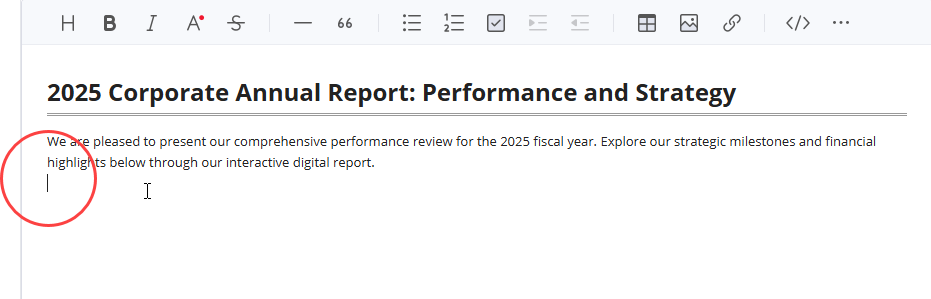
- Click Pipeline button (top right)
- Open Library tab → Select your flipbook
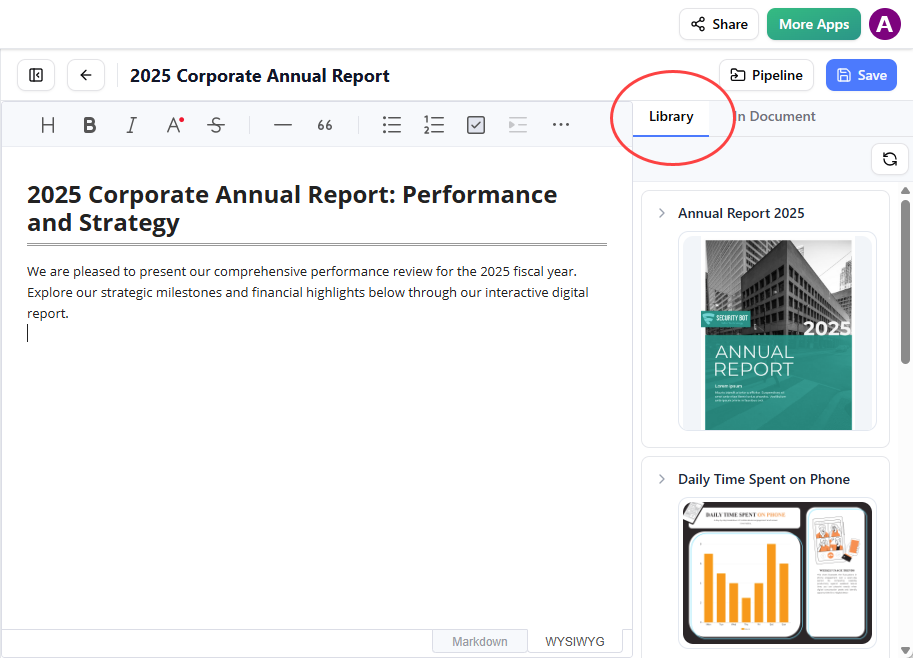
- Click to insert
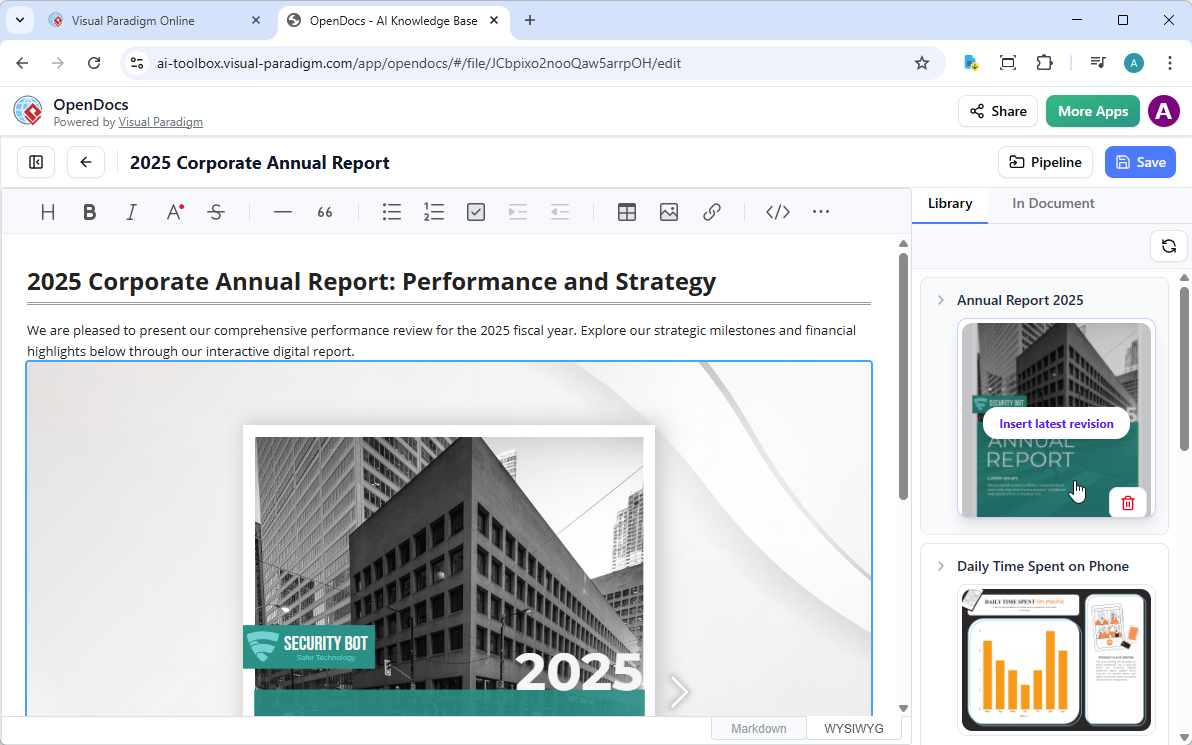
💡 Tip: Flipbooks appear static in Edit mode. Save and exit to interact with the live flipbook.
Tips and Tricks for Maximum Productivity {#tips-tricks}
Diagram Creation:
- Use AI generation for initial drafts, then refine manually
- Save common diagram templates for reuse
- Use snap-to-grid for professional alignment
Documentation Organization
Folder Structure Strategy:
📁 Project/
  ├── 📁 01-Architecture/
  ├── 📁 02-APIs/
  ├── 📁 03-Database/
  ├── 📁 04-Deployment/
  ├── 📁 05-Testing/
  └── 📁 06-Troubleshooting/
Naming Conventions:
- Use consistent naming:
service-name-api-reference.md - Include version numbers:
v2-user-service-erd.vpp - Date-stamp releases:
2026-04-release-notes.md
AI Prompt Engineering
Effective Prompts:
- Be specific: “Create a class diagram for User, Order, and Product entities with attributes: id (UUID), createdAt (timestamp), updatedAt (timestamp)”
- Include relationships: “Show one-to-many relationship between Customer and Orders”
- Specify notation: “Use UML 2.5 notation with visibility modifiers (+/-/#)”
Iterative Refinement:
- Generate with broad prompt
- Review and identify missing elements
- Regenerate with specific additions
- Fine-tune manually in visual editor
Collaboration Best Practices
Sharing Documentation:
- Generate secure read-only links for stakeholders
- Use folder permissions for sensitive architecture docs
- Create executive summaries with high-level diagrams
- Maintain detailed technical docs for developers
Version Control:
- Document changes in each update
- Use descriptive page names with version numbers
- Maintain changelog in root folder
- Archive deprecated documentation
Integration Workflows
With Git/GitHub:
- Link repository URLs in documentation
- Embed code snippets from actual source
- Reference commit hashes for architecture decisions
- Document branching strategy
With Project Management:
- Link Jira/ticket IDs to relevant documentation
- Document acceptance criteria with diagrams
- Create runbooks for common operations
- Maintain incident response procedures
Performance Tips
For Large Documentation Sets:
- Use nested folders to avoid flat structures
- Create index pages with navigation links
- Implement search-friendly titles and tags
- Break complex topics into multiple pages
For Diagram Performance:
- Simplify diagrams for high-level views
- Create detailed diagrams in separate pages
- Use layers for complex architectures
- Export large diagrams as images for faster loading
Key Benefits for IT Developers
| Benefit | Developer Impact |
|---|---|
| 🧠 All-in-One Knowledge Hub | Eliminate tab-switching between Confluence, Lucidchart, and code repos |
| 🗂️ Hierarchical Organization | Structure documentation to mirror your codebase architecture |
| 🤝 Instant Sharing | Share entire knowledge base with one secure link—no more “where’s the doc?” |
| 🎨 Visual-First Documentation | Communicate complex systems with professional architecture diagrams |
| 🌐 Browser-Based | Access from anywhere—no desktop installation or VPN required |
| 🤖 AI Acceleration | Generate ERDs, sequence diagrams, and flowcharts in seconds |
| 🔗 Pipeline Integration | Sync diagrams from Visual Paradigm Desktop to documentation automatically |
Frequently Asked Questions for Developers
❓ Can I import existing documentation from Confluence or Notion?
OpenDocs is designed for creating content within the platform. Currently, there is no direct import feature. However, you can copy/paste and recreate diagrams using AI generation.
❓ What diagram formats are supported?
OpenDocs supports:
- UML: Use Case, Class, Sequence, Activity, Component, Deployment
- Database: Entity-Relationship Diagrams (ERDs)
- Process: BPMN, Flowcharts, Swimlane Diagrams
- Architecture: Network Diagrams, Cloud Architecture, System Context
- Planning: Mind Maps, Work Breakdown Structures, PERT Charts
❓ Can I export diagrams to PNG/SVG for presentations?
Direct export is not currently supported. Diagrams are optimized for web viewing within OpenDocs. Use screenshots for presentations if needed.
❓ Is there API access for automation?
OpenDocs is currently a web-based application without a public API. Automation features are limited to the Pipeline integration with Visual Paradigm Desktop/Online.
❓ Can I version control my documentation?
OpenDocs does not have built-in version history. We recommend:
- Using descriptive naming with version numbers
- Maintaining a changelog document
- Creating backup copies before major changes
- Using the Pipeline to sync with Visual Paradigm Desktop (which has version control)
❓ Can I share individual pages or only the entire workspace?
Currently, sharing is designed for the entire knowledge base to provide full context. Individual page sharing is not available.
❓ Is there offline access?
OpenDocs is a web-based application requiring an internet connection. There is no offline mode or desktop client.
❓ Can I integrate with GitHub/GitLab?
Direct integration is not available. However, you can:
- Link to repository URLs in your documentation
- Embed code snippets manually
- Use Pipeline to sync with Visual Paradigm tools that may have integrations
❓ What’s the learning curve for non-technical team members?
OpenDocs is designed to be accessible:
- Rich text editor: Simple WYSIWYG-like experience
- AI diagram generation: No diagramming expertise required
- Visual editor: Drag-and-drop interface
- Viewing: Read-only access requires no training
❓ Can I customize the appearance/branding?
Limited customization is available. The platform focuses on functionality over extensive theming. Flipbooks offer more branding options for cover pages and themes.
Reference
Official Documentation & Guides
- OpenDocs: AI-Powered Knowledge Management Platform | Visual Paradigm: Official product page detailing OpenDocs features, capabilities, and use cases for individuals and teams seeking integrated documentation and diagramming.
- Visual Paradigm OpenDocs: The Complete Guide to AI-Powered Knowledge Management and Diagram Generation: Comprehensive third-party guide covering setup, workflows, AI features, and best practices for maximizing OpenDocs productivity.
Release Notes & Feature Updates
- Visual Paradigm Online to OpenDocs Export: Release announcement detailing the workflow for exporting diagrams and content from Visual Paradigm Online directly into OpenDocs via the Pipeline integration.
- OpenDocs: AI-Powered Knowledge Platform Release: Official launch announcement introducing OpenDocs as Visual Paradigm’s unified knowledge management solution with AI diagram generation.
- OpenDocs Entity-Relationship Diagram (ERD) AI Generation: Feature update highlighting AI-powered ERD creation, allowing users to generate database schema diagrams from natural language descriptions.
- AI Flowchart Generator: OpenDocs Update: Release notes covering enhancements to the AI flowchart generation engine, including improved prompt understanding and layout optimization.
- OpenDocs WYSIWYG Editor Update: AI Knowledge Management Tool: Announcement of the optional WYSIWYG editor mode.
- OpenDocs Professional Mind Map Integration: Feature release adding advanced mind mapping capabilities with collapsible branches, styling options, and export-ready layouts.
- AI Breakdown Structure Chart Maker in OpenDocs: Update introducing AI-assisted creation of Work Breakdown Structures (WBS) and hierarchical decomposition charts for project planning.
Tutorials & Advanced Guides
- Mastering the Pipeline in Visual Paradigm OpenDocs: A Complete Guide to Streamlined Knowledge Management: In-depth tutorial on leveraging the Pipeline feature to synchronize content across Visual Paradigm Desktop, Online, and OpenDocs.
- OpenDocs Tutorial Video: Official video walkthrough demonstrating core OpenDocs workflows, including page creation, diagram insertion, folder organization, and sharing.
Ready to Transform Your Technical Documentation?
Stop juggling multiple tools for documentation, diagrams, and code references. OpenDocs combines professional diagramming, AI-powered automation in one platform—so you can focus on building great software, not managing documentation.
Related posts:
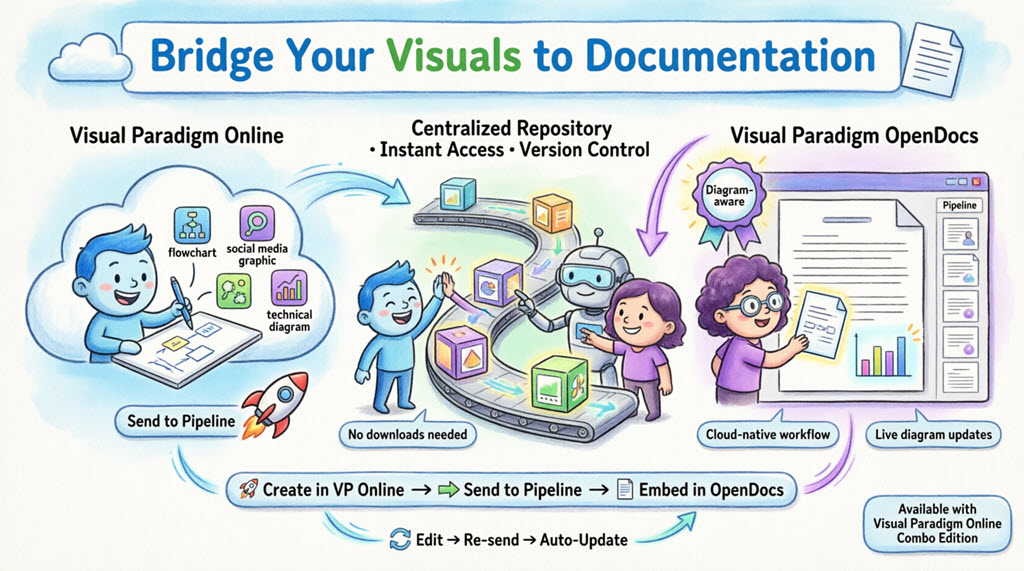 🚀 My Journey to Seamless Documentation: Sending Visual Paradigm Creations Directly to OpenDocs
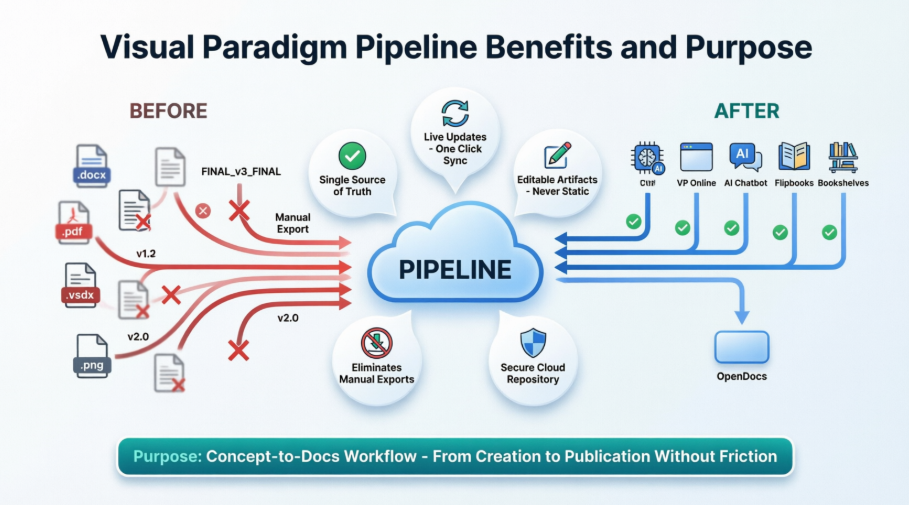 Solving the Documentation Chaos: How Visual Paradigm’s Pipeline Creates a Frictionless Concept-to-Docs Workflow
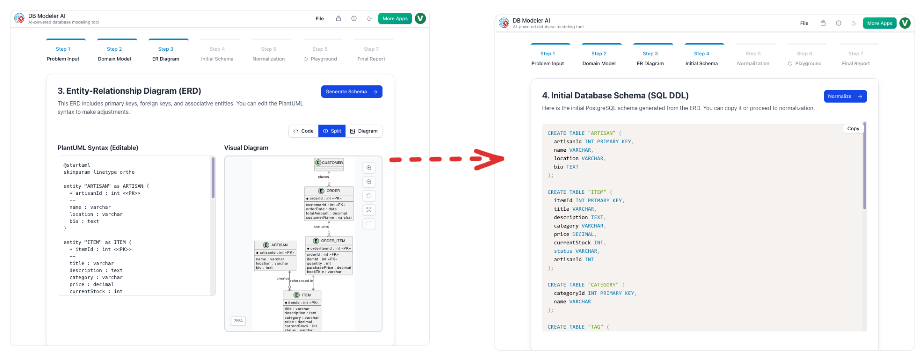 From Static Diagrams to Living Knowledge: A Case Study on Visual Paradigm’s Unified AI-Driven Documentation Ecosystem
 Getting Started with AI-Powered ERD Creation in OpenDocs: A Complete Beginner’s Guide

 English
 Arabic
 Chinese (Simplified)
 Dutch
Dutch French
 German
 Italian
 Japanese
 Korean
 Portuguese
 Russian
 Spanish