


Welcome! Let’s Make Documentation Less Daunting
Hi there! If you’re new to Visual Paradigm OpenDocs—or just exploring documentation tools for the first time—you’re in the right place. I’ve been using OpenDocs for several months now, both for personal projects and with remote teams, and I remember how overwhelming it felt at the start.
This guide is written just for you: a beginner-friendly walkthrough packed with practical tips, honest feedback, and the “aha!” moments I wish someone had shared with me. No jargon, no assumptions—just clear, actionable advice to help you hit the ground running.
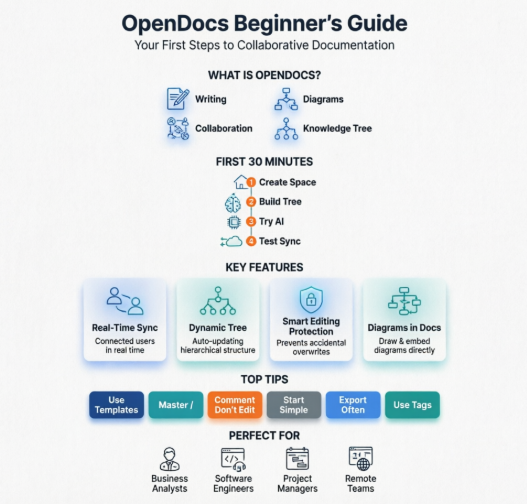
What Exactly Is OpenDocs? (In Plain English)
Think of OpenDocs as your team’s digital notebook—but supercharged. It’s a web-based platform where you can:
-
✍️ Write documentation (requirements, specs, meeting notes, user stories)
-
🎨 Create and embed diagrams (flowcharts, mind maps, UML, BPMN) without leaving the page
-
🤝 Collaborate in real-time with teammates, like Google Docs but built for technical content
-
🌳 Organize everything in a clean, hierarchical “knowledge tree” that grows with your project
The magic? It connects writing and visual thinking in one place. No more copying diagrams from one tool and pasting them into another. No more wondering if you’re looking at the latest version of a spec.
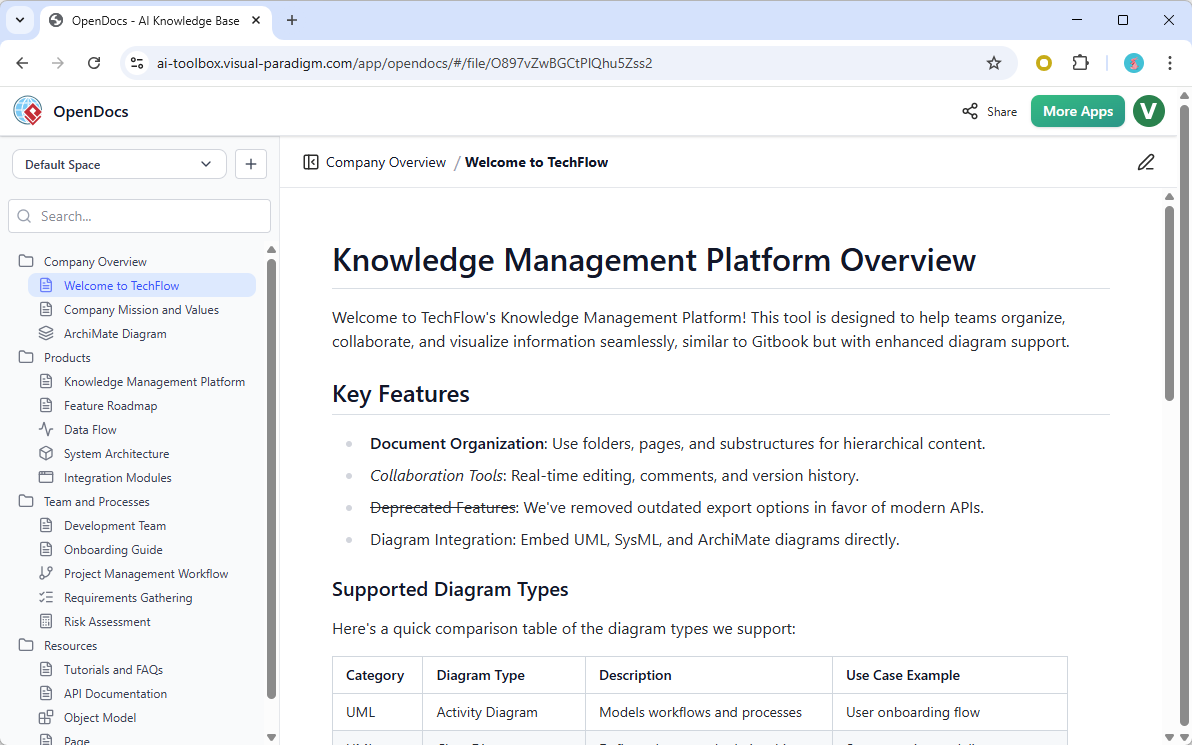
Getting Started: Your First 30 Minutes in OpenDocs
Step 1: Access and Setup
-
Go to OpenDocs and sign in (you’ll need a Visual Paradigm account—free tier available)
-
Create your first “Space” (think: project workspace). Name it something clear like “Project Alpha Docs”
-
Invite teammates via email if you’re collaborating (optional for solo users)
Step 2: Build Your First Knowledge Tree
-
Click “New Document” to create a root page (e.g., “Project Overview”)
-
Use the sidebar to add child pages: “Requirements,” “User Stories,” “Diagrams,” “Meeting Notes”
-
Pro tip: Start simple. You can always reorganize later—the tree updates instantly for everyone.
Step 3: Try the AI Assistant (Yes, Really)
-
Type
/anywhere in the editor to summon AI helpers -
Try:
/generate flowchart for user login processand watch a diagram appear -
Or:
/summarize this sectionto condense long text -
Don’t worry about perfection—AI is a starting point, not a replacement for your expertise
Step 4: Invite a Colleague and Test Sync
-
Share the page link with a teammate
-
Both of you edit the same paragraph simultaneously
-
Watch changes appear in real-time—no refresh needed!
Key Features Explained Simply (With Beginner Tips)
🔁 Real-Time Sync: Your Team, One Living Document
What it does: When you and a teammate edit the same page, you see each other’s changes instantly.
Beginner tip: Look for colored cursors with names—they show where others are working. If you see someone typing in a section you need, a quick chat (“Hey, are you done with that paragraph?”) prevents stepping on toes.
🌲 Dynamic Tree Updates: Stay Organized, Automatically
What it does: When someone adds, moves, or renames a folder in the sidebar, everyone sees the update immediately.
Beginner tip: Agree on a simple naming convention early (e.g., “01-Requirements,” “02-Designs”). It keeps your tree scannable as it grows.
🔐 Smart Editing Protection: No More “Who Changed What?”
What it does: If two people try to edit the same page, OpenDocs prompts the second person to request access. The current editor can approve, decline, or ask to wait 30 seconds.
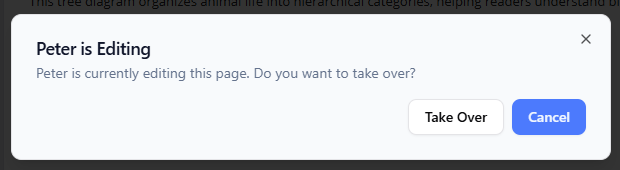
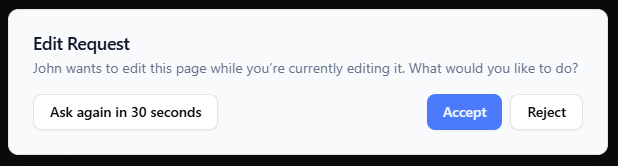
Beginner tip: If you get a request while editing, don’t panic! You can:
-
✅ Accept immediately if you’re done
-
⏱️ “Ask again in 30 seconds” if you need a moment to finish
-
❌ Decline with a note like “Let me save first, then I’ll hand it over”
🎨 Diagrams Inside Docs: Visuals Without the Switching
What it does: Embed professional diagrams directly in your text. Generate them with AI or build them manually using drag-and-drop tools.
Beginner tip: Start with simple flowcharts or mind maps. Use the AI prompt: /create a mind map of project risks to see how fast it works. You can always refine manually later.
My Top 10 Tips & Tricks for New Users
-
Use Templates: OpenDocs offers starter templates for user stories, meeting notes, and specs. Don’t start from scratch—customize instead.
-
Master the Slash Command: Typing
/opens a menu of AI actions, formatting options, and diagram tools. It’s your fastest path to productivity. -
Bookmark Key Pages: Use the star icon to favorite frequently accessed docs. They’ll appear in your quick-access bar.
-
Comment, Don’t Edit: For feedback, use the comment feature instead of directly changing someone else’s text. It keeps edits intentional and traceable.
-
Export Early, Export Often: While sync is reliable, periodically export critical pages as PDF or Markdown for backup. (File → Export)
-
Use Tags for Cross-Linking: Tag related pages (e.g., #authentication, #ui) to create informal connections beyond the tree structure.
-
Leverage Version History: Made a mistake? Click the clock icon to view and restore previous versions of any page.
-
Keep Diagrams Simple at First: Complex UML can wait. Start with boxes-and-arrows flowcharts to build confidence.
-
Set Team Norms: Agree on basics like “Who owns the root doc?” and “How do we request edits?” to avoid confusion.
-
Explore the AI Gallery: OpenDocs includes pre-built AI prompts for common tasks (summarizing, expanding bullet points, generating test cases). Browse them to save time.
Common Beginner Pitfalls (And How to Avoid Them)
❌ Pitfall: Trying to organize everything perfectly on day one.
✅ Fix: Start with 3-5 top-level folders. Refine as you learn what your team needs.
❌ Pitfall: Overusing AI-generated content without review.
✅ Fix: Treat AI output as a first draft. Always add your context, verify accuracy, and personalize tone.
❌ Pitfall: Ignoring the editing request workflow.
✅ Fix: If you need to edit a locked page, send a polite request with context: “Hi, I need to add the latest API specs—can I take over for 5 minutes?”
❌ Pitfall: Creating overly complex diagrams too soon.
✅ Fix: Begin with simple visuals. Complexity can grow organically as your documentation matures.
❌ Pitfall: Not using comments for feedback.
✅ Fix: Reserve direct edits for your own content. Use comments for suggestions—it builds trust and clarity.
When Should You Use OpenDocs? (Real-World Use Cases)
✅ Great for:
-
Documenting software requirements or system architecture
-
Creating onboarding guides for new team members
-
Running remote workshops with live, collaborative notes
-
Building a single source of truth for product specs
-
Visualizing processes with embedded flowcharts or BPMN
❌ Maybe not ideal for:
-
Simple, one-off notes (a basic text editor may suffice)
-
Highly regulated industries requiring strict audit trails (check compliance features first)
-
Teams already deeply invested in another ecosystem with no migration plan
Honest Feedback: Pros and Cons from an Independent User
👍 What I Love
-
True real-time sync: Changes appear instantly—no more version confusion
-
Diagrams inside docs: Eliminates tool-switching fatigue
-
Thoughtful conflict resolution: The request-and-grant system respects everyone’s workflow
-
AI that actually helps: Prompts are practical, not gimmicky
-
Clean, intuitive interface: Beginners can navigate without extensive training
👎 Areas for Improvement
-
Learning curve for advanced diagrams: UML/BPMN tools take practice (but basics are easy)
-
Limited offline mode: Requires internet connection for full functionality
-
Integration ecosystem still growing: Some third-party tools aren’t yet supported
-
Free tier limitations: Large teams or heavy users may need a paid plan sooner than expected
Overall Rating: 4.5 / 5 Stars
A powerful, beginner-friendly platform that grows with your team’s needs. Minor limitations are outweighed by its core strengths in collaboration and visual documentation.
Final Thoughts: You’ve Got This!
Starting with a new tool can feel intimidating, but OpenDocs is designed to meet you where you are. You don’t need to master every feature on day one. Begin with writing a simple doc, add one diagram, invite one teammate—and build from there.
The goal isn’t perfection. It’s progress: clearer communication, fewer version headaches, and a shared space where ideas can thrive. That’s what OpenDocs helped my team achieve, and I’m confident it can do the same for you.
Ready to give it a try?
Launch Visual Paradigm OpenDocs Now
Happy documenting! 🚀
References
- Visual Paradigm OpenDocs Features: Official overview of OpenDocs capabilities, including AI-powered diagramming, structured knowledge trees, and team collaboration tools.
- Visual Paradigm OpenDocs Demo Video: YouTube walkthrough demonstrating key OpenDocs workflows and interface features.
- The Complete Guide to AI-Powered Knowledge Management with OpenDocs: In-depth third-party guide covering setup, best practices, and advanced use cases for OpenDocs.
- Beyond Notes and Diagrams: A Hands-On Review of OpenDocs: Practical review evaluating OpenDocs as a unified knowledge hub for technical and business teams.
- OpenDocs Tool Page: Direct access point for launching the OpenDocs application and exploring its AI-powered documentation environment.
- Sync AI Diagrams to OpenDocs: Pipeline Guide: Step-by-step tutorial for exporting and synchronizing diagrams from Visual Paradigm Desktop into OpenDocs.
- Real-Time Collaboration Update Release Notes: Official announcement detailing the new synchronization, structure updates, and editing protection features covered in this review.
- OpenDocs: AI-Powered Knowledge Platform Announcement: Foundational release post introducing OpenDocs’ vision as a central repository for visual knowledge management.
Related posts:
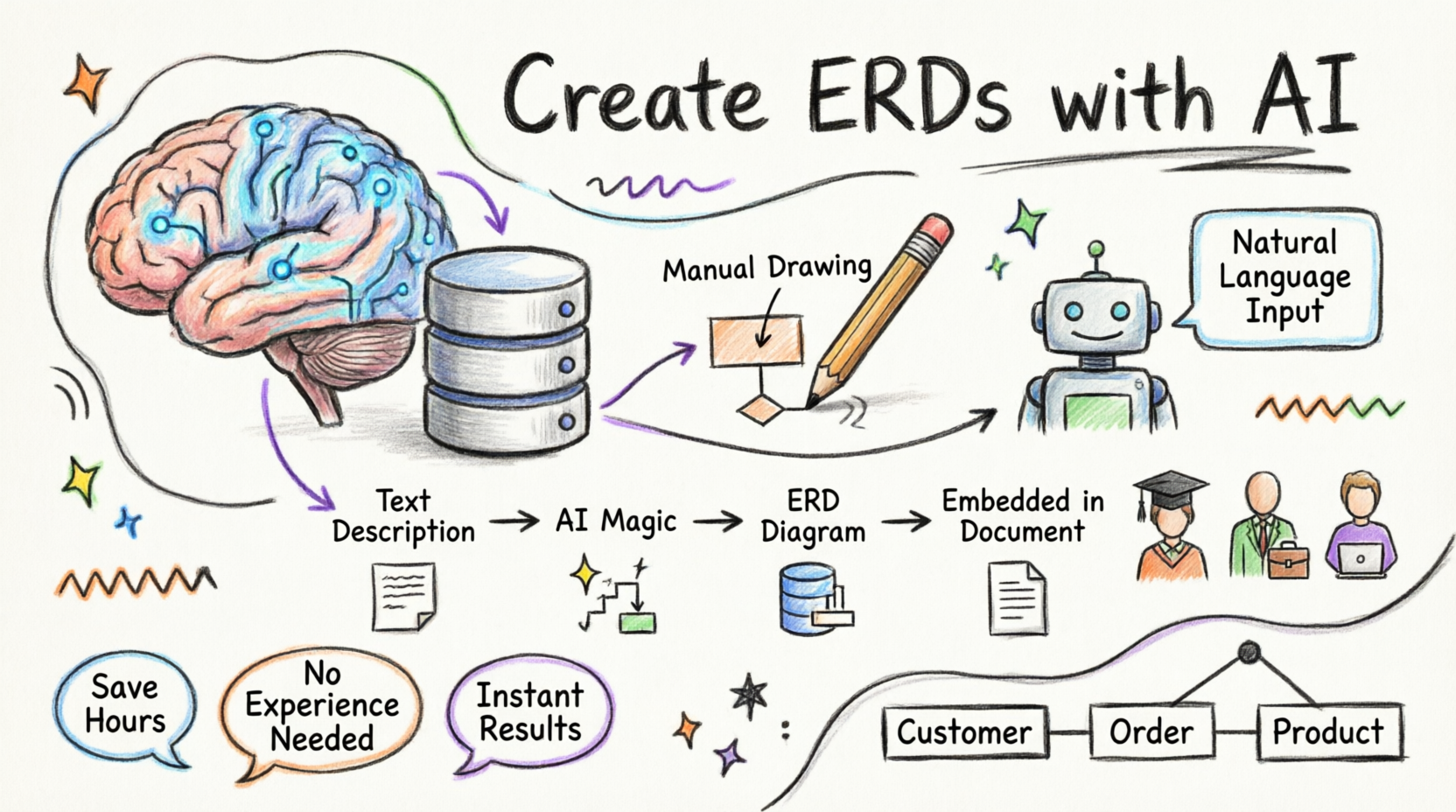 Getting Started with AI-Powered ERD Creation in OpenDocs: A Complete Beginner’s Guide
 Visual Paradigm OpenDocs: The Complete Developer’s Guide to AI-Powered Technical Documentation
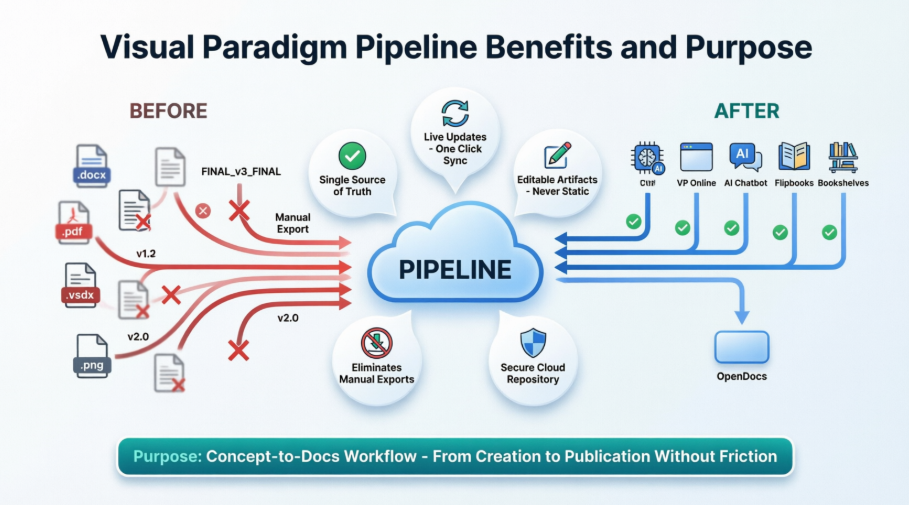 Solving the Documentation Chaos: How Visual Paradigm’s Pipeline Creates a Frictionless Concept-to-Docs Workflow
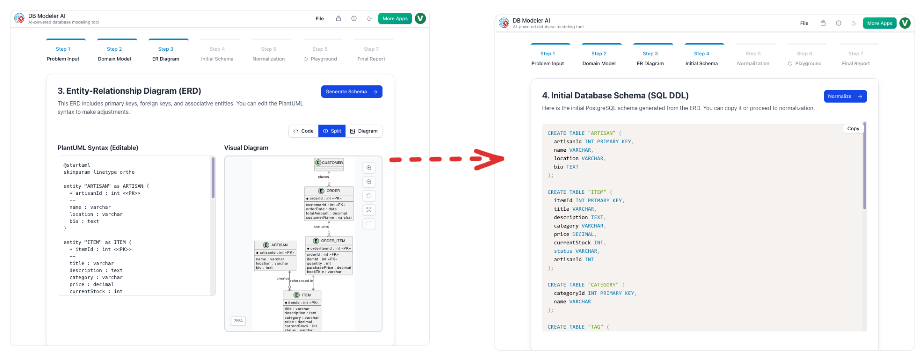 From Static Diagrams to Living Knowledge: A Case Study on Visual Paradigm’s Unified AI-Driven Documentation Ecosystem

 English
 Arabic
 Chinese (Simplified)
 Dutch
Dutch French
 German
 Italian
 Japanese
 Korean
 Portuguese
 Russian
 Spanish