


A Comprehensive Guide with Visual Paradigm
Introduction: The Modeling Renaissance
For years, visual modeling with UML and BPMN seemed at odds with Agile’s “working software over comprehensive documentation” ethos. Many teams abandoned diagrams by sprint 3, viewing them as bureaucratic overhead that couldn’t keep pace with rapid iteration.
That landscape changed in January 2026.
With the release of Visual Paradigm 18.0—positioned as the world’s first AI-driven “modeling co-pilot”—the value proposition has flipped entirely. Instead of spending hours manually dragging shapes and aligning connectors, teams can now describe systems in plain English and receive professional, standards-compliant diagrams in seconds.
This guide explores how AI-powered modeling is making UML and BPMN not just relevant again, but essential for Agile teams—and how Visual Paradigm’s AI ecosystem makes this transformation practical and immediate.
Part 1: Why Modeling Failed in Agile (And Why It’s Back)
The Traditional Friction Points
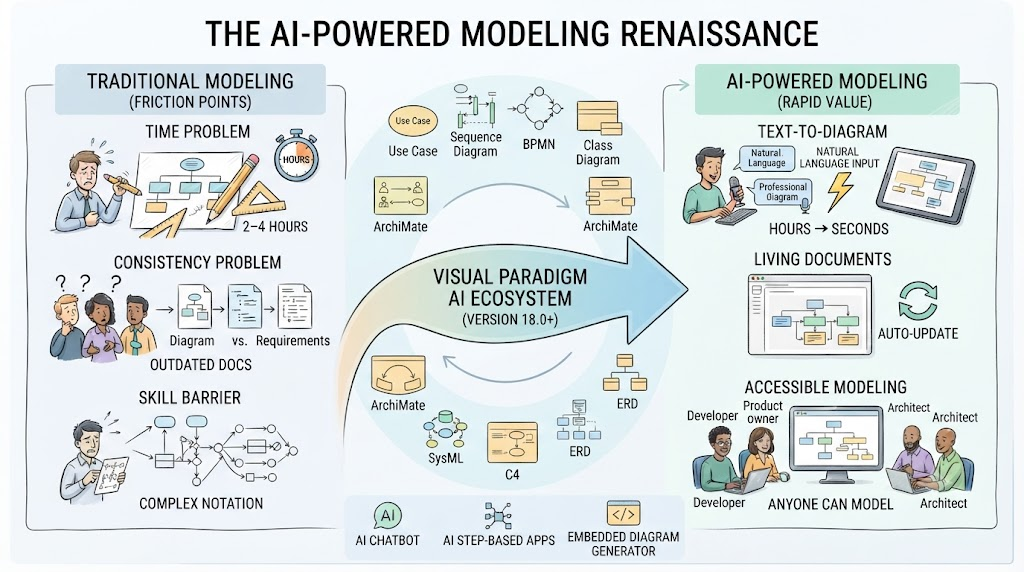
The Time Problem
Creating a use case diagram traditionally took 2–4 hours. Sequence diagrams demanded painstaking arrangement of lifelines and messages. BPMN workflows required careful routing of sequence flows and gateways.
The Consistency Problem
Manually maintaining alignment between diagrams, code, and requirements is nearly impossible in a sprint-based cadence. Models become outdated, documentation diverges, and teams stop trusting their own diagrams.
The Skill Barrier
UML and BPMN require learning complex notations. Many Agile team members—particularly newer developers and product owners—lack the expertise to create or interpret formal models.
The AI Solution
Visual Paradigm’s AI ecosystem addresses all three problems simultaneously:
| Problem | AI Solution | Impact |
|---|---|---|
| Time-consuming manual drawing | Text-to-diagram generation | Hours → seconds |
| Outdated documentation | Dynamic embedding & auto-update | “Living documents” that stay current |
| Skill barriers | Natural language interface | Anyone can model, regardless of notation expertise |
The result? Teams can maintain accurate, standards-compliant models throughout the Agile lifecycle—without sacrificing velocity.
“The future of modeling isn’t just visual—it’s intelligent, automated, and driven by natural language.” — Visual Paradigm, January 2026
Part 2: Visual Paradigm’s AI Ecosystem Overview
Visual Paradigm 18.0 isn’t a single AI feature—it’s a tightly integrated suite of intelligent assistants designed for different workflow needs.
The Three Pillars of AI Modeling
1. AI Chatbot – The Conversational Bridge
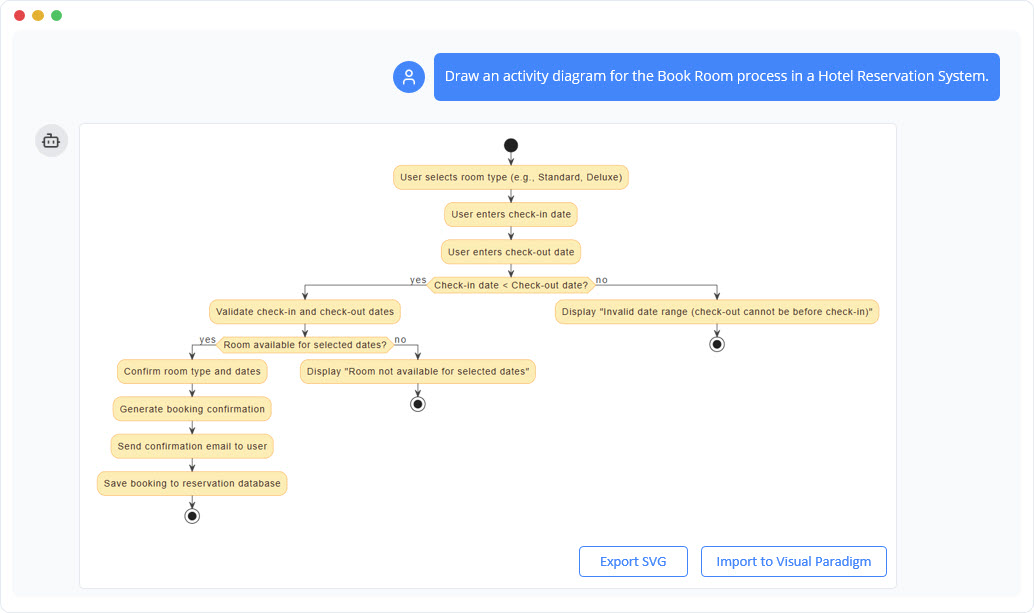
Accessible at chat.visual-paradigm.com or embedded in the desktop app, the AI Chatbot is your primary entry point. It transforms natural language descriptions into fully structured diagrams through conversation.
Key Capabilities:
- Instant diagram generation from text
- Conversational refinement (e.g., “Add an admin actor who can reset passwords”)
- Explanatory mode for learning (“Explain the difference between aggregation and composition”)
- Broad diagram support: UML 2.5, BPMN 2.0, ArchiMate, SysML, C4, ERD, and more
2. AI Step-Based Apps – The Guided Analyst
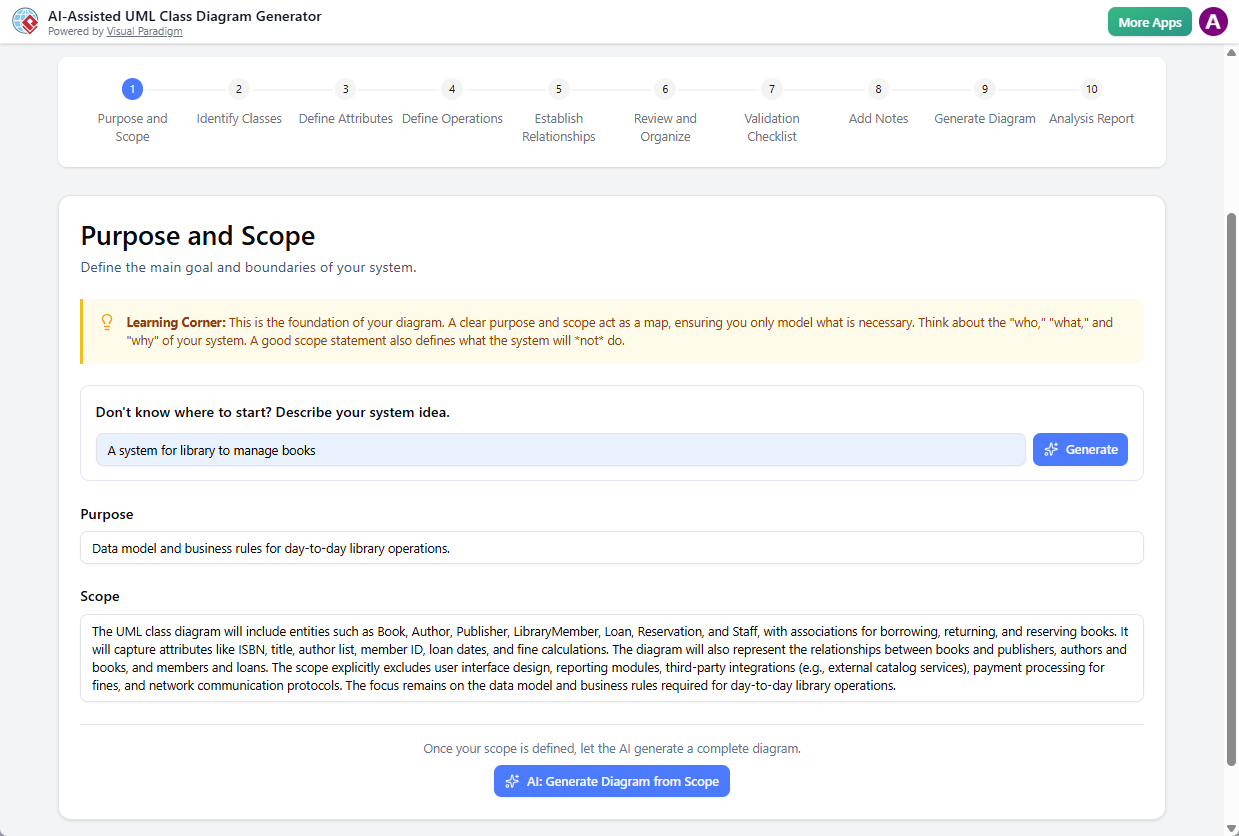
For methodical, educational, or team-consistent workflows, Visual Paradigm offers wizard-like applications that break complex modeling into logical steps.
Notable Apps:
- AI-Powered Textual Analysis – Extracts candidate classes, attributes, and relationships from requirements text
- Use Case Modeling Studio – Generates complete use case specifications with flows, pre/post-conditions
- 10-Step UML Class Diagram Wizard – Guides entity identification, relationship definition, and design pattern application
3. Embedded Diagram Generator – Precision Engineering
For advanced users working in the desktop environment (Professional Edition or higher), AI powers specialized diagram generators that integrate directly with modeling projects.
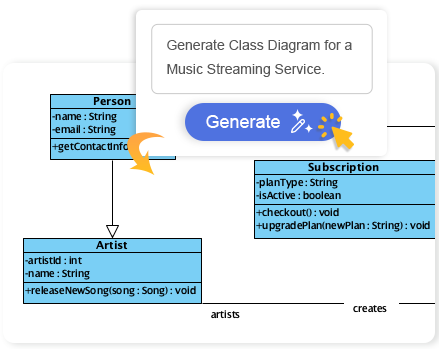
Features:
- AI generation for Timing, Package, Deployment, and Component Diagrams
- Seamless import into active desktop projects
- Advanced validation and round-trip engineering integration
Part 3: Practical Workflows – From Text to Diagram
Workflow 1: The Agile User Story → UML Use Case Model
Step 1: Start with a User Story
"As a customer, I want to reserve a table at a restaurant so I can plan my dining experience"
Step 2: Generate Candidate Use Cases
Using Visual Paradigm’s AI-Powered Use Case Modeling Studio, paste your problem description and click “Generate Candidate Use Cases.” The AI produces a structured table like this:
| Use Case Name | Primary Actor | Goal / Value Delivered | Priority |
|---|---|---|---|
| Search for Available Tables | Diner | Find restaurants matching preferences | High |
| Book a Table | Diner | Secure a reservation for date, time, party size | High |
| Pre-order Meal | Diner | Select dishes ahead to reduce wait time | High |
| Cancel Reservation | Diner | Release booking with fee/refund logic | Medium |
| Manage Incoming Reservations | Restaurant Staff | View, confirm, modify bookings | High |
Step 3: Review and Refine
- Accept the suggestions, edit names for consistency, or add missing items
- Aim for 5–12 essential use cases per system iteration
Step 4: Generate the Use Case Diagram
- Use the AI Chatbot: “Create a use case diagram for the GourmetReserve system based on these use cases”
- The AI produces a professionally laid-out diagram with actors, system boundaries, and relationships
Agile Tip: Complete this workflow in under 5 minutes during backlog refinement—keeping modeling in sync with sprint planning.
Workflow 2: Business Process → BPMN Diagram
Step 1: Describe the Process in Plain English
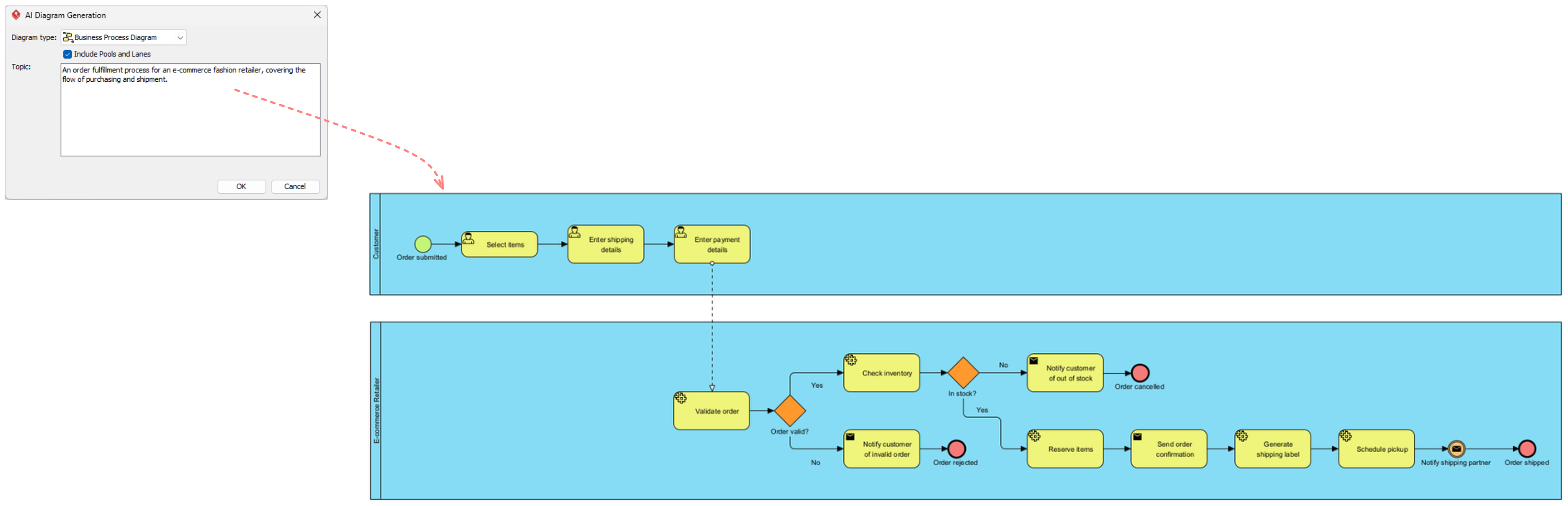
"An order fulfillment process for an e-commerce fashion retailer, covering the flow of purchasing and shipment."
Step 2: Generate with AI BPMN Tool
Navigate to Tools > AI Diagram Generation in Visual Paradigm Desktop:
- Select “Business Process Diagram” as the diagram type
- Check “Include Pools and Lanes” to organize by participants
- Enter your topic description
- Click OK
The AI BPMN generator constructs a BPMN 2.0-compliant diagram with:
- Tasks and sub-processes
- Sequence flows
- Gateways (decision points)
- Swimlanes representing departments or roles
Step 3: Refine Through Conversation
Use follow-up prompts:
- “Add a fraud detection check before payment processing”
- “Insert a retry loop for failed payment attempts”
- “Expand the shipping step to show carrier selection”
Agile Tip: Use BPMN diagrams during sprint planning to align business stakeholders and developers on workflow logic before coding begins.
Workflow 3: System Behavior → Sequence Diagram
Step 1: Describe the Interaction Scenario
"Generate a sequence diagram for an e-commerce checkout process. Include: add item to cart, view cart, enter shipping details, select payment method, process payment, confirm order, and send email receipt."
Step 2: AI Generates the Full Sequence Diagram
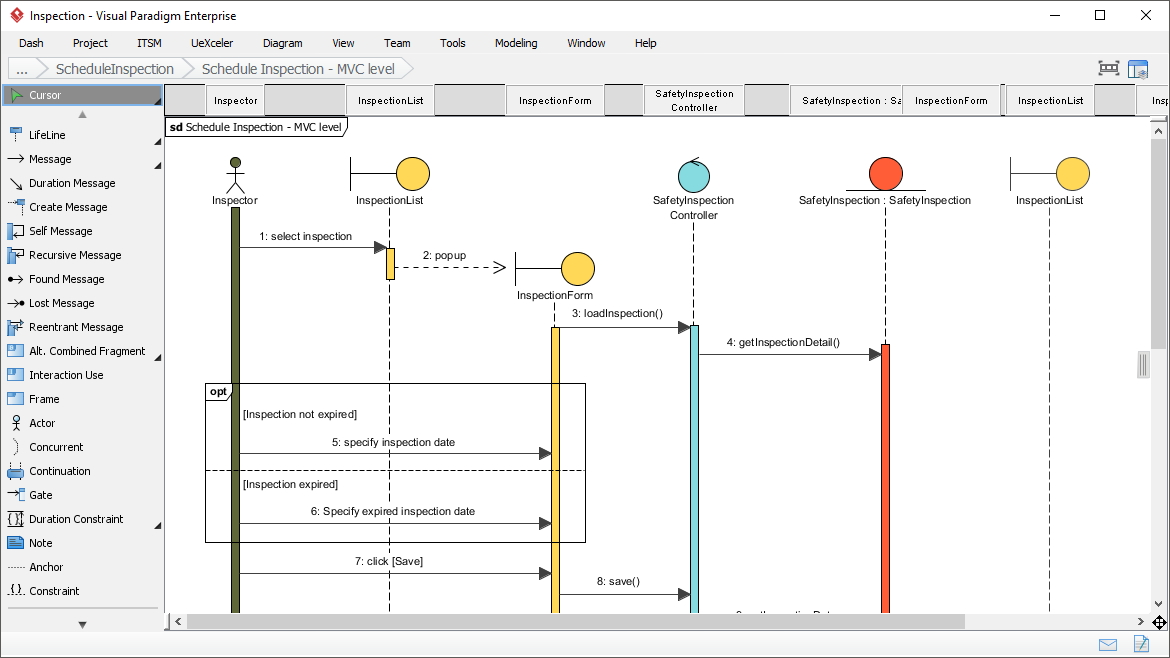
The AI Chatbot produces a clean diagram with:
- Lifelines for each participant (Customer, ShoppingCart, OrderService, PaymentGateway, EmailService)
- Correct message ordering and activation bars
- Conditional branches for “Payment Failed” and “Insufficient Stock”
Step 3: Refine Iteratively
- “Add a discount code validation step before payment”
- “Insert a timeout fragment after 30 seconds of inactivity”
- “Show parallel message sending to notification service and audit log”
Step 4: Generate Test Cases
Convert the sequence diagram into automated test scenarios:
- Each path through the diagram becomes a test case
- Output in JUnit, Cucumber, or TestNG format
Agile Tip: Use sequence diagrams for technical design sessions. The AI handles lifeline placement and message routing, so the team focuses on interaction semantics.
Part 4: The AI-Powered Modeling Workflow in Agile Sprints
Sprint 0 – Discovery & Requirements
| Activity | AI Tool | Outcome |
|---|---|---|
| Capture high-level requirements | AI Textual Analysis | Candidate use cases, actors, classes |
| Map business processes | AI BPMN Generator | Process flow with swimlanes |
| Create system context | AI Chatbot → C4 Context Diagram | Stakeholder visualization |
Tip: Generate Business Model Canvas, SWOT, and PESTLE analyses using AI Apps to inform product strategy.
Sprint Planning – Refinement & Estimation
| Activity | AI Tool | Outcome |
|---|---|---|
| Break down epics into stories | Agilien for Jira | User stories with acceptance criteria |
| Detail use cases | Use Case Modeling Studio | Full specifications with flows |
| Identify technical components | AI Chatbot → Component Diagram | System architecture view |
Tip: The AI automatically maps stories to use cases and requirements, maintaining traceability.
Development Sprint – Design & Implementation
| Activity | AI Tool | Outcome |
|---|---|---|
| Design class structure | AI Class Diagram Wizard | Entities with attributes and relationships |
| Model interactions | AI Chatbot → Sequence Diagram | Detailed message flows |
| Define state behavior | AI Chatbot → State Machine Diagram | Object lifecycle visualization |
Tip: Generate Software Design Documents (SDD) automatically in HTML from your models.
Sprint Review – Documentation & Handoff
| Activity | AI Tool | Outcome |
|---|---|---|
| Update diagrams to match code | AI Refinement commands | Current, accurate models |
| Generate documentation | OpenDocs with AI | Auto-updating documentation with embedded diagrams |
| Create executive summaries | AI Infographic Generator | Branded reports and dashboards |
Tip: The AI maintains diagram-to-documentation consistency, eliminating “documentation drift” between sprints.
Part 5: Tips and Tricks for Maximum Impact
Tips for Better AI-Generated Models
1. Write Clear, Structured Prompts
- Good: “An employee onboarding process in a mid-sized company, including HR review, IT provisioning, and manager welcome”
- Better: “An employee onboarding process with 3 swimlanes: HR Department, IT Department, and Manager. Sequence: HR reviews application, IT provisions equipment, Manager schedules welcome meeting”
2. Generate, Then Refine
Don’t expect perfection in one shot. Use the conversation to evolve models:
- Start with a core description
- Add details incrementally
- Ask the AI to re-layout for better readability
3. Use Multiple AI Tools Together
- Start with AI Chatbot for rapid prototyping
- Refine with Step-Based Apps for structured discovery
- Finalize with Embedded Generator for production-grade precision
4. Trust but Verify
AI suggestions are strong starting points, but domain expertise is still essential. Always:
- Review for missing compliance or business-specific logic
- Ensure naming consistency
- Validate against requirements
Common Pitfalls to Avoid
Pitfall 1: Treating AI Output as Final
AI-generated diagrams are about 80% complete. The remaining 20% requires human refinement—adding specific data types, assigning methods, and adjusting relationships.
Pitfall 2: Over-scoping in One Prompt
Aim for 5–12 use cases per system iteration. Too many suggests over-scoping.
Pitfall 3: Ignoring Traceability
Always link diagrams to requirements and user stories. This is where models deliver maximum Agile value.
Part 6: Real-World Impact – The Numbers Don’t Lie
Across organizations adopting AI-powered modeling and orchestration, results have been dramatic:
| Use Case | Before AI | After AI | Improvement |
|---|---|---|---|
| Quality audit calls | 140 minutes | 10 minutes | 93% reduction |
| Trade reconciliation cases/day | 6-10 | 64 | 7x improvement |
| Compliance settlement delays | Baseline | 98% reduction | Near elimination |
| Inquiry handling time | Baseline | 58% reduction | 2x faster |
“The future of modeling isn’t just visual—it’s intelligent, automated, and driven by natural language.”
Part 7: Getting Started – Quick Reference
Accessing AI Features (Visual Paradigm Desktop)
| Requirement | Details |
|---|---|
| Version | Latest Visual Paradigm Desktop (18.0+) |
| Connectivity | Must connect to Visual Paradigm Online |
| Project Hosting | Active project hosted on VP Online |
| License | Professional Edition or higher with active maintenance |
Where to Start
- Visit chat.visual-paradigm.com – Try the AI Chatbot free
- Open your Visual Paradigm project – Navigate to Tools > AI Diagram Generation
- Try simple prompts first – “Create a login sequence diagram”
- Refine through conversation – “Add password reset option”
- Import to desktop project – For full editing and version control
Conclusion: The New Era of Agile Modeling
Visual Paradigm 18.0 represents a fundamental shift in how Agile teams approach modeling. The era of “drawing chores” is giving way to “modeling by conversation”.
AI doesn’t replace the architect or analyst—it frees them to focus on what matters: system design, architecture decisions, and stakeholder alignment. The mechanics of layout, notation, and consistency become the AI’s responsibility.
For Agile teams, this means:
- Faster design cycles – Diagrams ready in seconds, not hours
- Better documentation – Always up-to-date, never outdated
- Lower barriers – Anyone can contribute to modeling
- Full traceability – From user story to code, with models bridging the gap
The modeling renaissance is here. With Visual Paradigm’s AI ecosystem, your Agile team can be at the forefront.
Reference
- Visual Paradigm AI Chatbot: The primary entry point for Visual Paradigm’s AI ecosystem, this chatbot transforms natural language descriptions into fully structured, editable diagrams in seconds. It supports a wide range of diagram types including UML, BPMN, ArchiMate, SysML, and C4 models, enabling conversational refinement and instant diagram generation without manual drawing.
- Visual Paradigm Desktop: The flagship professional modeling tool that blends AI speed with enterprise-grade editing capabilities. It features an embedded AI Diagram Generator accessible via Tools > AI Diagram Generation, allowing users to generate fully editable, native diagrams from text descriptions. The desktop environment supports offline refinement, code engineering, version control, and advanced project management for complex enterprise projects.
- AI Diagram Generation Guide: A comprehensive tutorial covering the step-by-step process of generating diagrams with AI in Visual Paradigm. The guide explains how to launch the AI Diagram Generator, select target diagram types, enter system descriptions, and review generated diagrams. It emphasizes that AI-generated structures typically account for 80% of the effort, with users supplying the remaining 20% of refinement and detail.
- Use Case Modeling Studio Documentation: Detailed documentation on Visual Paradigm’s AI-Powered Use Case Modeling Studio, including the Scope Description form that captures system name, purpose, and audience. The AI refines rough input into polished scope statements, providing a “north star” for the project. This documentation also covers AI-powered generation of use case specifications with preconditions, postconditions, main flows, alternative flows, and exception flows.
Additional Valuable Resources from the Guide’s Context:
- AI VPP Chatbot: An intelligent project chatbot that analyzes uploaded Visual Paradigm Project (.vpp) files. It automatically indexes diagrams and model structures, allowing users to ask natural language questions about their projects, list use cases, review flow of events, and get deep project insights instantly. Available for users with Visual Paradigm Online Combo Edition or Visual Paradigm Desktop Professional Edition and higher.
- AI Class Diagram Generator Guide: A specialized guide demonstrating how to generate UML class diagrams using AI across all four Visual Paradigm platforms—VP Desktop, OpenDocs, AI Visual Modeling Chatbot, and Web Apps. It covers generating class diagrams from text prompts (e.g., “a library management app with Book, Member, Loan, and Fine classes”) and includes step-by-step instructions for both the AI Diagram Generator and the AI Chatbot workflows.
- Conversational Refinement Guide: A practical guide demonstrating how to iteratively refine models through natural language dialogue. Examples include adding application components (e.g., “Add an ‘Application Component’ called ‘Payment Gateway’”), updating business processes, establishing multi-layer relationships, and switching viewpoints. The AI maintains strict adherence to modeling specifications while making immediate visual updates.
- AI Chatbot Case Study: A real-world case study showing the AI chatbot in action for an ATM cash withdrawal sequence diagram. The case study demonstrates instant diagram generation, on-demand documentation (generating a complete explanatory article from the diagram), and iterative editing, with users reporting up to 90% time savings in diagramming workflows.
- Software Design Document (SDD) Generation Guide: Documentation on Visual Paradigm’s automated SDD reporting feature, which compiles all project artifacts—scope definitions, use case diagrams, detailed specifications, behavioral models, structural models, and test cases—into professionally formatted PDF or Markdown documents with a single click.
- Hands-on Use Case Modeling Guide: A practical tutorial covering AI-powered use case diagram generation and manual diagram creation. It includes step-by-step instructions for generating use case diagrams from text descriptions, creating system boundaries, adding actors, modeling include and extend relationships, and documenting detailed flow of events with main success scenarios and alternative flows.
- Multi-Layer Model Generation Guide: A hands-on guide for generating multi-layer ArchiMate models from a single topic description. Examples include Telecom 5G Network Rollout, Retail E-commerce Transformation, Digital Banking Transformation, and Healthcare Information Exchange Platform. The AI reduces manual setup time by 80-90%, allowing architects to focus on strategy and validation.
-
AI Chatbot as Architectural Co-pilot: An overview of the AI Chatbot’s role in enterprise architecture, covering instant multi-layer generation, conversational model refinement, on-demand viewpoint switching, intelligent impact analysis, and automated documentation generation. The chatbot supports all 26 official ArchiMate viewpoints and ensures strict adherence to the ArchiMate 3.2 specification.

![How to Model Constraints in UML? [With Examples]](https://www.archimetric.com/wp-content/uploads/2026/04/uml-constraint-example.png "How to Model Constraints in UML? [With Examples]")

 English
 Arabic
 Chinese (Simplified)
 Dutch
Dutch French
 German
 Italian
 Japanese
 Korean
 Portuguese
 Russian
 Spanish