


Creating sequence diagrams used to mean hours of dragging lifelines, aligning messages, and tweaking layouts just to capture how objects interact in a system. It’s tedious, especially when you’re iterating on designs or trying to document complex behaviors quickly. What if you could describe the scenario in plain English and get a professional UML sequence diagram instantly? That’s exactly what an AI sequence diagram generator does—and Visual Paradigm takes it further than anyone else.
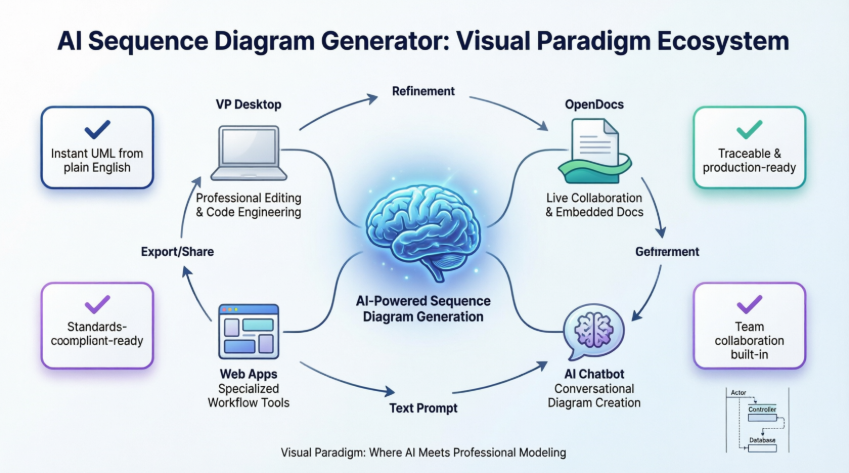
As a leading visual modeling tool since 2002, Visual Paradigm now powers its ecosystem with AI across four integrated platforms. Whether you’re after the best AI tool for creating sequence diagrams, a free online option, or enterprise-grade refinement, our setup covers generation, editing, collaboration, and more. You’ll discover how VP Desktop, OpenDocs, the AI Visual Modeling Chatbot, and specialized Web Apps work together to deliver an end-to-end solution. Let’s explore each one.
VP Desktop: Professional AI-Powered Sequence Diagram Creation and Editing
VP Desktop is your go-to for serious modeling work. This flagship application brings AI diagram generation right into a full-featured, offline environment built for precision and scale. Need to generate a sequence diagram fast? Just fire up the AI tool, type a description like “user authenticates with 2FA in a banking app,” and watch it create a clean, standards-compliant diagram complete with lifelines, messages, and activation bars.
But generation is only the start. Once the AI produces the initial diagram, you jump straight into advanced editing—adding notes, fragments, loops, alternatives, or even traceability links to requirements. Generate reports, or integrate with version control for team projects. It’s perfect for developers and architects who want AI speed without sacrificing control. Unlike basic online generators, VP Desktop ensures your models stay traceable and production-ready.
Real-world example: Imagine you’re designing a payment processing flow. The AI generates the base sequence diagram in seconds. You then refine it with guards, parallel messages, and self-messages, then push it into code engineering for implementation stubs. Time saved? Massive. Quality? Enterprise level.
How to Generate a Sequence Diagram with AI in VP Desktop
-
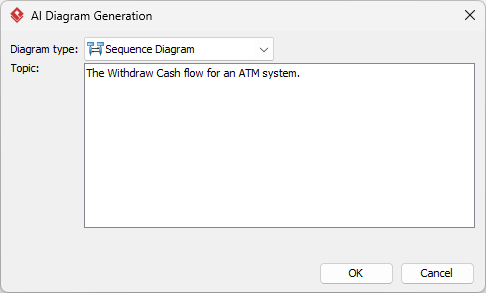
From the main menu, select Tools > AI Diagram Generation. This opens the AI Diagram Generation window.
-
In the window, choose your desired diagram type from the dropdown list. In this case, Sequence Diagram.
-
In the text area, describe your project, problem, system, or scenario.
-
Click OK to start the generation.
-
The AI will create the diagram automatically.
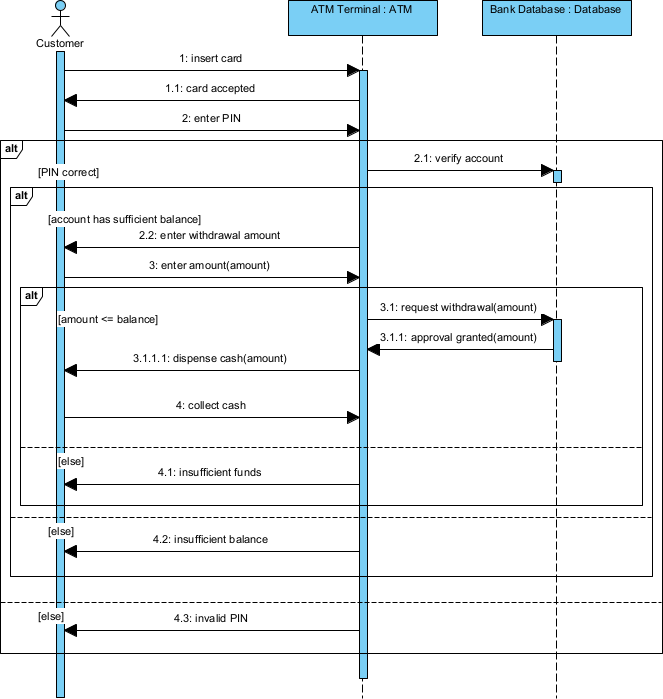
It appears as a fully editable, native Visual Paradigm diagram (not just an image). You can now:
-
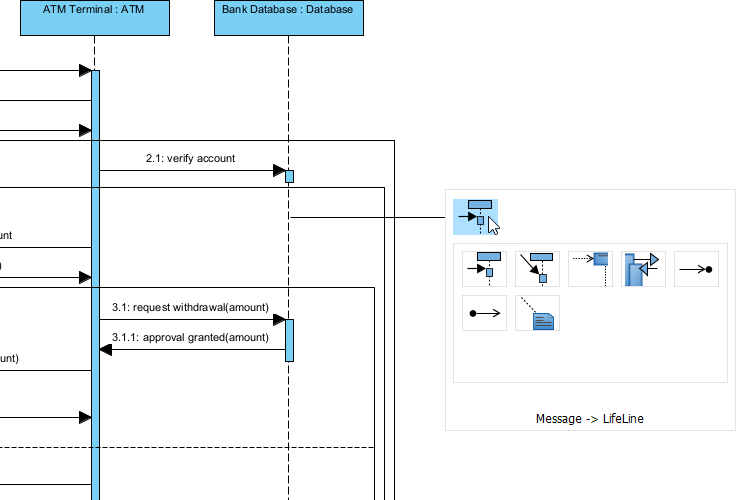
Edit elements, relationships, layout, or properties
-
Add more details manually
-
Export as image (PNG, SVG, etc.), PDF, or use in reports
-
Generate code or documentation if applicable
-
OpenDocs: Embed and Collaborate on AI-Generated Sequence Diagrams
Diagrams are great, but they shine brightest when they’re part of living documentation. That’s where OpenDocs comes in—our knowledge management platform that feels like a supercharged Notion or GitBook, but with truly dynamic, editable visuals.
Generate your sequence diagram in any of our AI tools, then embed it directly into OpenDocs pages. The diagram stays live: team members click to zoom, edit inline (if permissions allow), or see updates propagate automatically. It’s ideal for wikis, technical specs, onboarding guides, or architecture decision records where you need to explain interactions alongside text.
Picture this: Your team builds a knowledge base for a microservices system. Each service interaction gets an AI-generated sequence diagram embedded in the relevant doc page. Stakeholders review, comment, and even request refinements through integrated chat—all without leaving the document. Collaboration becomes seamless, and your diagrams evolve with the project instead of becoming outdated screenshots.
Learn more about OpenDocs and see how it turns static docs into interactive knowledge hubs.
How to Insert an AI Generated Sequence Diagram into Your OpenDocs Page
-
Open or create a page in OpenDocs: Log in to your Visual Paradigm Online workspace, navigate to OpenDocs, and either open an existing page or create a new one (via + New Document Page or similar).
-
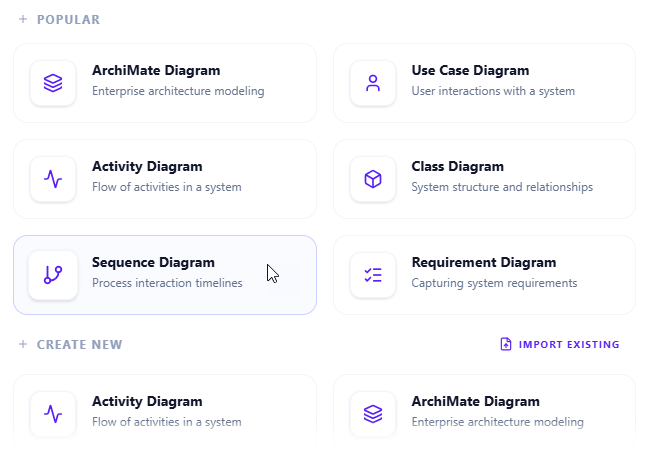
Insert a diagram: In the page editor, look at the top toolbar (or floating toolbar) and click Insert. From the popup window, select Diagram > Sequence Diagram.
-
Start creating the diagram with AI: This opens the diagram editor window. You can build it manually by dragging and dropping elements if you prefer. To use AI instead: Look for Create with AI in the top-right corner of the editor window and click it.
-
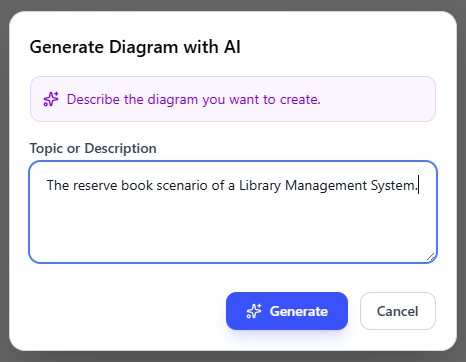
Describe your problem and generate: In the text input area that appears, type a clear, detailed description of your system or scenario. Click Generate.
-
Review, refine, and embed the diagram: The AI generates a professional sequence diagram instantly.
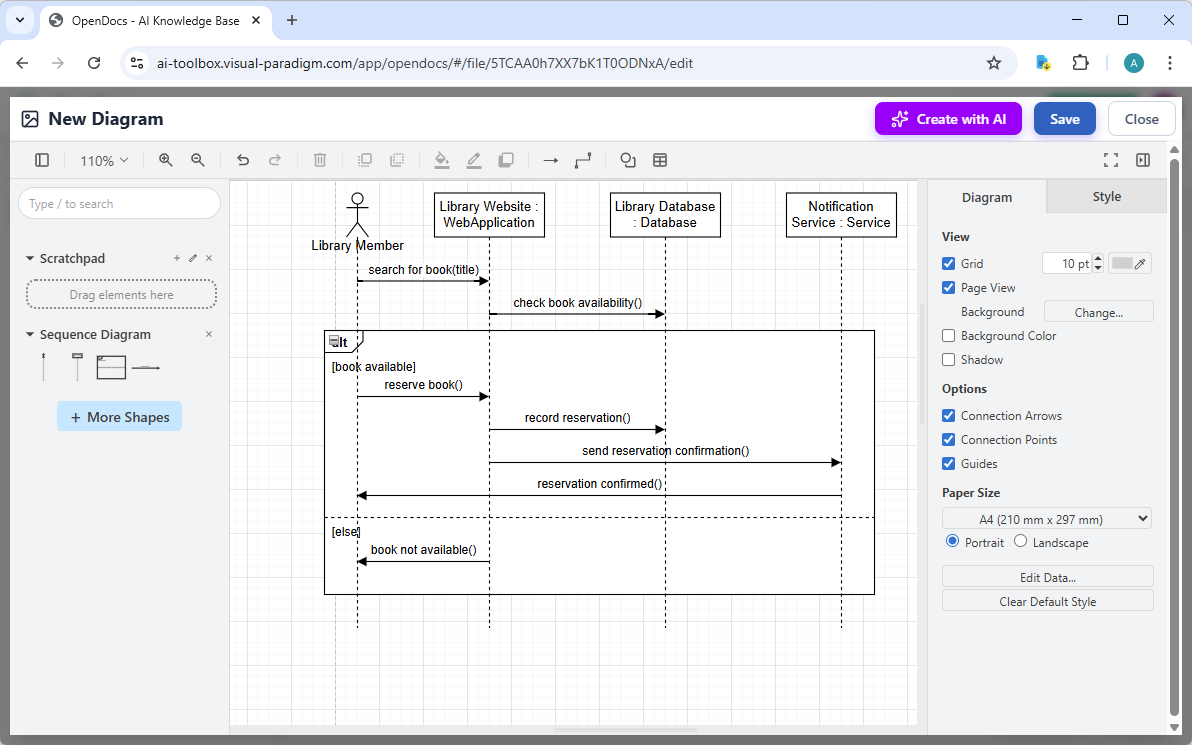
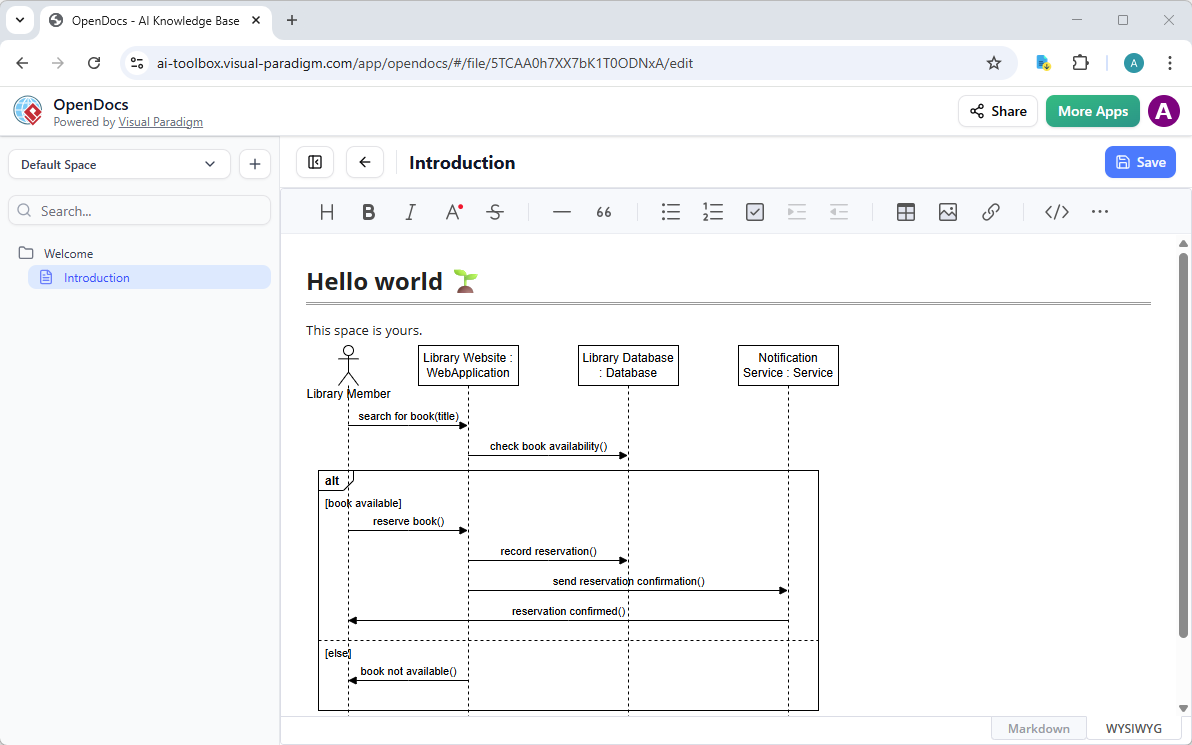
Use the intuitive drag-and-drop editor to touch up anything: move elements, adjust labels, add notes, change styles, etc. When you’re happy with it, click Save. Then click Close. The diagram is now embedded directly into your OpenDocs page as a live, editable visual block. You can view it inline without leaving the document.
AI Visual Modeling Chatbot: Conversational Sequence Diagram Generation and Refinement
Sometimes you just want to talk it out. Our AI Visual Modeling Chatbot turns that into reality. Accessible standalone or linked to your desktop project, this AI-powered visual modeling chatbot lets you generate and iterate on sequence diagrams through natural conversation.
Start with: “Show me the sequence for an online order placement including inventory check and payment.” The chatbot instantly generates the diagram. Then refine: “Add an alternative path for failed payment,” or “Explain the messages between OrderService and PaymentGateway.” It updates the diagram, answers questions, generates reports, or even writes explanatory text—all in chat.
It’s brilliant for brainstorming, quick prototypes, or overcoming blank-page syndrome. Export the final version to VP Desktop for deeper work or embed in OpenDocs. The flexibility speeds up agile teams, letting novices produce pro-level results and experts prototype faster. No other platform offers this level of interactive, conversational AI diagram tool with real modeling depth.
How to Generate a Sequence Diagram with AI Chatbot
-
Open the AI Chatbot:
-
Web access: Go to https://chat.visual-paradigm.com/ (or https://ai-toolbox.visual-paradigm.com/app/chatbot/ as an alternative entry point).
-
VP Desktop access: In Visual Paradigm Desktop, select Tools > Chatbot from the main menu. (This opens the same AI assistant integrated within your desktop environment.)
-
-
Start a new chat session: Click New Chat (on the left sidebar or as a prominent button) to begin a fresh conversation.
-
Describe what you want: In the text input area at the bottom, type a clear description of your project, system, or scenario (e.g. “Produce a sequence diagram for an insurance claim process.”). Press Enter (or click the send icon) to submit your message.
-
View and refine the diagram: The AI generates the diagram almost instantly.
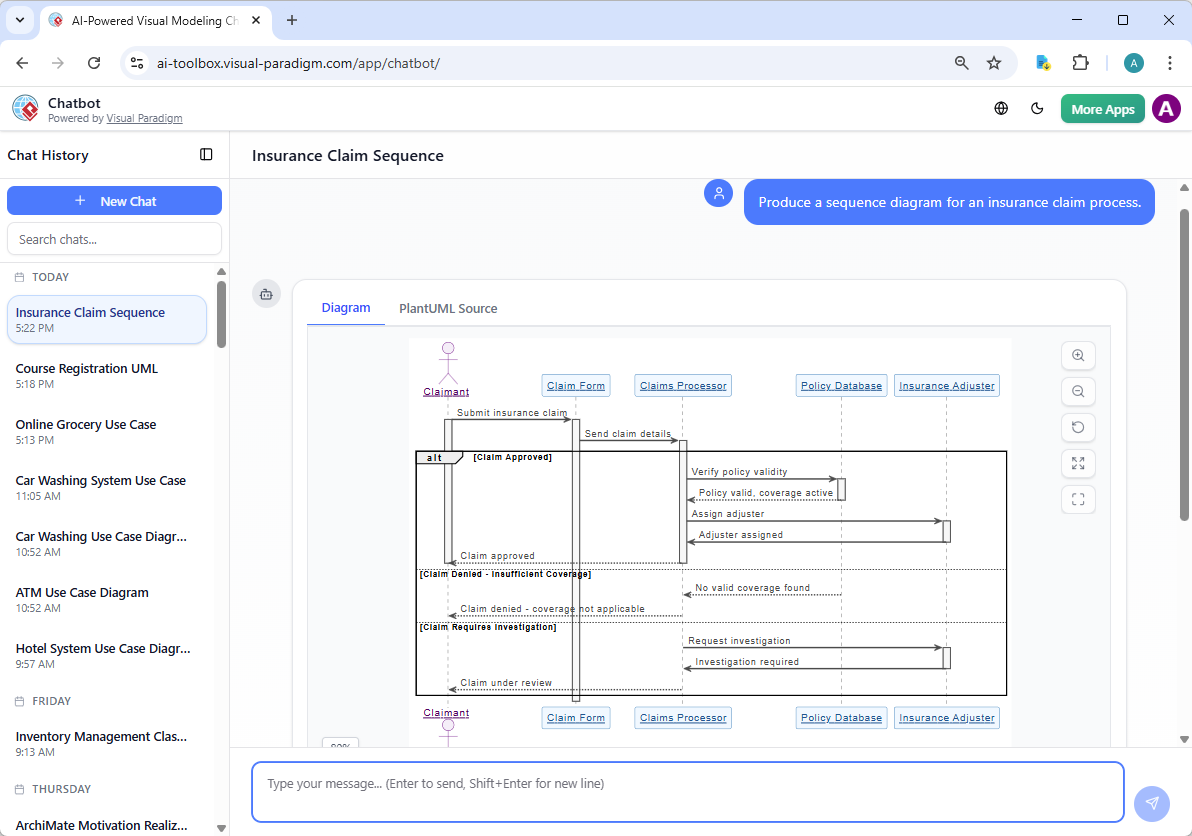
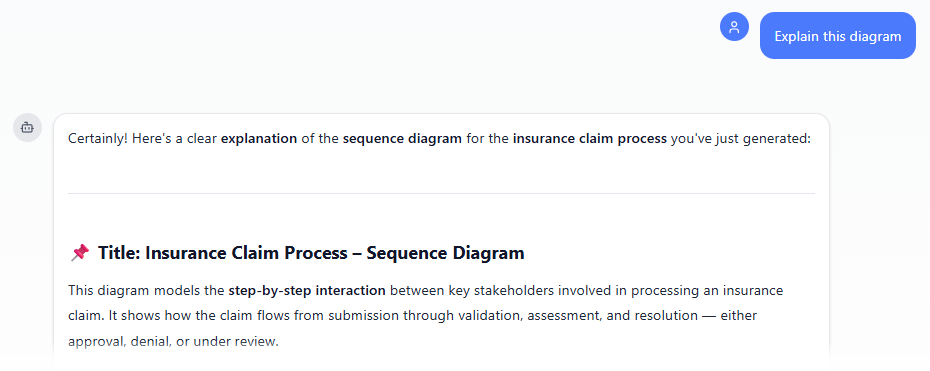
This is where the chatbot shines: keep the conversation going! Follow-up examples:
-
“Add an element…”
-
“Explain the diagram…. “
-
“Generate a brief report summarizing ….”
-
Web Apps: Specialized AI Tools for Guided Sequence Diagram Workflows
For structured, best-practice-driven creation, our browser-based Web Apps deliver focused power.
-
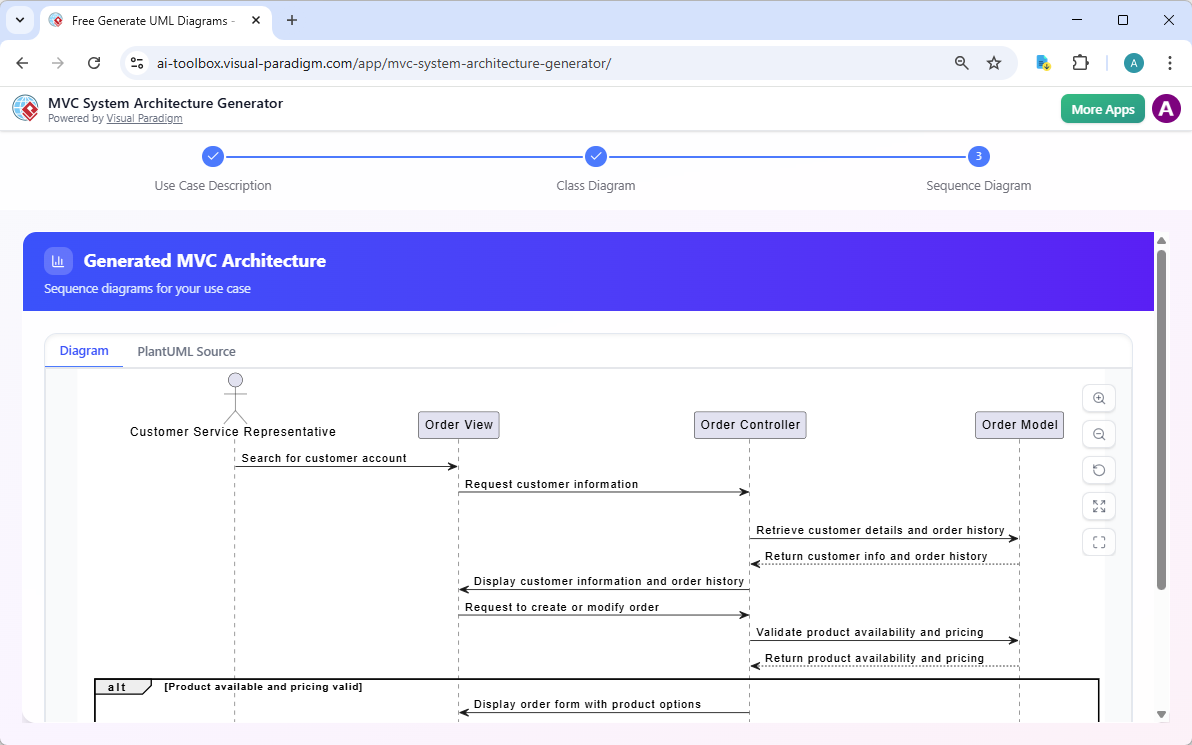
MVC System Architecture Generator: This app aids in AI sequence diagram generation by processing a natural language use case description to automatically produce an MVC sequence diagram, visualizing interactions between Model, View, and Controller components for the specified use case, with options to export as SVG or import to Visual Paradigm Online.
-
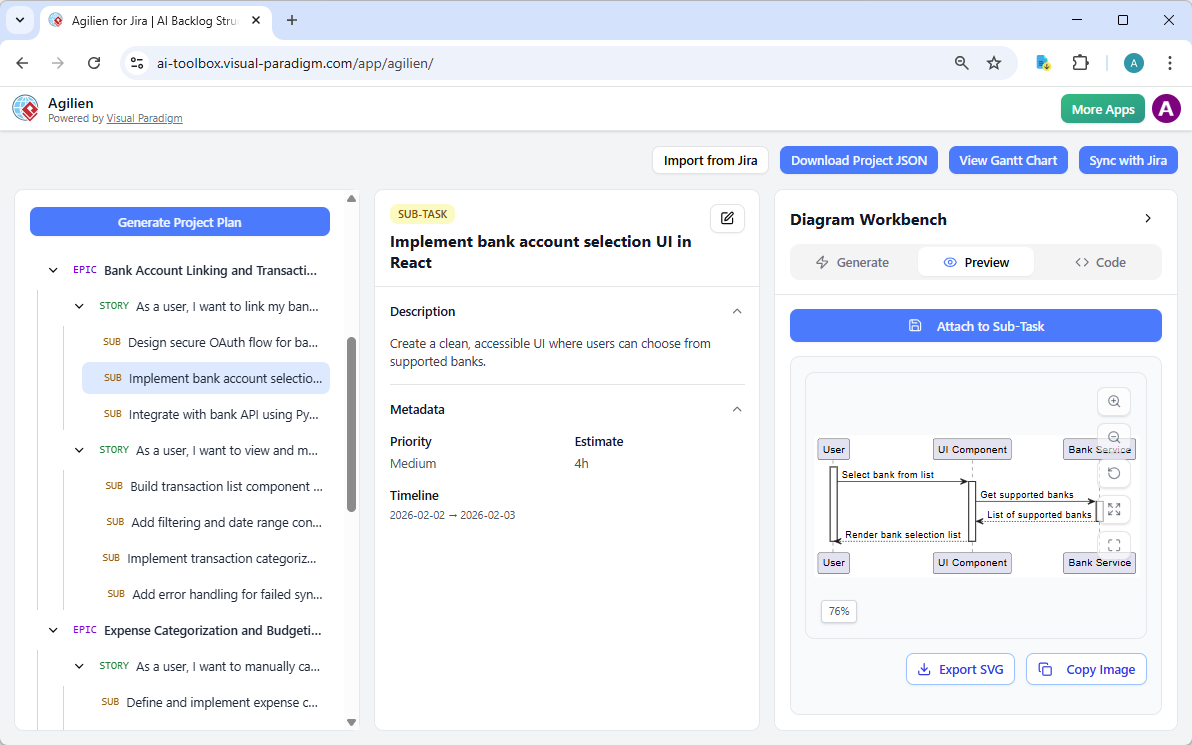
Agilien: This app supports AI sequence diagram generation by allowing users to select a user story or work item in the agile project hierarchy and generate a sequence diagram via the AI Diagram Workbench, using PlantUML code that can be edited live and attached to items for documentation.
-
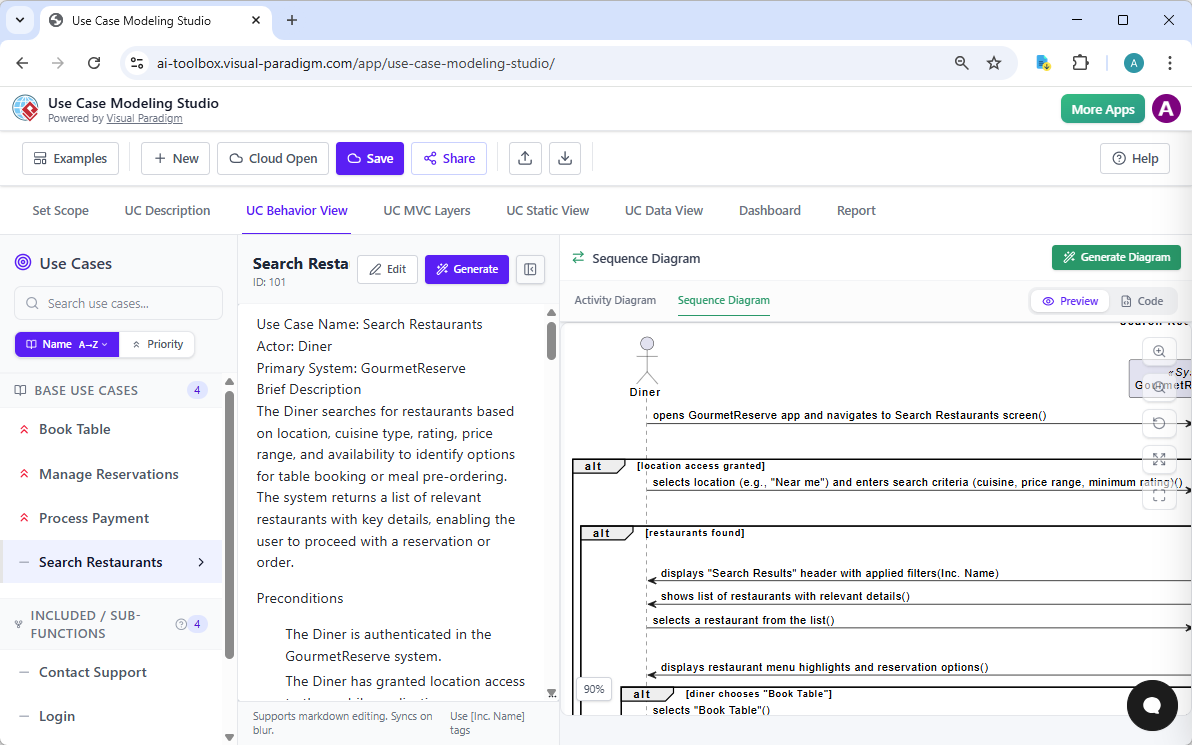
Use Case Modeling Studio: This app enables AI sequence diagram generation by analyzing detailed use case descriptions to produce sequence diagrams showing object interactions, including specialized MVC sequence diagrams, with PlantUML previews, code editing, and integration into full SDD reports.
-
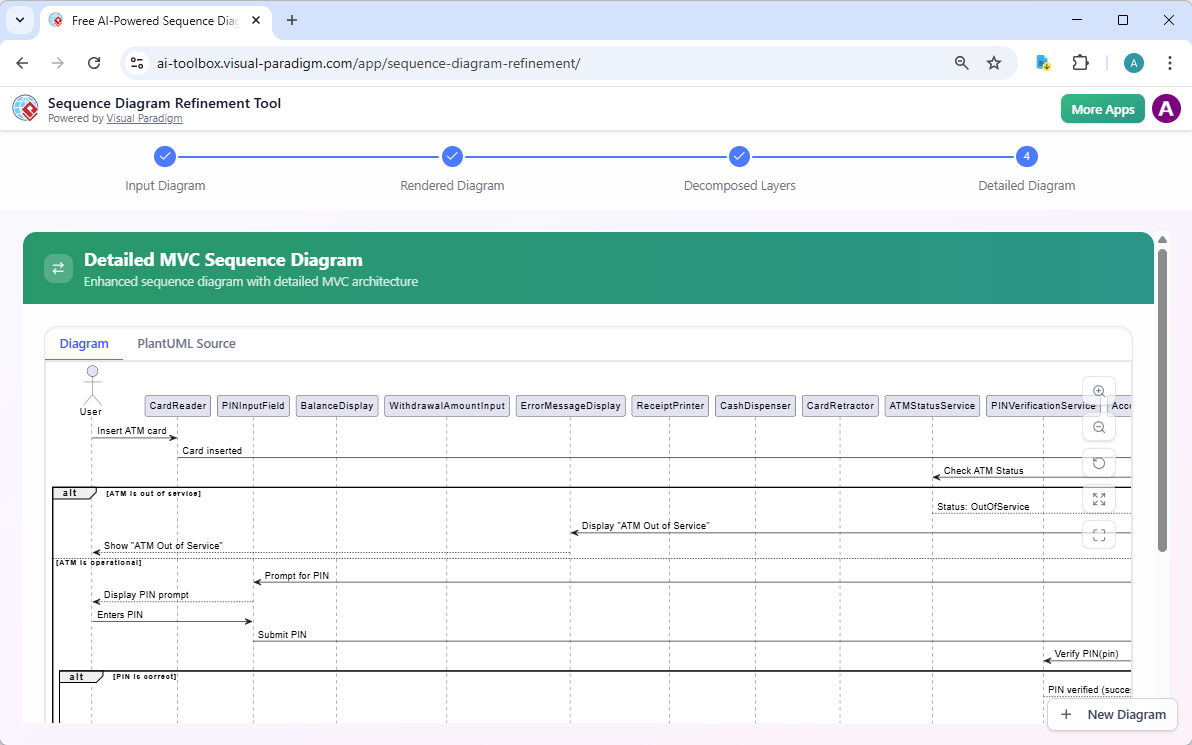
Sequence Diagram Refinement Tool: This app specializes in AI sequence diagram generation by taking an initial PlantUML or Mermaid sequence diagram as input, decomposing it into architectural layers via AI, and generating a refined, detailed sequence diagram (often MVC-style), with live rendering and SVG/VP Online export.
-
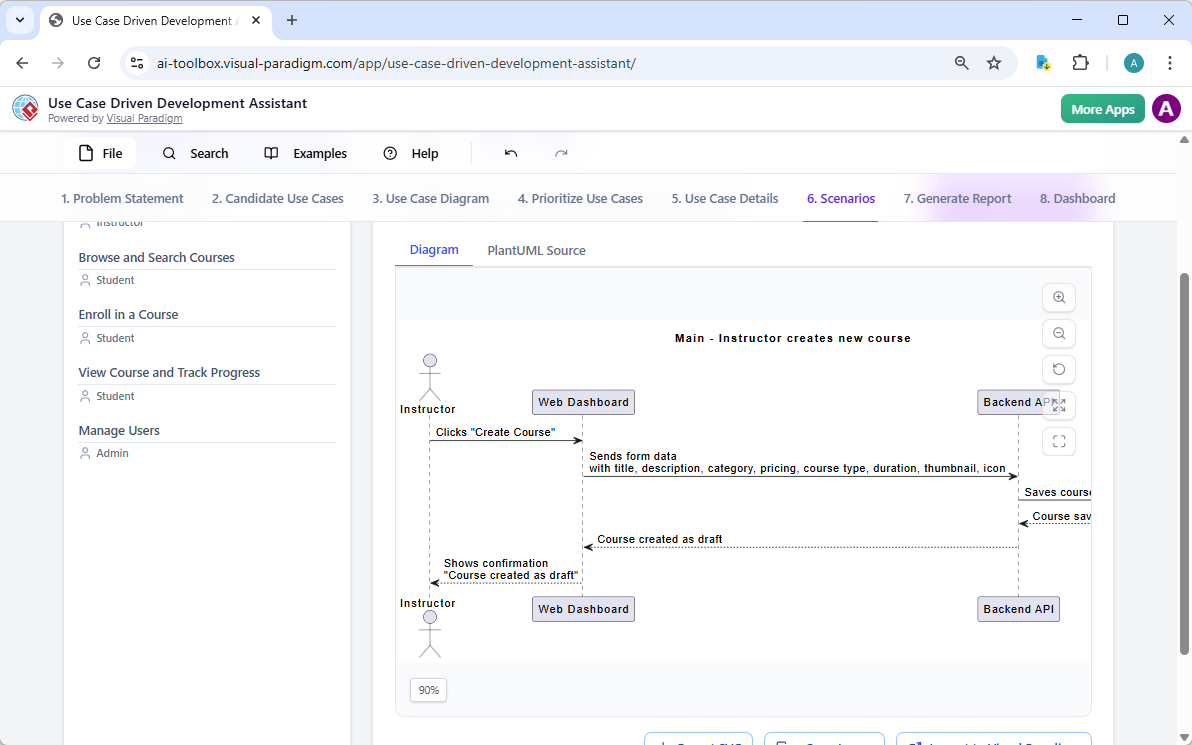
Use Case Driven Development Assistant: This assistant supports AI Sequence Diagram generation within its structured UCDD workflow. In the Use Case Details tab, after generating a detailed use case template (main flow + alternatives), the AI can produce an Sequence Diagram to illustrate the step-by-step process and control flow of the selected use case, helping teams visualize behavior directly from requirements.
Why Visual Paradigm Stands Out as the Ultimate AI Sequence Diagram Generator
Plenty of tools claim to be the best AI UML diagram maker or free AI sequence diagram generator. Most offer one-shot generation—nice for quick sketches, but they stop there. Visual Paradigm is different.
Our four platforms connect seamlessly: generate conversationally in the chatbot, refine precisely in Web Apps, edit professionally in VP Desktop, and share collaboratively in OpenDocs. You get real traceability, version control, code engineering, and the widest diagram coverage with true AI integration—not just pretty pictures, but interconnected, implementation-ready models.
Competitors often silo their features. We build an ecosystem that saves time, cuts errors, scales for teams, and keeps everything professional. Whether you’re a solo developer, agile team, or enterprise architect, this approach delivers results that stick.
Ready to Experience AI-Powered Sequence Diagramming?
Stop wrestling with manual tools or half-baked generators. Visual Paradigm gives you the complete package: instant AI generation, powerful refinement, seamless collaboration, and professional outputs—all in one ecosystem.
Try it today. Download VP Desktop, chat with our AI assistant, explore the Web Apps, or set up OpenDocs. See for yourself why we’re the leading choice for AI-powered diagram software and visual modeling.
Get started with Visual Paradigm now and step into the future of diagramming. Your next sequence diagram is waiting—just describe it.
Key AI Sequence Diagram Features
-
Generate-from-Text Engine: Converts plain text prompts (e.g., “Create a sequence diagram for a user logging into a website”) into structured UML sequence diagrams with actors, actions, and temporal flows.
-
AI Refinement Tool: Transforms simple, high-level diagrams into detailed, multi-layered representations. It can automatically decompose a basic flow into specific architectural layers like MVC (Model-View-Controller).
-
Conversational Editing: Allows users to refine generated diagrams using natural language commands, such as “Add a payment gateway” or “Rename User to Customer”.
-
Automatic Layout & Formatting: The AI engine ensures diagrams are clean and readable by automatically handling spacing, alignment, and the arrangement of lifelines and messages.
-
Intelligent Design Feedback: The AI acts as a “design partner,” capable of analyzing diagrams to identify bottlenecks or suggesting transitions from synchronous to asynchronous calls for better performance.
-
Code-to-Diagram Support: Supports importing and refining diagrams based on PlantUML or Mermaid code, which the AI then expands into detailed models. [1, 2, 5, 6, 7, 8, 9, 10, 11]
Advanced Modeling Capabilities
Beyond AI generation, Visual Paradigm integrates these diagrams into its professional suite: [12, 13]
-
Standard Compliance: Generates diagrams that adhere to UML 2.x standards, including complex fragments like alt, loop, opt, and break.
-
Seamless Integration: AI-generated diagrams can be exported to SVG or JSON, or opened directly in the Visual Paradigm Online or Desktop editor for further manual refinement.
-
Cross-Diagram Synchronization: Users can synchronize sequence diagrams with communication diagrams to maintain consistency across different model views. [3, 9, 14, 15, 16, 17]
References
-
AI Diagram Generation Features: Overview of Visual Paradigm’s AI-powered diagram generation capabilities across multiple platforms.
-
AI Sequence Diagram Refinement Tool: Details on transforming simple diagrams into detailed, multi-layered architectural representations.
-
AI-Powered Sequence Diagram Refinement Article: Case study exploring how AI refinement enhances sequence diagram development workflows.
-
E-Learning Course Content with AI Sequence Diagrams: Practical example of using AI sequence diagram tools for educational content creation.
-
Comprehensive Review: Visual Paradigm’s AI Diagram Features: Third-party analysis of Visual Paradigm’s AI-driven diagramming capabilities.
-
Visual Paradigm AI Chatbot: Access point for the conversational AI assistant for visual modeling and diagram generation.
-
Sequence Diagram Refinement Tool Portal: Dedicated web app for refining PlantUML/Mermaid diagrams into detailed MVC-style sequences.
-
AI Chatbot Features Overview: Documentation of the conversational AI assistant’s capabilities for diagram creation and refinement.
-
UML Sequence Diagram: Definitive Guide with AI: Comprehensive guide to modeling interactions using AI-enhanced sequence diagrams.
-
AI Sequence Diagram Example: Software Update Workflow: Practical example demonstrating AI generation of a software installation sequence diagram.
-
PlantUML Sequence Diagram Builder: Tools for importing, editing, and enhancing PlantUML-based sequence diagrams.
-
AI Composite Structure Diagram Generator: Guide to generating composite structure diagrams using AI across Visual Paradigm platforms.
-
Case Study: AI-Powered Online Shopping System Modeling: End-to-end example of building a complete UML model for an e-commerce system using AI.
-
What is a Sequence Diagram? UML Guide: Foundational reference on UML sequence diagram concepts and notation.
-
Click Start AI: Technical Support Guide: Technical documentation for getting started with Visual Paradigm’s AI features.
-
UML Sequence Diagram Tool Solution: Product page detailing Visual Paradigm’s professional sequence diagramming capabilities.
-
Synchronizing Sequence and Communication Diagrams: Community forum discussion on cross-diagram synchronization features.
Pro Tip: Whether you’re documenting a microservices architecture, prototyping a new feature, or teaching system design concepts, Visual Paradigm’s AI sequence diagram tools adapt to your workflow. Start with a simple prompt, refine through conversation, and export production-ready models—all without leaving your preferred environment.
Visual Paradigm: Where AI meets professional visual modeling. 🚀

 English
 Arabic
 Chinese (Simplified)
 Dutch
Dutch French
 German
 Italian
 Japanese
 Korean
 Portuguese
 Russian
 Spanish