


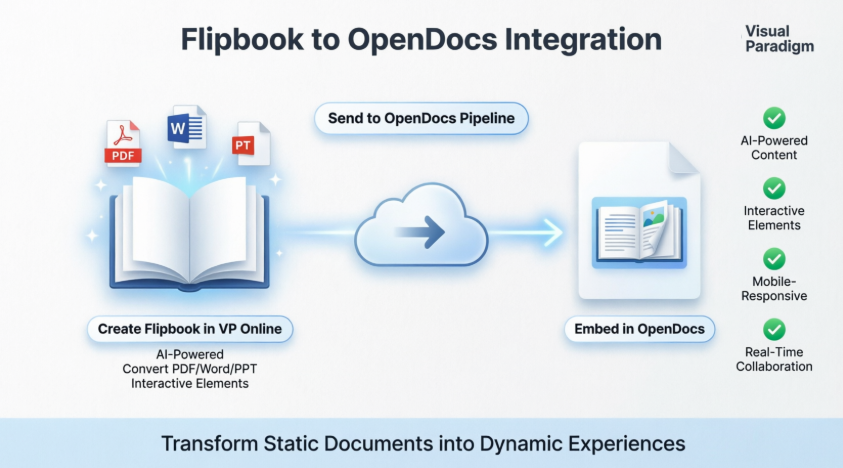
We are excited to announce a new workflow that brings your digital publications to life within your documentation. You can now share flipbooks created in Visual Paradigm Online directly to OpenDocs, making your manuals, reports, and portfolios more interactive than ever.
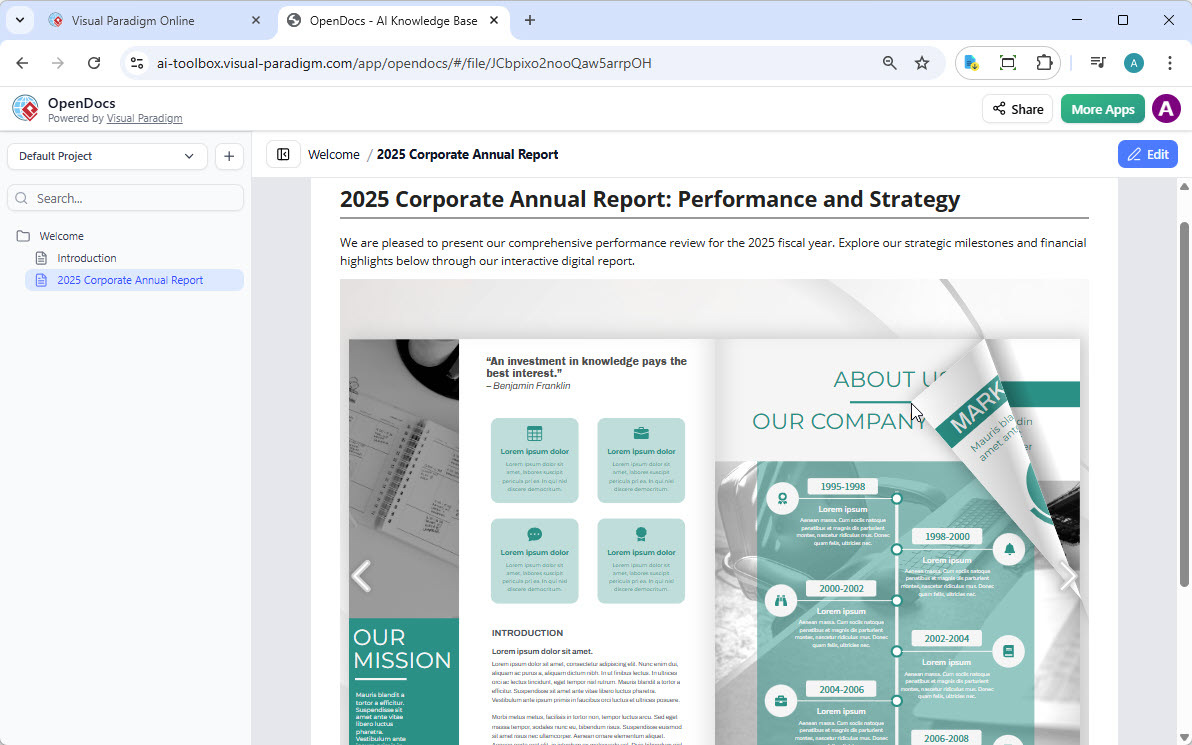
Whether you are using our flipbook tool to generate professional content or fine-tuning a custom layout in our flipbook maker, this update ensures your audience can access your work exactly where they need it.
What Can You Do with Visual Paradigm Flipbooks?
Our flipbook software is designed to transform static documents into dynamic, engaging experiences. With this feature, you can:
✨ Convert & Create
Instantly transform PDFs, Word docs, and PowerPoint slides into flipbooks, or design one from scratch using our drag-and-drop editor.
🤖 AI-Powered Generation
Use our AI assistant to generate full book outlines, write content, and even create matching illustrations in various art styles.
🔗 Interactive Elements
Enhance your books with embedded videos, audio, clickable links, and realistic page-flipping sound effects.
🎨 Professional Branding
Customize covers, themes, and backgrounds to match your corporate identity.
📱 Mobile-First Reading
Every flipbook is fully responsive, ensuring a perfect reading experience on desktops, tablets, and smartphones.
How to Share Your Flipbook to OpenDocs
Moving your content from Visual Paradigm Online to the OpenDocs pipeline is simple. Just follow these steps:
Step 1: Access Your Workspace
Open your workspace page in Visual Paradigm Online.
Step 2: Navigate to Flipbooks
Select Flipbooks from the left-hand menu to view your library.
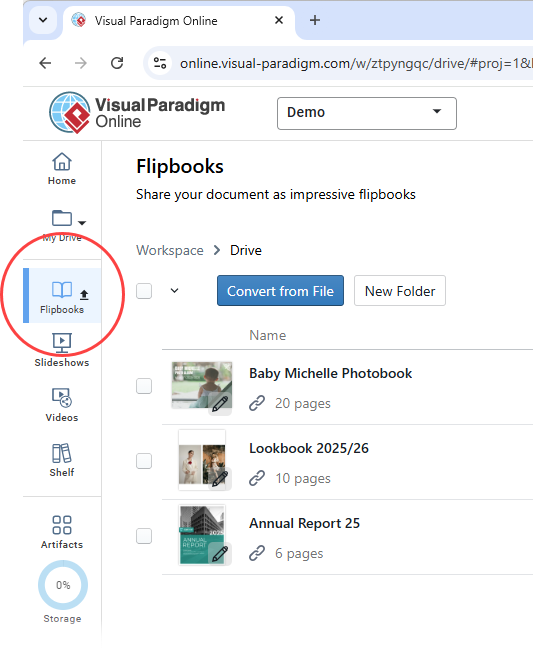
Step 3: Locate Your Flipbook
Find the flipbook you wish to share and click More… on the right side.
Step 4: Send to OpenDocs Pipeline
Select Send to OpenDocs Pipeline.
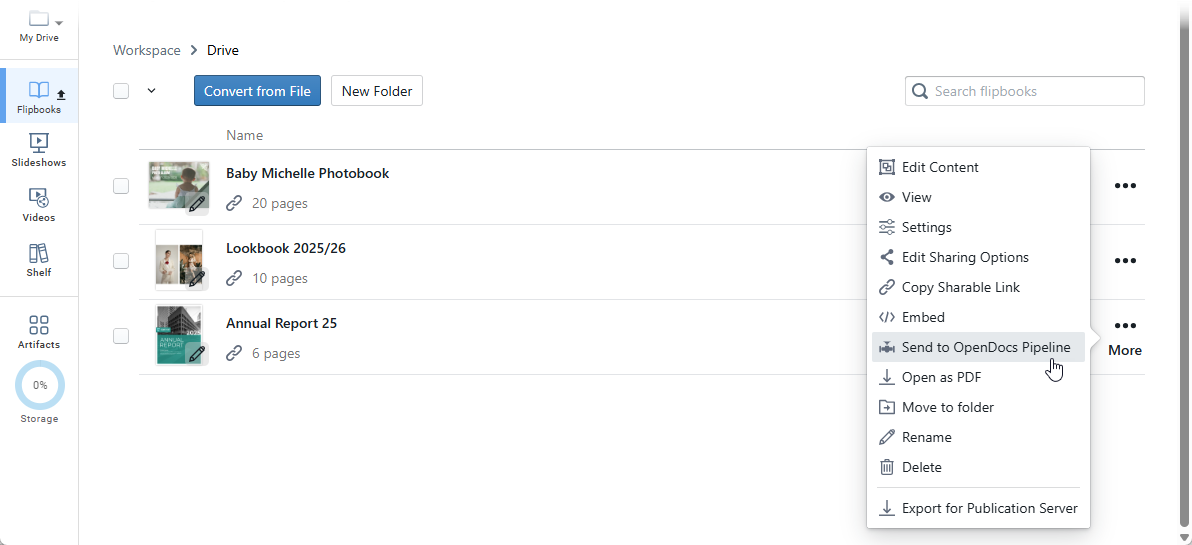
Step 5: Add Optional Context
(Optional) Enter a comment regarding this share and click OK to proceed.
✅ Your flipbook is now available in the OpenDocs Pipeline library!
Embedding Your Flipbook in OpenDocs
Once your flipbook is in the pipeline, follow these steps to place it in your document:
Step 1: Navigate to Your Target Page
Go to the page in OpenDocs where you want to embed the book.
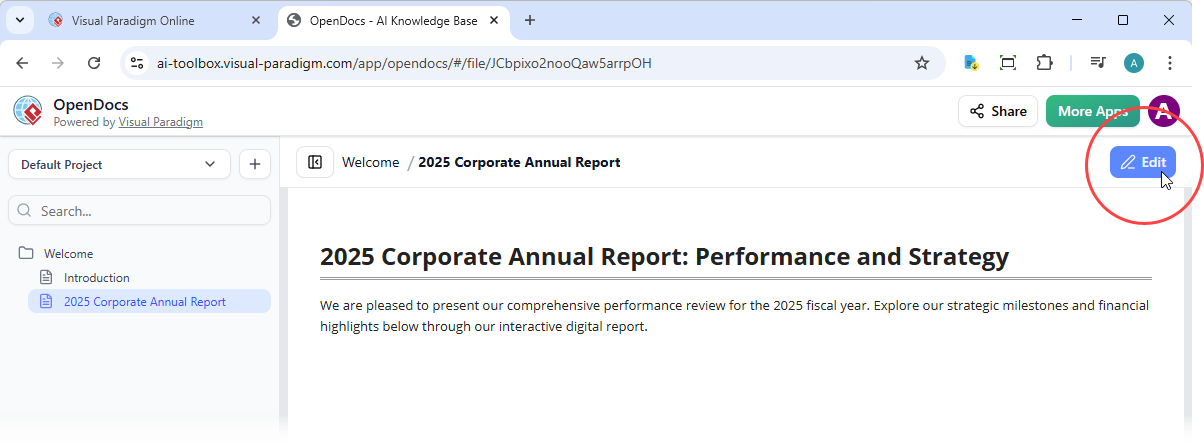
Step 2: Enter Edit Mode
Click Edit at the top right of the screen.
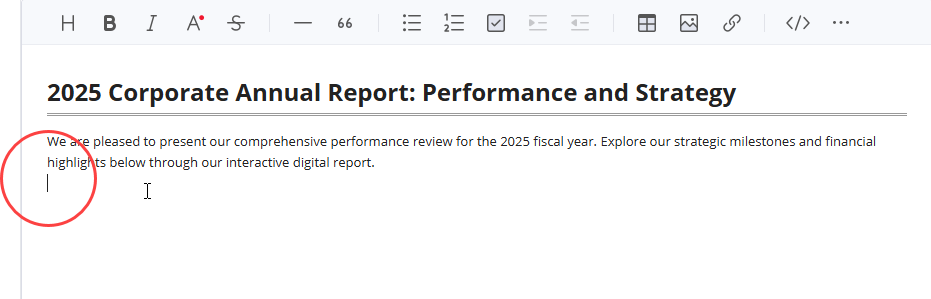
Step 3: Position Your Cursor
Place your cursor exactly where you want the flipbook to appear.
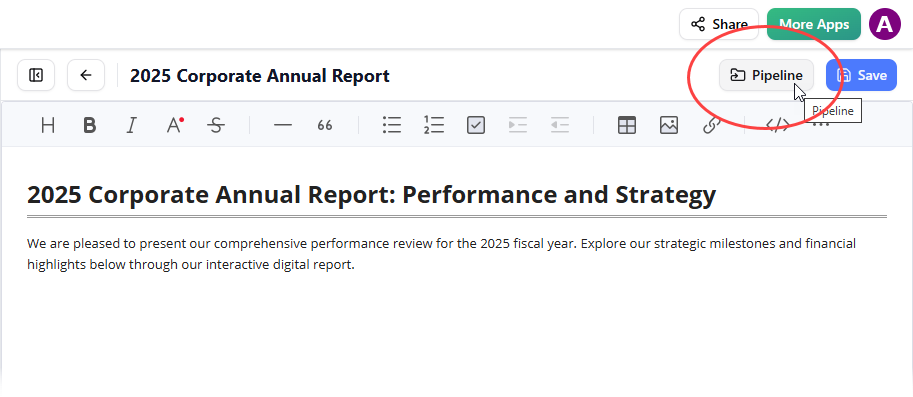
Step 4: Access the Pipeline
Click the Pipeline button located at the top right.
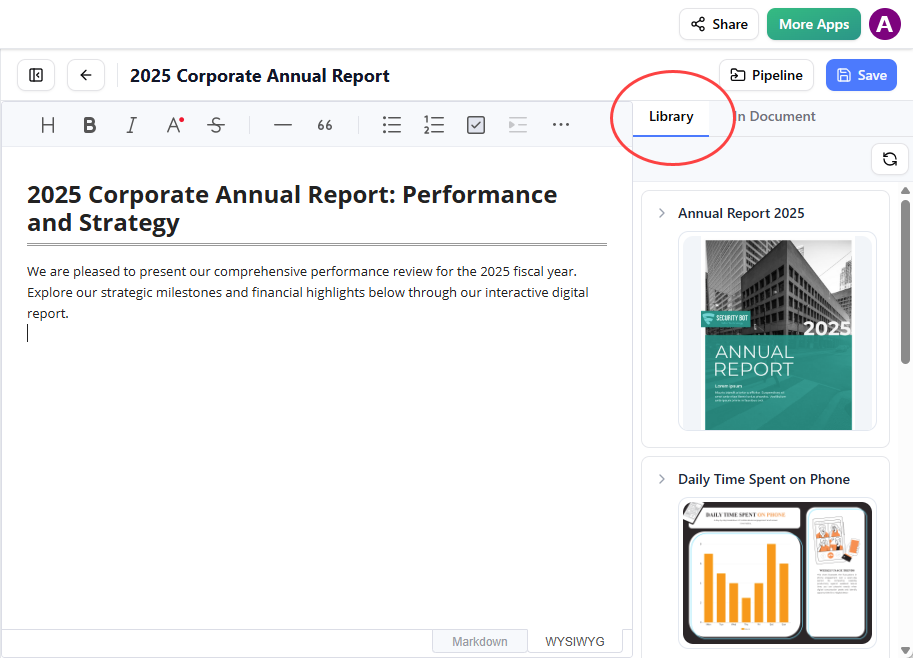
Step 5: Open the Library Tab
Open the Library tab; you will see the flipbook you sent from VP Online.
Step 6: Insert Your Flipbook
Click on the flipbook to insert it.
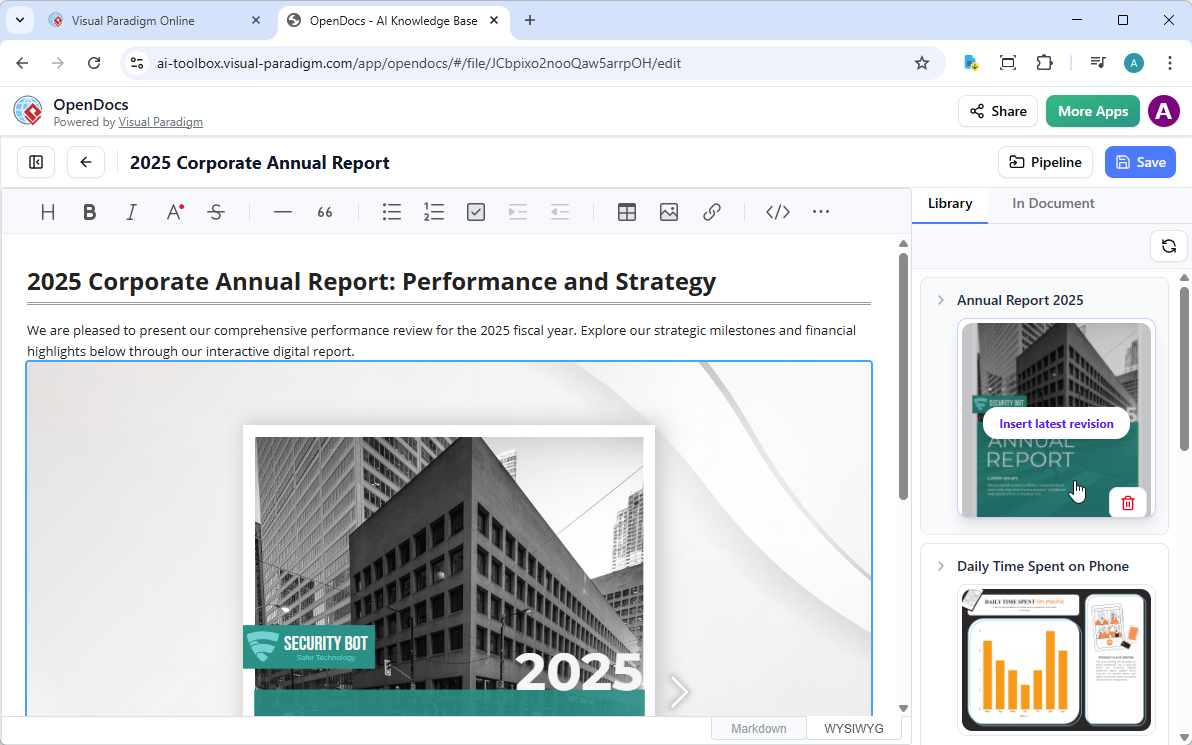
💡 Pro Tip: If the flipbook is added to the end of the page, select it and press Enter to create a new line and adjust the positioning.
⚠️ Note: In Edit mode, the flipbook remains static. To interact with it, simply save your changes and exit Edit mode. Once live, you can share the page or the entire space using the Share button in the top bar.
About OpenDocs: Your AI-Powered Knowledge Hub
OpenDocs is an AI-powered knowledge management platform from Visual Paradigm that integrates text-based documentation with professional diagramming. It serves as a centralized hub for teams to store, organize, and collaborate on project knowledge without switching between different tools.
🧠 Core AI Features
OpenDocs leverages built-in artificial intelligence to speed up the documentation and design process:
-
AI Diagram Generation: Instantly create professional diagrams like UML, flowcharts, and PERT charts from simple natural language descriptions.
-
AI Content Assistant: Generate first drafts of articles, summarize long technical documents, or simplify complex jargon for different audiences.
-
Contextual Q&A: A chatbot that answers questions based specifically on the information stored within your own OpenDocs knowledge base.
📚 Documentation & Organization
The platform focuses on making knowledge both searchable and scalable:
-
Knowledge Tree Structure: Uses a hierarchical folder system with nested sub-folders and drag-and-drop reorganization.
-
Markdown Writing: A rich editor that supports standard Markdown syntax (headers, code blocks, tables) with real-time live previews.
-
Unified Workspace: Allows you to embed live, editable diagrams directly into narrative text to maintain context.
📊 Diagramming Capabilities
OpenDocs supports over 100 diagram types, ensuring it can handle diverse technical and business needs:
| Category | Supported Diagrams |
|---|---|
| Software Design | UML (Class, Sequence, State Machine), ERD for database modeling, DFD for system analysis |
| Business & Strategy | BPMN, EPC, SWOT analysis, mind maps for brainstorming |
| Project Management | AI-generated PERT charts, breakdown structure charts |
👥 Collaboration & Sharing
Designed for distributed teams, OpenDocs includes tools for secure and synchronized work:
-
Real-Time Editing: Multiple users can modify documents and diagrams simultaneously with built-in conflict resolution.
-
Version History: Tracks all changes with the ability to revert to previous revisions and view audit trails.
-
One-Click Sharing: Generate secure, read-only links to share entire “knowledge trees” with stakeholders without requiring them to install software.
🌐 Accessibility
-
Web-Based Platform: Accessible from any modern browser on any device with no desktop installation required.
-
Cloud Integration: Seamlessly syncs with Visual Paradigm Online and Desktop versions via a “Pipeline” for easy updating of visual assets.
Ready to Get Started?
Enhance your documents with the industry’s leading flipbook software and experience the power of integrated documentation today. Whether you’re creating interactive product manuals, dynamic project portfolios, or engaging training materials, the Visual Paradigm + OpenDocs integration puts professional, interactive content at your fingertips.
🚀 Next Steps:
Log in to your Visual Paradigm Online account
Create or select a flipbook from your library
Follow the sharing steps above to send it to OpenDocs
Embed and share your interactive content with your team
- References
- OpenDocs: AI-Powered Knowledge Management Platform | Visual Paradigm: Official feature page for OpenDocs, Visual Paradigm’s AI-powered documentation and diagramming platform.
- Visual Paradigm OpenDocs: The Complete Guide to AI-Powered Knowledge Management and Diagram Generation: Comprehensive third-party guide covering OpenDocs features, AI capabilities, and practical implementation strategies.
- OpenDocs: AI-Powered Knowledge Management Platform | Visual Paradigm Updates: Official release announcement introducing OpenDocs as a centralized hub for team knowledge management and collaboration.
- AI PERT Chart Generator in OpenDocs | Visual Paradigm Updates: Release notes detailing the AI-powered PERT chart generation feature within OpenDocs for project management.
- Visual Paradigm AI Chat: Contextual Q&A chatbot interface that answers questions based on your OpenDocs knowledge base.
- Comprehensive Guide to OpenDocs February-March 2026 Update: The AI-Powered Visual Knowledge Engine: In-depth review of OpenDocs updates, collaboration features, and AI enhancements for distributed teams.
- OpenDocs Introduction | Visual Paradigm Updates: Official introduction highlighting OpenDocs’ scalable knowledge tree structure and discoverability features.
- Export Cloud Diagrams from Visual Paradigm Online to OpenDocs: Step-by-step guide for exporting and syncing cloud-based diagrams from Visual Paradigm Online to OpenDocs via the Pipeline feature.
- Visual Paradigm Features Overview: Comprehensive listing of all Visual Paradigm tools and capabilities, including diagramming, modeling, and documentation features.
- Export Diagrams from Visual Paradigm Desktop to OpenDocs Pipeline Guide: Technical guide for synchronizing desktop diagrams with OpenDocs using the AI-powered Pipeline ecosystem bridge.

 English
 Arabic
 Chinese (Simplified)
 Dutch
Dutch French
 German
 Italian
 Japanese
 Korean
 Portuguese
 Russian
 Spanish