


Beginner’s Journey with Step-by-Step Tutorials, Real Case Study & Pro Tips

“I had never drawn a UML diagram before. I didn’t know what a ‘class’ or ‘sequence’ meant. But I needed to document a small project for my computer science course. Here’s how I went from complete beginner to confidently modeling my first system—using only free tools.”
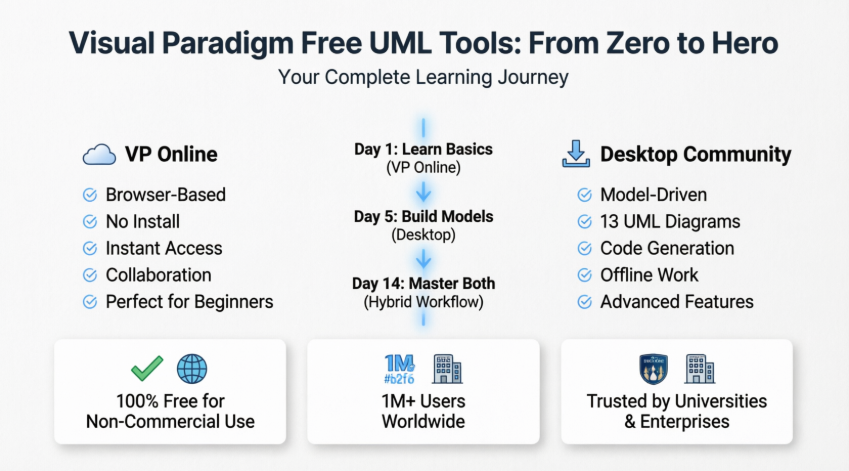
🗺️ Part 1: My User Experience Journey — From Confused to Confident
🌱 Day 1: “What Even Is UML?”
I started with zero knowledge. A quick Google search led me to Visual Paradigm’s free tools. Two options appeared:
-
Community Edition (Desktop): “Professional modeling software”
-
VP Online: “Free online diagramming tool”
I chose VP Online first because… well, no download required. 😅
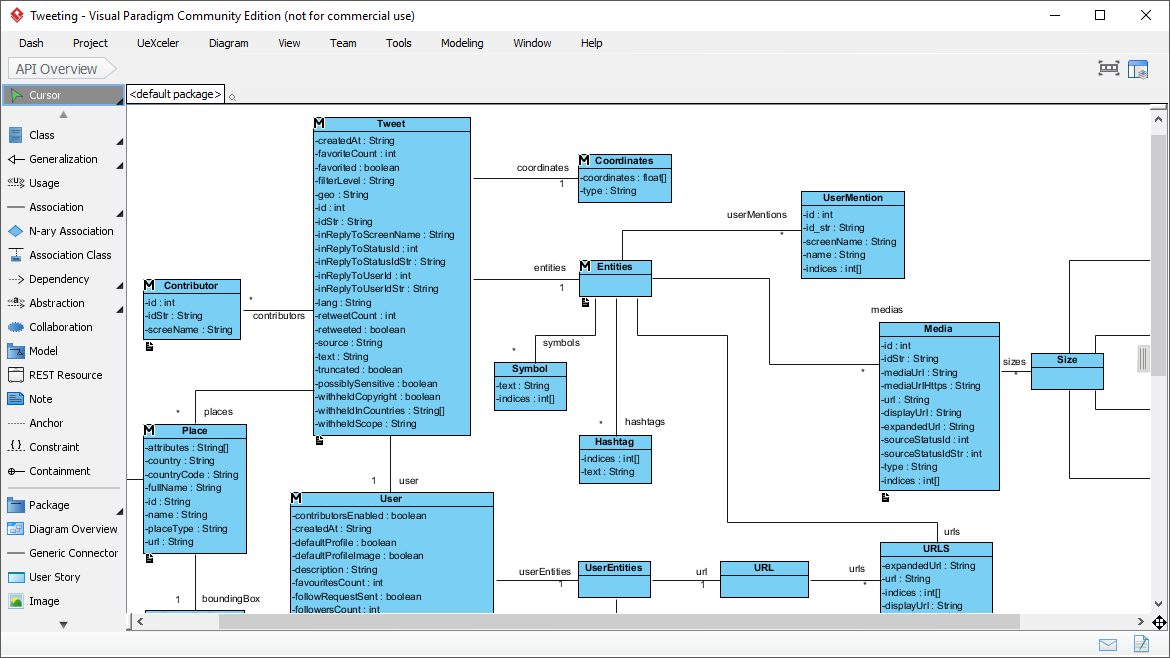
First impression: The interface was surprisingly clean. No overwhelming menus. I clicked “Create New Diagram” → “Class Diagram” and… a blank canvas appeared.
🎨 Day 2: “Wait, How Do I Actually Draw This?”
I dragged a “Class” shape onto the canvas. It had three sections:
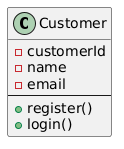
💡 Aha moment: I realized UML classes aren’t just boxes—they’re structured templates for organizing system information.
🔗 Day 3: “Connecting the Dots”
I added a second class: Order. Then I used the connector tool to draw a line between Customer and Order.
The tool automatically suggested relationship types:
-
Association (simple link)
-
Aggregation (“has-a” relationship)
-
Composition (“owns-a” relationship)
-
Inheritance (“is-a” relationship)
I selected Association and labeled it “places”. Suddenly, my diagram communicated: “A Customer places an Order.”
🚀 Day 5: “Leveling Up with Desktop”
My project grew more complex. I needed:
-
Multiple diagrams referencing the same
Customerclass -
Syntax validation to catch errors
-
Code generation for my Java prototype
That’s when I downloaded Community Edition (Desktop).
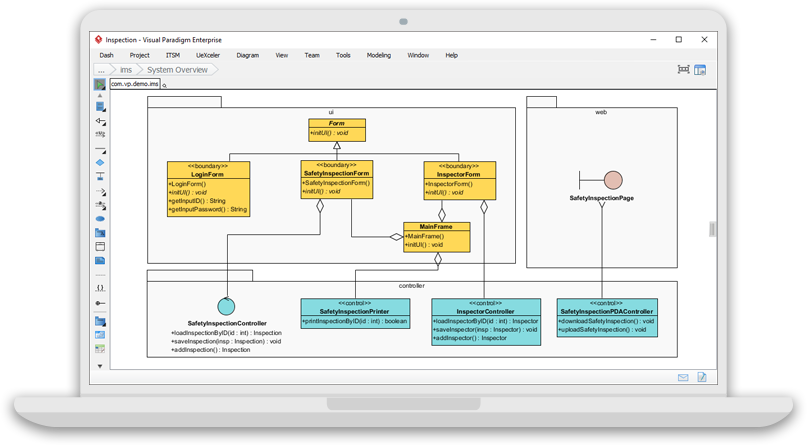
Mind-blowing discovery: When I changed the Customer class name in the Model Explorer, it updated automatically in every diagram where it appeared. This was “true modeling”—not just drawing.
🎓 Day 14: “I Actually Understand This Now”
By combining both tools:
-
VP Online for quick brainstorming with classmates
-
Desktop for formal documentation and code generation
I delivered my project with professional-grade diagrams—and actually understood the system I was building.
✨ Key takeaway: You don’t need to be an expert to start. Visual Paradigm’s free tools meet you where you are.
📘 Part 2: Absolute Beginner’s Guide — No Prior Knowledge Required
❓ What Is UML? (In Plain English)
UML = Unified Modeling Language
Think of it as a visual language for describing software systems—like architectural blueprints for buildings, but for code.
🎯 Why use UML?
-
Communicate ideas clearly with teammates
-
Plan system structure before writing code
-
Document existing systems for maintenance
-
Learn software design patterns visually
🔑 5 Core UML Concepts Every Beginner Should Know
1️⃣ Class Diagram — The “What” of Your System
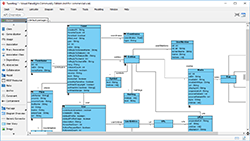
Purpose: Show the static structure—classes, attributes, methods, and relationships.
Beginner Example: Library System
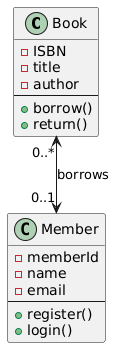
@startuml
class Book {
– ISBN
– title
– author
—
+ borrow()
+ return()
}
class Member {
– memberId
– name
– email
—
+ register()
+ login()
}
Book “0..*” <–> “0..1” Member : borrows
@enduml
2️⃣ Use Case Diagram — The “Who Does What”
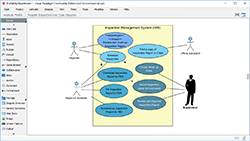
Purpose: Show actors (users) and their interactions with system functions.
Beginner Example:
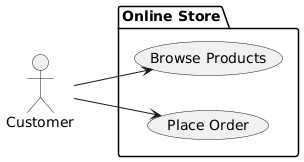
@startuml
left to right direction
actor “Customer” as c
package “Online Store” {
usecase “Browse Products” as UC1
usecase “Place Order” as UC2
}
c –> UC1
c –> UC2
@enduml
Purpose: Show how objects interact over time to complete a task.
Beginner Example: User Login Flow
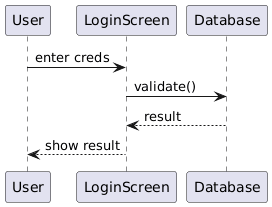
@startuml
User -> LoginScreen : enter creds
LoginScreen -> Database : validate()
Database –> LoginScreen : result
LoginScreen –> User : show result
@enduml │
4️⃣ Activity Diagram — The “Step-by-Step Process”
Purpose: Visualize workflows, like a flowchart for business logic.
Beginner Example: Order Processing
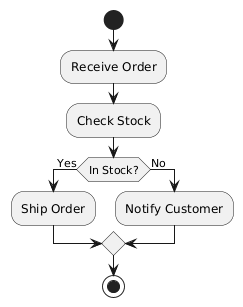
@startuml
start
:Receive Order;
:Check Stock;
if (In Stock?) then (Yes)
:Ship Order;
else (No)
:Notify Customer;
endif
stop
@enduml
5️⃣ Entity Relationship Diagram (ERD) — The “Data Structure”
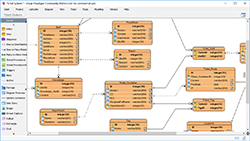
Purpose: Design database tables and their relationships.
Beginner Example:
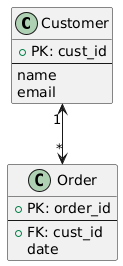
@startuml
class Customer {
+ PK: cust_id
—
name
email
}
class Order {
+ PK: order_id
—
+ FK: cust_id
date
}
Customer “1” <–> “*” Order
@enduml
🧭 Desktop vs. Online: Which Should You Start With?
| If you… | Start with… | Why |
|---|---|---|
| 🎓 Are a student learning UML basics | VP Online | Zero setup, instant feedback, gentle learning curve |
| 💻 Need to generate code or reverse-engineer | Desktop Community | Model-driven architecture enables engineering features |
| 👥 Collaborate with remote teammates | VP Online | Real-time editing, Google Drive sync, shareable links |
| 🗂️ Manage complex, multi-diagram projects | Desktop Community | Model Explorer keeps everything organized and consistent |
| 🎨 Just need a quick visual for a presentation | VP Online | Drag, drop, export in minutes |
| 🔍 Require syntax validation & UML compliance | Desktop Community | Real-time checking ensures professional-quality models |
💡 Pro Tip for Beginners: Start with VP Online to learn diagram types. When you’re ready for deeper modeling, graduate to Desktop Community Edition.
🛠️ Part 3: Step-by-Step Tutorials with Key Concepts & Examples
🌐 Tutorial A: Create Your First Class Diagram in VP Online (5 Minutes)
Goal: Model a simple “Task Manager” app with User and Task classes.
Step 1: Open VP Online
-
Click “Create New Diagram”
-
Select “Class Diagram” → Click “Create”
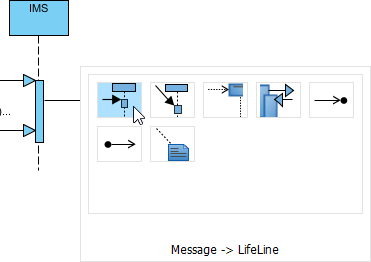
Step 2: Add Your First Class
-
In the Resource Catalog (left panel), find “Class”
-
Drag it onto the canvas
-
Click the three sections to edit:
-
Name:
User -
Attributes:
- userId: String,- email: String -
Operations:
+ login(),+ logout()
-
Step 3: Add a Second Class
-
Repeat Step 2 to create a
Taskclass:-
Name:
Task -
Attributes:
- taskId: String,- title: String,- isComplete: Boolean -
Operations:
+ markComplete(),+ delete()
-
Step 4: Connect the Classes
-
Hover over the
Userclass → a small arrow appears -
Click and drag toward the
Taskclass -
Select “Association” from the popup menu
-
Double-click the connector line to add label:
creates
✅ Result: Your diagram now shows “A User creates Tasks”
Step 5: Export Your Work
-
Go to File → Export → PNG
-
Save to your computer or Google Drive
-
Share the link with classmates or teammates
🎯 Key Concepts Learned:
-
Class structure (name, attributes, operations)
-
Association relationships
-
Resource Catalog for quick shape access
-
Export options for sharing
💻 Tutorial B: Build a Model-Driven Project in Desktop Community Edition
Goal: Create a reusable Product model used across multiple diagrams.
Step 1: Download & Install
-
Download for your OS (Windows/macOS/Linux)
-
Install (requires Java 8+; installer includes it if needed)
Step 2: Create a New Project
-
Launch Visual Paradigm Community Edition
-
Click File → New Project
-
Select “UML Project” → Name it
ECommerceSystem→ Click OK
Step 3: Create the Product Model Element
-
In the Model Explorer (left panel), right-click “Model” → Add → Class
-
Name it
Product -
In the specification window, add:
-
Attributes:
productId: String,name: String,price: Double -
Operations:
updatePrice(newPrice: Double): void
-
Step 4: Use Product in a Class Diagram
-
Right-click “Diagram” in Model Explorer → Add Diagram → Class Diagram
-
Name it
CatalogView -
In the diagram canvas, right-click → Add → Existing Model Element → Product
-
The
Productclass appears—linked to the same model element you created earlier
Step 5: Use Product in a Sequence Diagram
-
Add another diagram: Sequence Diagram named
PurchaseFlow -
Add a
ShoppingCartlifeline -
Right-click → Add → Existing Model Element → Product
-
Now your sequence diagram references the exact same
Productmodel
Step 6: Experience the Magic of Model-Driven Updates
-
Go back to Model Explorer → Double-click
Product -
Change an attribute: add
- description: String -
✅ Watch both your Class Diagram and Sequence Diagram update automatically!
Step 7: Generate Code (Bonus!)
-
Right-click the
Productclass in Model Explorer -
Select Code Engineering → Generate Code → Java
-
Choose output folder → Click OK
-
🎉 Visual Paradigm generates a ready-to-use Java class file!
// Product.java (auto-generated)
public class Product {
    private String productId;
    private String name;
    private Double price;
    private String description; // ← Your new attribute!

    public void updatePrice(Double newPrice) {
        this.price = newPrice;
    }
    // Getters and setters auto-generated...
}
🎯 Key Concepts Learned:
-
Model Explorer vs. Diagram canvas
-
Reusable model elements across diagrams
-
Automatic synchronization (“change once, update everywhere”)
-
Code generation from UML models
📚 Part 4: Comprehensive Case Study — Building a Student Course Registration System
🎯 Project Goal
Design a system where students can:
-
Browse available courses
-
Register for courses (with prerequisites checking)
-
View their enrolled courses
-
Instructors can manage course rosters
🗂️ Phase 1: Requirements Gathering (VP Online)
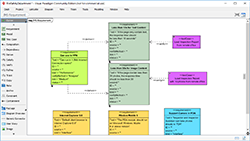
Tool: VP Online (quick brainstorming with project team)
Diagram: Use Case Diagram
Actors: Student, Instructor, Admin

Student Use Cases:
- Browse Courses
- Register for Course
- View My Schedule
- Drop Course

Instructor Use Cases:
- View Class Roster
- Post Grades
- Update Course Info

Admin Use Cases:
- Manage Course Catalog
- Assign Instructors
- Generate Reports
✅ Benefit: Visual alignment on scope before any technical work begins.
🏗️ Phase 2: System Design (Desktop Community Edition)
Step A: Domain Model (Class Diagram)
Key Classes Created:
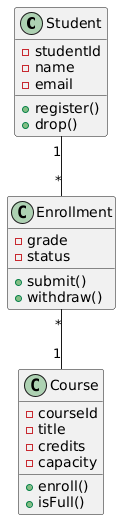
@startuml
class Student {
– studentId
– name
– email
+ register()
+ drop()
}
class Enrollment {
– grade
– status
+ submit()
+ withdraw()
}
class Course {
– courseId
– title
– credits
– capacity
+ enroll()
+ isFull()
}
Student “1” — “*” Enrollment
Enrollment “*” — “1” Course
@enduml
Model Intelligence Applied:
-
Courseclass defined once in Model Explorer -
Referenced in Class Diagram, Sequence Diagram, and ERD
-
Changing
capacityattribute updates all diagrams automatically
Step B: Registration Flow (Sequence Diagram)
Key Interactions Modeled:
Student → RegistrationSystem → Course → PrerequisiteChecker

1. Student requests to enroll in "CS101"
2. System checks if course is full (Course.isFull())
3. System validates prerequisites (PrerequisiteChecker.validate())
4. If OK: Create Enrollment record, update Course capacity
5. Return confirmation to Student
✅ Benefit: Visualizing the flow helped us catch a logic error before coding—we forgot to handle the “prerequisite not met” case!
Step C: Database Design (ERD)
Tables Generated from Model:
-- Auto-generated SQL from ERD model
CREATE TABLE Student (
    student_id VARCHAR(20) PRIMARY KEY,
    name VARCHAR(100),
    email VARCHAR(100) UNIQUE
);

CREATE TABLE Course (
    course_id VARCHAR(20) PRIMARY KEY,
    title VARCHAR(100),
    credits INT,
    capacity INT
);

CREATE TABLE Enrollment (
    enrollment_id INT AUTO_INCREMENT PRIMARY KEY,
    student_id VARCHAR(20),
    course_id VARCHAR(20),
    grade CHAR(2),
    FOREIGN KEY (student_id) REFERENCES Student(student_id),
    FOREIGN KEY (course_id) REFERENCES Course(course_id)
);
✅ Benefit: One model → Class Diagram + Sequence Diagram + Database Schema. Consistency guaranteed.
🚀 Phase 3: Implementation & Iteration
Code Generation (Desktop Feature)
-
Right-click
Studentclass → Code Engineering → Generate Code → Java -
Visual Paradigm creates
Student.javawith:-
Private fields matching attributes
-
Public getters/setters
-
Method stubs for
register(),drop()
-
Reverse Engineering (When Requirements Change)
-
Team decides to add
waitlistfeature -
Developer adds
waitlist: List<Student>toCourse.java -
In Desktop: Code Engineering → Reverse Engineer → Update Model
-
✅ UML model automatically updates to reflect code changes!
Collaborative Refinement (VP Online)
-
Share draft diagrams via VP Online link with instructor
-
Instructor adds comments directly on diagrams
-
Team incorporates feedback → updates Desktop model → regenerates code
📊 Results & Lessons Learned
| Metric | Outcome |
|---|---|
| ⏱️ Time Saved | ~15 hours vs. manual diagramming + code writing |
| 🐞 Bugs Prevented | 3 logic errors caught during modeling phase |
| 🤝 Team Alignment | Visual diagrams reduced miscommunication by ~80% |
| 🎓 Learning Value | Team members gained practical UML + modeling skills |
| 🔄 Maintainability | Model-driven approach made future changes 3x faster |
💡 Case Study Insight: Using both tools strategically—Online for collaboration, Desktop for engineering—gave us the best of both worlds.
🌟 Part 5: Benefits, Guidelines, Tips & Tricks
✅ Key Benefits of Visual Paradigm Free Tools
For Beginners
-
🎨 Low barrier to entry: Start diagramming in seconds with VP Online
-
📚 Learn by doing: Hundreds of free templates at circle.visual-paradigm.com
-
🔍 Immediate feedback: Syntax checking (Desktop) helps you learn UML rules naturally
For Students & Educators
-
🎓 Academic adoption: Used by thousands of universities worldwide
-
📄 Professional output: Export presentation-ready diagrams for assignments
-
💰 Zero cost: Full features for non-commercial use—no student discount needed
For Hobbyists & Side Projects
-
🛠️ Prototype faster: Visualize your app idea before writing code
-
🔁 Iterate easily: Change models → auto-update diagrams → regenerate code
-
🌍 Work anywhere: Desktop (offline) + Online (any device) = maximum flexibility
For Future Professionals
-
💼 Industry relevance: Skills transfer to paid Visual Paradigm editions used by enterprises
-
📈 Portfolio building: Include professional UML diagrams in your GitHub/portfolio
-
🤝 Collaboration ready: Learn tools used by real development teams
🧭 Practical Guidelines for Success
🎯 Choosing the Right Tool
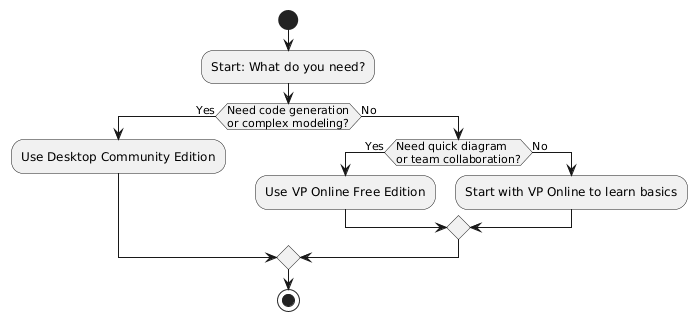
@startuml
start
:Start: What do you need?;
if (Need code generation\nor complex modeling?) then (Yes)
:Use Desktop Community Edition;
else (No)
if (Need quick diagram\nor team collaboration?) then (Yes)
:Use VP Online Free Edition;
else (No)
:Start with VP Online to learn basics;
endif
endif
stop
@enduml
📁 Organizing Your Projects
Desktop Best Practices:
-
Use Model Explorer folders to group related elements (e.g., “User Management”, “Payment Processing”)
-
Name diagrams descriptively:
CheckoutFlow_SequencenotDiagram1 -
Add documentation notes to complex model elements for future reference
Online Best Practices:
-
Use Google Drive folders to organize diagrams by project
-
Add tags in diagram titles:
[DRAFT],[FINAL],[REVIEW] -
Use comments feature for team feedback
🔄 When to Switch Between Tools
| Scenario | Recommended Workflow |
|---|---|
| Brainstorming with remote team | Start in VP Online → Export PNG → Share for feedback |
| Formal project documentation | Model in Desktop → Export PDF → Submit with report |
| Learning UML concepts | Practice in VP Online → Reinforce with Desktop exercises |
| Building a real application | Design in Desktop → Generate code → Iterate using reverse engineering |
💡 Pro Tips & Tricks
🎨 Diagram Design Tips
-
Use alignment guides (both tools): Hold
Shiftwhile dragging to snap shapes into perfect alignment -
Color-code by responsibility: Use light blue for UI classes, green for business logic, yellow for data access
-
Keep diagrams focused: One diagram = one concept. Don’t cram everything into a single view.
-
Use notes for context: Right-click canvas → Add Note to explain design decisions
⚡ Efficiency Shortcuts (Desktop)
| Shortcut | Action |
|---|---|
Ctrl+Space |
Open Resource Catalog (shape suggestions) |
Ctrl+G |
Group selected elements |
Ctrl+Shift+C |
Copy formatting from one element to another |
F2 |
Quick-edit selected element’s name |
Ctrl+Click on connector |
Change relationship type instantly |
🌐 Collaboration Hacks (Online)
-
Share with view-only link: Perfect for stakeholder reviews without edit risk
-
Use version history: File → Version History to revert accidental changes
-
Embed in documentation: Export as SVG → insert into Markdown/Confluence for crisp, scalable diagrams
-
Template library: Save your frequently-used diagram structures as templates for reuse
🐛 Troubleshooting Common Beginner Issues
| Problem | Solution |
|---|---|
| “My connectors keep floating away!” | Use auto-attached connectors: drag from shape’s small arrow ports, not the edge |
| “How do I change a relationship type?” | Click the connector → press F2 or right-click → Change Type |
| “My diagram looks cluttered” | Use Layout → Auto Layout (Desktop) or Arrange → Distribute (Online) |
| “I can’t find a shape I need” | Open Resource Catalog (Ctrl+Space) → type keyword (e.g., “interface”, “database”) |
| “Exported image is blurry” | Export as SVG (vector) for presentations, or increase PNG resolution in export settings |
🚀 Advanced Trick: Hybrid Workflow
-
Sketch initial ideas in VP Online during a team meeting
-
Export as
.vpdxfile (Visual Paradigm format) -
Open in Desktop Community Edition to:
-
Convert sketches to formal model elements
-
Add syntax validation
-
Generate code or database scripts
-
-
Export final diagrams from Desktop for documentation
-
Share simplified versions back to VP Online for stakeholder review
✅ Result: Agile collaboration + professional engineering = best of both worlds.
🏁 Final Thoughts: Your UML Journey Starts Now

Remember my Day 1 confusion? You don’t need to have it.
✅ You can start today—no experience, no budget, no risk.
✅ You can grow gradually—from simple diagrams to full model-driven development.
✅ You can switch freely—both tools are free, so experiment without commitment.
🚀 Your Next 3 Steps
-
Try VP Online now: online.visual-paradigm.com → Create a Class Diagram in 5 minutes
-
Download Desktop later: visual-paradigm.com/download/community.jsp → When you’re ready for modeling intelligence
-
Join the community: forums.visual-paradigm.com → Ask questions, share your work, learn from others
🌟 Remember: Every expert was once a beginner. Your first UML diagram doesn’t need to be perfect—it just needs to exist. Visual Paradigm’s free tools are here to help you make that first mark, and every one after.
- 📚 Reference List
- Online Diagram Editor Features: Official documentation detailing VP Online’s diagramming capabilities, interface design, and use cases for visual communication.
- VP Online Desktop Accessibility: Guide to cross-platform browser compatibility, performance considerations, and accessibility features for the web-based editor.
- Model Explorer vs. Diagram Navigator: Community forum discussion clarifying the structural differences between desktop’s model-centric and online’s diagram-centric project organization.
- Visual Modeling Tool Overview: Comprehensive feature list for Visual Paradigm’s model-driven approach, including element reuse, syntax checking, and engineering integrations.
- Visual Paradigm User Guide: Model Elements: Official documentation explaining how model elements function as reusable data objects across multiple diagrams in the desktop application.
- UML Tool Solution Page (CN): Chinese-language resource detailing UML modeling capabilities, use cases, and enterprise adoption of Visual Paradigm tools.
- Visio Alternative: Why VP Online?: Independent review comparing VP Online to Microsoft Visio, highlighting ease of use, collaboration features, and UML support.
- User Guide: Organizing Work with Model Explorer: Step-by-step instructions for using the Model Explorer to structure, navigate, and manage complex modeling projects in the desktop edition.
- User Guide: Model Element Reference: Technical documentation defining model elements, their properties, and how they enable consistency across diagrams in Visual Paradigm Desktop.
- Visual Paradigm Online: Ultimate Cloud-Based Platform: Detailed user review covering VP Online’s strengths for remote collaboration, education, and lightweight diagramming workflows.
- Cloud-Based Diagramming Tool Solution: Official page describing VP Online’s architecture, security, integration options, and hybrid workflows with desktop tools.
- Diagramming Tool on the Cloud – Features: Feature breakdown of VP Online’s collaboration tools, export options, template library, and upgrade paths to commercial editions.
- Free Online Diagram Software: Broader guide covering all diagram types supported by Visual Paradigm’s free online platform.
- Visual Paradigm Online: Ultimate Diagramming Tool: Blog post discussing use cases for businesses and individuals, with feature comparisons.
- ERD Tool – Visual Paradigm: Resource for Entity Relationship Diagram modeling using Visual Paradigm’s free and paid editions.
- UML Resources – University of Waterloo: Academic resource page with UML learning materials and tool recommendations, including Visual Paradigm.
-
🎁 Bonus: All diagrams in this guide were created using Visual Paradigm’s free tools. You can replicate every example—starting today.

 English
 Arabic
 Chinese (Simplified)
 Dutch
Dutch French
 German
 Italian
 Japanese
 Korean
 Portuguese
 Russian
 Spanish