


Overview
Visual Paradigm OpenDocs is an integrated documentation platform that combines writing, diagramming, and knowledge management into a single seamless environment. It eliminates the need to switch between multiple applications by providing a unified workspace for creating, organizing, and sharing professional documentation.
Key Features
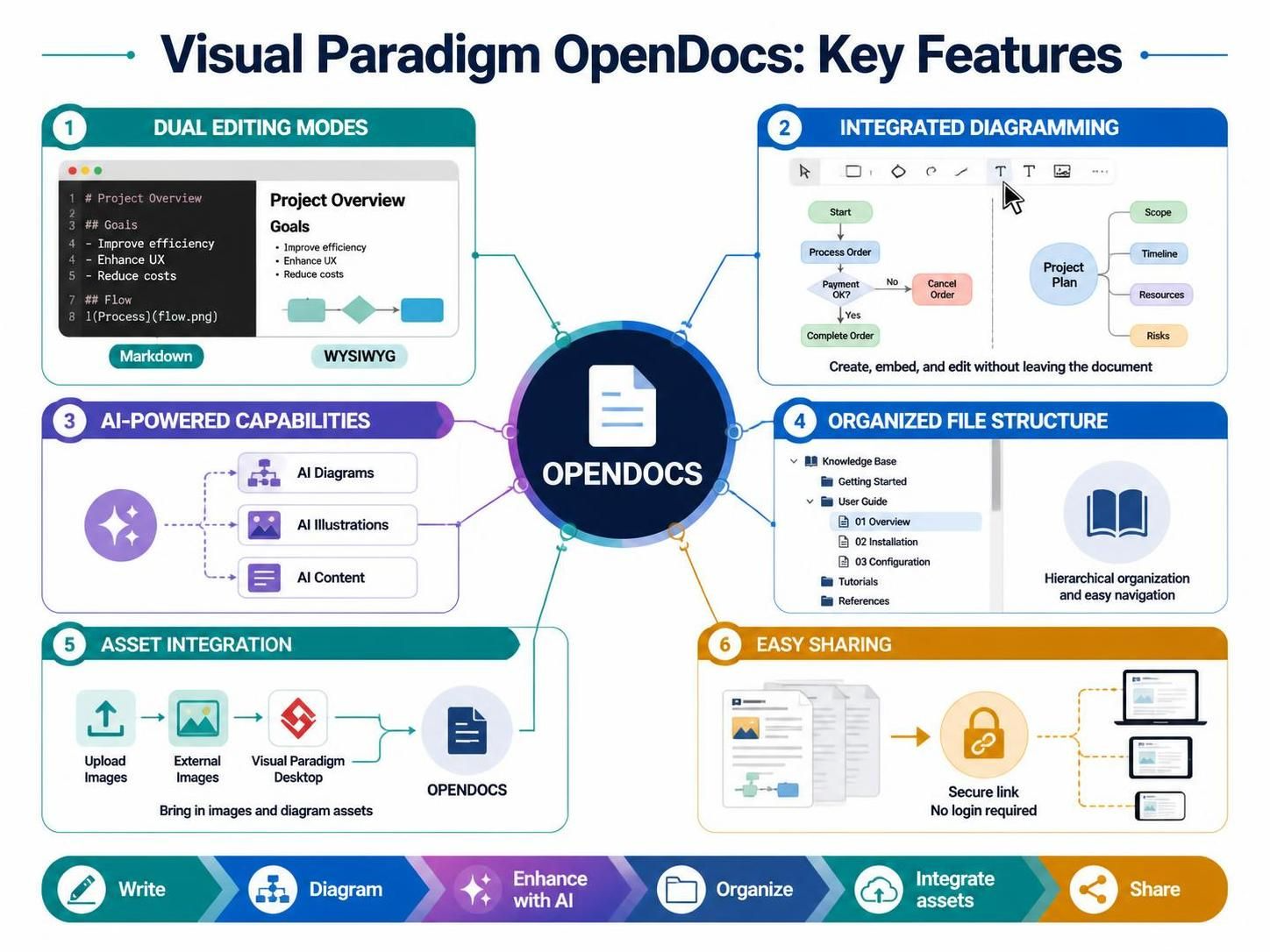
1. Dual Editing Modes
-
Markdown Editor: Clean, code-friendly interface for technical writers who prefer markdown syntax
-
WYSIWYG Editor: What-you-see-is-what-you-get interface for intuitive visual editing
2. Integrated Diagramming
-
Built-in diagram creation tools
-
Support for flowcharts, mind maps, and various diagram types
-
Seamless embedding of diagrams directly within documents
-
Ability to edit embedded diagrams later without leaving the document
3. AI-Powered Capabilities
-
AI Diagram Generation: Describe processes or structures in plain language and receive instant diagrams
-
AI Illustration Generation: Create custom illustrations using AI prompts
-
AI-Assisted Content Creation: Streamline documentation workflow with intelligent assistance
4. Organized File Structure
-
Tree-based file system for hierarchical organization
-
Ideal for building comprehensive knowledge bases
-
Easy navigation through project documentation and technical notes
5. Asset Integration
-
Upload personal images
-
Insert images from external links
-
Import works from Visual Paradigm Desktop
-
Import works from Visual Paradigm Online via pipeline integration
6. Easy Sharing
-
Share entire documentation spaces via secure links
-
No login required for viewers
-
Simple distribution for team collaboration and stakeholder review
Getting Started: Step-by-Step Guide
Step 1: Access OpenDocs
-
Log into your Visual Paradigm Online workspace
-
Select “Create with AI”
-
Choose “Browse AI Apps”
-
Find OpenDocs and click “Start Now”
Step 2: Create Your Document Structure
-
Documents are automatically arranged in a tree structure
-
All content is stored within your workspace
-
Create folders and subdocuments to organize your knowledge base
Step 3: Edit Your Document
-
Click the “Edit” button at the top right of the active document
-
Choose your preferred editor (Markdown or WYSIWYG)
-
Begin drafting your content
Step 4: Insert Assets and Diagrams
-
Click “Insert” to open the asset dialogue
-
Choose from available options:
-
Upload images from your device
-
Insert images from external URLs
-
Generate AI illustrations
-
Import from Visual Paradigm Desktop/Online
-
Step 5: Create Embedded Diagrams
-
Select the diagram type you want to create
-
The diagram editor will load within OpenDocs
-
Build your diagram from scratch OR use AI to generate it by describing what you need
-
Refine the diagram as needed
-
Click “Save” and close the editor
-
The diagram is automatically inserted into your document
Step 6: Edit Existing Diagrams
-
Click the “Edit” button on any embedded diagram
-
Make your changes
-
Save to update the diagram in-place
Step 7: Share Your Documentation
-
Click “Save” to preserve your work
-
Click “Share” to generate a shareable link
-
Distribute the link to stakeholders (no login required for viewers)
Use Cases
1. Project Documentation
-
Create comprehensive project wikis with requirements, specifications, and timelines
-
Embed architecture diagrams, workflow charts, and process flows
-
Maintain living documentation that evolves with your project
Example: A software development team creates a project hub containing:
-
Product requirements document with user story maps
-
System architecture diagrams
-
API documentation with sequence diagrams
-
Sprint planning boards and release roadmaps
2. Technical Knowledge Base
-
Build organized repositories of technical notes and best practices
-
Include code snippets, configuration guides, and troubleshooting steps
-
Link related documents through the tree structure
Example: An IT department maintains:
-
Server configuration guides with network topology diagrams
-
Troubleshooting flowcharts for common issues
-
Onboarding documentation for new team members
-
Security protocols with access control diagrams
3. Process Documentation
-
Map out business processes with visual flowcharts
-
Document standard operating procedures (SOPs)
-
Create training materials with step-by-step visual guides
Example: A manufacturing company documents:
-
Quality assurance workflows with decision trees
-
Safety procedures with illustrated steps
-
Supply chain processes with value stream maps
-
Employee onboarding checklists
4. Product Management Documentation
-
Maintain product roadmaps with timeline visualizations
-
Document user research findings with persona diagrams
-
Create feature specifications with wireframes and user journey maps
Example: A product team creates:
-
Product vision documents with strategic roadmaps
-
User persona profiles with empathy maps
-
Feature requirement documents with use case diagrams
-
Release notes with changelog summaries
5. Educational and Training Materials
-
Develop course materials with interactive diagrams
-
Create tutorial guides with step-by-step visuals
-
Build reference materials for quick lookup
Example: A training department produces:
-
Employee handbooks with organizational charts
-
Software training guides with screenshot annotations
-
Compliance training with policy flowcharts
-
Skills assessment matrices
6. Meeting Notes and Decision Logs
-
Record meeting outcomes with action item tracking
-
Document decisions with rationale and supporting diagrams
-
Maintain historical records of project evolution
Example: A consulting firm maintains:
-
Client meeting summaries with stakeholder maps
-
Decision logs with impact analysis diagrams
-
Retrospective notes with improvement action plans
7. System Architecture Documentation
-
Document complex system designs with component diagrams
-
Maintain API documentation with sequence and class diagrams
-
Create deployment guides with infrastructure diagrams
Example: A DevOps team documents:
-
Cloud architecture with infrastructure diagrams
-
Microservices communication with sequence diagrams
-
Deployment pipelines with CI/CD flowcharts
-
Disaster recovery plans with failover diagrams
Best Practices
Organization Tips
-
Use descriptive names for documents and folders
-
Maintain consistent hierarchy across your knowledge base
-
Tag related documents for easier discovery
-
Regularly archive outdated content
Diagram Best Practices
-
Keep diagrams simple and focused on one concept
-
Use consistent styling across all diagrams
-
Add clear labels and legends where necessary
-
Update diagrams when processes change
Collaboration Tips
-
Establish naming conventions for team consistency
-
Use version control by saving iterations
-
Share selectively with appropriate stakeholders
-
Gather feedback through shared links before finalizing
Content Quality
-
Write clearly and concisely
-
Use headings to structure content logically
-
Include visuals to complement text
-
Review regularly to ensure accuracy
Advantages Over Traditional Tools
| Feature | Traditional Approach | OpenDocs |
|---|---|---|
| Tool Switching | Multiple apps (Word, Visio, Confluence) | Single integrated platform |
| Diagram Updates | Export/import between tools | Edit in-place within document |
| Organization | Scattered files and folders | Unified tree structure |
| Sharing | Complex permissions and access | Simple link sharing, no login needed |
| AI Assistance | Limited or separate tools | Built-in AI for diagrams and illustrations |
| Version Control | Manual file management | Automatic workspace storage |
Conclusion
Visual Paradigm OpenDocs represents a significant advancement in documentation tools by eliminating the friction between writing and visual communication. Whether you’re managing complex technical projects, building knowledge bases, or creating training materials, OpenDocs provides a streamlined, professional solution that keeps your content organized, visually rich, and easily shareable.
The combination of flexible editing modes, powerful diagramming capabilities, AI assistance, and intuitive organization makes OpenDocs an ideal choice for teams seeking to improve their documentation workflow and maintain high-quality, up-to-date knowledge resources.

 English
 Arabic
 Chinese (Simplified)
 Dutch
Dutch French
 German
 Italian
 Japanese
 Korean
 Portuguese
 Russian
 Spanish