


In the rapidly evolving landscape of enterprise modeling, the barrier between a rough concept and a production-ready diagram is diminishing. Visual Paradigm (VP) Desktop has established itself as a cornerstone for professional modeling since 2002, moving beyond simple drawing tools to offer a robust environment for automated process mapping. This tutorial explores the technical workflow of generating intelligent, editable flowcharts using the platform’s Generative AI capabilities.
Understanding the System Architecture: VP Desktop vs. Lightweight Tools
Before diving into the generation process, it is essential to understand the architectural advantage of VP Desktop over standard “one-shot” image generators. While many AI tools produce static raster images or unstructured vectors, VP Desktop integrates generative AI into a full-featured modeling environment. This means the output is not merely a picture, but a native, fully editable diagram object.
When the AI renders a flowchart in VP Desktop, it constructs a structured data model behind the visual layer. It intelligently places specific UML/BPMN shapes—such as process rectangles, decision diamonds, and start/end ovals—and ensures the layout is balanced and readable. This native structure allows for:
- Deep Control: Users can immediately modify the logic or styling without losing the diagram’s integrity.
- Interconnectivity: Shapes can be linked to specific requirements or external documentation.
- Code Generation: The underlying logic can be used to generate code stubs, bridging the gap between design and development.
Step-by-Step Guide: Generating a Flowchart with AI
The process of transforming a text prompt into a complex workflow diagram in VP Desktop is designed to be intuitive. Follow this structured workflow to leverage the AI Diagram Generation tool.
1. Access the Generator Interface
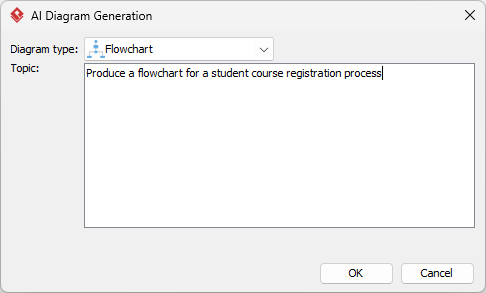
Navigate to the main menu bar and select the Tools option. From the dropdown list, locate and click on AI Diagram Generation. This action opens the configuration dialog, which serves as the gateway for your AI interaction.
2. Define the Diagram Type
In the AI Diagram Generation dialog, you will encounter a Diagram type dropdown. Select Flowchart from the available list. This selection is critical because it sets the context for the AI’s rendering engine, ensuring that the generated symbols adhere to standard flowchart conventions (e.g., using rounded rectangles for start/end nodes and diamonds for decision points).
3. Craft the AI Prompt
The heart of the generation process lies in the Topic input field. The AI relies on clear, descriptive prompts to reconstruct the logic. A vague prompt yields a generic diagram, whereas a detailed prompt produces a workflow ready for refinement.
Effective Prompting Strategy: Outline the specific logic, the scope of the process, and any critical steps such as validation or escalation.
Example Scenario:
Model a customer support ticket workflow from submission to closure, including validation steps and manager escalation.4. Automated Generation and Rendering
Once you click OK, the AI engine processes the text. It does not simply “draw” the diagram; it interprets the semantic meaning of your words and constructs the flow logic. The system renders a native, fully editable flowchart where:
- Process Rectangles represent actions.
- Decision Diamonds represent logical gates (e.g., “Is ticket valid?”).
- Start/End Ovals define the lifecycle boundaries.
Advanced Modeling: From Static Diagram to Dynamic Workflow
The true power of VP Desktop is unlocked after the initial generation. Because the output is a native diagram, you are not limited to the AI’s first draft. You can immediately enhance the model by adding swimlanes to define roles (e.g., “Customer,” “Support Agent,” “Manager”) or linking shapes to specific requirement documents. This keeps your diagrams interconnected and production-ready.
Conclusion
Visual Paradigm Desktop’s AI-assisted generation represents a shift from manual drafting to conceptual modeling. By leveraging natural language processing to create structured, editable UML and BPMN diagrams, professionals can focus on the logic of their processes rather than the mechanics of drawing them.

 English
 Arabic
 Chinese (Simplified)
 Dutch
Dutch French
 German
 Italian
 Japanese
 Korean
 Portuguese
 Russian
 Spanish