


Introduction
In the fast-paced world of software development and system architecture, clarity is king. Diagrams serve as the universal language for communicating complex structures, workflows, and relationships. However, creating and maintaining these diagrams can often be time-consuming, requiring precise syntax and constant updates as projects evolve.
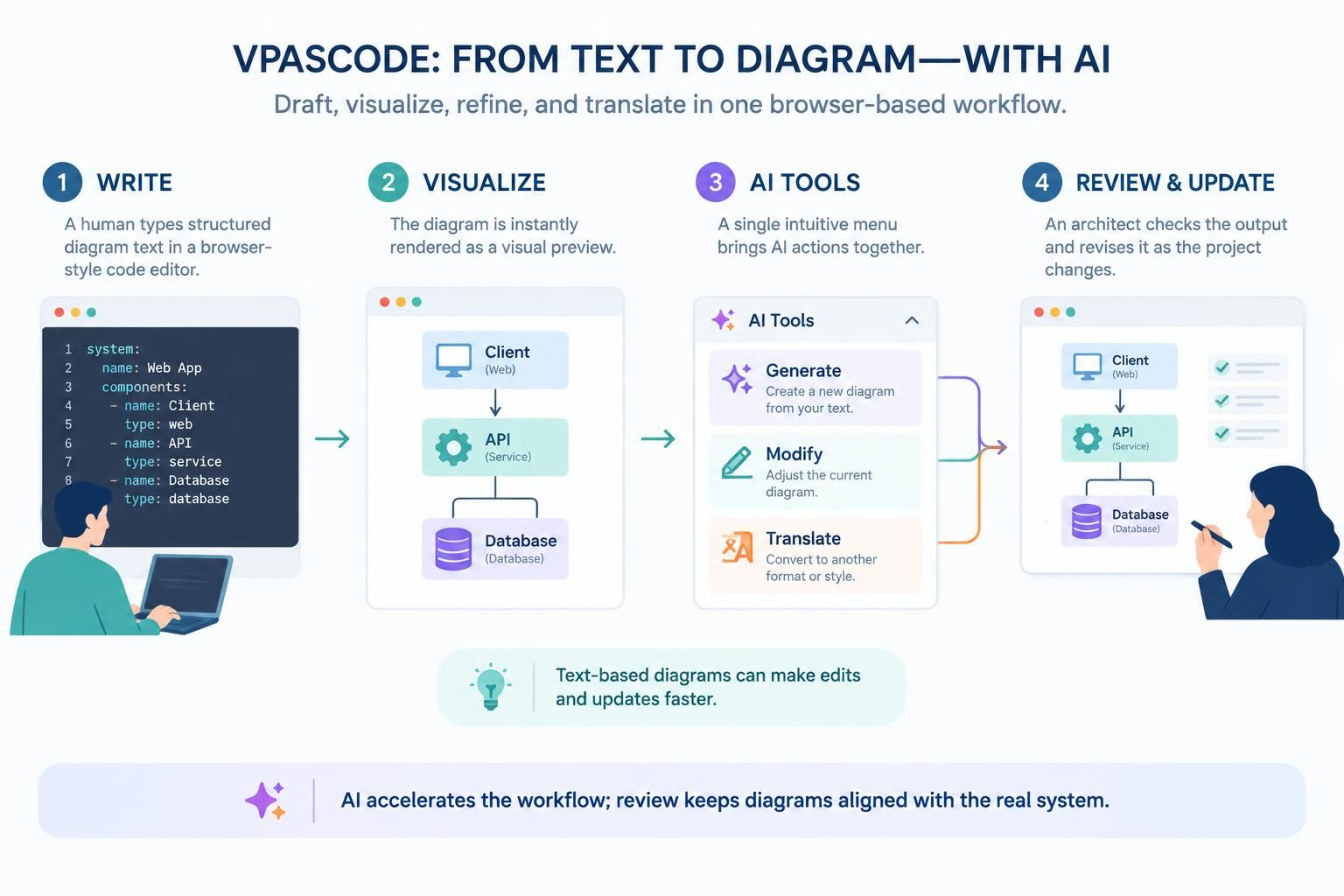
Visual Paradigm’s VPasCode has long offered a unique solution by bringing text-based diagramming into a browser-based workspace, allowing users to write code and instantly visualize the resulting diagram. With its latest update, VPasCode takes this efficiency a step further by consolidating its powerful AI capabilities into a single, intuitive interface. This guide explores how the new AI Tools menu simplifies the diagramming workflow, making AI-assisted generation, modification, and translation more accessible than ever before.
Key Concepts: The Power of Embedded AI in Diagramming
The core innovation in this update is not just the addition of AI features, but their centralization. By grouping AI actions into one drop-down menu in the app bar, VPasCode reduces cognitive load and streamlines the user experience. Here are the three pillars of this AI-enhanced workflow:
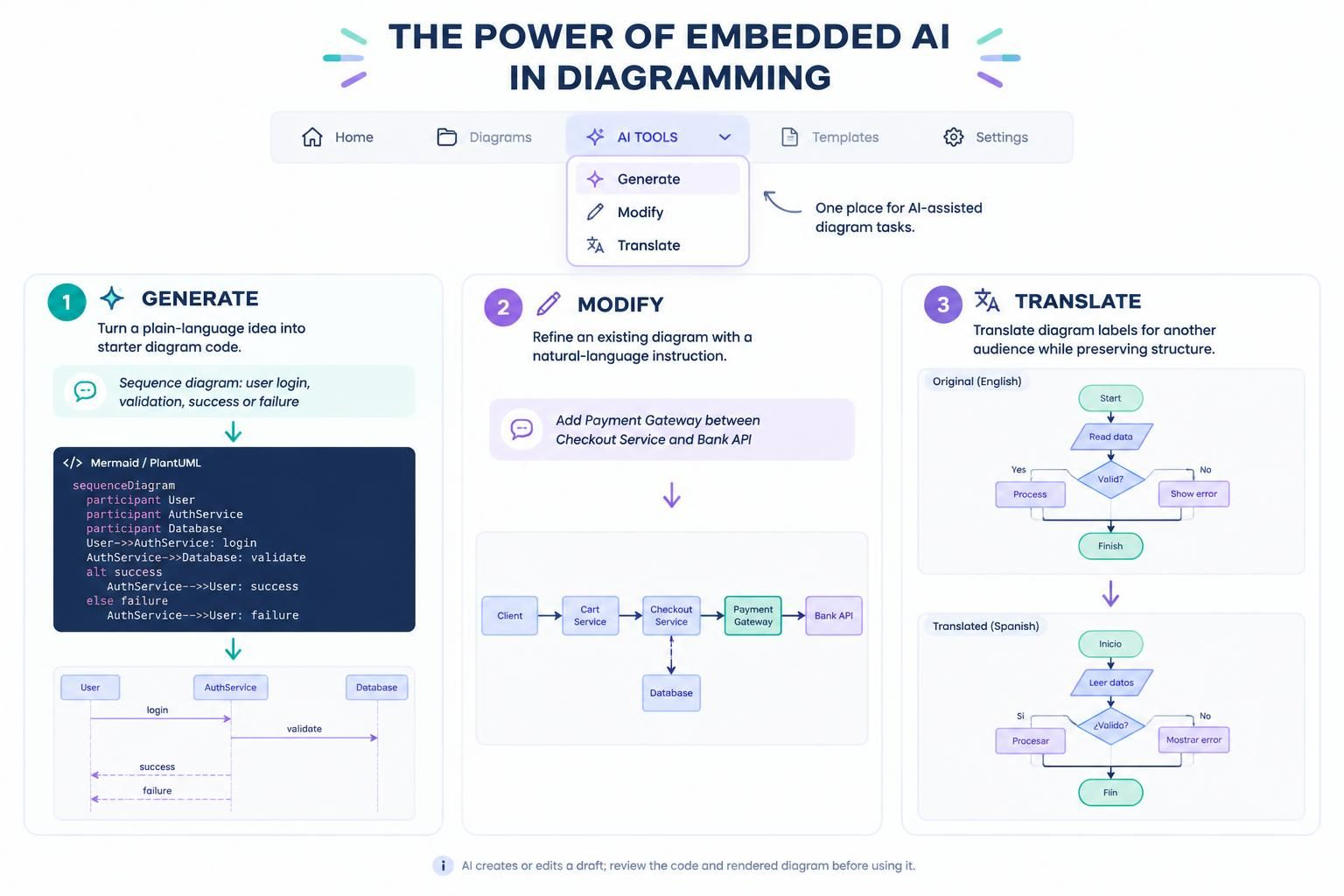
1. AI Diagram Generation
Concept: Transform natural language ideas into structured diagram code.
Instead of starting from a blank canvas or memorizing syntax, users can describe their intent in plain English. The AI interprets the description and generates the initial diagram code, providing a solid foundation for further refinement.
Example:
-
User Input: “Create a sequence diagram for a user logging into a system, including steps for entering credentials, server validation, and either success or failure responses.”
-
AI Output: VPasCode generates the corresponding Mermaid or PlantUML code, rendering a visual sequence diagram with all specified actors and messages.
2. AI Diagram Modification
Concept: Iteratively refine existing diagrams using natural language commands.
As projects evolve, diagrams must change. Rather than manually editing code line-by-line, users can instruct the AI to make specific adjustments. This is particularly useful for adding new components, changing relationships, or reorganizing layout structures.
Example:
-
User Input: “Add a new ‘Payment Gateway’ component between the ‘Checkout Service’ and the ‘Bank API’ in my current component diagram.”
-
AI Output: The AI updates the underlying code to include the new component and its connections, instantly refreshing the visual diagram.
3. AI Diagram Translation
Concept: Break language barriers by translating diagram text for global audiences.
For teams working across different regions or presenting to international stakeholders, language consistency is crucial. AI translation allows users to convert labels, notes, and descriptions within the diagram into another language without altering the structural logic.
Example:
-
User Input: “Translate all labels in this flowchart from English to Spanish.”
-
AI Output: The text content of the diagram nodes and edges is translated, while the diagram’s structure and code remain intact.
Why This Update Matters: A More Discoverable Experience
Before this update, AI features were scattered across the interface. Generation was in the app bar, while modification and translation were located above the code editor. This fragmentation required users to remember where each tool lived, interrupting their flow.
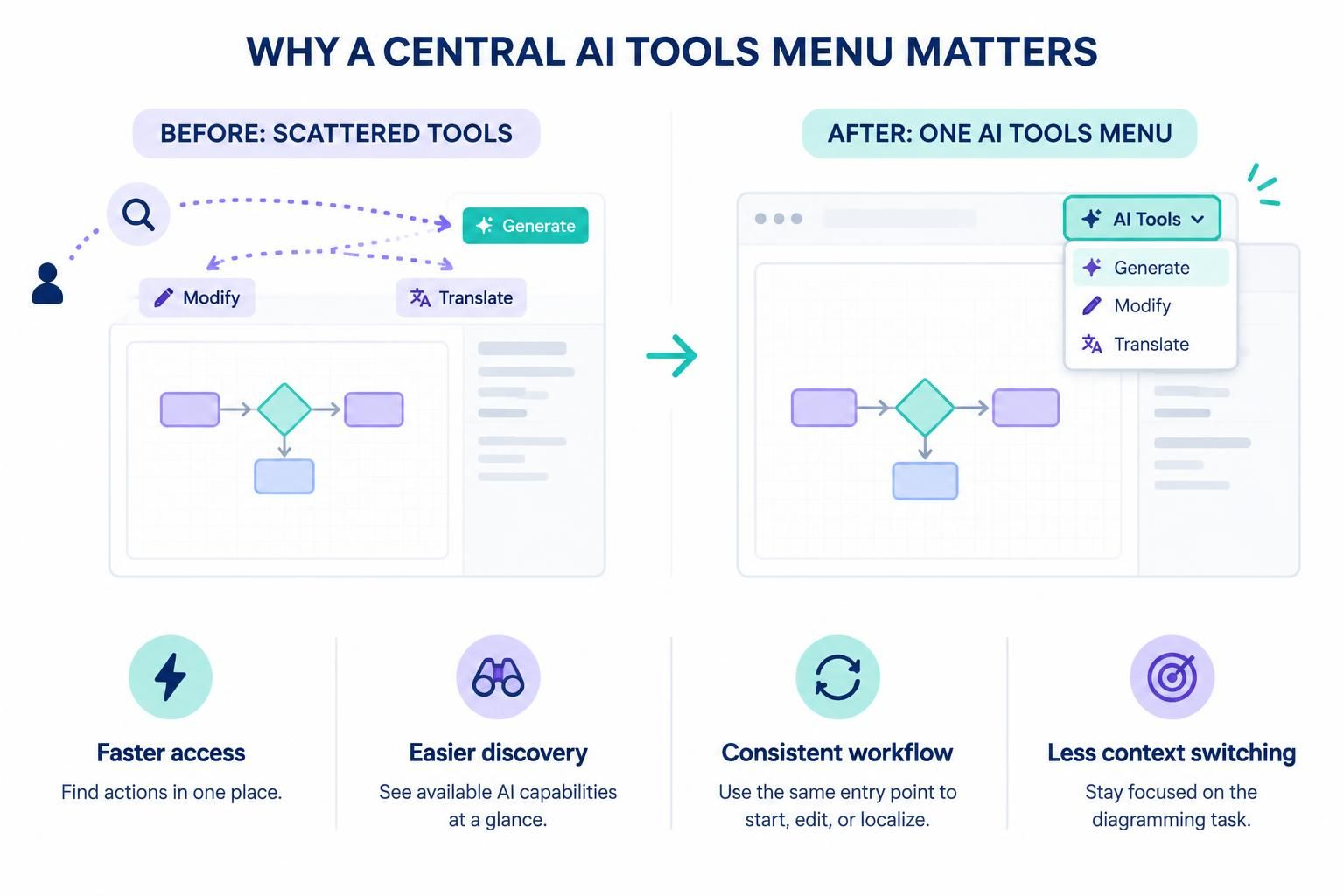
The new AI Tools menu offers several tangible benefits:
-
Faster Access: No more hunting for features. All AI actions are one click away.
-
Easier Discovery: New users can immediately see the full range of AI capabilities available.
-
Consistent Workflow: Whether you’re starting, editing, or localizing, the entry point is always the same.
-
Reduced Context Switching: Keeping related actions together helps maintain focus on the diagramming task at hand.
How to Access the AI Tools Menu
Getting started with the new unified AI interface is straightforward:
-
Open VPasCode in your browser.
-
Locate the app bar at the top of the workspace.
-
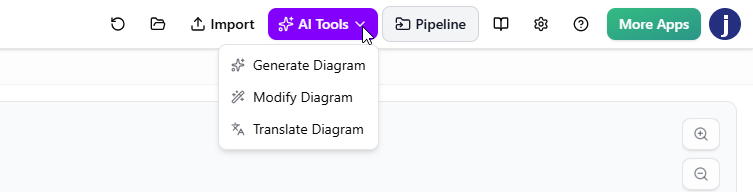
Click on the AI Tools drop-down menu.
-
Select the appropriate action for your current task:
-
Generate: To create a new diagram from a description.
-
Modify: To update an existing diagram.
-
Translate: To change the language of diagram text.
-
Practical Use Cases
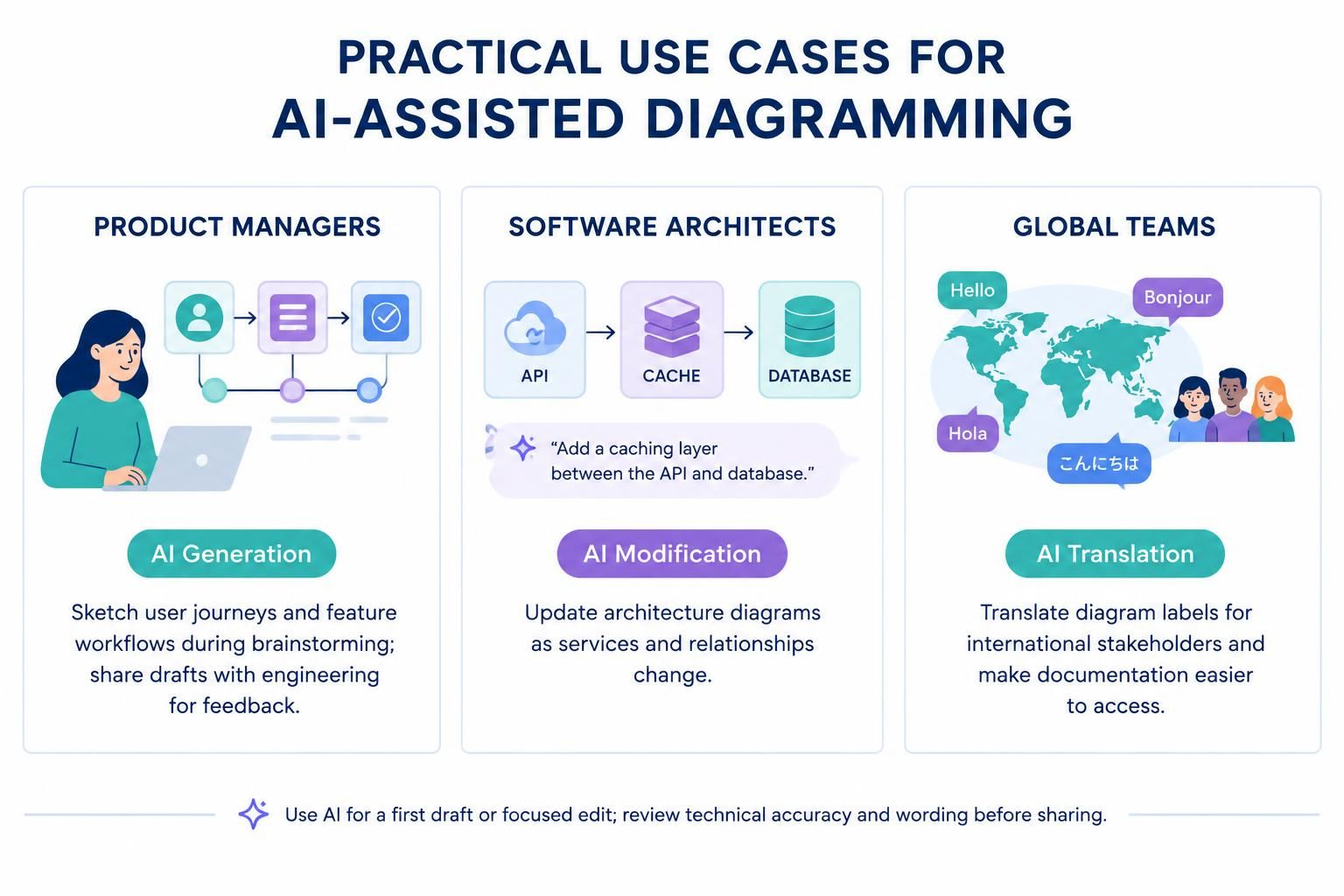
For Product Managers
Use AI Generation to quickly sketch out user journey maps or feature workflows during brainstorming sessions. Share these initial drafts with engineering teams for feedback.
For Software Architects
Leverage AI Modification to keep architectural diagrams up-to-date as microservices are added or removed. Instead of redrawing entire sections, simply ask the AI to “add a new caching layer between the API and the database.”
For Global Teams
Utilize AI Translation to prepare presentation-ready diagrams for international stakeholders. Ensure that technical documentation is accessible to team members regardless of their primary language.
Conclusion
The introduction of the AI Tools menu in VPasCode represents a thoughtful evolution in user interface design. By consolidating AI diagram generation, modification, and translation into a single, easily accessible location, Visual Paradigm has made it easier for users to harness the power of AI at every stage of the diagramming process.
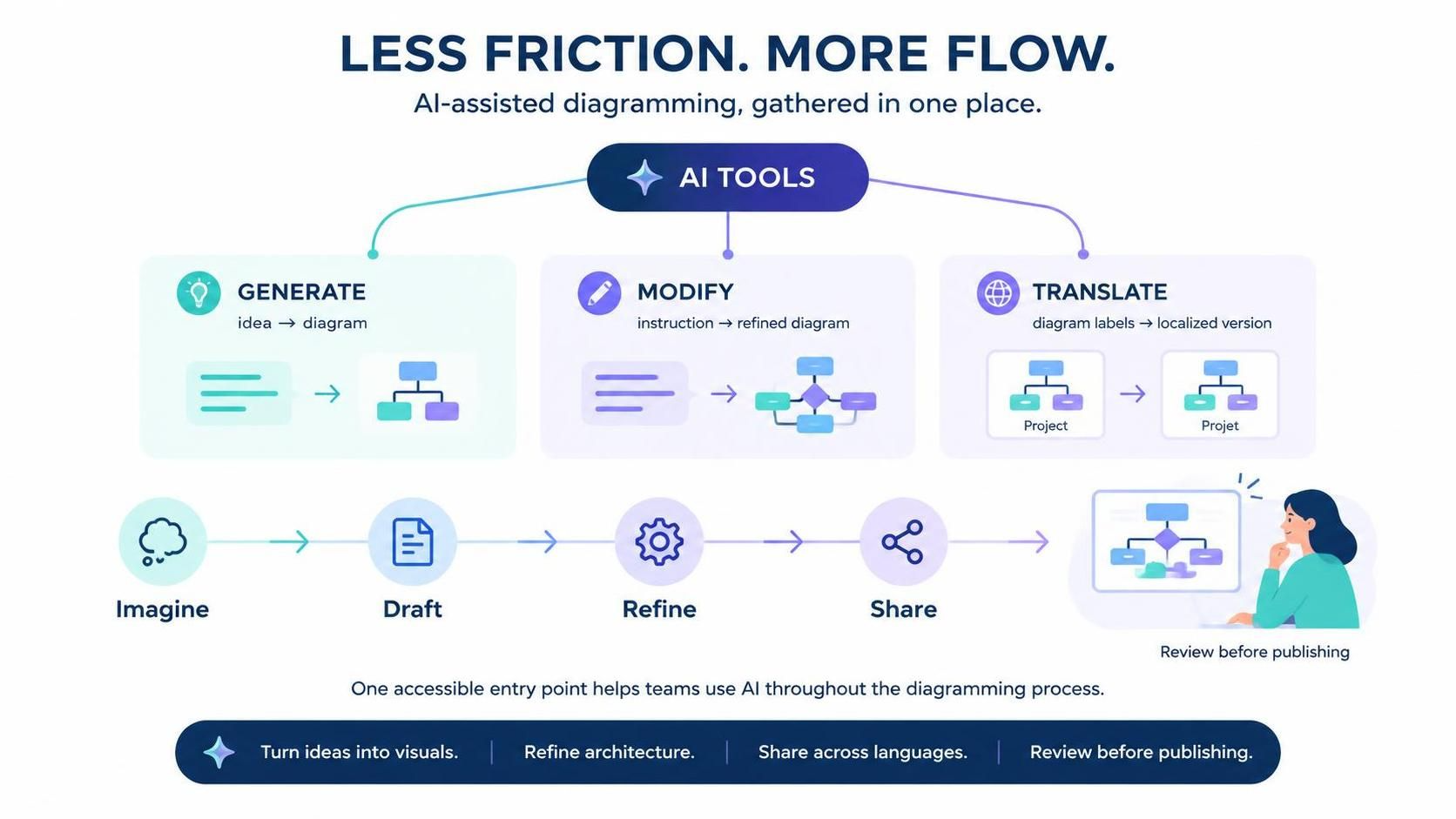
This update doesn’t just add features; it removes friction. Whether you’re turning a vague idea into a concrete diagram, refining complex architectures, or making your work accessible to a global audience, the new AI Tools menu ensures that help is always just a click away.
Ready to experience a smoother, more intelligent diagramming workflow? Launch VPasCode today and explore the power of AI, all in one place.

 English
 Arabic
 Chinese (Simplified)
 Dutch
 French
 German
 Italian
 Japanese
 Korean
 Portuguese
 Russian
 Spanish