


In the realm of Business Process Model and Notation (BPMN), accurately representing the lifecycle of information is just as critical as modeling the tasks themselves. Data flows are the lifeblood of any system, and understanding how they interact with processes is essential for creating robust system architectures.
This tutorial focuses on the visual representation of data in context diagrams, specifically distinguishing between Data Objects, Data Inputs, Data Outputs, and Data Stores. We will explore how these elements define the boundaries of a process and how to manage their states effectively using Visual Paradigm.
The Core Elements of Data Representation
When analyzing a business process, we rarely deal with isolated tasks. Tasks require information to start, they generate new information, and they often rely on historical data to make decisions. In BPMN, these are categorized into four distinct visual constructs.
1. Data Objects (The Generic Container)
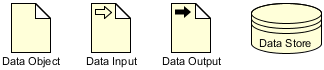
The standard Data Object represents a generic piece of information. It is the default shape used when data is being discussed generally or when the direction of the flow is not yet defined in a specific context.
- Visual Cue: A rectangle with a folded top-right corner.
- Usage: Use this when you want to denote that a process deals with a specific document or record without specifying if it is entering or leaving the system boundary.
2. Data Input (The Trigger)
A Data Input indicates that information is required to initiate or sustain a process. It represents the “Input” side of the equation.
- Visual Cue: A Data Object with an arrow pointing into the shape.
- Usage: This is crucial for defining process triggers. For example, a “Purchase Order” entering a system is a Data Input. It signifies that the process cannot begin until this data arrives.
3. Data Output (The Result)
Conversely, a Data Output represents the result or product of the process execution.
- Visual Cue: A Data Object with an arrow pointing out of the shape.
- Usage: This denotes the deliverable. If a process generates a “Shipping Notification,” that is a Data Output. It signifies that the process has successfully concluded its work and produced a tangible result.
Managing State and Persistence
While Objects, Inputs, and Outputs represent the flow of data, they do not inherently imply long-term storage. For that, we utilize the Data Store.
The Data Store
A Data Store is a repository where data is saved for future use. Unlike a Data Object which might represent a single instance of a document, a Data Store represents the collective database or file system.
- Visual Cue: A cylinder shape, often labeled with a generic name or specific database type.
- State Management: In complex system architectures, you must define the lifecycle of data within these stores. This includes states such as:
- Instantiated: The data record is created and saved.
- Completed: The data has been processed and the transaction is finalized.
- Deleted: The data is removed from the store (either logically or physically) based on retention policies.
Implementation Strategy with Visual Paradigm
For precise modeling of these elements, Visual Paradigm serves as the industry-standard tool. It allows for the strict adherence to BPMN specifications while providing the flexibility to define complex data relationships.
Step-by-Step Modeling in Visual Paradigm
- Initialize the Context: Open Visual Paradigm and create a new Business Process Diagram.
- Select the Shape: Navigate to the Palette and select the Data Object icon. Drag it onto the canvas.
- Define Flow Direction: To convert the generic object into an Input or Output, you do not need to change the icon type. Instead, use the Association tool.
- To make it an Input: Draw a line from the Data Object to the Process, ensuring the arrow points towards the Data Object.
- To make it an Output: Draw a line from the Process to the Data Object, ensuring the arrow points away from the Data Object.
- Configure Data Store: Drag the Data Store icon onto the canvas. Connect it to the process to represent reading or writing data.
- Attribute States: Double-click the Data Store to edit its attributes. Define the state management logic (Instantiated, Completed, Deleted) within the data definition panel to ensure your model reflects the actual system architecture.
Conclusion
By mastering the distinction between Data Objects, Inputs, Outputs, and Stores, you create models that are not just visual representations, but functional blueprints of your system. Whether you are initiating a process with a specific input or archiving data into a store, clarity in data modeling is the key to successful system implementation.

 English
 Arabic
 Chinese (Simplified)
 Dutch
Dutch French
 German
 Italian
 Japanese
 Korean
 Portuguese
 Russian
 Spanish