


In the realm of software architecture, understanding how objects interact is just as critical as understanding their individual responsibilities. While Sequence Diagrams are famous for their chronological strictness, Communication Diagrams (formerly known as Collaboration Diagrams) offer a different, equally powerful perspective. They prioritize the structural relationships between objects, making them ideal for visualizing the “who talks to whom” aspect of your system’s design.
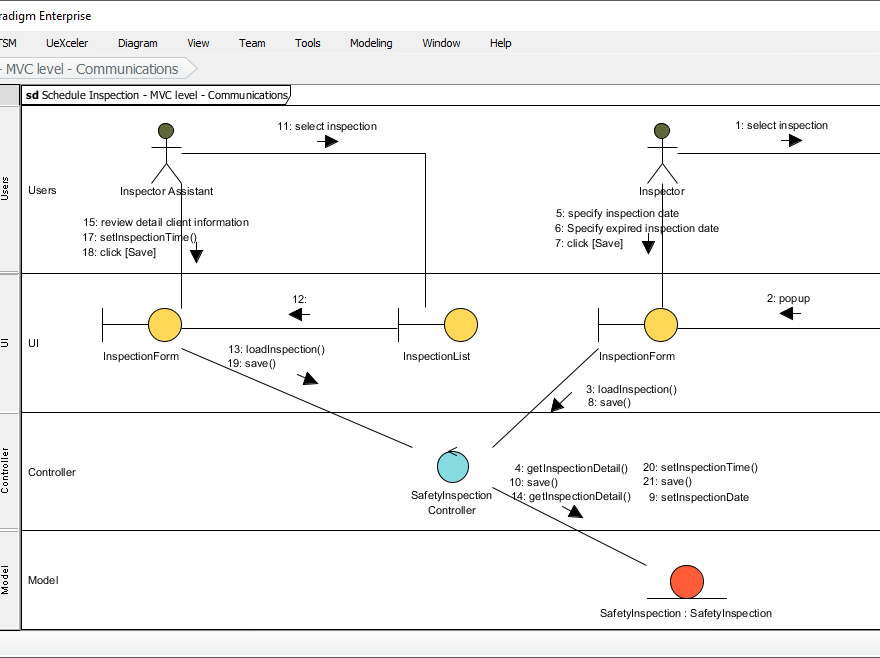
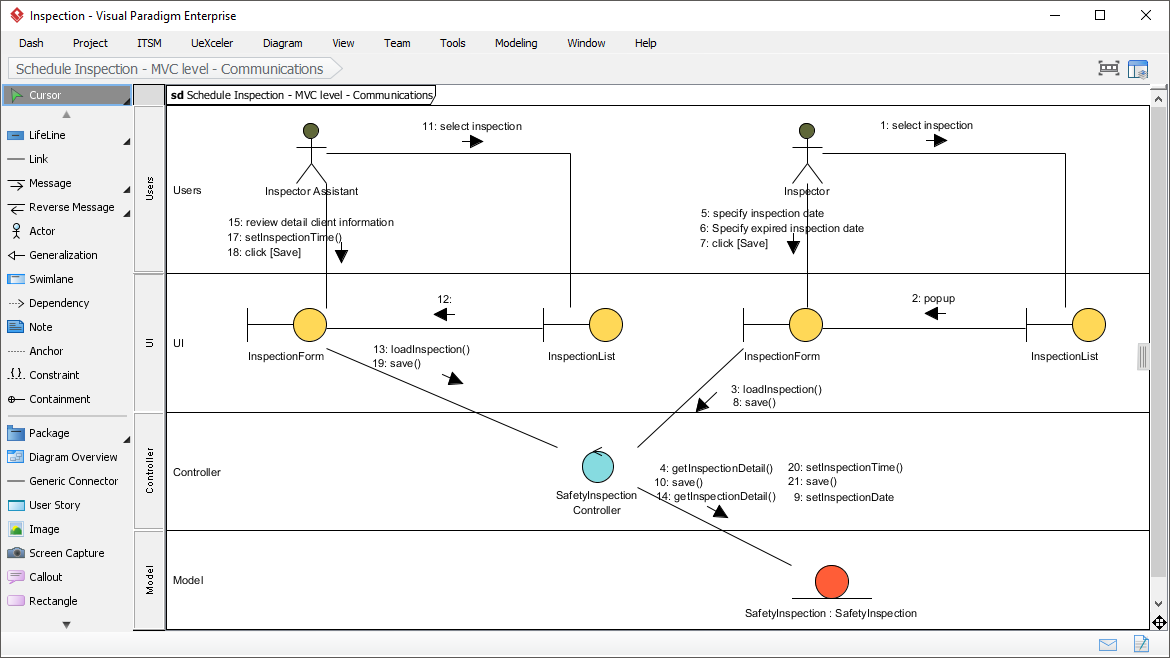
This tutorial delves into the Communication Diagram shown in the Visual Paradigm Enterprise interface. We will analyze a specific Schedule Inspection scenario, breaking down the flow from the Inspector and Inspector Assistant actors through the UI layer, Controller, and finally to the Model layer.
Understanding the Structural Organization
Communication diagrams are fundamentally about the links connecting objects. In this model, the vertical swimlanes represent the architectural layers: Users, UI, Controller, and Model. The horizontal flow represents the communication paths.
Unlike sequence diagrams, which force a top-down time ordering, this diagram allows us to see the physical topology of the interaction. The “Links” in the diagram (the lines connecting the yellow circles representing UI objects) indicate that the InspectionForm communicates directly with the InspectionList.
Key Components Identified
- Lifelines: Represented by the vertical lines extending from the Actors (Inspector, Inspector Assistant) and the UI elements. These represent the existence of the object during the interaction.
- Links: The lines connecting the yellow circles. These are the static structural connections defined in the class diagram that allow messages to flow.
- Messages: The arrows labeled with numbers (e.g., “1: select inspection”) and method names (e.g., “loadInspection()”).
- Instances: Objects like SafetyInspectionController and SafetyInspection (in the Model layer) represent specific instantiations of classes.
Step-by-Step Analysis of the Interaction
Let’s walk through the “Schedule Inspection” process depicted in the diagram, identifying the architectural pattern at play.
Phase 1: The Inspector’s Interaction (Right Side)
The process begins on the right side with the Inspector. This actor initiates the process by selecting an inspection.
1. 1: select inspection – The Inspector interacts with the UI.
2. 2: popup – The UI layer responds by triggering a popup, likely the InspectionForm.
3. 3: loadInspection() – The InspectionForm requests data. Note the link going down to the Controller.
4. 4: getInspectionDetail() – The Controller asks the Model for details.
5-7. specify inspection date / Save – The Inspector fills in data and saves it. This triggers a flow back up through the Controller to the Model to persist the data.
Phase 2: The Assistant’s Interaction (Left Side)
The diagram also shows a parallel or subsequent interaction involving the Inspector Assistant.
11. 11: select inspection – The Assistant selects an inspection item.
13. 13: loadInspection() – The UI Form loads the data.
15-18. review detail / click [Save] – The Assistant reviews client information and saves changes. This triggers the InspectionList to update, as indicated by the link labeled “12”.
The MVC Pattern in Action
One of the most valuable aspects of this diagram is how clearly it visualizes the Model-View-Controller (MVC) architecture. You can trace the strict separation of concerns:
- View (UI Layer): The InspectionForm and InspectionList handle the presentation and user input. They do not hold business logic; they simply pass messages down.
- Controller (Controller Layer): The SafetyInspectionController acts as the intermediary. It receives requests from the View, processes them (e.g., validating data), and coordinates with the Model.
- Model (Model Layer): The SafetyInspection : SafetyInspection object holds the actual data. It is the source of truth for the inspection details.
This separation ensures that if you need to change the user interface (e.g., switch from a desktop app to a mobile app), you might only need to change the UI layer and the Controller, leaving the Model untouched.
Technical Syntax Representation
In a modeling tool like Visual Paradigm, the underlying logic for these interactions is often represented in a structured format. Below is a simplified representation of how the interaction logic is structured within the tool’s internal logic.
@startuml
title Communication Diagram: Schedule Inspection

skinparam messageStyle arrow
skinparam lifeline {
  BackgroundColor yellow
  ArrowColor black
}

actor Inspector
actor InspectorAssistant

participant "UI: InspectionForm" as Form
participant "UI: InspectionList" as List
participant "Controller: SafetyInspectionController" as Ctrl
participant "Model: SafetyInspection" as Model

Note over Inspector, InspectorAssistant: Users

== Inspector Flow ==
Inspector -> Form: 1: select inspection
Inspector -> Form: 5: specify inspection date
Inspector -> Form: 7: click [Save]

Form -> Ctrl: 3: loadInspection()
Form -> Ctrl: 8: save()

Ctrl -> Model: 4: getInspectionDetail()
Ctrl -> Model: 10: save()
Ctrl -> Model: 20: setInspectionTime()
Ctrl -> Model: 21: save()

== Assistant Flow ==
InspectorAssistant -> List: 11: select inspection
InspectorAssistant -> Form: 15: review detail client info
InspectorAssistant -> Form: 18: click [Save]

List -> Ctrl: 12: (trigger update)
Form -> Ctrl: 13: loadInspection()
Form -> Ctrl: 14: getInspectionDetail()
Form -> Ctrl: 17: setInspectionTime()

@enduml
Why Use This Diagram?
While Sequence Diagrams are excellent for debugging the exact timing of an event, Communication Diagrams excel at showing the network topology of your software. If you are a developer trying to understand how to refactor your code, this diagram tells you that the InspectionForm is tightly coupled to the InspectionList via Link 12. This suggests that changing the List might have a direct impact on the Form’s behavior, a crucial piece of information for maintaining system stability.
By mastering these diagrams, you move beyond just drawing boxes and lines to truly understanding the dynamic architecture of your application.

 English
 Arabic
 Chinese (Simplified)
 Dutch
Dutch French
 German
 Italian
 Japanese
 Korean
 Portuguese
 Russian
 Spanish