


“What if my diagrams could live inside my documentation—not as static screenshots, but as living, updatable assets?”
That question drove my exploration of Visual Paradigm’s newest integration. After testing both the Visual Paradigm Online and Desktop workflows with OpenDocs, I’m excited to share a comprehensive, experience-driven guide to this game-changing feature.
🌟 Why This Integration Matters to Me
As someone who juggles product roadmaps, technical specs, and stakeholder presentations, I’ve always struggled with one pain point: keeping visuals and documentation in sync.
Before this integration, my workflow looked like:
-
Create diagram in VP Online/Desktop
-
Export as PNG/SVG
-
Upload to Confluence/Google Docs
-
Pray no one asks for edits (because re-doing steps 1-3 is tedious)
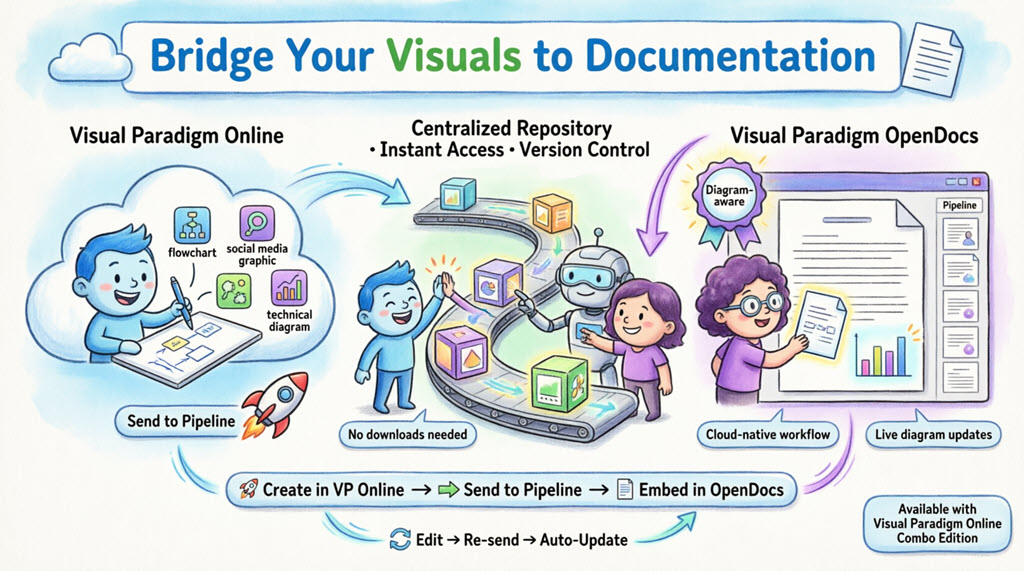
Now? It’s a single, cloud-native flow:
✅ Create → ✅ Send to Pipeline → ✅ Embed in OpenDocs → ✅ Update anytime
No downloads. No version confusion. No broken links.
🧭 Part 1: Understanding the Ecosystem
What is Visual Paradigm OpenDocs?
OpenDocs isn’t just another wiki. It’s a diagram-aware knowledge hub built for modern teams. Key differentiators I love:
| Feature | Why It Matters |
|---|---|
| Integrated Diagram Editor | Edit visuals inside your document—no context switching |
| AI Content Assistant | Generate drafts, summarize docs, or create diagrams from text |
| Knowledge Tree Structure | Organize content hierarchically with drag-and-drop simplicity |
| Pipeline Integration | Securely transfer artifacts from VP Online/Desktop with version control |
💡 Pro Tip: OpenDocs treats diagrams as “living artifacts”—not images. That means you can re-open, edit, and re-sync them anytime.
What is the Pipeline?
Think of the Pipeline as your personal “Asset Transit Hub” 🚚
-
It’s a centralized, cloud-based repository for diagrams, charts, and graphics (“artifacts”)
-
Artifacts sent from VP Online or Desktop appear instantly in OpenDocs’ Pipeline pane
-
Each artifact maintains version history, so you can roll back or compare revisions
-
Comments and metadata help you find the right visual fast
🎨 Part 2: My VP Online → OpenDocs Workflow (Step-by-Step)
Requirement: Visual Paradigm Online Combo Edition
Step 1: Create or Open Your Diagram
I started with a column chart visualizing Q1 product metrics. Everything happened in-browser—no install needed.
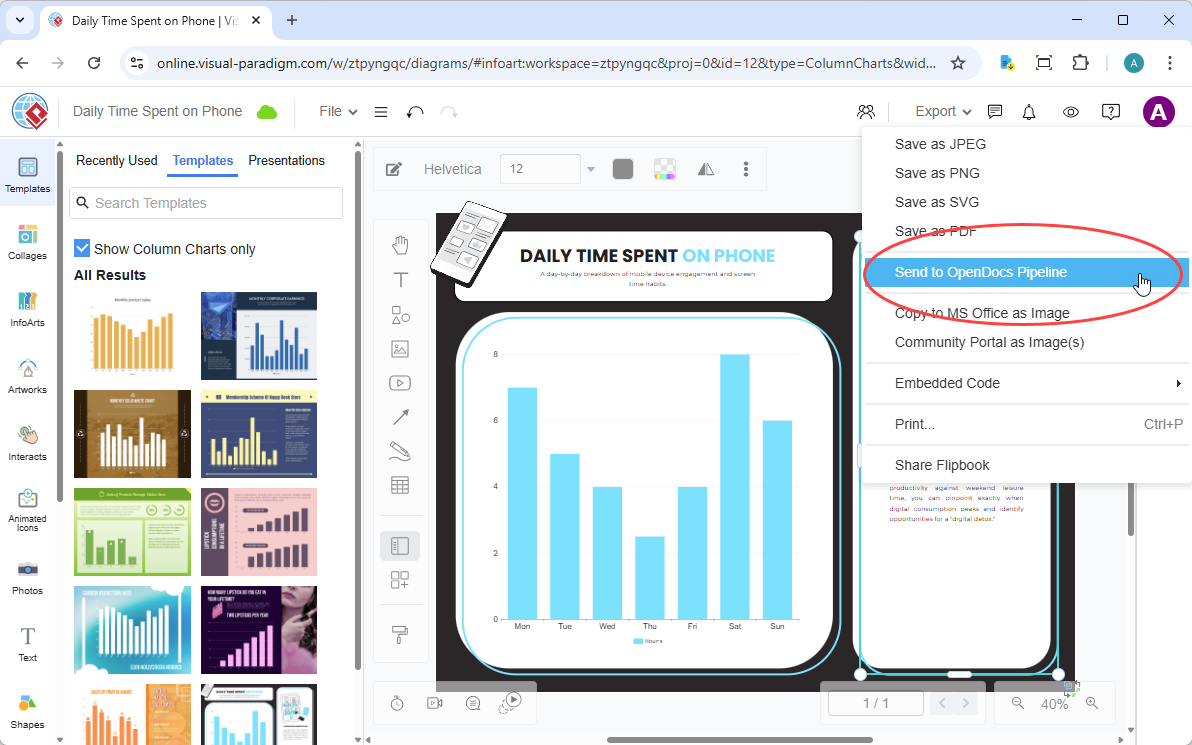
Step 2: Send to OpenDocs Pipeline
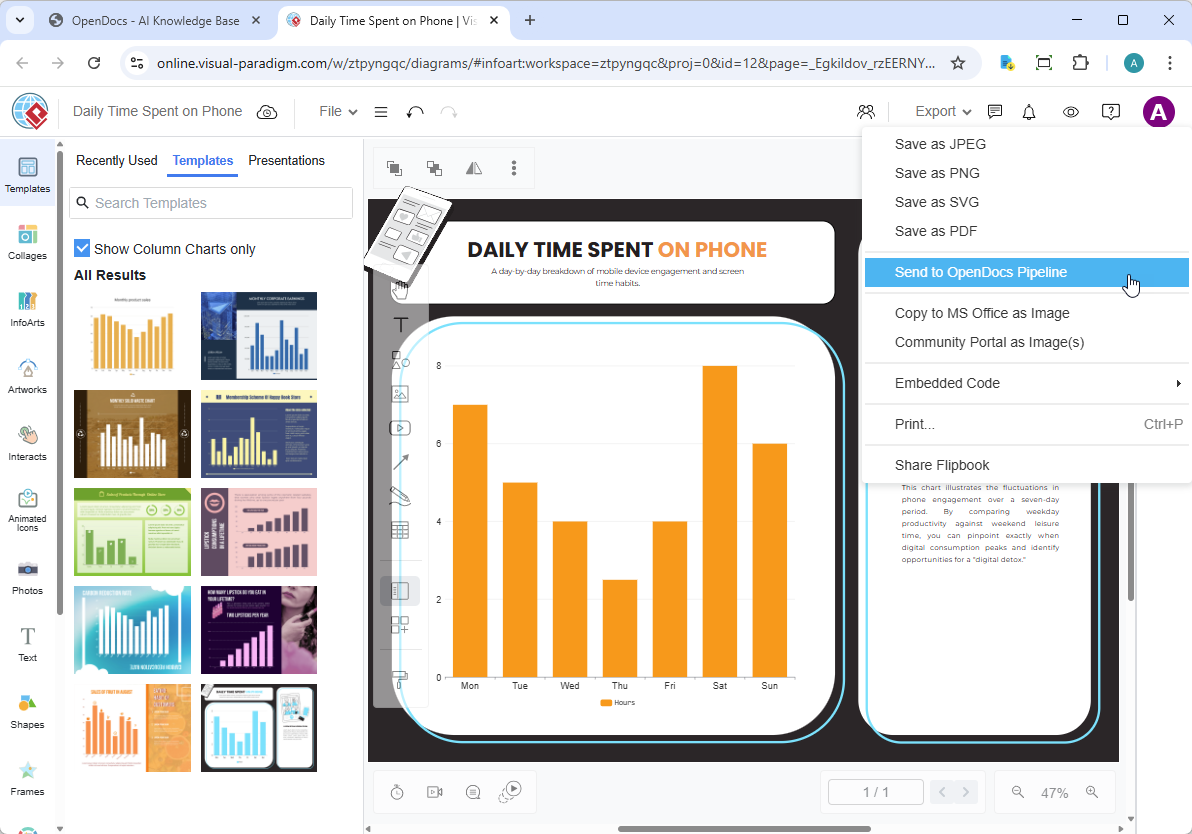
In the top menu: Export > Send to OpenDocs Pipeline
Step 3: Add Context (Optional but Recommended)
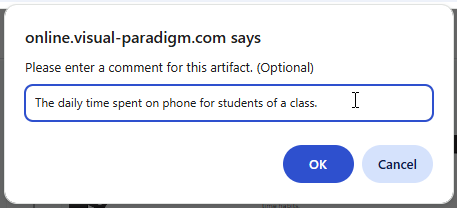
I added a comment: “Q1 Metrics – Final Version for Stakeholder Deck”. This shows up in OpenDocs, making future searches effortless.
Step 4: Confirm & Sync
Click export. Within seconds, my chart was securely stored in the Pipeline—ready for OpenDocs.
📄 Embedding in OpenDocs: Where the Magic Happens
Step 1: Open & Edit Your Document
Navigate to any page in OpenDocs and click Edit.

Step 2: Position Your Cursor
Click where you want the diagram to appear.
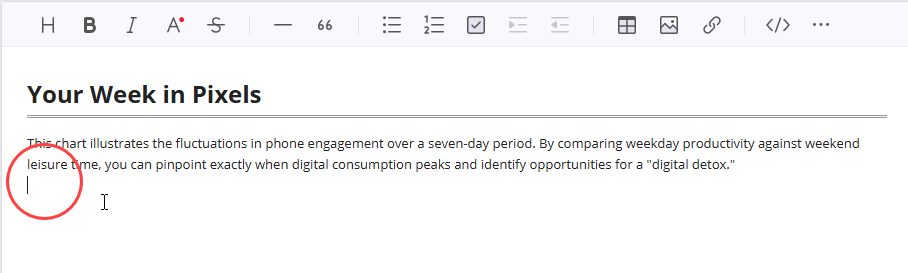
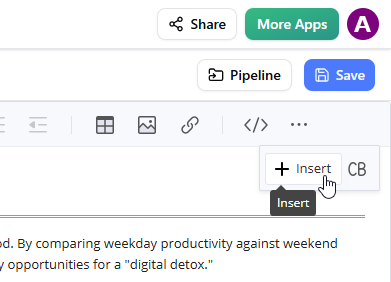
Step 3: Insert from Pipeline
Toolbar → Insert → Select Pipeline from the sidebar.
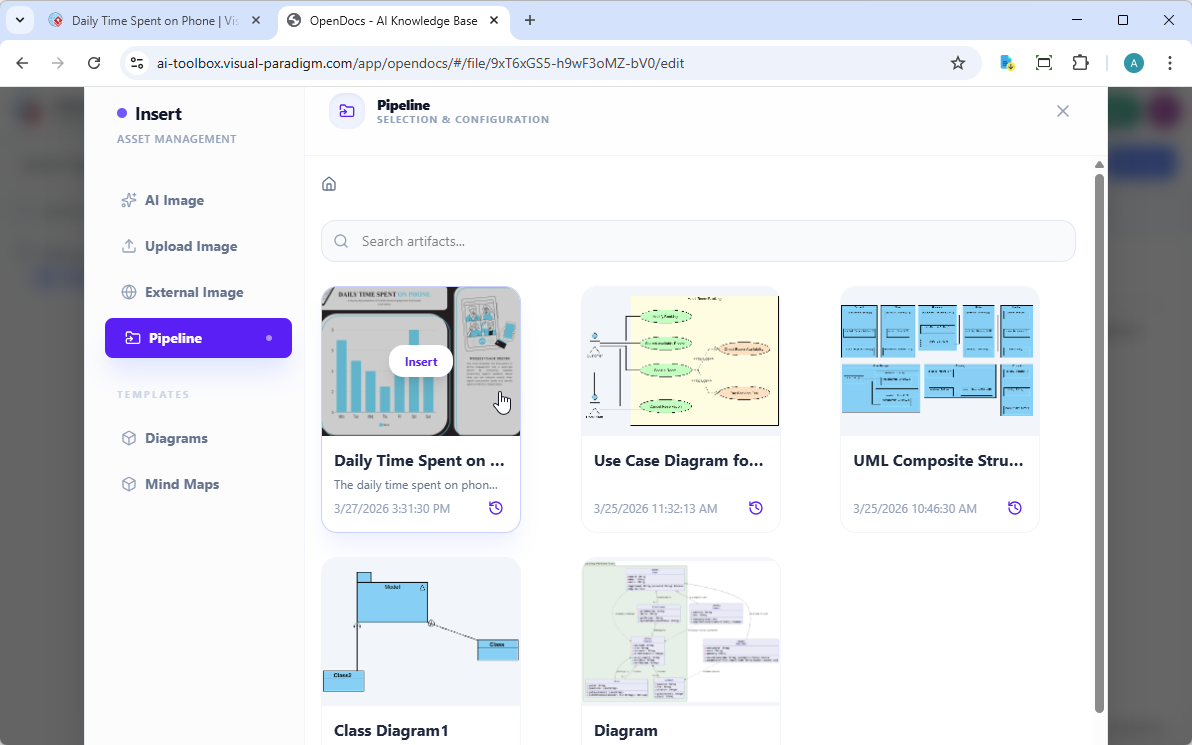
Step 4: Select Your Artifact
Your sent diagrams appear instantly. Click to insert.
Result: A Living Diagram in Your Doc
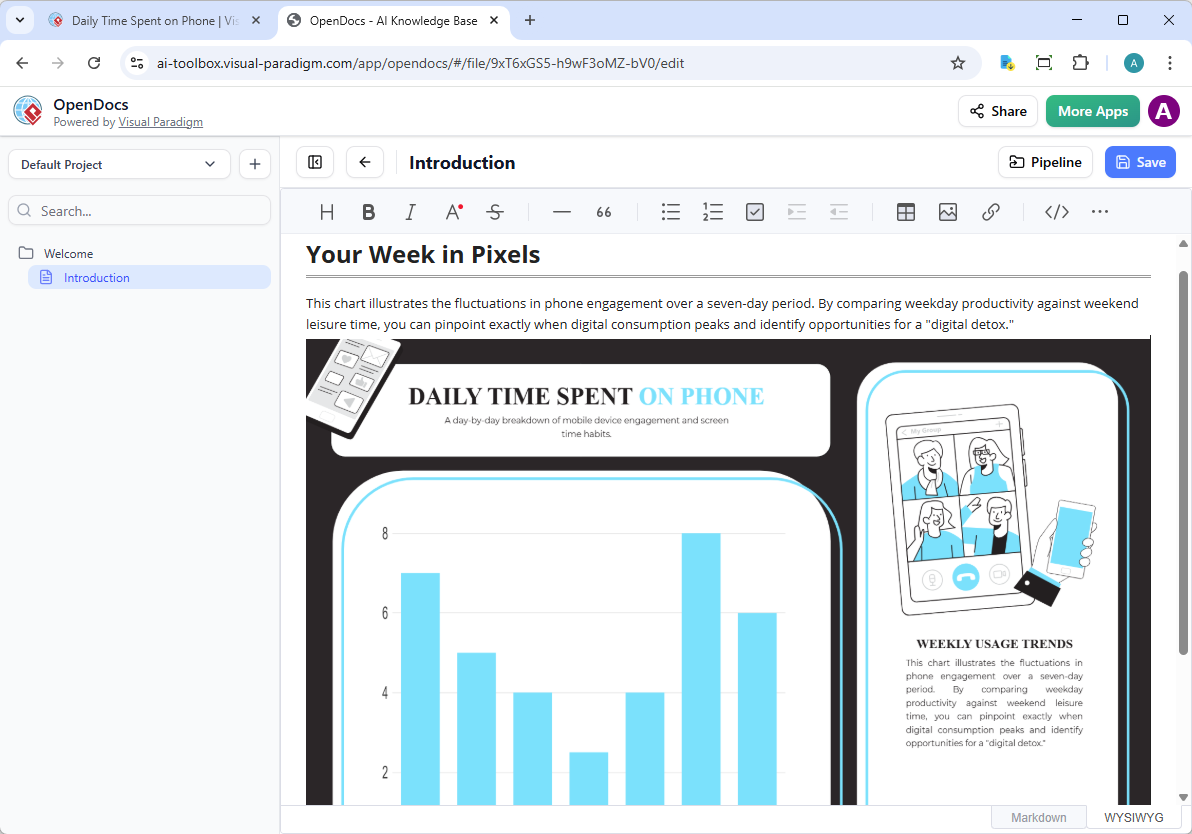
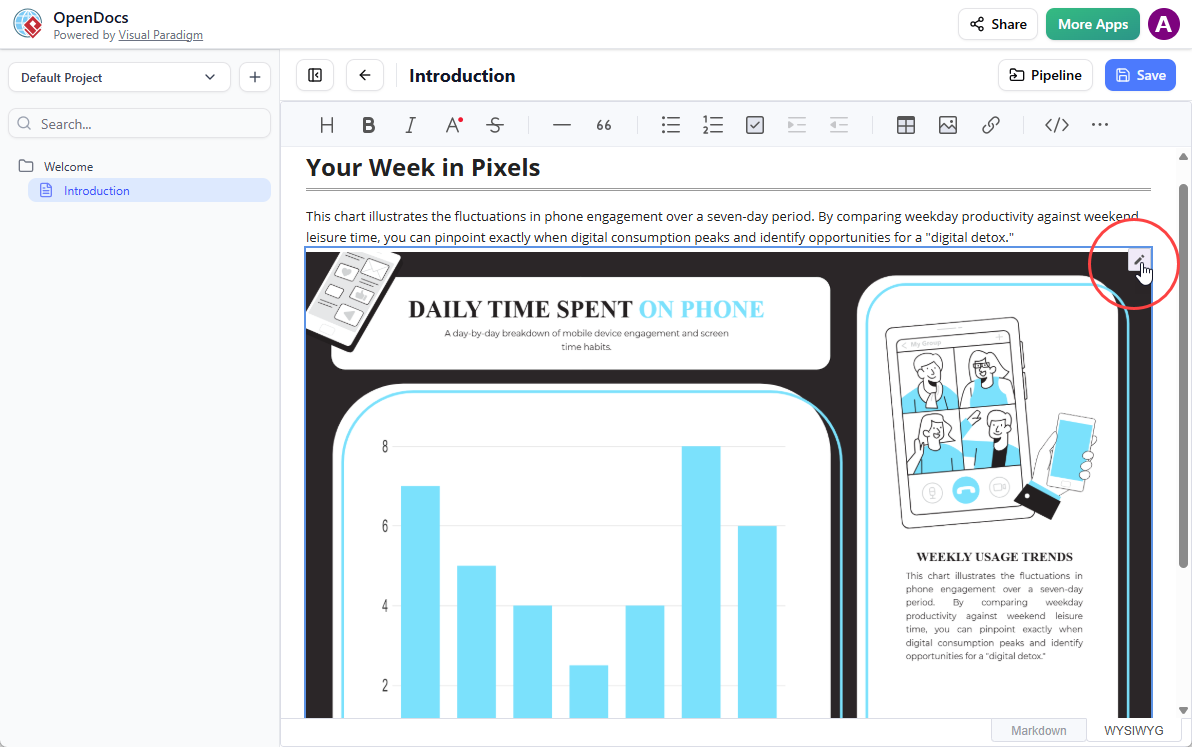
✨ Notice: This isn’t a static image. Hover over it, and you’ll see an Edit icon. That’s your gateway to updates.
🔄 Keeping Docs in Sync: The Update Workflow
Scenario: Stakeholders request a metric change
Instead of re-exporting and re-uploading, here’s my streamlined process:
1. Open the Source Diagram
In OpenDocs, click the Edit icon on the diagram.
2. Edit & Re-send
Modify the chart in VP Online, then Export > Send to OpenDocs Pipeline again.
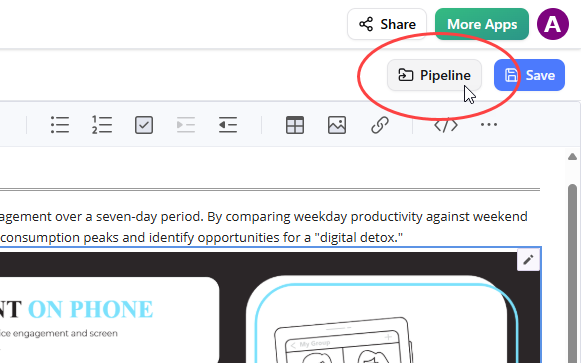
3. Swap to Latest Revision in OpenDocs
-
Click Pipeline (top-right in OpenDocs editor)
-
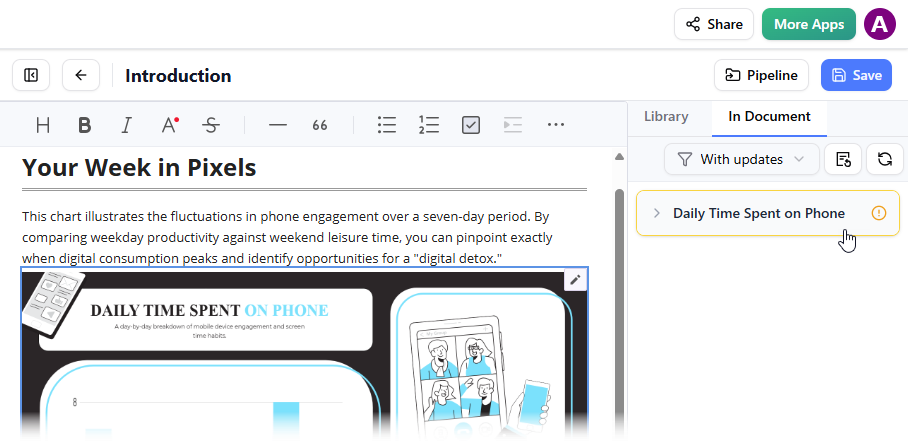
Open the In Document tab → Filter shows “With updates”
-
Click the latest revision → Update to latest revision
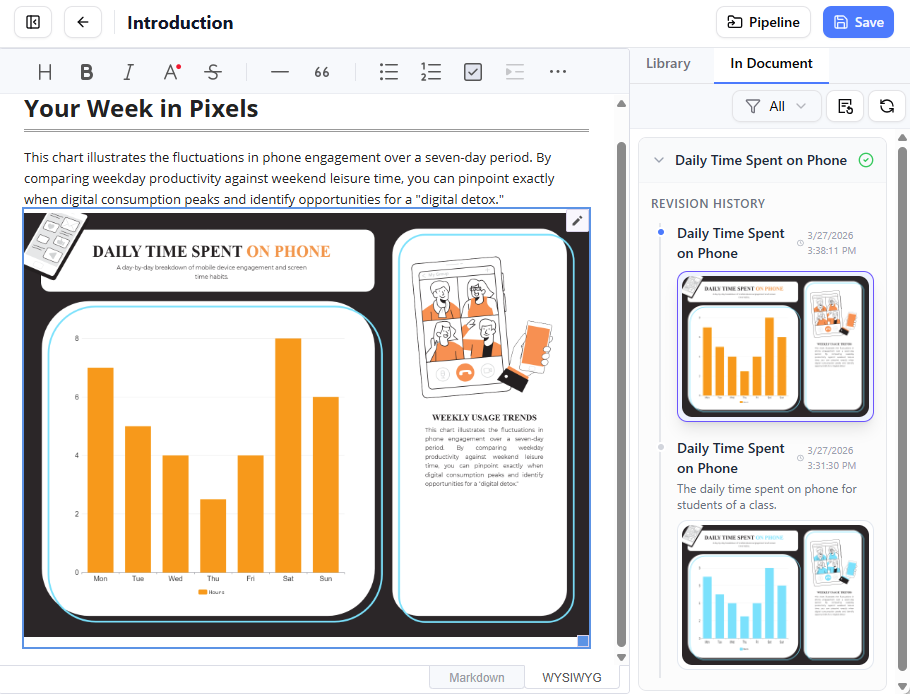
✅ Done. Your documentation now reflects the latest visual—automatically.
💻 Part 3: VP Desktop → OpenDocs (For Power Users)
Requirement: Visual Paradigm Professional Edition or higher
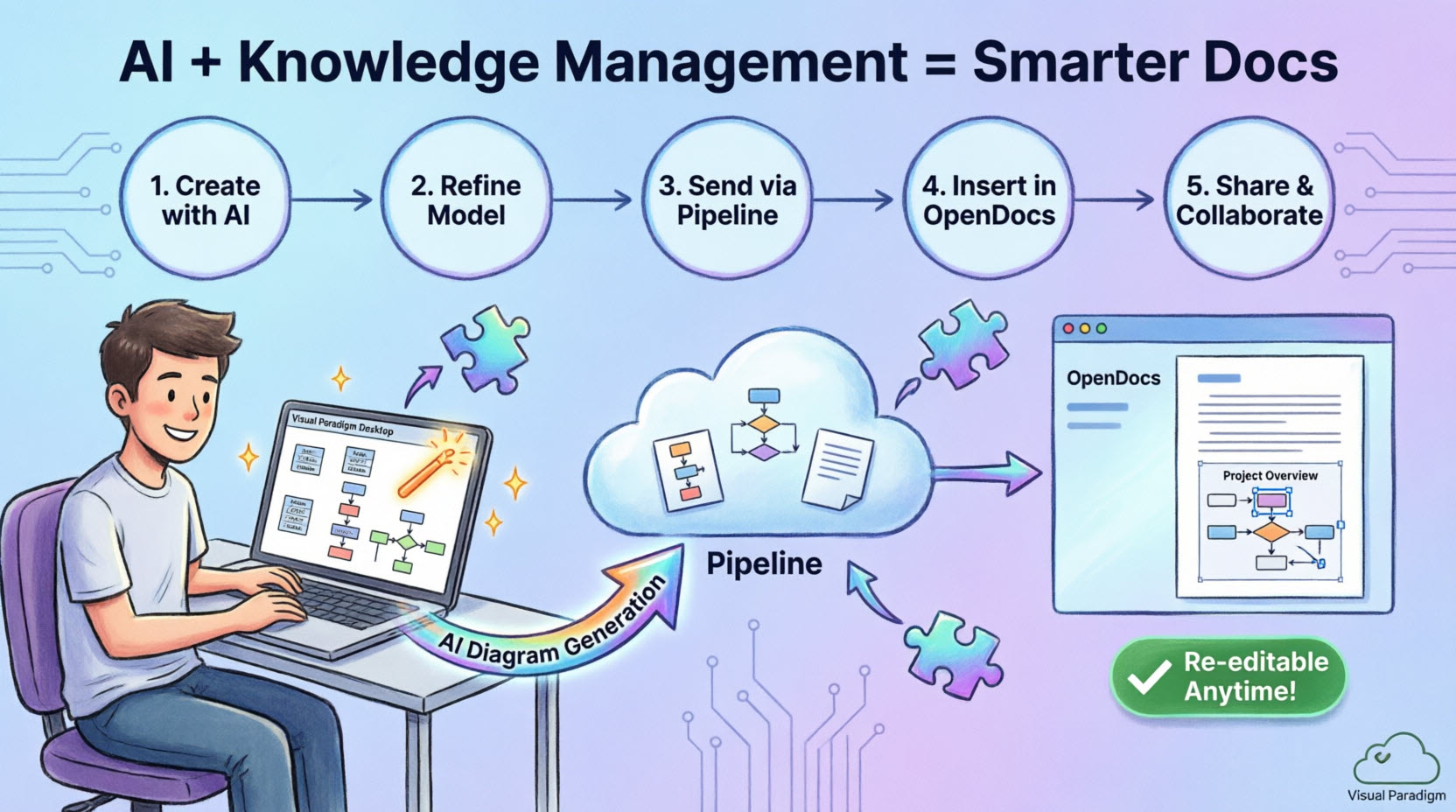
If you work with complex UML models, enterprise architecture, or AI-assisted diagram generation, the Desktop integration is your powerhouse.
My Desktop Workflow Highlights:
-
AI Diagram Generation: I described a user authentication flow in natural language → VP Desktop generated a complete UML sequence diagram.
-
Professional Refinement: Added swimlanes, constraints, and annotations using Desktop’s advanced toolset.
-
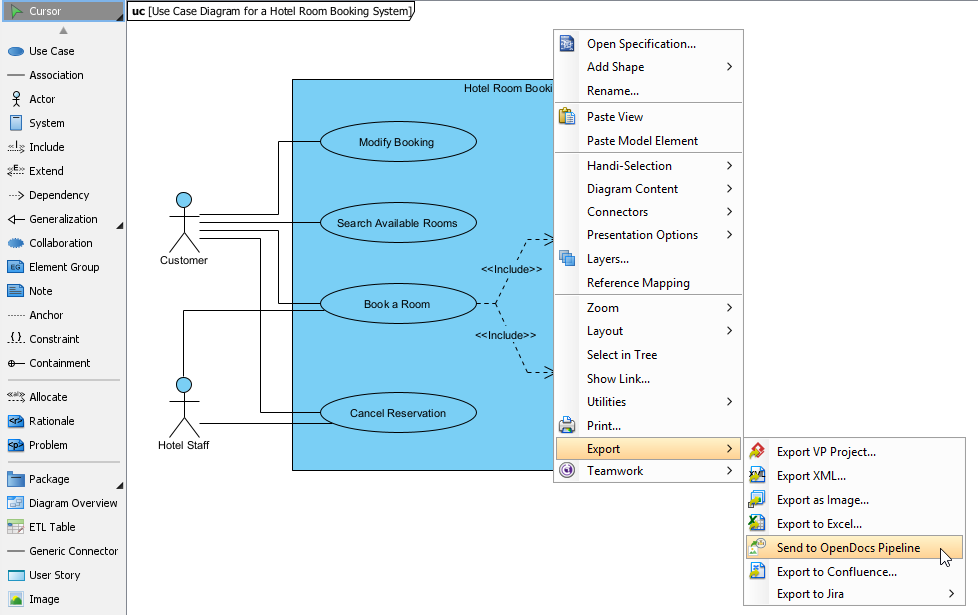
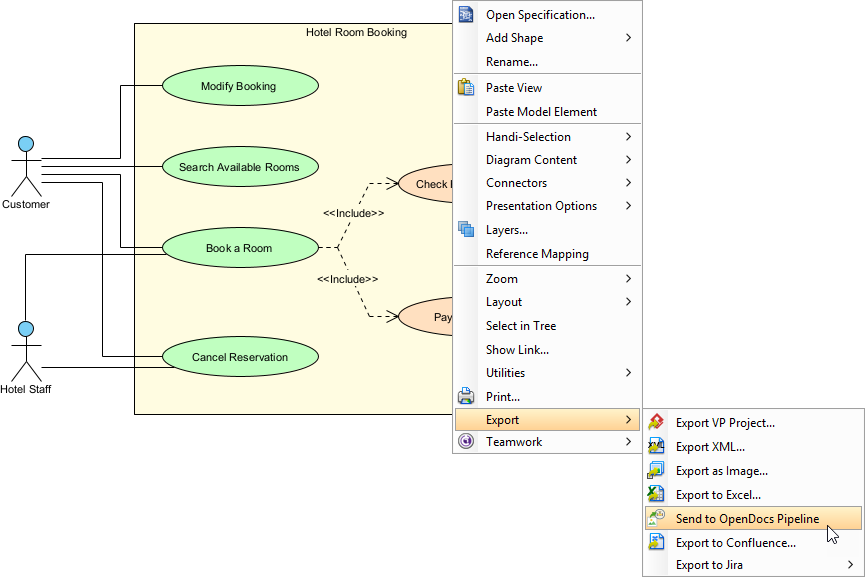
One-Click Export: Right-click diagram → Export > Send to OpenDocs Pipeline
-
Seamless Insertion in OpenDocs: Same Pipeline workflow as Online—select, insert, done.
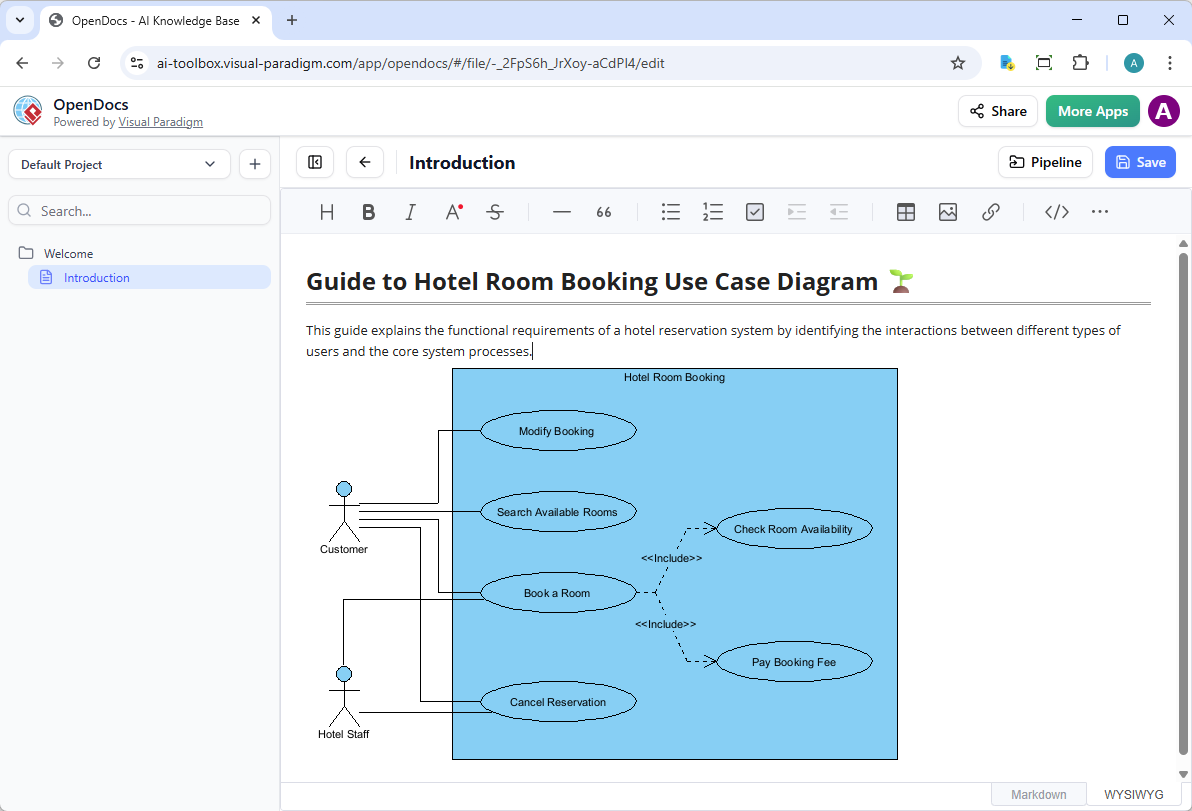
Updating Desktop Diagrams in OpenDocs
The sync process is equally elegant:
-
In OpenDocs, click Edit on the diagram → Copy the source link
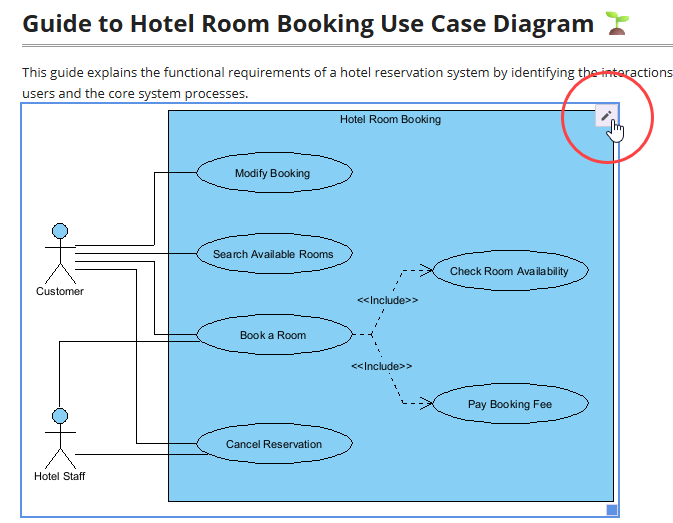
-
In Desktop: Project > Open → Paste link → Edit your model
-
Re-export via Pipeline → Return to OpenDocs → Swap to latest revision
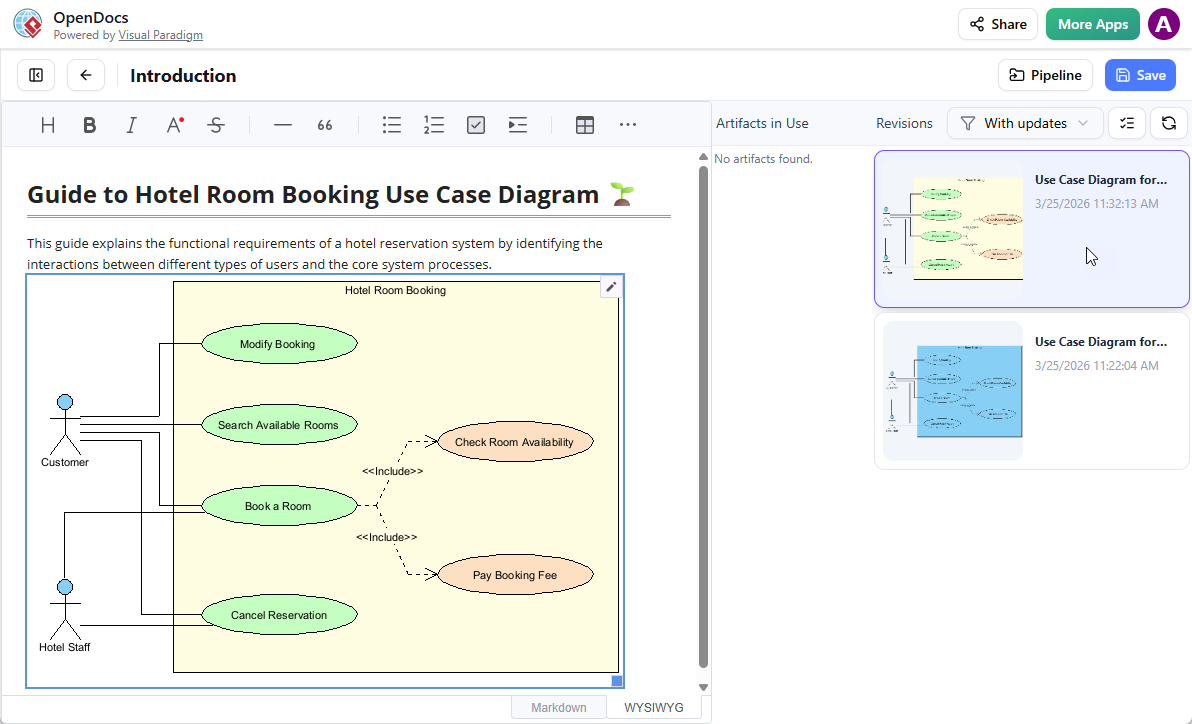
🔁 Key Benefit: Whether you start in Online or Desktop, your OpenDocs always stays current—no manual file management.
🏆 Why I’m All-In on This Integration
✅ Benefits I Experienced Firsthand
| Benefit | Impact on My Work |
|---|---|
| No More Download/Upload Cycles | Saved ~15 mins per diagram update |
| Version Control Built-In | No more “final_v3_revised_FINAL.png” chaos |
| Diagram-Aware Editing | Stakeholders can comment on the visual, not just the text |
| AI-Powered Acceleration | Generated first-draft diagrams from bullet points in seconds |
| Cloud-Native Collaboration | Remote team members access the same live artifacts instantly |
| Single Source of Truth | Documentation, diagrams, and context live in one searchable hub |
🎯 Ideal Use Cases I’ve Tested
-
Product Requirements Docs: Embed user journey maps that update as research evolves
-
Technical Architecture Specs: Keep UML diagrams synchronized with code changes
-
Marketing Campaign Plans: Insert social media mockups that iterate in real-time
-
Agile Sprint Reviews: Share live process flows that reflect retrospective outcomes
🛠️ Getting Started: Quick Checklist
For VP Online Users:
-
Subscribe to Combo Edition
-
Create or open a diagram in Visual Paradigm Online
-
Use Export > Send to OpenDocs Pipeline
-
Access OpenDocs to embed
For VP Desktop Users:
-
Ensure you have Professional Edition or higher
-
Right-click diagram → Export > Send to OpenDocs Pipeline
-
Insert via Pipeline pane in OpenDocs
Pro Tips:
✨ Use descriptive comments when sending to Pipeline
✨ Leverage OpenDocs’ “With updates” filter to spot outdated visuals
✨ Combine with AI Content Assistant to generate narrative around your diagrams
- 🔗 Related Resources & Further Reading
- OpenDocs: AI-Powered Knowledge Management Platform | Visual Paradigm: Official release announcement introducing Visual Paradigm OpenDocs as an AI-powered knowledge management and documentation platform with integrated diagramming capabilities.
- Export Diagrams from Visual Paradigm Desktop to OpenDocs Pipeline Guide: Step-by-step guide for exporting and syncing AI-generated or manually created diagrams from Visual Paradigm Desktop to OpenDocs via the Pipeline feature.
- AI Profile Diagram Generation in OpenDocs | UML Profile Support: Tutorial on using OpenDocs’ AI capabilities to generate UML profile diagrams directly within documentation pages.
- Visual Paradigm OpenDocs Features Overview: Official product page detailing OpenDocs’ core features including rich editing, knowledge tree structure, AI assistance, and collaboration tools.
- Visual Paradigm OpenDocs Complete Guide: Comprehensive third-party guide covering setup, workflows, and advanced usage of Visual Paradigm OpenDocs for knowledge management.
- Visual Paradigm OpenDocs Demo Video: Video demonstration showcasing OpenDocs’ interface, diagram integration, and real-time collaboration features.
- OpenDocs Tool Page | Visual Paradigm AI: Dedicated AI tool page explaining OpenDocs’ role in the Visual Paradigm AI modeling ecosystem and its integration capabilities.
- Mastering the Pipeline in Visual Paradigm OpenDocs: In-depth guide on leveraging the Pipeline feature for seamless artifact transfer between Visual Paradigm tools and OpenDocs.
- AI Breakdown Structure Chart Maker in OpenDocs: Release note detailing OpenDocs’ new AI-powered capability to generate breakdown structure charts from text descriptions.
- Exporting Diagrams from Visual Paradigm Online to OpenDocs: Official guide for sending cloud-based diagrams created in Visual Paradigm Online directly to OpenDocs documentation.
- Exporting Diagram Images from Visual Paradigm Chatbot to OpenDocs: Tutorial on exporting AI-generated diagrams from Visual Paradigm’s Chatbot interface to OpenDocs via the Pipeline.
- Visual Paradigm Desktop Editions: Product page outlining the different editions of Visual Paradigm Desktop, including Professional Edition requirements for OpenDocs integration.
-
🌈 Final Thought: This integration isn’t just a feature—it’s a philosophy shift. Documentation shouldn’t be a graveyard for static assets. With Visual Paradigm + OpenDocs, your visuals breathe, evolve, and stay connected to the stories they tell. If you value clarity, efficiency, and future-proof documentation, this workflow is worth exploring today.
- Have you tried the Pipeline integration? Share your experience below! 👇

 English
 Arabic
 Chinese (Simplified)
 Dutch
Dutch French
 German
 Italian
 Japanese
 Korean
 Portuguese
 Russian
 Spanish