


Introduction
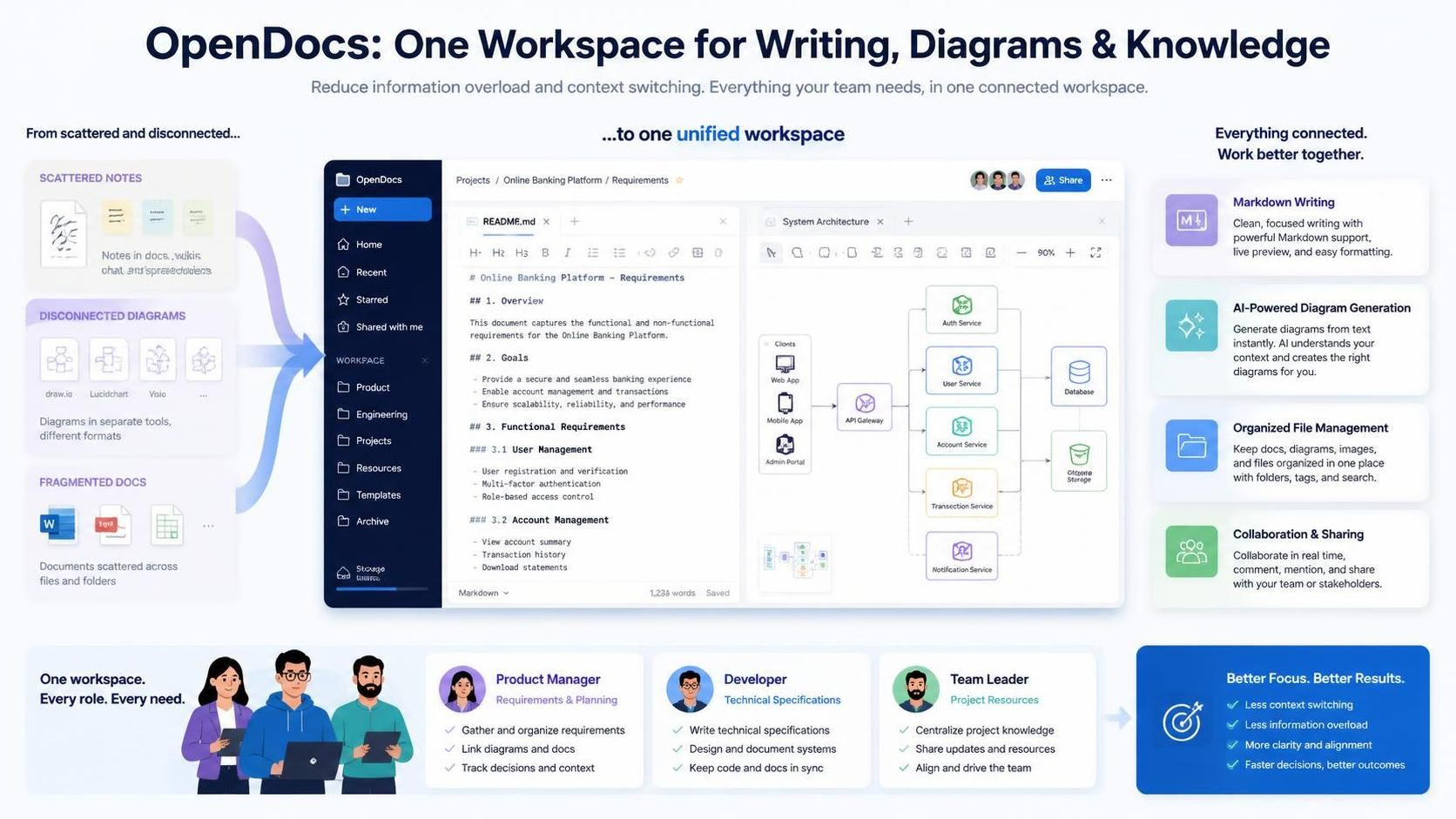
In today’s fast-paced digital workspace, information overload is a common challenge. Teams struggle with scattered notes, disconnected diagrams, and fragmented documentation tools that require constant context-switching. OpenDocs by Visual Paradigm addresses this pain point by combining intuitive writing capabilities with professional diagramming tools in a single, unified platform.
This comprehensive guide explores how OpenDocs transforms knowledge management through its unique integration of Markdown editing, AI-powered diagram generation, and organized file management. Whether you’re a product manager documenting requirements, a developer creating technical specifications, or a team leader organizing project resources, OpenDocs provides the tools you need to create, visualize, and share your work efficiently.
Why Visual Paradigm?
Visual Paradigm has long been recognized for its robust modeling and diagramming capabilities. With OpenDocs, they’ve extended this expertise into the realm of knowledge management, creating a platform that bridges the gap between textual documentation and visual communication.
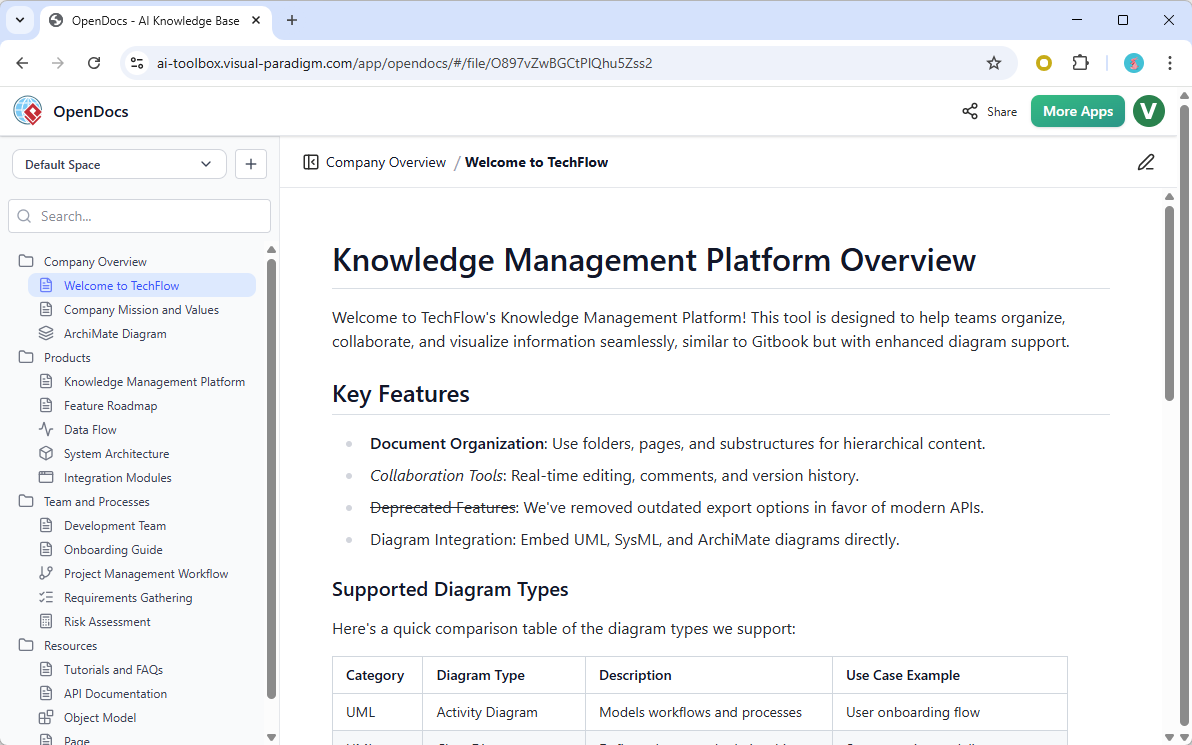
The platform’s core philosophy is simple: keep everything in one place. By integrating powerful drawing tools directly into your document editor, OpenDocs eliminates the need to switch between multiple applications, maintaining your focus and workflow continuity.
Key Concepts
1. Unified Workspace
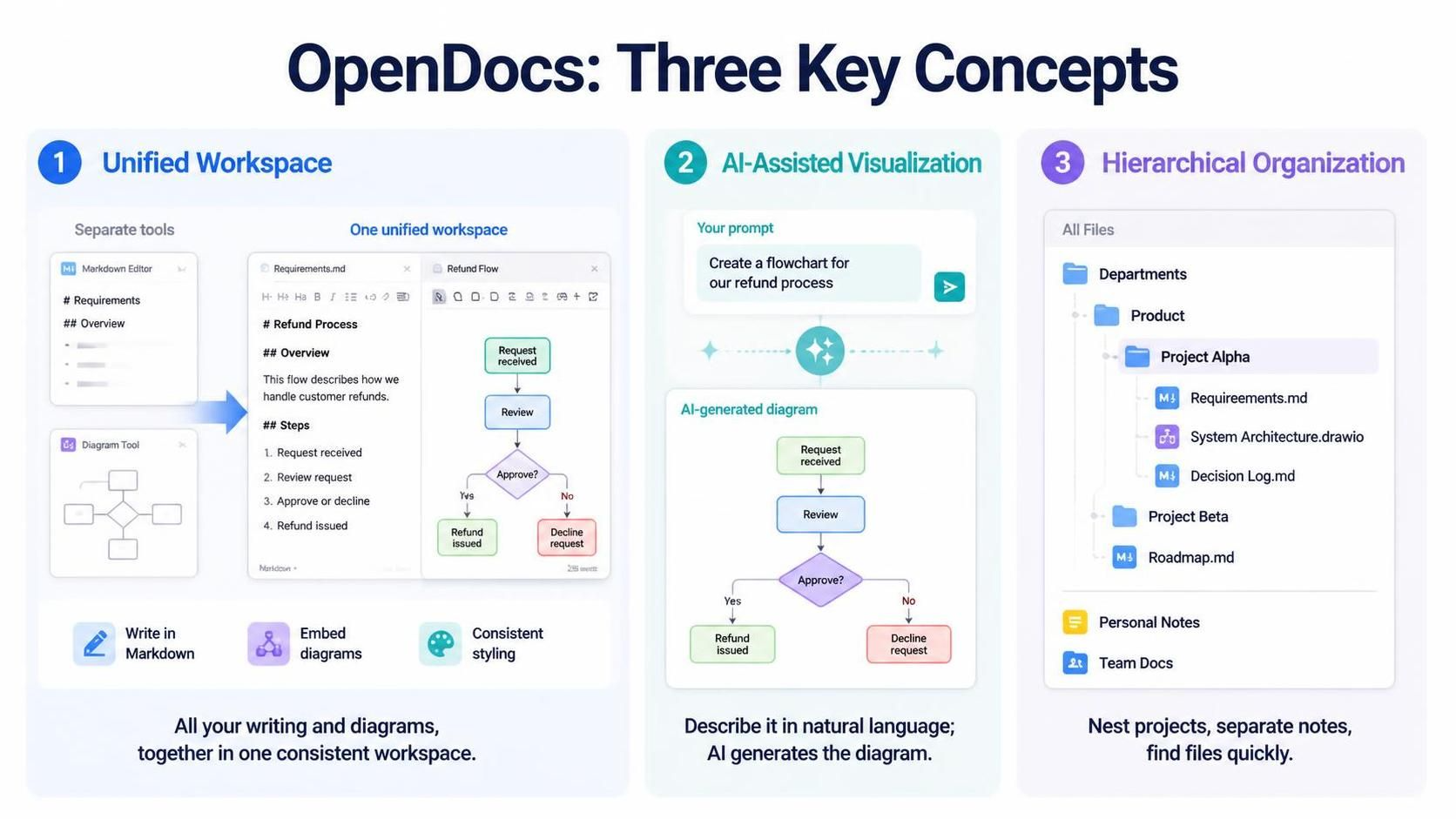
Traditional workflows often involve separate tools for writing (like Notion or Confluence) and diagramming (like Lucidchart or Draw.io). OpenDocs merges these functions, allowing you to:
-
Write documentation in Markdown
-
Create and embed diagrams on the same page
-
Maintain consistent formatting and styling throughout
2. AI-Assisted Visualization
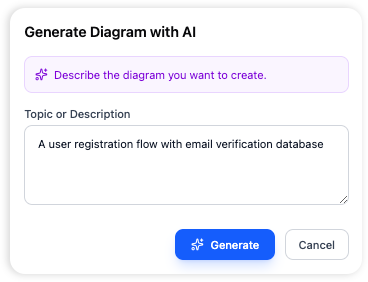
One of OpenDocs’ standout features is its AI-Powered Diagram Generator. Instead of manually creating complex diagrams, you can describe what you need in natural language, and the AI will generate it for you.
Example:
-
Input: “Create a flowchart for our refund process”
-
Output: A complete, professionally formatted flowchart showing each step of the refund workflow
3. Hierarchical Organization
OpenDocs uses a tree-like folder structure that mirrors how people naturally organize information. This makes it easy to:
-
Nest projects within departments
-
Separate personal notes from team documentation
-
Quickly locate files using familiar desktop-like interactions
Core Features
Diagram Editor
The built-in diagram editor is perhaps OpenDocs’ most powerful feature. It provides a professional-grade drawing environment without requiring you to leave your document.
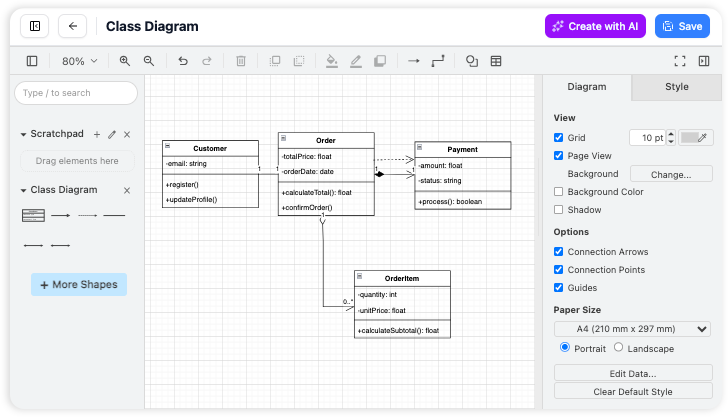
Key Benefits:
-
No Tab Switching: Create and edit diagrams directly within your document
-
Shape Library: Access hundreds of pre-built shapes for flowcharts, mind maps, UML diagrams, and more
-
Real-Time Collaboration: Team members can view and comment on diagrams as they’re created
Practical Example:
Imagine you’re documenting a new feature for your product. Instead of writing a lengthy text description, you can create a sequence diagram showing user interactions, system responses, and data flows—all within the same document where you’re writing the feature specification.
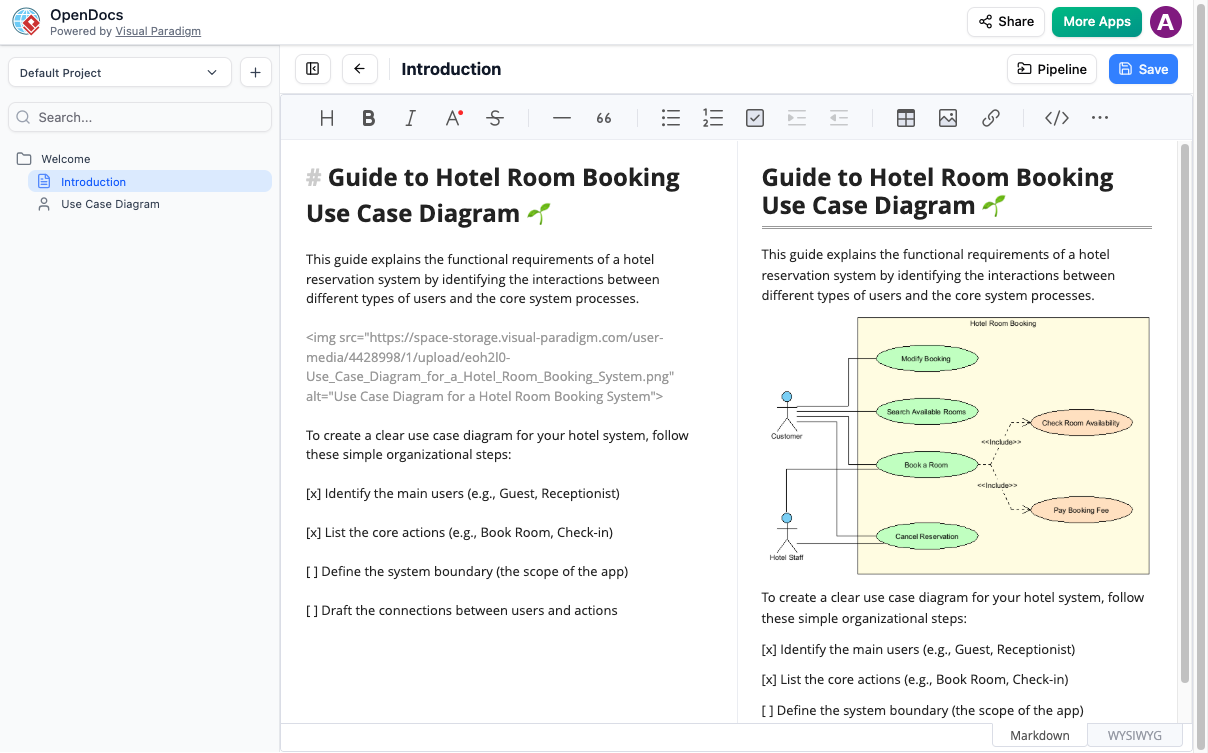
AI-Powered Diagram Generation
Forget spending hours aligning boxes and drawing connection lines. The AI diagram generator understands natural language descriptions and converts them into professional visuals.
How It Works:
-
Type a simple description of the diagram you need
-
The AI analyzes your request and generates an appropriate diagram type
-
Review and customize the generated diagram as needed
Common Use Cases:
-
Flowcharts for business processes
-
Organizational charts for team structures
-
Entity-relationship diagrams for database design
-
Mind maps for brainstorming sessions
Document Organization
OpenDocs serves as your primary information organizer, providing robust document management capabilities.
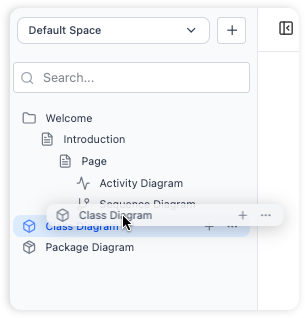
Organization Features:
-
Folder Trees: Create nested folders to categorize projects, teams, or topics
-
Drag and Drop: Intuitively move files between folders just like on your desktop
-
Search Functionality: Quickly find documents by title, content, or tags
Best Practice Example:
📁 Company Documentation
  ├── 📁 Product Team
  │   ├── 📄 Feature Specifications
  │   ├── 📄 Roadmap Documents
  │   └── 📄 User Research
  ├── 📁 Engineering
  │   ├── 📄 API Documentation
  │   ├── 📄 Architecture Diagrams
  │   └── 📄 Deployment Guides
  └── 📁 Marketing
      ├── 📄 Campaign Plans
      └── 📄 Brand Guidelines
Markdown Editor with Live Preview
For those who prefer keyboard-centric workflows, OpenDocs offers a powerful Markdown editor with real-time preview.
Editor Capabilities:
-
Live View: See formatted output as you type
-
Code Blocks: Embed code snippets with syntax highlighting
-
Tables: Create structured data presentations
-
Lists: Organize information with bullet points and numbered lists
Sample Markdown:
# Project Overview

## Goals
- Increase user engagement by 25%
- Reduce support tickets by 15%

## Timeline
| Phase | Duration | Deliverables |
|-------|----------|--------------|
| Research | 2 weeks | User interviews, competitive analysis |
| Design | 3 weeks | Wireframes, prototypes |
| Development | 6 weeks | MVP release |
Professional Chart Creation
Beyond basic diagrams, OpenDocs supports various chart types for data visualization.
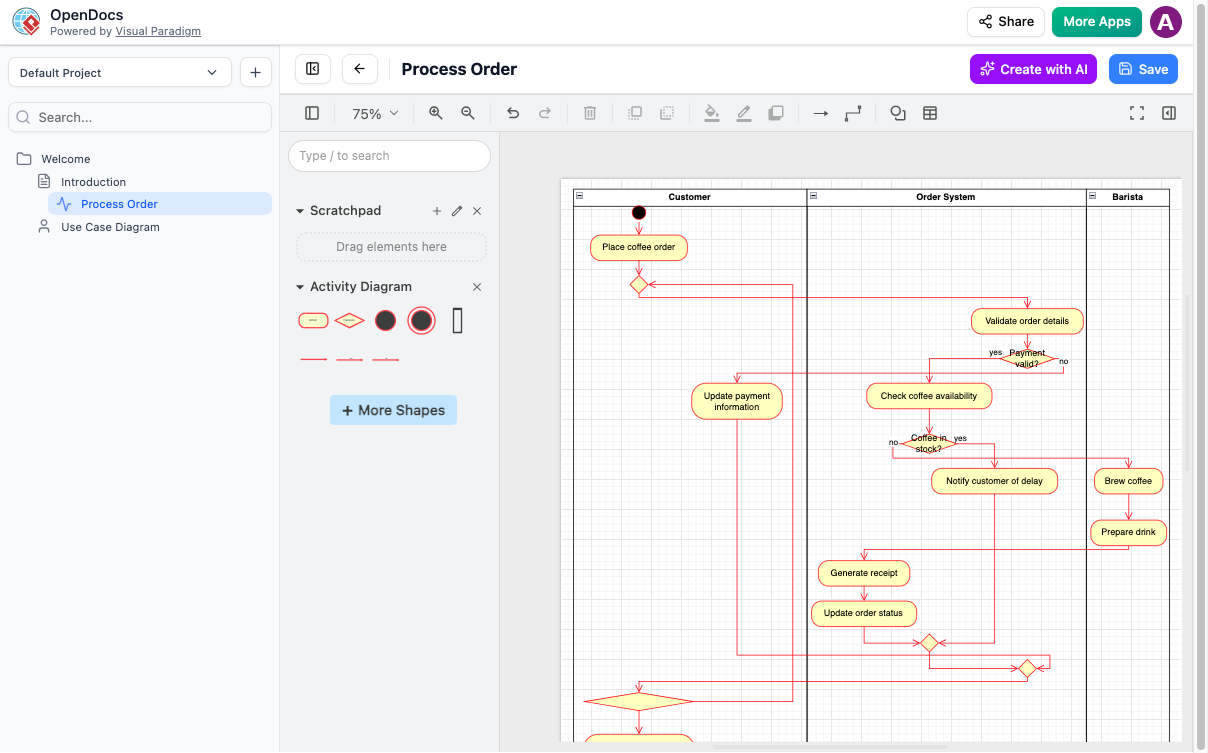
Chart Types Available:
-
Flowcharts
-
Mind maps
-
Sequence diagrams
-
Class diagrams
-
Gantt charts
-
Organizational charts
Practical Applications
For Product Managers
-
Create product requirement documents with embedded user journey maps
-
Document feature specifications with accompanying wireframes
-
Maintain roadmaps with visual timeline representations
For Developers
-
Write API documentation with sequence diagrams showing request/response flows
-
Create architecture decision records with supporting diagrams
-
Document deployment processes with flowcharts
For Team Leaders
-
Organize team knowledge bases with hierarchical folder structures
-
Create onboarding materials with process flowcharts
-
Share meeting notes with action item diagrams
For Students and Researchers
-
Take structured notes with concept maps
-
Create literature review outlines with mind maps
-
Document research methodologies with flowcharts
Getting Started with OpenDocs
Step 1: Sign Up and Explore
Visit OpenDocs to create your account and familiarize yourself with the interface.
Step 2: Create Your First Document
Start with a simple note or project outline. Try using Markdown formatting to structure your content.
Step 3: Add Your First Diagram
Click the diagram tool and either:
-
Use the shape library to build manually
-
Try the AI generator with a simple prompt
Step 4: Organize Your Workspace
Create folders that match your workflow. Consider organizing by:
-
Projects
-
Teams
-
Topics
-
Time periods
Step 5: Share and Collaborate
Generate secure links to share your documents with team members or stakeholders.
Best Practices
1. Consistent Naming Conventions
Use clear, descriptive names for both documents and folders to make searching easier.
2. Regular Maintenance
Schedule time to review and reorganize your knowledge base. Archive outdated documents and update existing ones.
3. Leverage AI Wisely
Use the AI diagram generator for initial drafts, then refine manually for precision and customization.
4. Balance Text and Visuals
Not every concept needs a diagram. Use visuals strategically to clarify complex ideas or processes.
5. Establish Team Standards
If working collaboratively, agree on formatting standards, folder structures, and diagram styles.
Conclusion
OpenDocs represents a significant evolution in knowledge management tools by seamlessly integrating writing and visualization capabilities. Its AI-powered features reduce the friction traditionally associated with creating professional diagrams, while its organizational structure helps teams maintain clarity amidst growing information volumes.
Whether you’re managing complex projects, documenting technical systems, or simply trying to keep your personal notes organized, OpenDocs provides a flexible, powerful platform that adapts to your workflow rather than forcing you to adapt to it.
By combining the simplicity of Markdown editing with the power of professional diagramming—and enhancing both with AI assistance—Visual Paradigm has created a tool that truly lives up to its promise: one single home for all your work.
Ready to transform how you manage knowledge? Try OpenDocs Now and experience the difference that integrated visual documentation can make for your productivity and collaboration.
Explore the full Visual Paradigm ecosystem to discover how OpenDocs integrates with other AI-powered modeling tools. Visit the complete guide to learn more about maximizing your visual modeling capabilities.

 English
 Arabic
 Chinese (Simplified)
 Dutch
Dutch French
 German
 Italian
 Japanese
 Korean
 Portuguese
 Russian
 Spanish