


No modeling experience? No problem. This guide walks IT newcomers, students, and non-technical professionals through Visual Paradigm’s five easy ways to create professional diagrams—using plain language, real examples, and zero jargon.
🌟 Introduction: Why Diagrams Matter (Even If You’re Not a “Tech Person”)
Have you ever tried explaining a complex idea—like how an online store works, or how a team collaborates on a project—and felt like words just weren’t enough? That’s where diagrams come in.
Diagrams turn abstract thoughts into clear visuals. They help teams align, stakeholders understand, and beginners learn faster. But creating professional diagrams used to require specialized skills, expensive tools, or hours of manual drawing.
Visual Paradigm changes that. Whether you’re a student learning software design, a product manager mapping user journeys, or a small business owner documenting processes, Visual Paradigm offers five flexible ways to create diagrams—no expertise required.
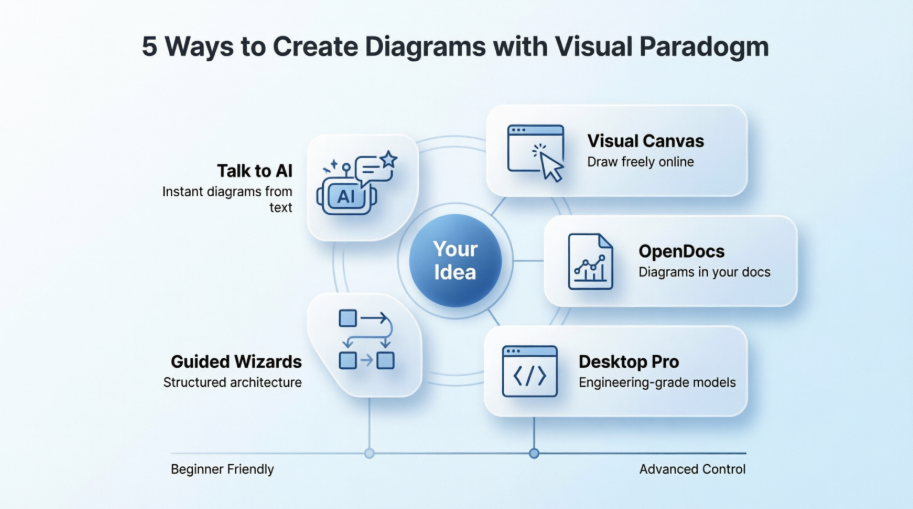
In this beginner-friendly guide, we’ll explore each method step-by-step, show you exactly when to use which tool, and help you pick the right starting point for your goals. Let’s turn your ideas into visuals—together.
Method 1: Talk to AI, Get a Diagram 🤖✨
Best for: “I have an idea but don’t know where to start”
Where to go: chat.visual-paradigm.com
What you need: Just a web browser and a simple idea
How It Works (In Plain English)
Think of this like texting a helpful friend who’s really good at drawing. You type what you want in everyday language, and the AI builds a diagram for you.
Example prompts you can try:
- “Show me how a login system works with a flowchart”
- “Create a simple class diagram for a library book system”
- “Draw a business process for ordering coffee online”
The AI understands your request, picks the right diagram style, and generates a clean, editable visual—in seconds.
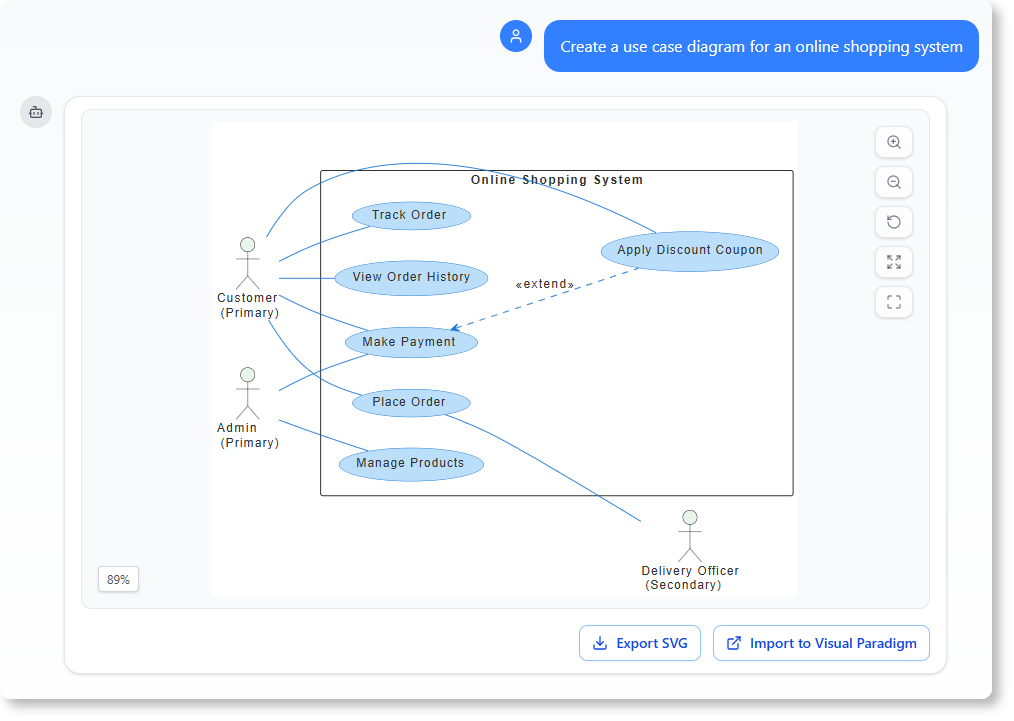
What You Can Create
- UML diagrams (for software design)
- Flowcharts and process maps
- Business models (SWOT, PESTLE, strategy matrices)
- C4 architecture diagrams (for system design)
- SysML and ArchiMate (for enterprise planning)
Quick Tips for Beginners
✅ Start simple: “Show me a user registration flow”
✅ Refine with follow-ups: “Add a password reset option”
✅ Export anytime: Download as PNG, PDF, or share via link
Things to Keep in Mind
⚠️ Diagrams created here are standalone—they won’t automatically update other diagrams unless you move them to a desktop project
⚠️ To edit advanced features later, you’ll need a Professional license for the desktop app
⚠️ Very complex requests may work better if broken into smaller steps
Perfect For
- Brainstorming your first app idea
- Creating visuals for a class presentation
- Drafting process maps for team meetings
- Exploring “what if” scenarios before committing to a design
💡 Beginner Pro Tip: Try generating a simple “System Context” diagram for your project idea. It’s a great way to visualize who uses your system and what external services it connects to—before you dive into technical details.
Method 2: Drag, Drop, Done: The Visual Canvas 🎨
Best for: “I want to draw something myself, easily”
Where to go: online.visual-paradigm.com
What you need: A browser—no installation required
How It Works (In Plain English)
This is your digital whiteboard. Pick shapes from a library (like boxes for steps, diamonds for decisions), drag them onto the canvas, connect them with arrows, and style them with colors. It’s intuitive, visual, and forgiving.
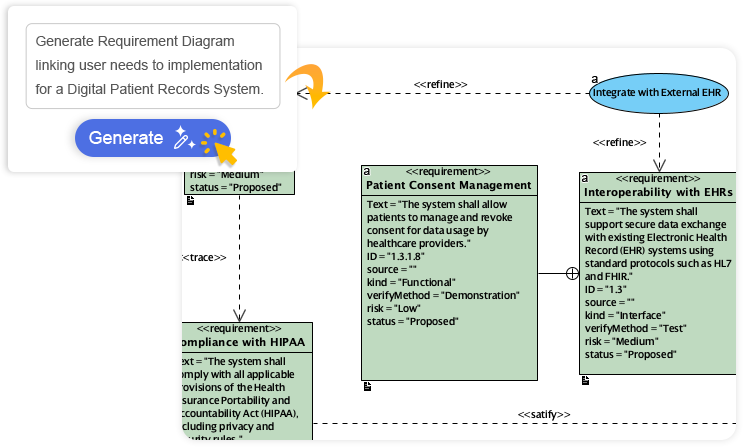
What You Can Create
- Flowcharts and decision trees
- Simple UML sketches
- Organizational charts
- Mind maps and infographics
- Wireframes for apps or websites
Quick Tips for Beginners
✅ Use the template gallery to start from pre-made examples
✅ Right-click any shape to change its style or add notes
✅ Invite teammates to edit together in real-time
Things to Keep in Mind
⚠️ Shapes here are “drawings,” not smart model elements—changing a label in one diagram won’t update it elsewhere
⚠️ No automatic code generation or database syncing (that’s for the desktop app)
⚠️ Modeling rules (like UML syntax) aren’t enforced—great for freedom, less ideal for strict engineering
Perfect For
- Sketching a user journey for a design review
- Mapping a meeting agenda visually
- Creating educational materials or student projects
- Making quick mockups before formal documentation
⚠️ Friendly Reminder: This tool is fantastic for communicating ideas, but if you need your diagrams to drive code, databases, or compliance reports, you’ll want to move to the desktop version later.
Method 3: Write Docs with Diagrams Built-In 📝➕🖼️
Best for: “I’m writing a guide and want diagrams right in the text”
Where to go: ai.visual-paradigm.com/tool/opendocs/
What you need: A browser and a documentation goal
How It Works (In Plain English)
Imagine writing a tutorial where you can insert a live, editable diagram with one click—no switching apps, no copying files. OpenDocs lets you write in rich text and embed AI-generated or uploaded diagrams right where you need them.
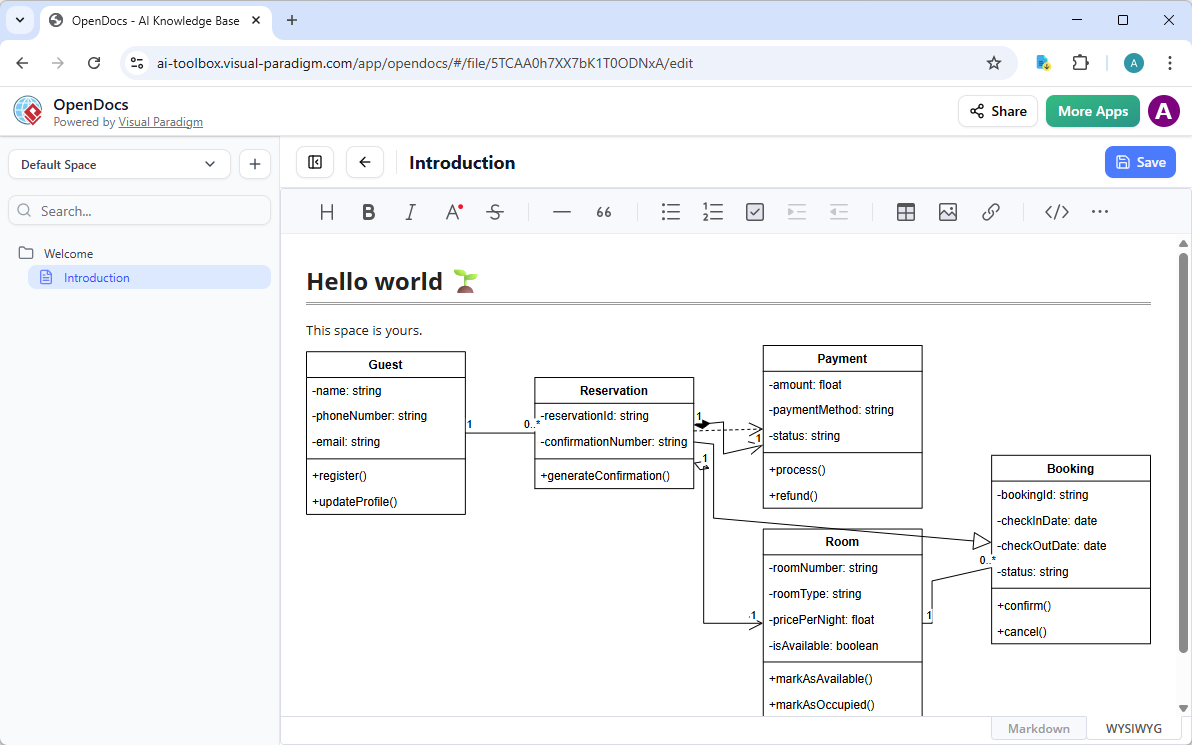
What You Can Create
- Technical guides with embedded architecture diagrams
- Product requirement documents with visual workflows
- Onboarding manuals with system overviews
- Living decision records that evolve with your project
Quick Tips for Beginners
✅ Type /diagram to trigger AI assistance right in your document
✅ Use the preview pane to see how your doc + diagram will look when published
✅ Export to shareable web links or PDFs for stakeholders
Things to Keep in Mind
⚠️ Diagrams live inside their document—they don’t sync across multiple pages automatically
⚠️ No strict modeling validation (great for flexibility, less for engineering precision)
⚠️ Best for digital sharing; print exports are secondary
Perfect For
- Building a team wiki or knowledge base
- Documenting API workflows with visual examples
- Creating training materials that combine explanation + illustration
- Keeping architecture decisions visible alongside their rationale
💡 Workflow Hack: Generate a diagram in the AI Chatbot → paste it into OpenDocs for context → later export the final version to Desktop if you need engineering-grade features.
Method 4: The Powerhouse Desktop App 💻🔧
Best for: “I need serious, reusable, audit-ready models”
Where to get it: Download from visual-paradigm.com (Windows, Mac, or Linux)
What you need: A qualifying license (Professional or Enterprise)
How It Works (In Plain English)
This is Visual Paradigm’s full-featured desktop application. Think of it as your central “source of truth” for all diagrams. When you define an element like “Customer” here, it becomes a reusable building block—update it once, and every diagram that uses it reflects the change instantly.
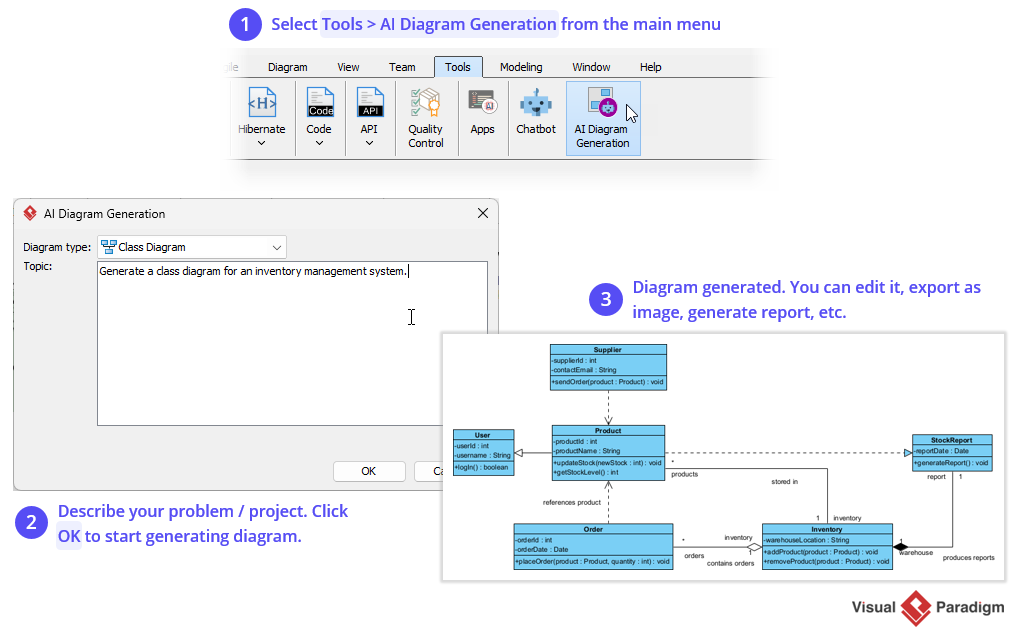
What You Can Create (and Do)
- Full UML, SysML, BPMN, and ArchiMate models with strict rule checking
- Code generation: Turn class diagrams into Java, Python, or SQL skeletons
- Database design: Generate SQL scripts from entity diagrams
- API specs: Export REST designs to OpenAPI/Swagger format
- Enterprise frameworks: TOGAF, DoDAF, Zachman support
Quick Tips for Beginners
✅ Start with a template to learn the interface faster
✅ Use the “Model Explorer” panel to navigate your project’s elements
✅ Enable Cloud sync to collaborate with teammates using VP Online
Things to Keep in Mind
⚠️ Requires installation and license management (not browser-only)
⚠️ Has a learning curve—take advantage of built-in tutorials
⚠️ Real-time collaboration needs Cloud sync setup
Perfect For
- Building production-ready system architectures
- Projects requiring compliance, audits, or traceability
- Teams doing model-driven development (diagrams → code)
- Long-term initiatives where consistency matters
🔁 Sync Strategy: Enable Cloud integration (Tools > Options > Cloud) to sync your desktop projects with VP Online—giving you the best of both worlds: power + accessibility.
Method 5: Guided Wizards for Structured Thinking 🧭✨
Best for: “I know what I want to model, but need help organizing it”
Where to find: Inside VP Online or Desktop under “Wizards” or “C4 Model” menus
What you need: A basic understanding of your system’s boundaries
How It Works (In Plain English)
Wizards are like friendly coaches that ask you step-by-step questions to build complex diagrams without overwhelm. Especially powerful for the C4 model—a popular way to describe software architecture at different levels of detail.
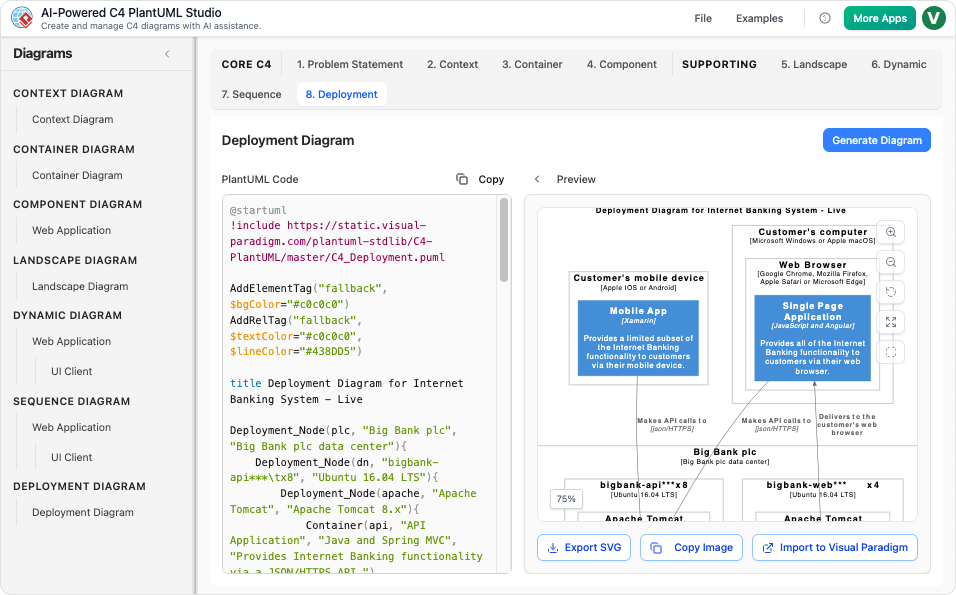
The C4 Wizard Journey (Simplified)
- System Context: Who uses your system? What external services does it talk to?
- Container: What are the big technical pieces? (Web app, mobile app, database, API)
- Component: What’s inside each container? (Modules, services, libraries)
- Code: Optional—generate class diagrams from your component design
- Dynamic: Show how pieces interact over time (sequence diagrams)
- Deployment: Where does everything run? (Servers, cloud, devices)
Quick Tips for Beginners
✅ Start with System Context—it’s the easiest entry point
✅ Use the AI Chatbot alongside wizards to suggest missing pieces
✅ Don’t worry about perfection in early drafts; refine as you go
Things to Keep in Mind
⚠️ Wizards follow structured patterns—great for consistency, less flexible for unconventional designs
⚠️ C4 focus means they’re ideal for software architecture, less so for pure business process maps
⚠️ Basic C4 literacy helps, but the wizard guides you as you learn
Perfect For
- Breaking down a monolithic app into manageable services
- Onboarding new engineers to your system’s landscape
- Creating executive-friendly architecture portfolios
- Aligning technical work with business goals
🎯 C4 Starter Advice: Begin with the System Context wizard to get stakeholder buy-in. Then, use AI Chatbot to rapidly sketch Container or Component ideas before formalizing them in Desktop.
🧭 Quick Comparison: Which Method Should You Start With?
| If you want to… | Start with… | Why? |
|---|---|---|
| Turn a text idea into a visual in seconds | AI Chatbot | Fastest path from thought to diagram |
| Draw something freely, like on a whiteboard | VP Online Canvas | Intuitive drag-and-drop, no setup |
| Write documentation with diagrams inside | OpenDocs | Keep text and visuals together seamlessly |
| Build reusable, engineering-grade models | VP Desktop | Central repository, validation, code sync |
| Structure a complex system step-by-step | Web Wizards | Guided flow reduces overwhelm |
Licensing Made Simple
| Feature | Free / Basic | VP Online (Paid) | Desktop Professional | Desktop Enterprise |
|---|---|---|---|---|
| Try AI Chatbot | ✅ Limited prompts | ✅ Full access | ✅ Via cloud sync | ✅ Via cloud sync |
| Import AI diagrams to Desktop | ❌ | ❌ | ✅ UML, C4, etc. | ✅ + ArchiMate |
| Strict modeling rules & validation | ❌ | ❌ | ✅ Full standards support | ✅ + enterprise frameworks |
| C4 Model wizards | ✅ Basic | ✅ Full suite | ✅ Full suite + export | ✅ + enterprise templates |
| Real-time team collaboration | ❌ | ✅ Multi-user editing | ✅ Via VP Online sync | ✅ + advanced permissions |
| Generate code from diagrams | ❌ | ❌ | ✅ 10+ languages | ✅ + advanced ORM/API |
ℹ️ Good to Know: If you have a Desktop license with active maintenance, you get VP Online features included—making it easy to switch between power and convenience.
🚀 Getting Started: Your First 30 Minutes with Visual Paradigm
- Pick your goal: Are you brainstorming, documenting, or engineering?
- Choose your entry point:
- Just exploring? → Try the AI Chatbot with a simple prompt
- Need a quick visual? → Open VP Online and pick a template
- Writing a guide? → Start an OpenDocs page
- Create your first diagram: Don’t aim for perfection—focus on capturing the core idea.
- Refine or expand: Use follow-up prompts, drag-and-drop edits, or wizard steps to add detail.
- Save or share: Export as PNG/PDF, share a link, or (if licensed) sync to Desktop for advanced work.
🌱 Beginner Mindset: Your first diagram doesn’t need to be perfect. The goal is clarity, not complexity. Iterate as you learn.
🌈 Conclusion: Your Diagramming Journey Starts Now
Creating professional diagrams doesn’t require a computer science degree or years of training. With Visual Paradigm’s five flexible approaches, you can start exactly where you are—with an idea, a question, or a blank page.
Whether you chat with AI to spark inspiration, sketch freely on a digital canvas, embed visuals in your documentation, build rigorous models on desktop, or follow guided wizards for complex systems—you’re not just making pictures. You’re building understanding, alignment, and momentum.
Remember:
🔹 Start small. One diagram. One idea.
🔹 Use the method that matches your current goal—not the “most powerful” tool.
🔹 Iterate. Your first version is a draft, not a final product.
🔹 Ask for help. Visual Paradigm’s community, tutorials, and AI assistance are there to support you.
The best diagram is the one that helps you think, communicate, and build. So go ahead—type a prompt, drag a shape, or click “Create.” Your visual story awaits.
🔗 Reference Resources
- Enhanced AI Composite Structure Diagram Generation in Visual Paradigm AI Chatbot: Announces significant improvements to the AI Composite Structure Diagram generator within Visual Paradigm AI Chatbot, making UML diagram generation faster, more reliable, and more insightful with more stable generation and richer, more logical representations. The article includes an image showing a vending machine example of a newly generated UML Composite Structure Diagram created with the updated AI engine.
- Enhanced AI Activity Diagram Support in Visual Paradigm AI Chatbot: Announces enhancements to AI activity diagram generation including removal of orphan decision shapes, updated visual style for readability with lighter vibrant colors, and seamless import to Visual Paradigm Desktop for advanced editing. The article includes example images of newly generated activity diagrams demonstrating the cleaner structure and professional color palette.
- Designing a Ride Booking Workflow with AI-Powered Precision: Demonstrates how Visual Paradigm AI Chatbot generates UML sequence diagrams for ride-sharing applications through natural language prompts, with conversational refinement capabilities for dynamic pricing logic and system interactions. The article includes AI-generated sequence diagram images showing the ride booking process and online payment processing examples.
- Visual Paradigm AI Chatbot: Turn Your Ideas into Diagrams Instantly: Introduces Visual Paradigm’s AI Chatbot that transforms natural language prompts into professional diagrams in seconds, supporting UML, flowcharts, BPMN, ERD, and more with instant results, conversational editing, and seamless export options.
- AI CRC Card Diagram Generator by Visual Paradigm: Explains how Visual Paradigm’s AI-powered tools generate CRC (Class-Responsibility-Collaborator) card diagrams from natural language prompts, with support for refinement in VP Desktop and integration across the Visual Paradigm ecosystem including advanced editing, export to code, and offline collaboration capabilities.
- AI Activity Diagram Generator: How Visual Paradigm Makes It Effortless: Details how Visual Paradigm’s AI ecosystem generates professional activity diagrams from plain English descriptions across VP Desktop, OpenDocs, AI Chatbot, and Web Apps for business workflows and system behaviors. The article includes embedded YouTube tutorial videos demonstrating AI-powered activity diagram generation workflows.
- AI State Diagram Generator: How Visual Paradigm Powers State Machine Diagramming Across Four Platforms: Describes Visual Paradigm’s AI-powered state diagram generation across VP Desktop, OpenDocs, AI Chatbot, and Web Apps, enabling quick creation and refinement of UML state machine diagrams with traceability and code generation. The article includes embedded YouTube tutorial videos showing step-by-step state machine diagram creation with AI.
- Revolutionize Enterprise Architecture: The Best AI ArchiMate Viewpoint Generator in 2026: Showcases Visual Paradigm as the leading AI ArchiMate tool for generating all 26 official ArchiMate viewpoints through natural language prompts in both VP Desktop and the AI Chatbot, with certified ArchiMate 3.2 support. The article includes multiple example ArchiMate diagram images for viewpoints such as Business Process, Strategy, Technology, and Implementation & Migration.
-
AI Diagram to OpenDocs Pipeline: Streamline Documentation with Visual Paradigm: Introduces the new integration allowing users to send AI-generated diagrams from the Visual Paradigm AI Chatbot directly to OpenDocs documentation via the Pipeline feature, enabling seamless workflow from diagram creation to living documentation. The article includes images showing the Insert button in OpenDocs editor with Pipeline option and an AI-generated UML diagram successfully inserted into an OpenDocs page.

 English
 Arabic
 Chinese (Simplified)
 Dutch
Dutch French
 German
 Italian
 Japanese
 Korean
 Portuguese
 Russian
 Spanish