


By the Experience Agile Dev Team
New Introduction: Why This Guide Exists
Hey there, future UML wizard! 👋
If you’re reading this, you’re probably feeling one of two things: excited about the promise of AI-powered modeling, or overwhelmed by the thought of learning yet another tool. We’ve been there. As a distributed agile team that’s shipped everything from fintech apps to healthcare platforms, we know the pain of turning abstract requirements into clean, implementable architecture—especially when deadlines are tight and stakeholders are watching.
This guide isn’t a dry technical manual. It’s a friendly, experience-backed walkthrough of how our team went from “blank canvas anxiety” to confidently generating professional UML class diagrams in minutes using Visual Paradigm’s AI ecosystem. We wrote this specifically for beginners: no prior UML expertise required, no enterprise budget needed, and absolutely no judgment if you’ve never drawn a class diagram before.
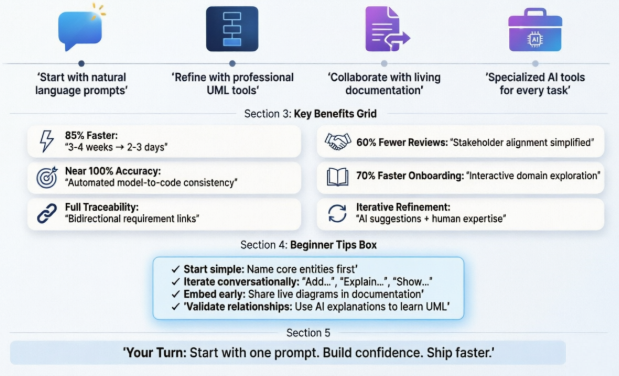
What you’ll get:
-
A step-by-step journey mirroring our real-world adoption path
-
Beginner-friendly explanations of AI modeling concepts
-
Practical tips, tricks, and “aha!” moments we wish we’d known sooner
-
All the original visuals from our workflow, so you can see exactly what to expect
-
Honest pros, cons, and lessons learned—no vendor fluff
Let’s dive in and turn that intimidating class diagram into your new superpower.
Our Story: Why We Needed a Better Way
Picture this: You’re on a mid-sized agile team building a new payment platform. Your product owner drops a 30-point user story epic: “As a user, I want to pay merchants securely with fraud detection, refunds, and compliance logging.” Your job? Translate that into a domain model that developers can actually code from.
Traditionally, this meant:
-
Whiteboarding sessions that ran long
-
Endless back-and-forth to clarify relationships
-
Manual UML drafting that felt like drawing with oven mitts
-
Constant rework as requirements evolved
We estimated 3-4 weeks just for the first draft of our class diagram. With sprint cycles moving fast, that timeline was a non-starter. We needed speed without sacrificing clarity, collaboration without chaos, and a path from concept to code that didn’t involve ten different tools.
That’s when we discovered Visual Paradigm’s AI-powered ecosystem. What followed wasn’t just a tool adoption—it was a workflow transformation. Here’s how we did it, and how you can too.
Getting Started: First Steps with Visual Paradigm AI (Phase 1)
The Magic of Conversational Modeling
Our journey began not with a complex desktop install, but with a simple chat. We opened the AI Visual Modeling Chatbot and typed our first prompt:
“Generate a class diagram for a payment processing system with User, Merchant, Transaction, PaymentMethod, FraudCheck, and Settlement classes.”
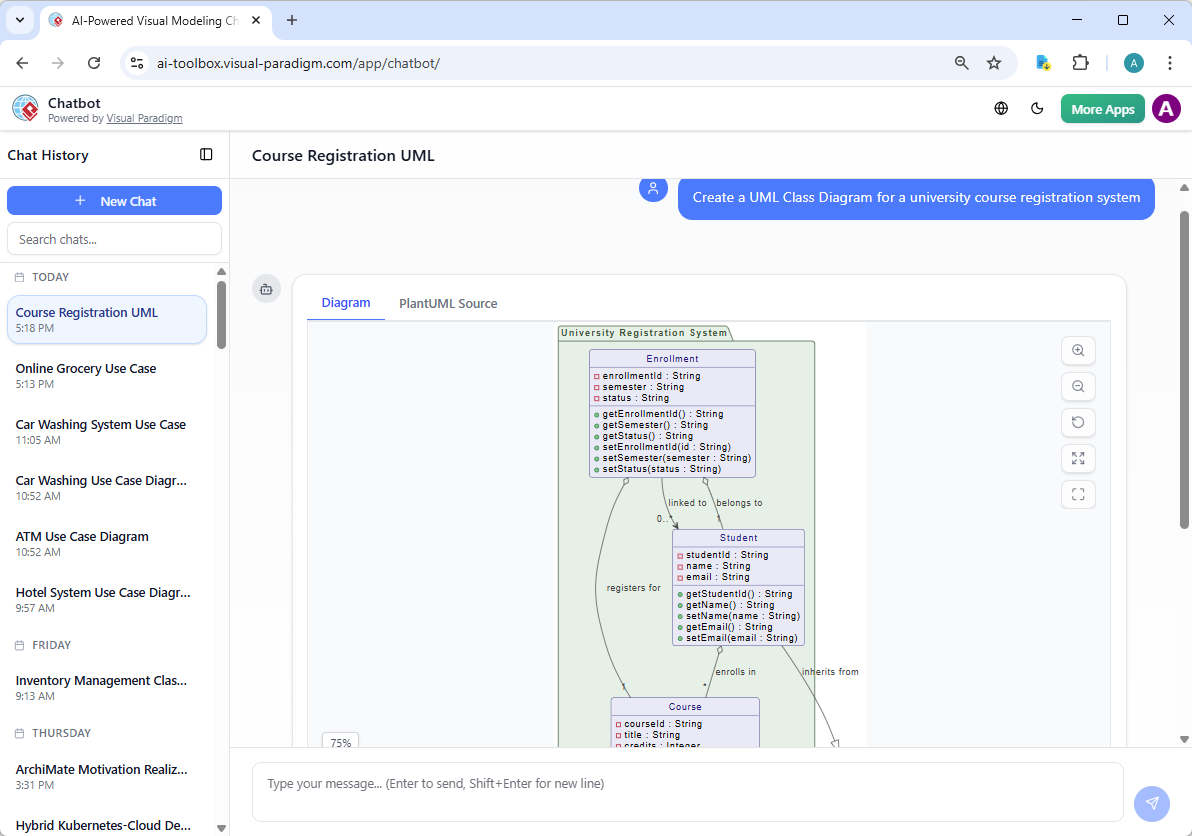
What happened next blew our minds: Within seconds, we had a structured, sensible class diagram with attributes, operations, and relationships already mapped. No dragging, no memorizing UML syntax—just a solid starting point.
Beginner Tips for Your First Prompt
-
Start simple: Name your core entities first. Don’t worry about perfection.
-
Be specific but conversational: “Add a Refund class that inherits from Transaction” works better than vague requests.
-
Iterate openly: Treat the chatbot like a collaborative partner. Ask “why” questions to learn UML concepts as you go.
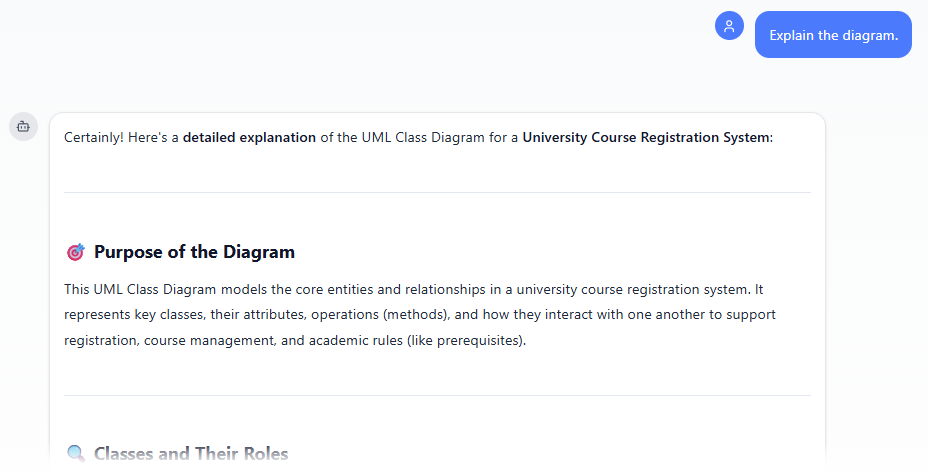
Pro Tip: Save your chat history! We created a prompt library of reusable templates for common patterns (e.g., “e-commerce domain,” “user authentication flow”). It cut our setup time by 70%.
What We Loved:
✅ Zero learning curve to start generating diagrams
✅ Instant visual feedback kept stakeholders engaged
✅ Natural language queries made UML accessible to non-technical team members
Watch Out For:
⚠️ AI suggestions are starting points—always review relationships and multiplicities
⚠️ Complex business rules may need manual refinement (more on that next)
Leveling Up: Professional Modeling Made Simple (Phase 2)
From Prototype to Production-Ready
Once we had a conceptual model we liked, we moved to VP Desktop for deeper engineering. This is where the AI truly shines as a co-pilot, not just a generator.
We refined our prompt:
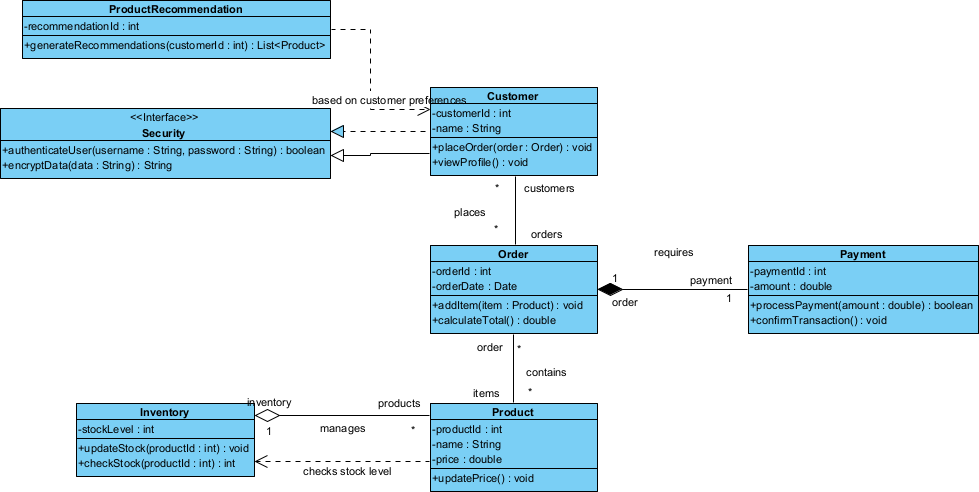
“Expand the payment system model to include AuditLog, ComplianceRule, and NotificationService classes with proper visibility modifiers and getter/setter methods.”
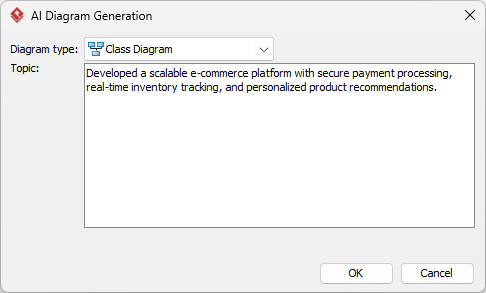
The AI generated a comprehensive diagram following UML best practices:
Beginner-Friendly Power Moves in VP Desktop
-
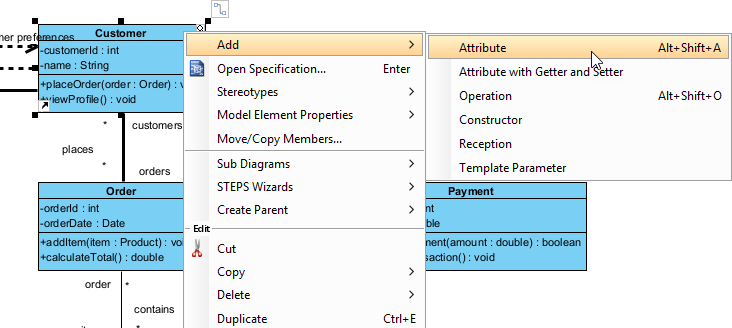
Drag-and-drop refinement: Adjust classes, relationships, and stereotypes visually—no code required.
-
Visibility toggles: Click to set public/private/protected modifiers; the AI explains why you’d choose each.
-
One-click code export: Generate Java/C# skeletons with proper package structure. Yes, really.
-
Traceability links: Connect classes to requirements or user stories with a right-click.
Tips for Smooth Refinement:
🔹 Use the “Explain This Relationship” feature to learn UML semantics as you work
🔹 Leverage auto-layout to keep diagrams clean as they grow
🔹 Export early and often—PDFs for stakeholders, code skeletons for devs
Common Beginner Mistake: Trying to perfect the diagram in one pass. We learned to embrace iterative refinement: “Good enough for sprint planning” > “Perfect but late.”
Team Collaboration: Keeping Everyone in Sync (Phase 3)
Living Documentation with OpenDocs
Distributed teams live and die by documentation. Instead of emailing static screenshots that go stale in hours, we embedded our evolving diagrams directly into OpenDocs—Visual Paradigm’s collaborative knowledge base.
How We Embedded AI-Generated Diagrams (Step-by-Step for Beginners):
-
Open or create a page in OpenDocs: Log in to your Visual Paradigm Online workspace, navigate to OpenDocs, and either open an existing page or create a new one (via + New Document Page or similar).
-
Insert a diagram: In the page editor, look at the top toolbar (or floating toolbar) and click Insert. From the popup window, select Diagram > Class Diagram.
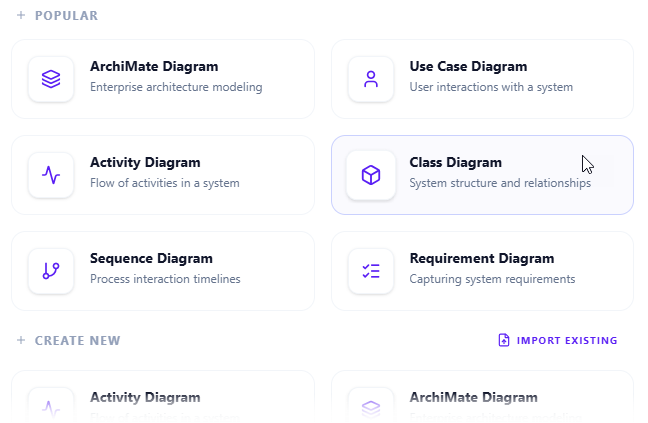
-
Start creating the diagram with AI: This opens the diagram editor window. You can build it manually by dragging and dropping elements if you prefer. To use AI instead: Look for Create with AI in the top-right corner of the editor window and click it.
-
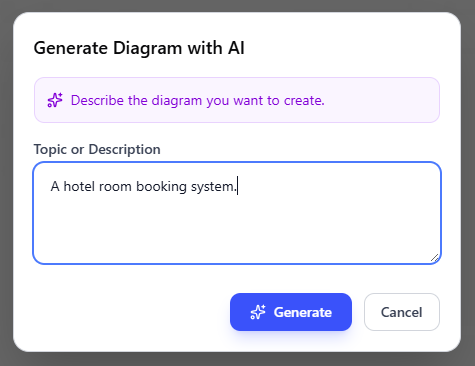
Describe your problem and generate: In the text input area that appears, type a clear, detailed description of your system or scenario. Click Generate.
-
Review, refine, and embed the diagram: The AI generates a professional class diagram instantly.
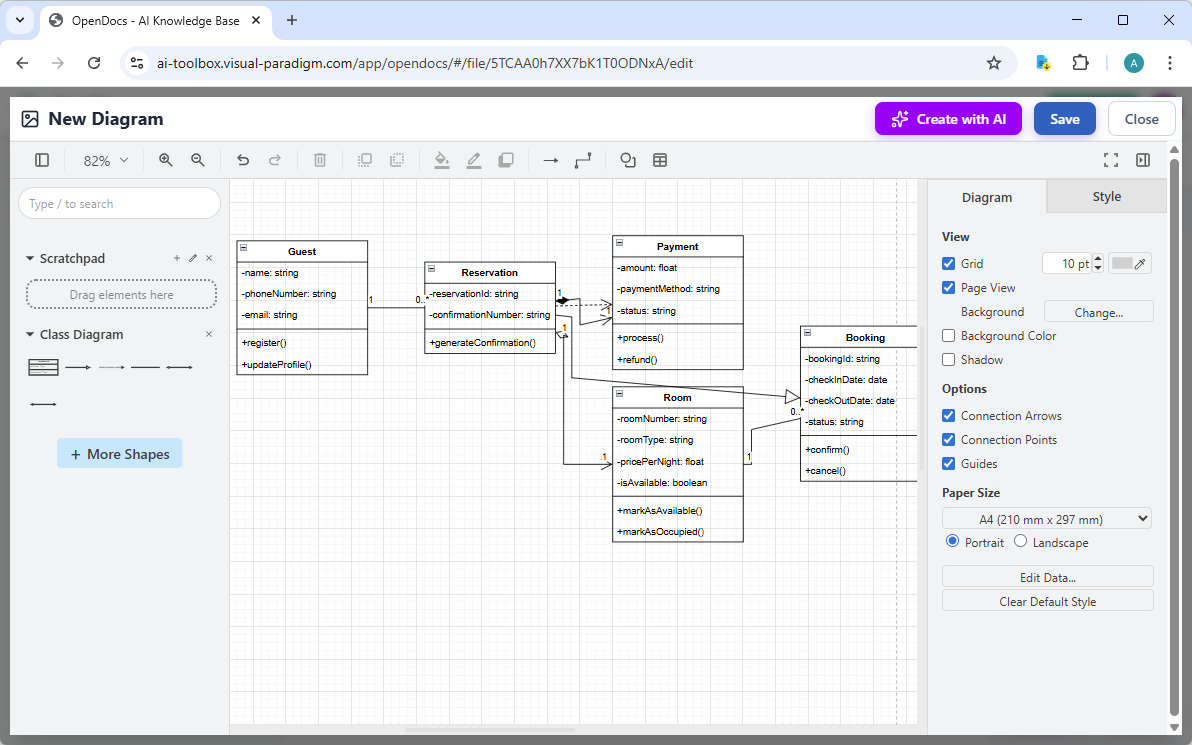
Use the intuitive drag-and-drop editor to touch up anything: move elements, adjust labels, add notes, change styles, etc. When you’re happy with it, click Save. Then click Close. The diagram is now embedded directly into your OpenDocs page as a live, editable visual block. You can view it inline without leaving the document.
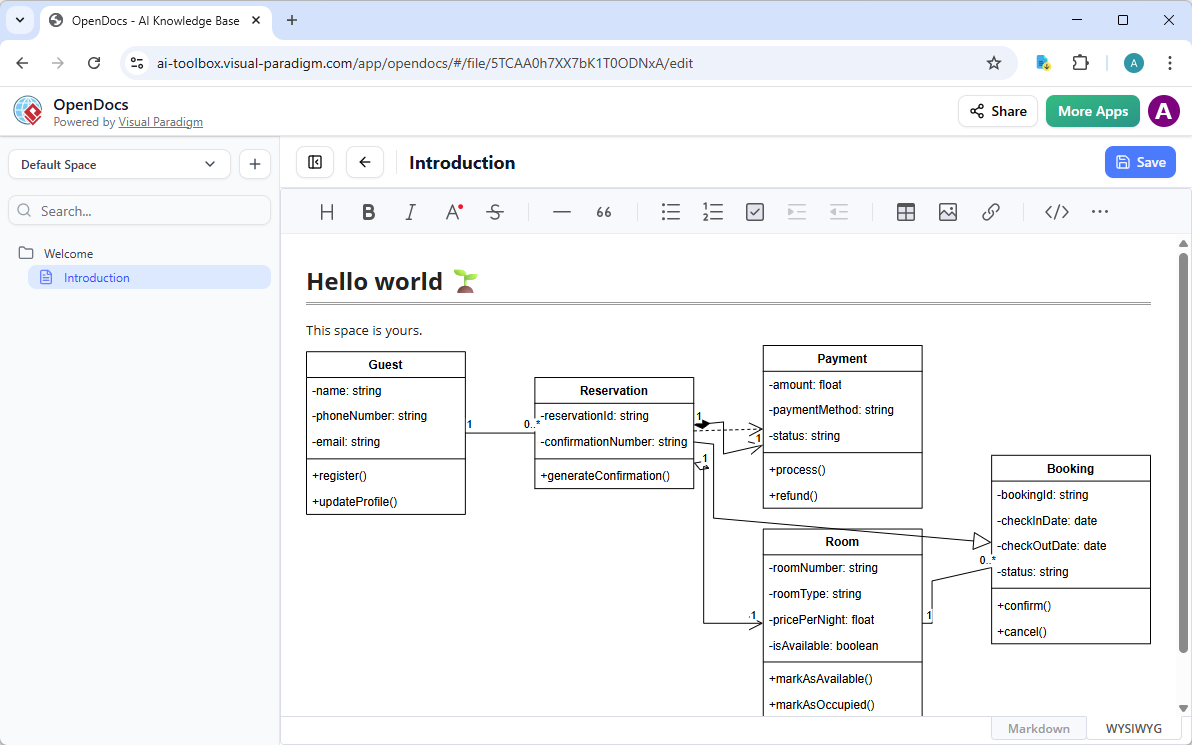
Why This Changed Everything for Us:
-
No more version chaos: Update the model once, and it reflects everywhere it’s embedded
-
Contextual comments: Team members could comment directly on a class or relationship (“Should FraudCheck be optional here?”)
-
Onboarding superpower: New hires explored the domain model interactively alongside API specs and business rules
Beginner Collaboration Tip: Create a “Diagram Glossary” page in OpenDocs defining your team’s modeling conventions (e.g., “We use composition for Order→OrderItem”). It prevents endless debates later.
Specialized Tools for Every Need (Phase 4)
Right Tool, Right Task
One size doesn’t fit all in modeling. Visual Paradigm’s browser-based Web Apps let us apply targeted AI assistance without context-switching. Here’s how we used them:
🎯 Use Case Modeling Studio
Use Case Modeling Studio turned detailed use case descriptions into class diagrams automatically. Perfect for bridging “what the system does” to “what the system is.”
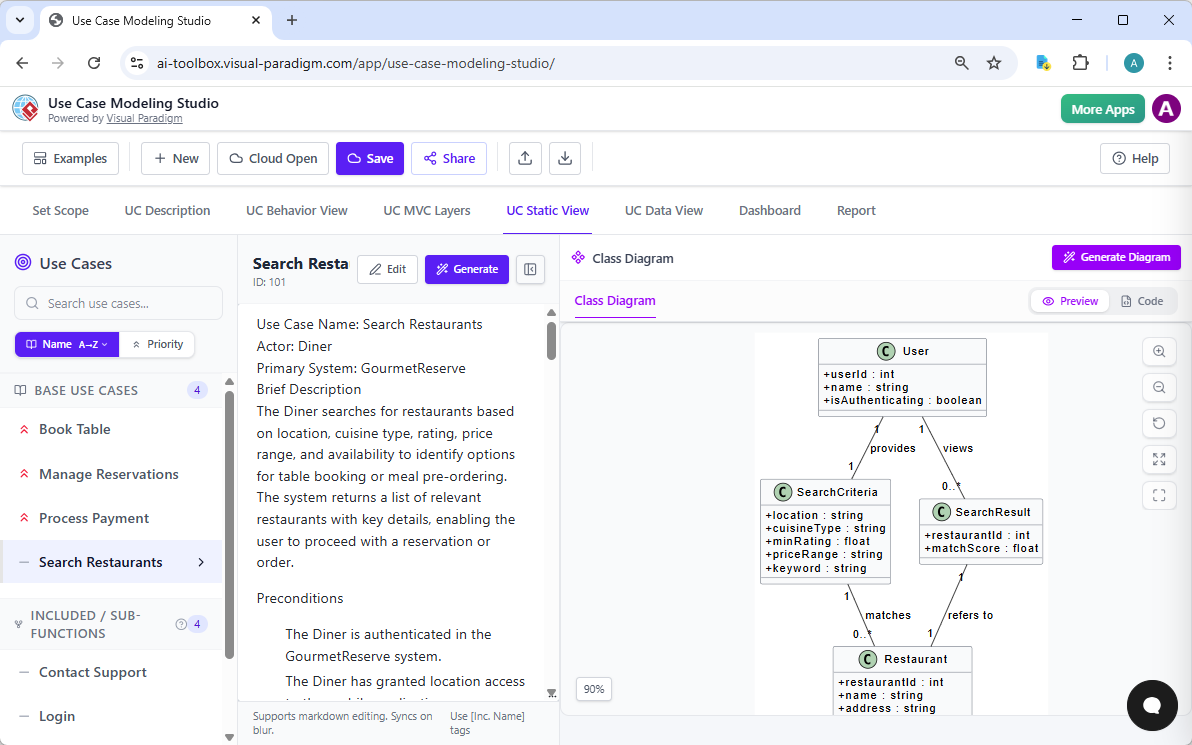
Beginner Use: Paste a user story, get a domain model. Great for sprint planning.
🚀 Agilien for Agile Teams
Agilien connected our Jira-style backlog to structural design. Select a user story → AI generates relevant class diagrams.
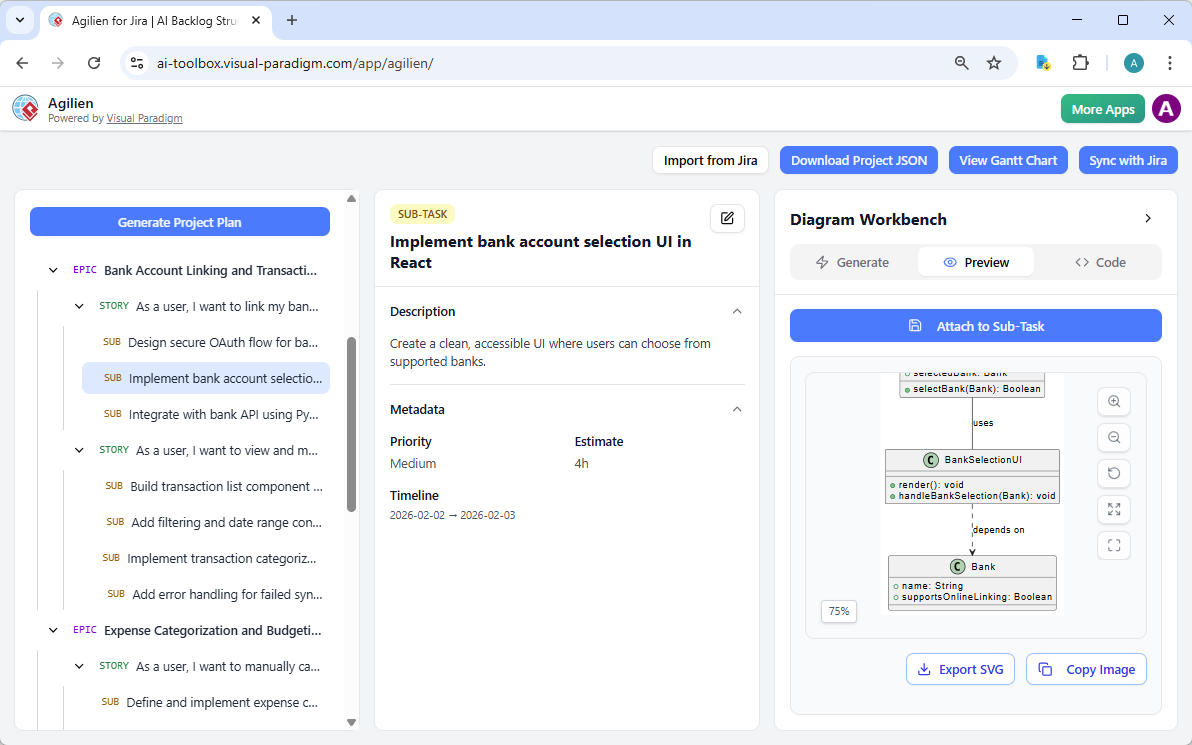
Beginner Use: Keep architecture aligned with agile delivery. No more “design debt” surprises.
🗄️ DB Modeler AI
DB Modeler AI created a Domain Class Diagram first, then transformed it into ERD and SQL. Conceptual → logical → physical, seamlessly.
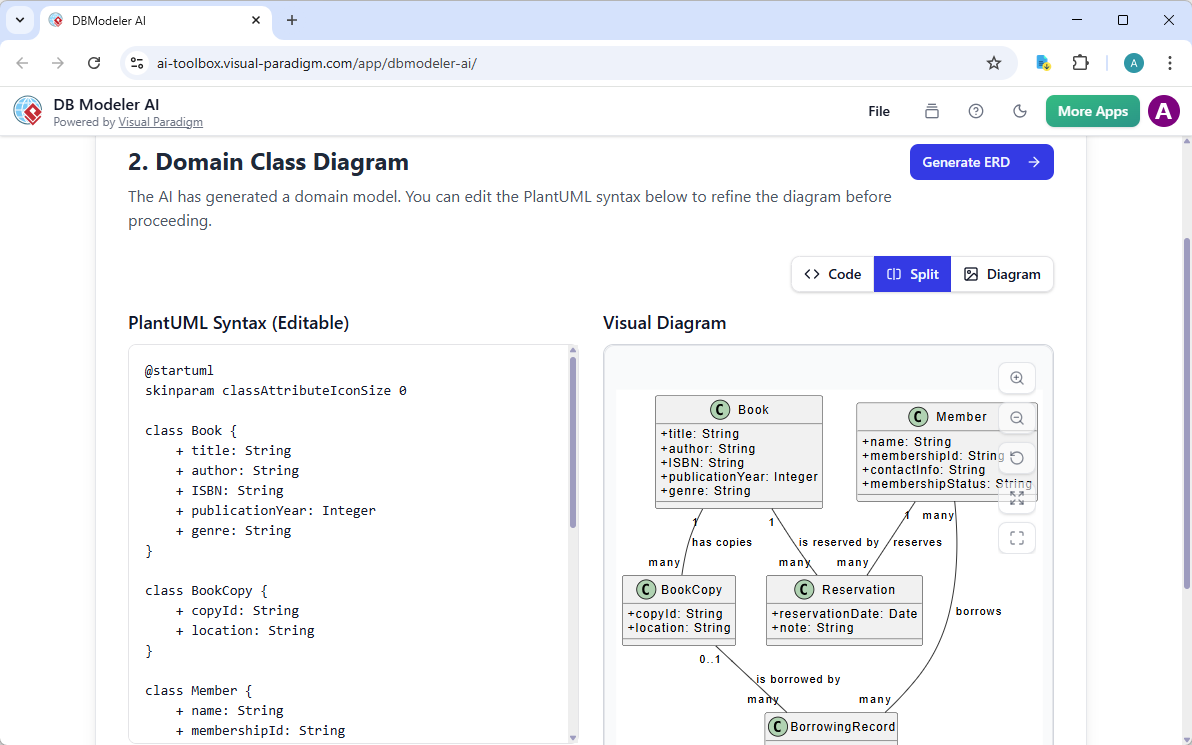
Beginner Tip: Always review the conceptual model before generating SQL. AI is smart, but your business rules are smarter.
🏗️ MVC System Architecture Generator
MVC System Architecture Generator produced Controller Class Diagrams from use cases—perfect for web app teams.
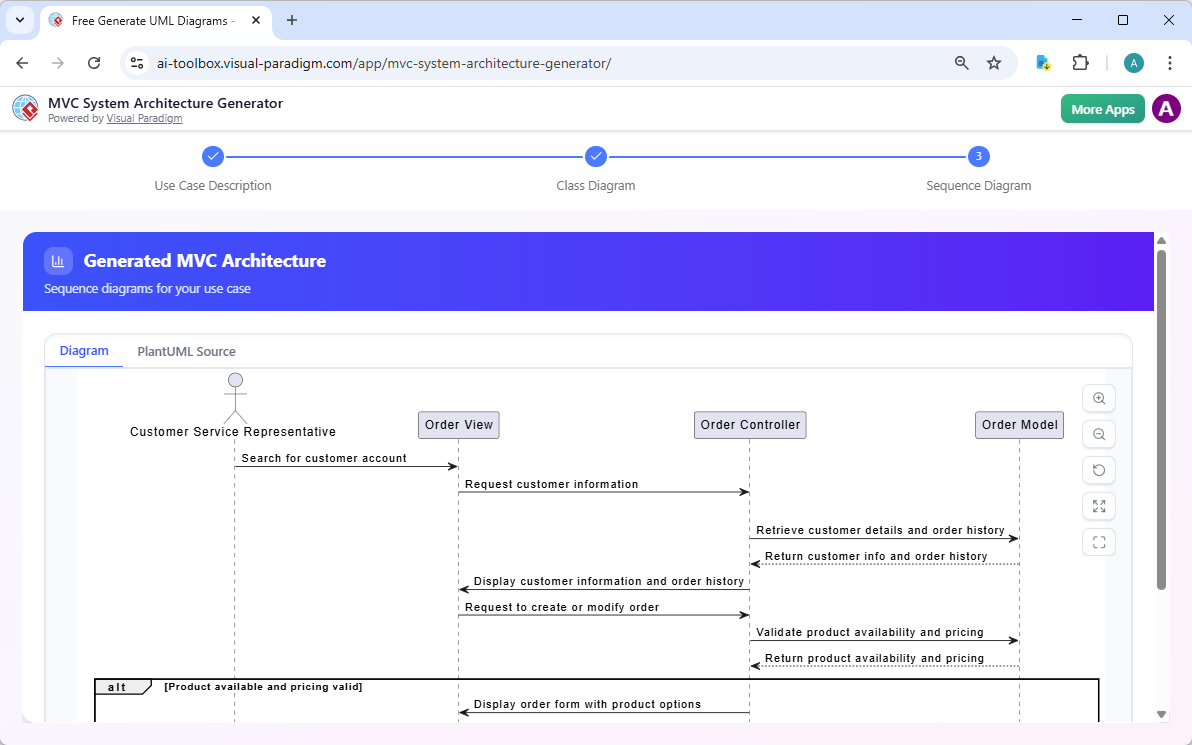
Beginner Win: Instantly visualize how your frontend, backend, and models interact.
🎓 AI-Assisted UML Class Diagram Generator
AI-Assisted UML Class Diagram Generator is our top recommendation for total beginners. It’s a step-by-step wizard that teaches UML as you build.
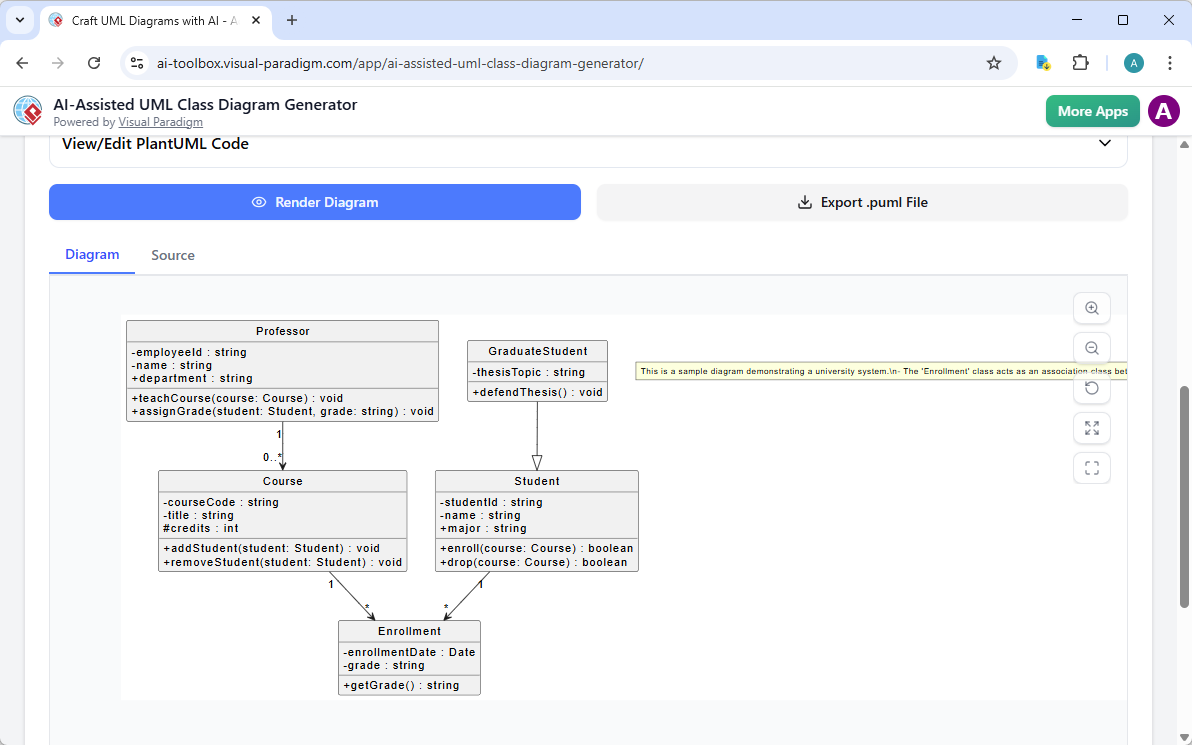
Why Beginners Love It:
✨ Guided prompts prevent “blank canvas paralysis”
✨ AI explains each suggestion (“We added a timestamp because…”)
✨ Exports to PlantUML for version control
Tips, Tricks, and Lessons Learned
🧠 Prompt Engineering for Better Diagrams
-
Be specific about relationships: Instead of “User has orders,” try “User places 1..* Orders; each Order belongs to exactly 1 User.”
-
Include business rules: “FraudCheck runs asynchronously after Transaction creation” helps AI model timing correctly.
-
Iterate in layers: Start with core entities → add attributes → refine relationships → add operations.
🤝 Collaboration Best Practices
-
Assign a “Diagram Owner” per sprint: One person curates the model; others suggest changes via comments.
-
Use color coding consistently: e.g., red = high-risk classes, blue = external integrations.
-
Schedule 15-minute “model syncs”: Quick reviews prevent drift between design and implementation.
⚡ Speed Hacks We Swear By
-
Save prompt templates for recurring patterns (authentication, payment flows, audit trails)
-
Use AI to generate boilerplate, then focus your energy on complex business logic
-
Export early, export often: Share PDFs with stakeholders before the model is “perfect”
🚫 Common Beginner Pitfalls (And How to Avoid Them)
| Pitfall | Why It Happens | Our Fix |
|---|---|---|
| Over-engineering early | Excitement + AI speed = too many classes too fast | Start with 5-7 core entities; expand iteratively |
| Ignoring multiplicities | “1..*” seems obvious until it isn’t | Use AI’s “Explain Relationship” feature to validate |
| Siloed modeling | Architects work alone, devs get confused | Embed diagrams in OpenDocs; require team comments |
| Skipping validation | Trusting AI output 100% | Always cross-check with a domain expert or business rule doc |
New Conclusion: Your Turn to Shine
If you’ve made it this far, you’re already ahead of the curve. The truth is, you don’t need to be a UML expert or an AI whisperer to create powerful, implementable class diagrams. You just need the right partner—and Visual Paradigm’s ecosystem is that partner.
What we hope you take away:
-
Start small: One prompt, one diagram, one win. Momentum builds confidence.
-
Embrace iteration: Your first model won’t be perfect. That’s okay. Refine as you learn.
-
Collaborate openly: The best models emerge from diverse perspectives, not solitary genius.
-
Let AI handle the mechanical: Free your brain for the strategic—business rules, edge cases, user value.
The future of software design isn’t about choosing between human expertise and AI speed. It’s about weaving them together. With Visual Paradigm, we didn’t just draw faster diagrams—we thought more clearly, collaborated more effectively, and shipped with more confidence.
So go ahead. Open that chatbot. Type your first prompt. That blank canvas? It’s not intimidating anymore. It’s your launchpad.
We can’t wait to see what you build. 🚀
References
-
AI Class Diagram Generator Tutorial: Step-by-step video guide demonstrating how to generate UML class diagrams using Visual Paradigm’s AI features in Desktop.
-
Visual Paradigm Desktop AI Activity Diagram Generation Release: Official release notes detailing AI diagram generation capabilities across multiple diagram types in VP Desktop.
-
AI Class Diagram Generator Release Notes: Technical documentation covering requirements, setup, and usage of the AI Class Diagram Generator in Visual Paradigm Professional Edition.
-
AI Diagram Generation Workflow Demo: Video demonstration of end-to-end AI diagram generation workflow from prompt to editable model.
-
AI Diagram Generator Multi-Type Support Announcement: Overview of expanded AI diagram generation support for 13+ UML and non-UML diagram types.
-
Generate UML Class Diagrams with AI: Best Practices: Expert article providing tips and techniques for crafting effective prompts to generate accurate class diagrams.
-
AI Diagram Generation Feature Overview: Official feature page describing AI-powered diagram creation capabilities across Visual Paradigm’s product suite.
-
AI Diagram Generator Now Supports 13+ Diagram Types: Release announcement highlighting expanded AI support beyond class diagrams to sequence, use case, ERD, and more.
-
AI-Assisted UML Class Diagram Generator Feature Page: Detailed overview of the step-by-step wizard for educational and guided class diagram creation with AI analysis.
-
AI Chatbot for UML Modeling Tutorial: Video guide showing how to use the conversational AI chatbot to generate and refine UML diagrams through natural language.
-
AI Textual Analysis for Model Validation: Feature documentation on using AI to analyze textual requirements and validate model consistency and completeness.

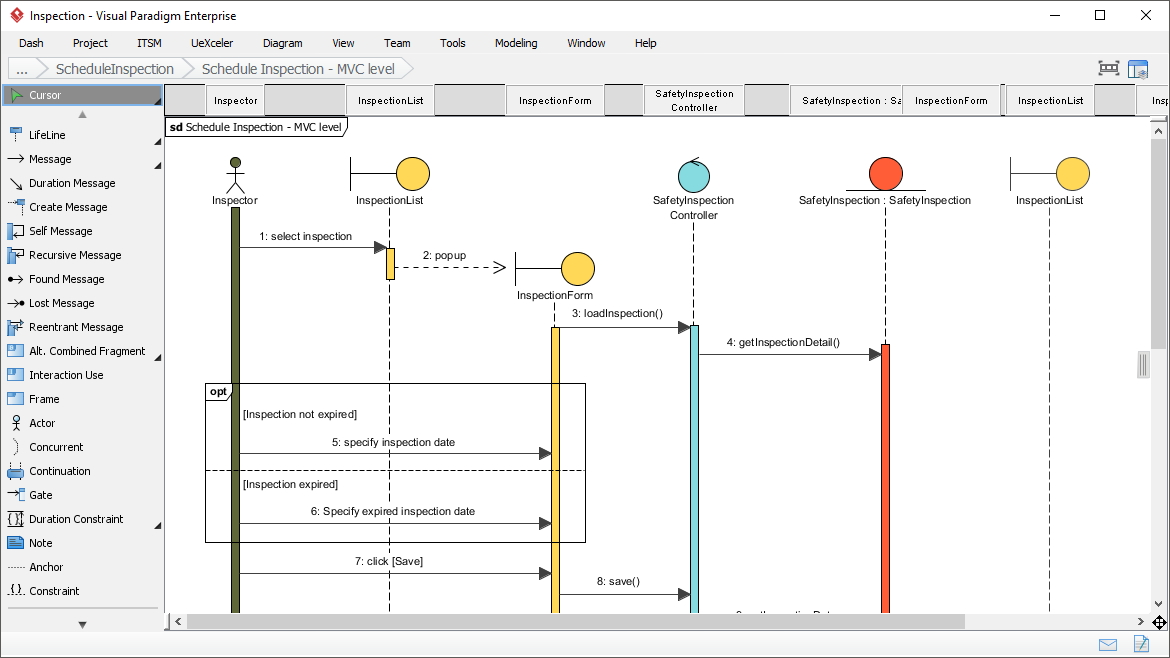
![How to Model Constraints in UML? [With Examples]](https://www.archimetric.com/wp-content/uploads/2026/04/uml-constraint-example.png "How to Model Constraints in UML? [With Examples]")

 English
 Arabic
 Chinese (Simplified)
 Dutch
Dutch French
 German
 Italian
 Japanese
 Korean
 Portuguese
 Russian
 Spanish