


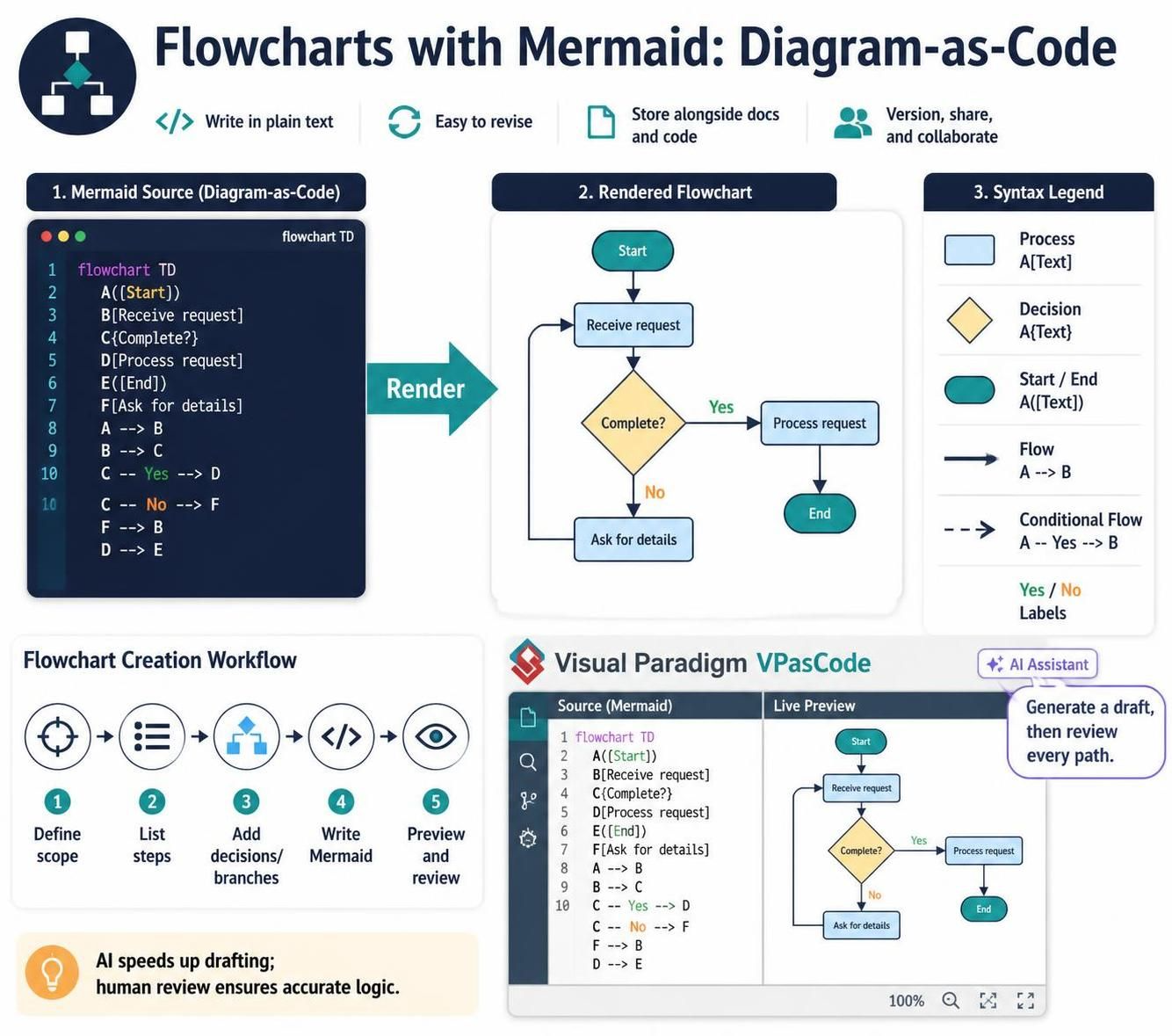
Mermaid lets you describe a flowchart in text and render it as a diagram. Instead of dragging shapes around, you define the steps, decisions, and connections in a source file. That makes diagrams easier to revise, review, and keep alongside code or documentation.
This tutorial covers Mermaid flowchart fundamentals, practical examples, and a workflow using Visual Paradigm’s VPasCode editor and its AI-assisted features.
1. What is a flowchart?
A flowchart shows the order of steps in a process and how the process branches. A typical flowchart includes:
-
Start and end points
-
Process steps, such as “Validate request”
-
Decisions, such as “Is payment approved?”
-
Inputs and outputs, such as a submitted form or a generated report
-
Arrows showing the direction of flow
Mermaid flowcharts are written as directed graphs. Each step has an identifier, and arrows connect identifiers. The text in brackets or other delimiters controls how a node looks.
2. Your first Mermaid flowchart
A Mermaid diagram starts with a diagram type declaration. For a flowchart, use flowchart followed by the direction:
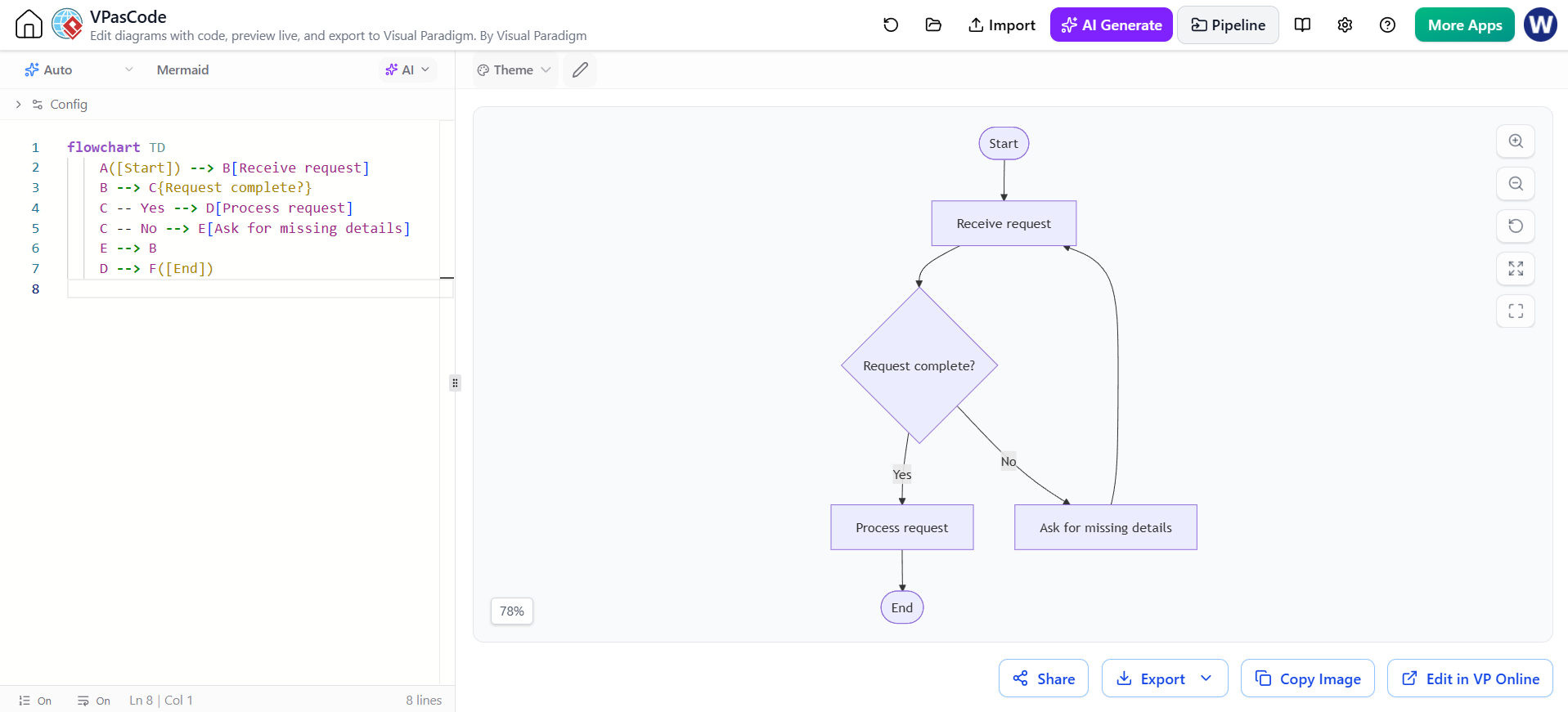
flowchart TD
    A([Start]) --> B[Receive request]
    B --> C{Request complete?}
    C -- Yes --> D[Process request]
    C -- No --> E[Ask for missing details]
    E --> B
    D --> F([End])
TD means “top to down.” The diagram flows from top to bottom.
Other useful directions:
-
TBorTD: top to bottom -
BT: bottom to top -
LR: left to right -
RL: right to left
The identifiers A, B, and C connect nodes. The displayed labels are the text inside each node’s delimiters.
3. Common node shapes and connectors
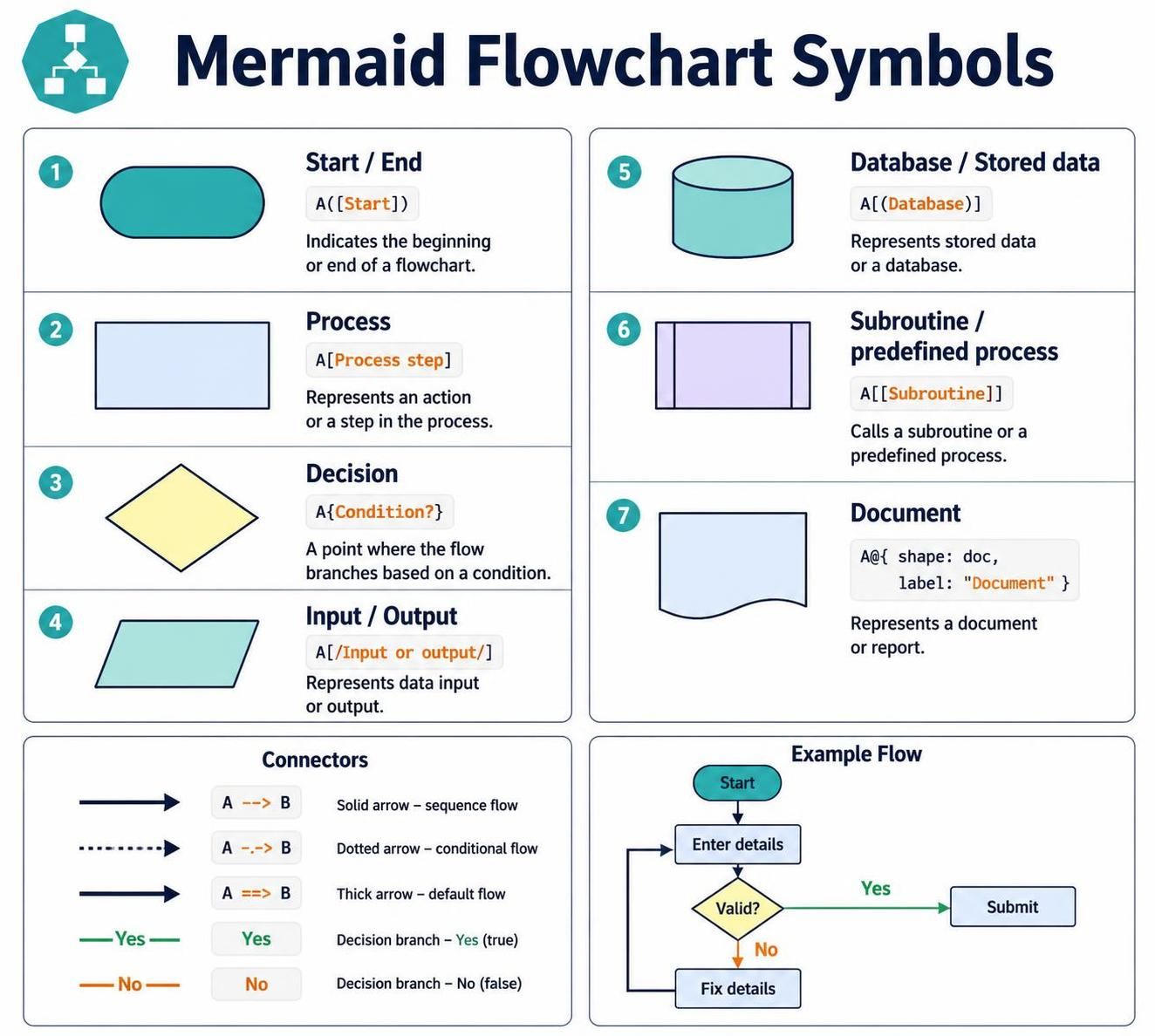
Use a shape that helps readers distinguish the role of a step. Mermaid supports several node shapes; common examples are:
| Purpose | Mermaid syntax | Example |
|---|---|---|
| Process | A[Process step] |
A[Review application] |
| Rounded process | A(Manual step) |
A(Notify customer) |
| Decision | A{Condition?} |
A{Approved?} |
| Stadium / terminal | A([Start or end]) |
A([Start]) |
| Input/output | A[/Input or output/] |
A[/Enter email/] |
| Database / cylinder | A[(Database)] |
A[(Order database)] |
Connectors show the relationship or sequence:
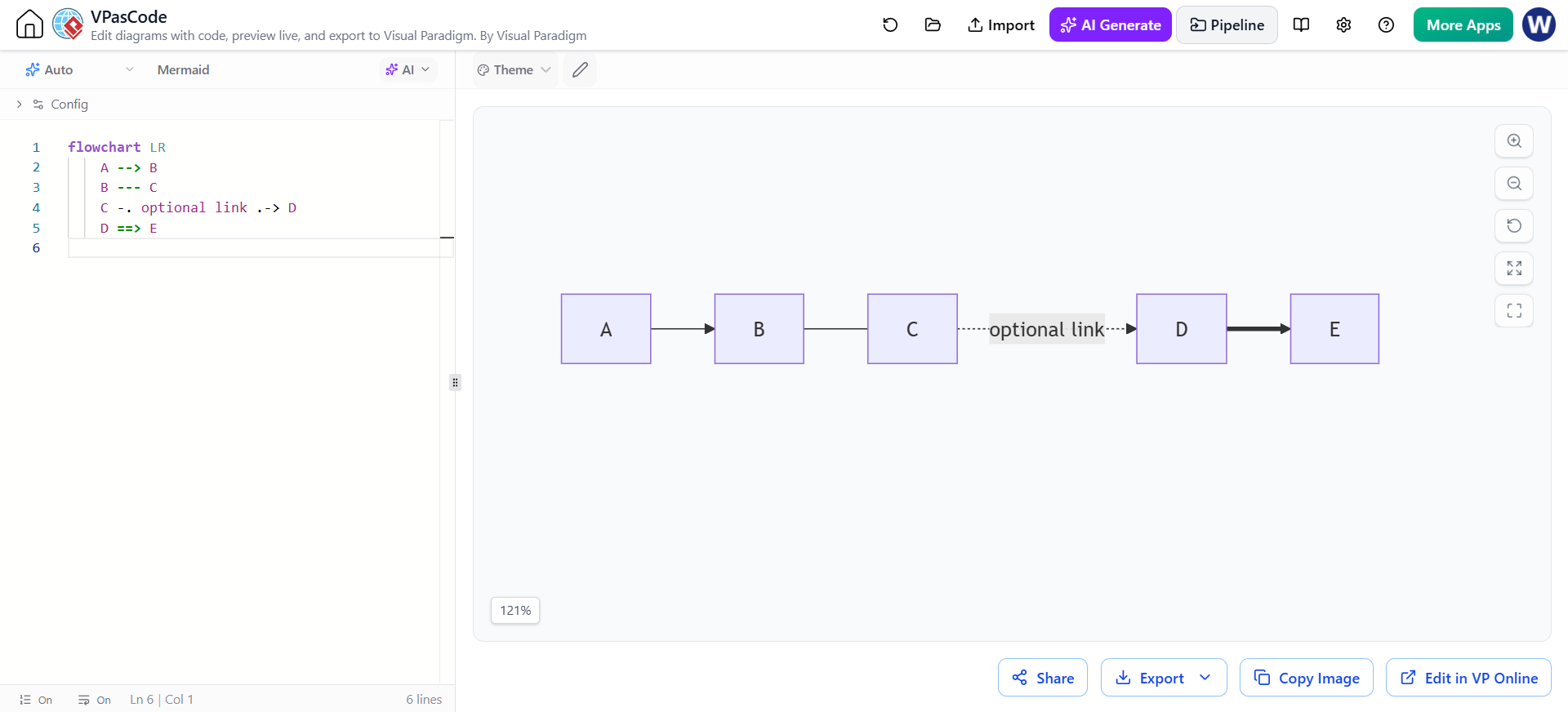
flowchart LR
    A --> B
    B --- C
    C -. optional link .-> D
    D ==> E
-
-->is a directed arrow. -
---is an undirected link. -
-.->is a dotted arrow. -
==>is a thicker arrow.
For decision branches, label the outgoing arrows:
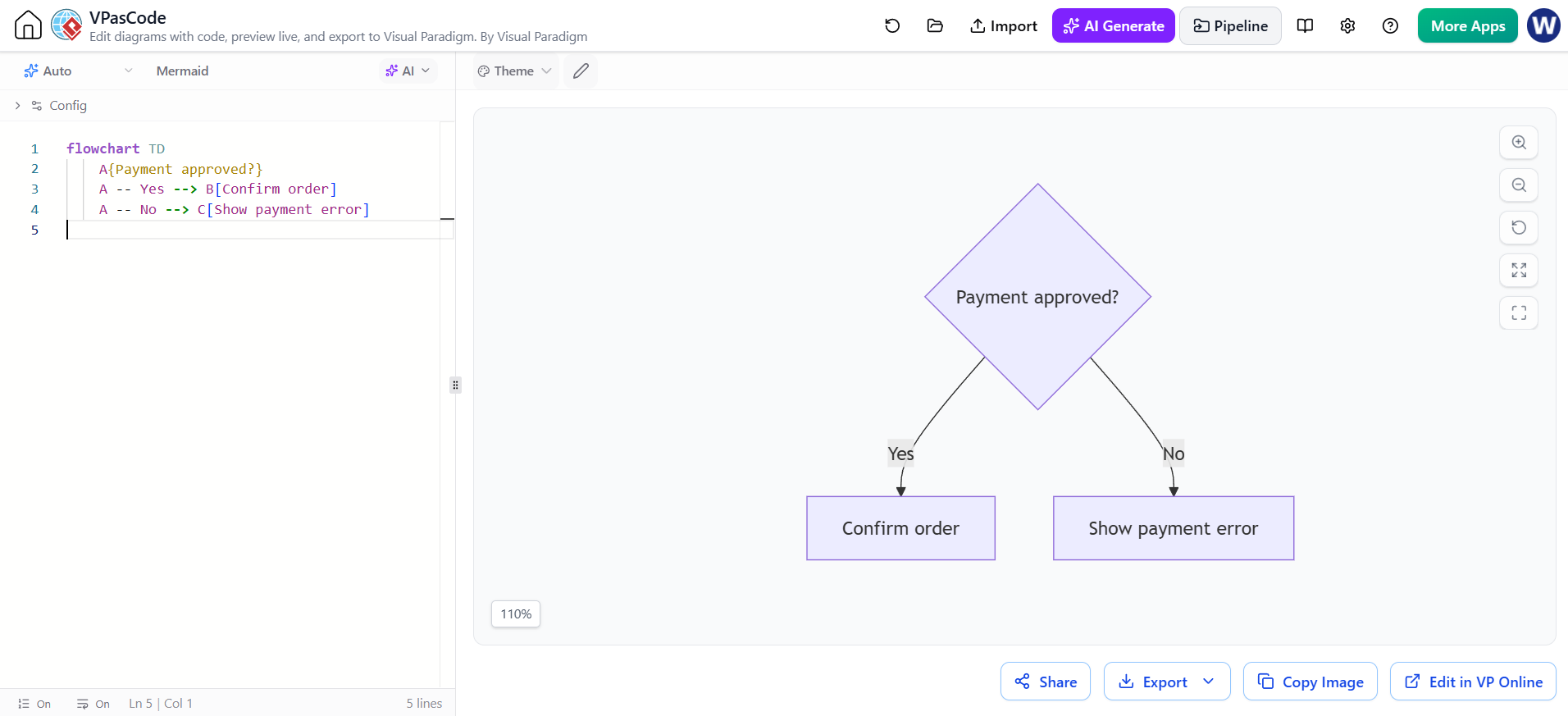
flowchart TD
    A{Payment approved?}
    A -- Yes --> B[Confirm order]
    A -- No --> C[Show payment error]
Clear branch labels matter: they tell the reader what condition leads to each path.
4. A practical example: order checkout
This example includes a decision, a retry path, and a successful completion path:
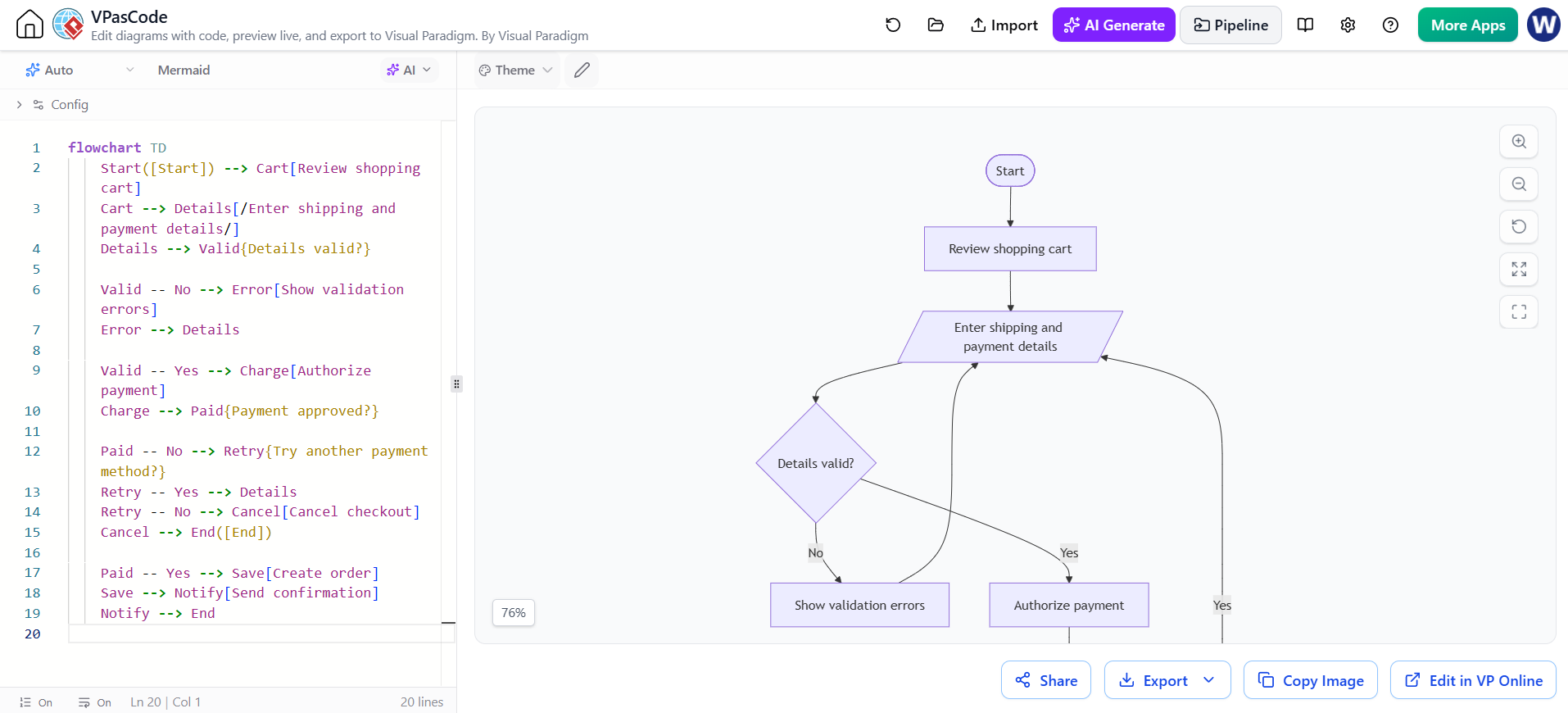
flowchart TD
    Start([Start]) --> Cart[Review shopping cart]
    Cart --> Details[/Enter shipping and payment details/]
    Details --> Valid{Details valid?}

    Valid -- No --> Error[Show validation errors]
    Error --> Details

    Valid -- Yes --> Charge[Authorize payment]
    Charge --> Paid{Payment approved?}

    Paid -- No --> Retry{Try another payment method?}
    Retry -- Yes --> Details
    Retry -- No --> Cancel[Cancel checkout]
    Cancel --> End([End])

    Paid -- Yes --> Save[Create order]
    Save --> Notify[Send confirmation]
    Notify --> End
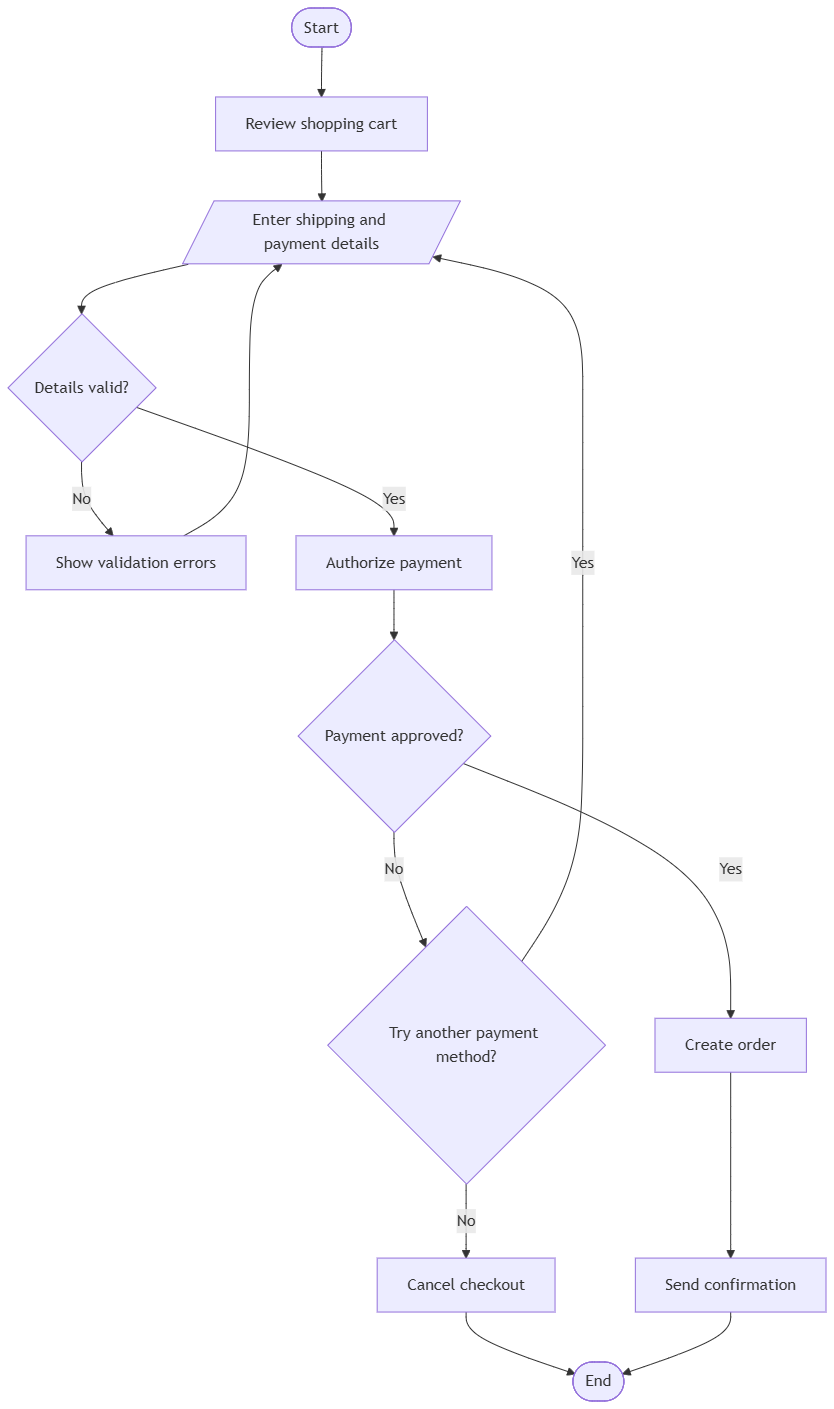
Before writing code, decide what counts as a step, what decisions divide the flow, and where each branch reconnects or ends. This keeps the diagram from becoming a collection of boxes without a clear process.
5. Add subgraphs to group related steps
Subgraphs visually group nodes, such as steps owned by a particular team or part of a system:
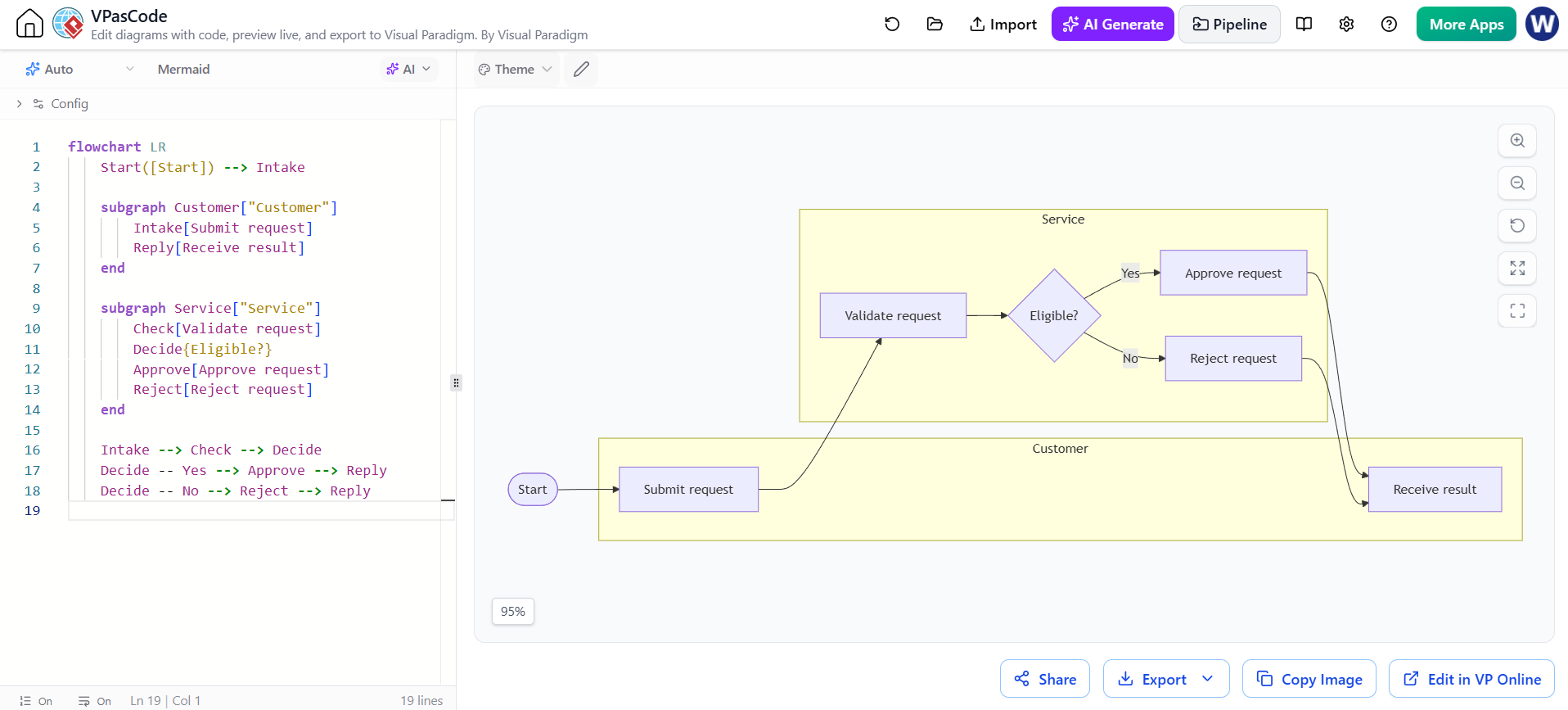
flowchart LR
    Start([Start]) --> Intake

    subgraph Customer["Customer"]
        Intake[Submit request]
        Reply[Receive result]
    end

    subgraph Service["Service"]
        Check[Validate request]
        Decide{Eligible?}
        Approve[Approve request]
        Reject[Reject request]
    end

    Intake --> Check --> Decide
    Decide -- Yes --> Approve --> Reply
    Decide -- No --> Reject --> Reply
Use subgraphs when grouping adds meaning. Too many groups can make a diagram harder to follow, especially when arrows cross between them.
6. Add styles when they improve readability
You can apply styles to individual nodes using classDef and class:
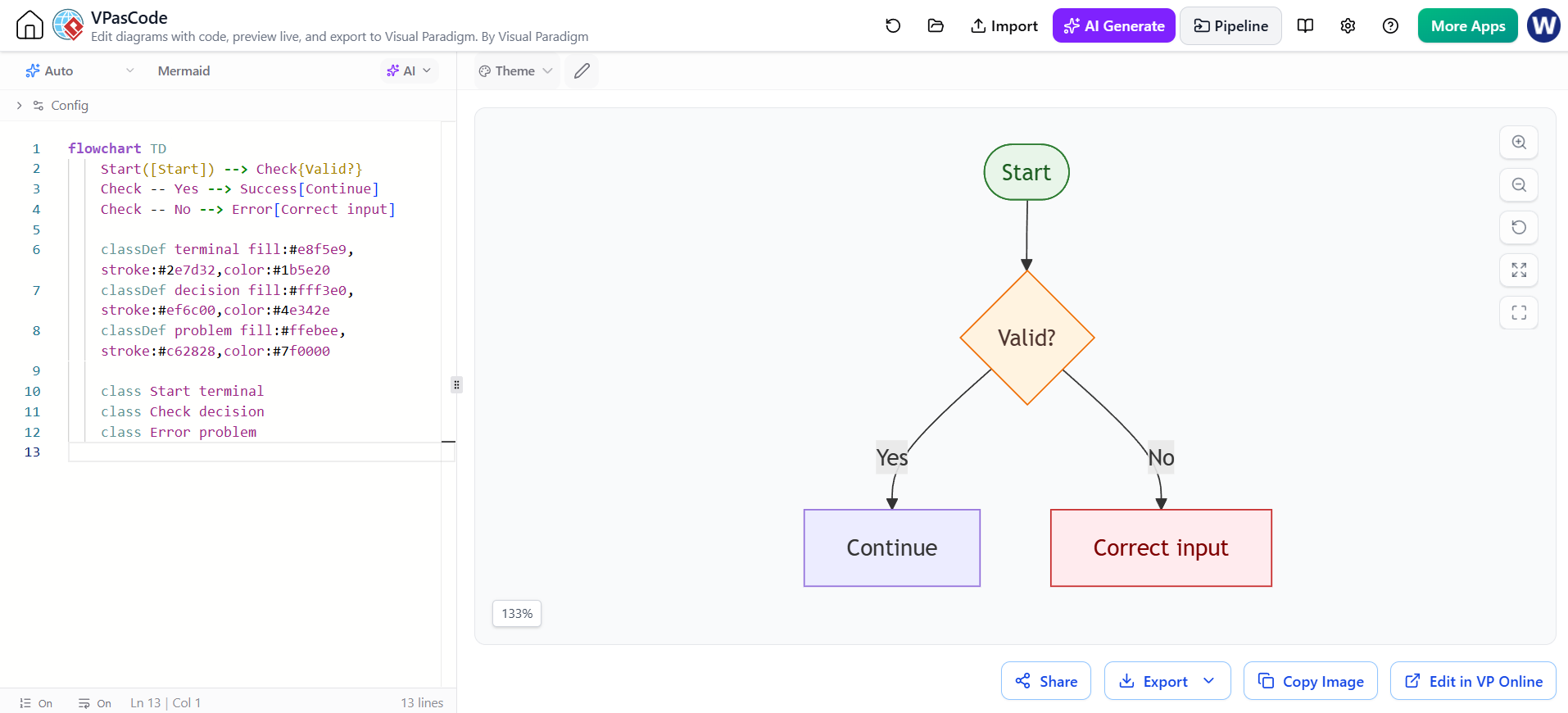
flowchart TD
    Start([Start]) --> Check{Valid?}
    Check -- Yes --> Success[Continue]
    Check -- No --> Error[Correct input]

    classDef terminal fill:#e8f5e9,stroke:#2e7d32,color:#1b5e20
    classDef decision fill:#fff3e0,stroke:#ef6c00,color:#4e342e
    classDef problem fill:#ffebee,stroke:#c62828,color:#7f0000

    class Start terminal
    class Check decision
    class Error problem
Keep styling restrained and consistent. For instance, use one color for terminal nodes, another for decisions, and a warning color for errors.
7. Diagram as Code: Build a flowchart from requirements
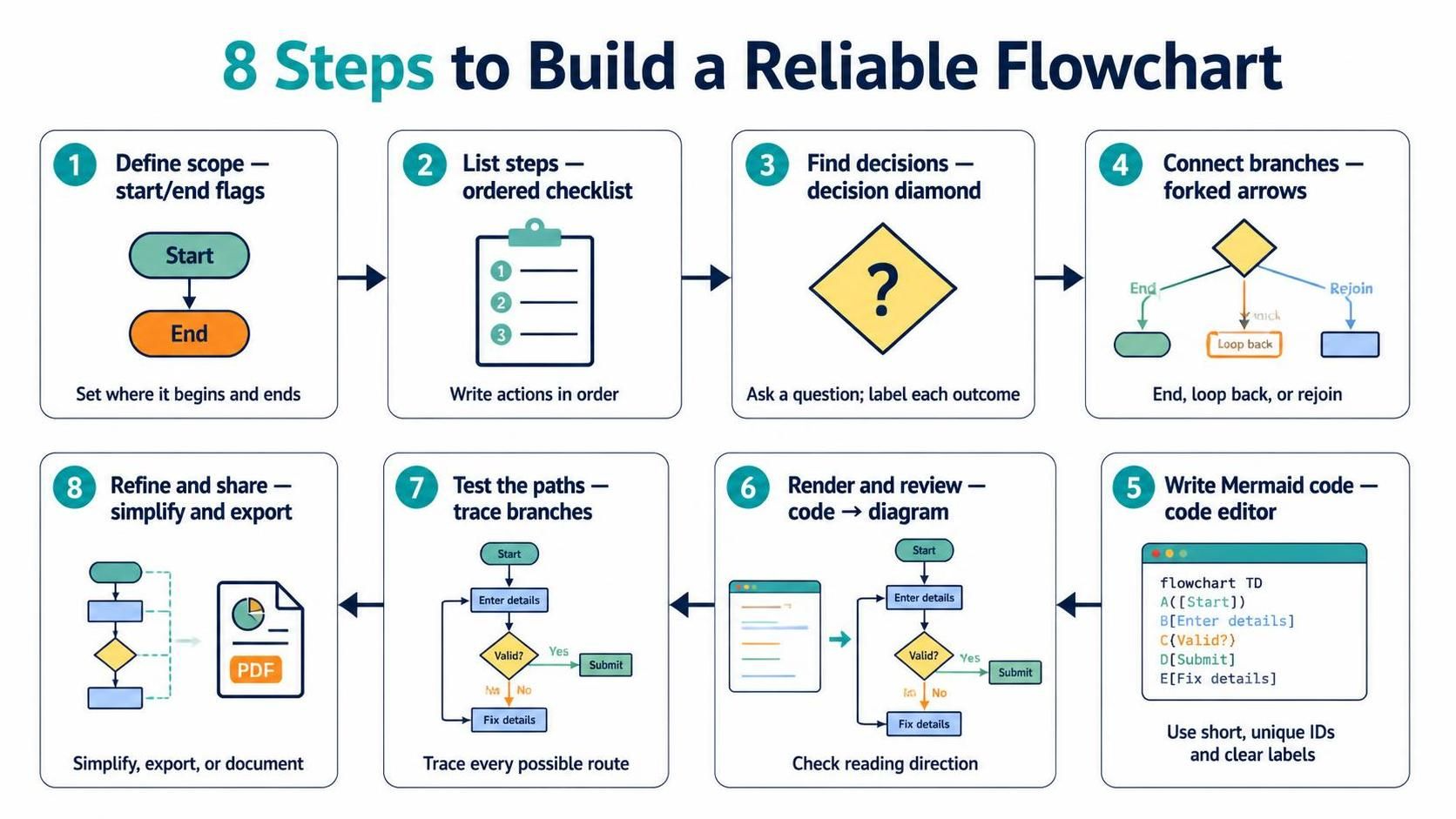
A reliable process is:
-
Define the scope. State where the process begins and ends.
-
List the steps. Write actions in the order they happen.
-
Find the decisions. Phrase each as a question with explicit outcomes.
-
Connect branches. Decide whether each branch ends, loops back, or rejoins.
-
Write Mermaid code. Assign short, unique identifiers and descriptive labels.
-
Render and review. Check that the diagram reads in the intended direction.
-
Test the paths. Trace each possible branch from start to finish.
-
Refine and share. Simplify overly busy sections, then export or include the code in documentation.
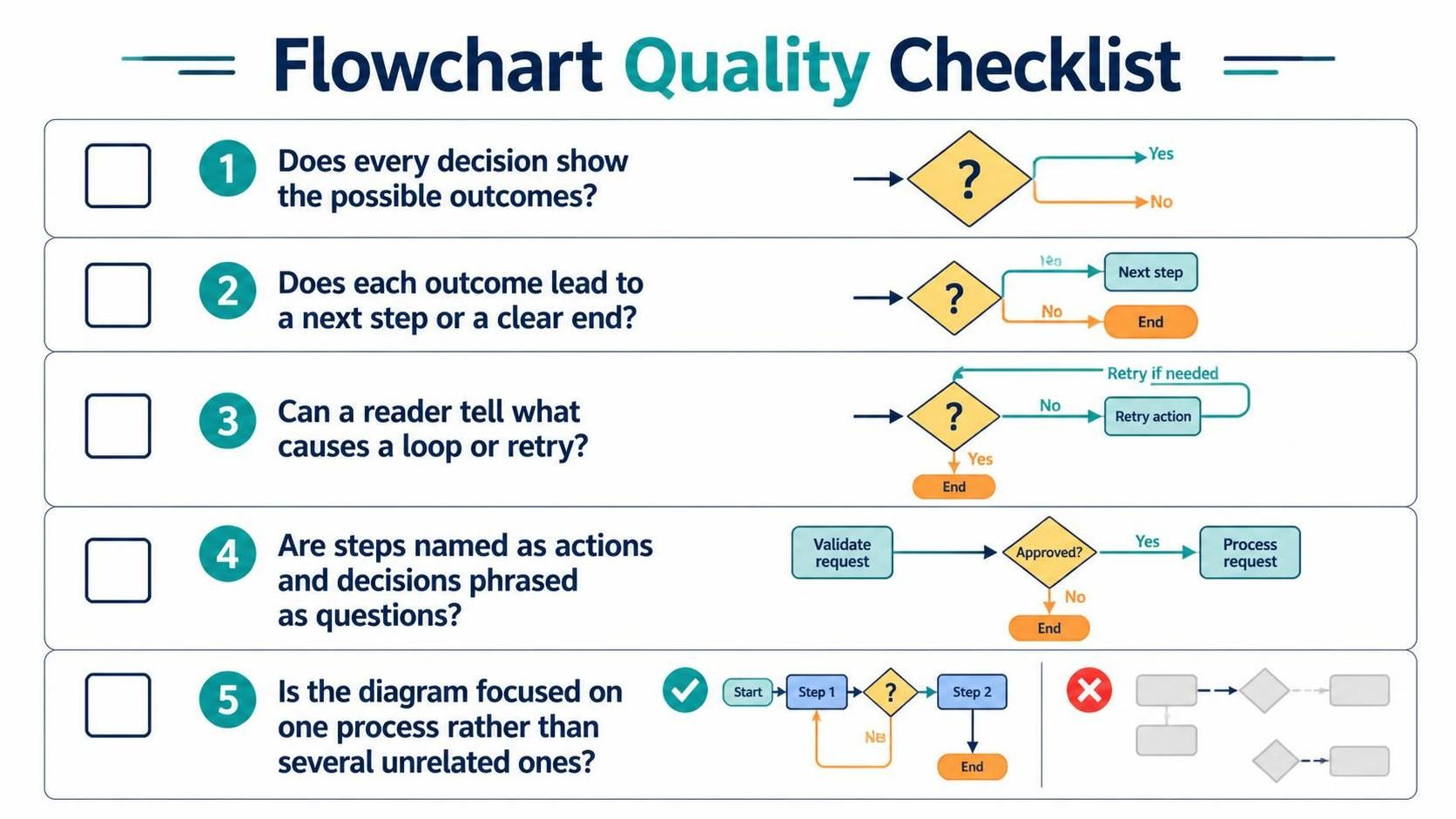
Flowchart: A useful decision checklist:
-
Does every decision show the possible outcomes?
-
Does each outcome lead to a next step or a clear end?
-
Can a reader tell what causes a loop or retry?
-
Are steps named as actions and decisions phrased as questions?
-
Is the diagram focused on one process rather than several unrelated ones?
8. Workflow in Visual Paradigm VPasCode
VPasCode is a browser-based text-to-diagram workspace. It supports Mermaid flowcharts, code editing, and live rendering. Its product pages also describe AI-based diagram generation and modification, syntax correction, and diagram exports. Some advanced AI capabilities may depend on the Visual Paradigm edition or add-ons.
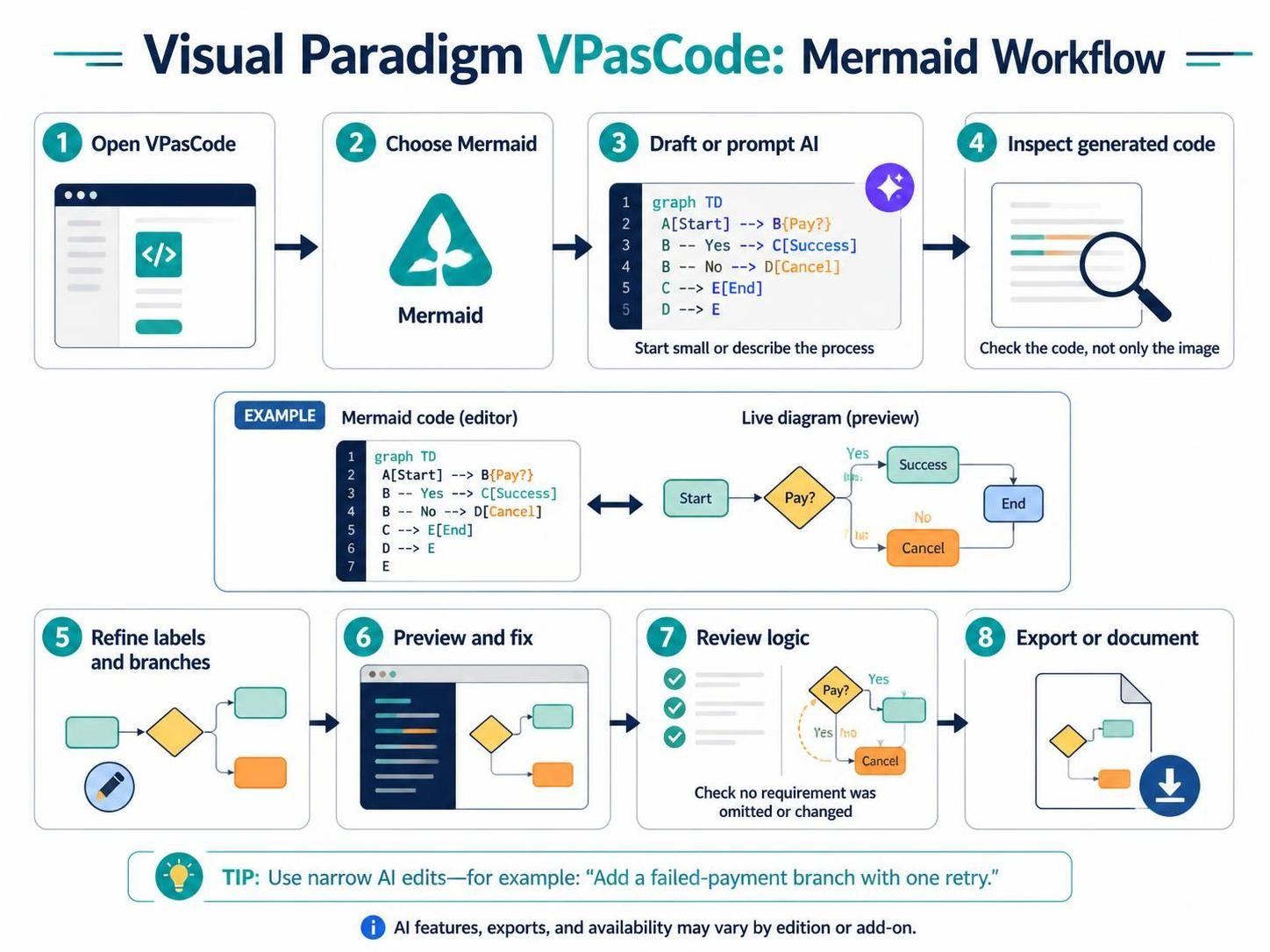
A practical workflow:
-
Open VPasCode and choose Mermaid as the diagram language.
-
Start with a small flowchart, or describe the process to the built-in AI diagram generator.
-
Inspect the generated Mermaid code—not just the rendered picture.
-
Refine node labels, branch conditions, and connections in the editor.
-
Use the live preview to catch confusing layout or syntax issues.
-
If the editor offers AI modification or error-fixing, give it a narrow instruction, such as “Add a failed-payment branch that allows one retry.”
-
Review the updated code and preview. Confirm the AI did not omit a requirement or change the process logic.
-
Export the finished diagram in a supported format, or copy the Mermaid code into project documentation.
The VPasCode workflow is useful when you want a live preview while editing Mermaid. Visual Paradigm also describes a workflow in which a diagram can be generated with its AI Diagramming Chatbot and then opened in VPasCode for code-level refinement.
9. Prompting AI to generate a useful flowchart
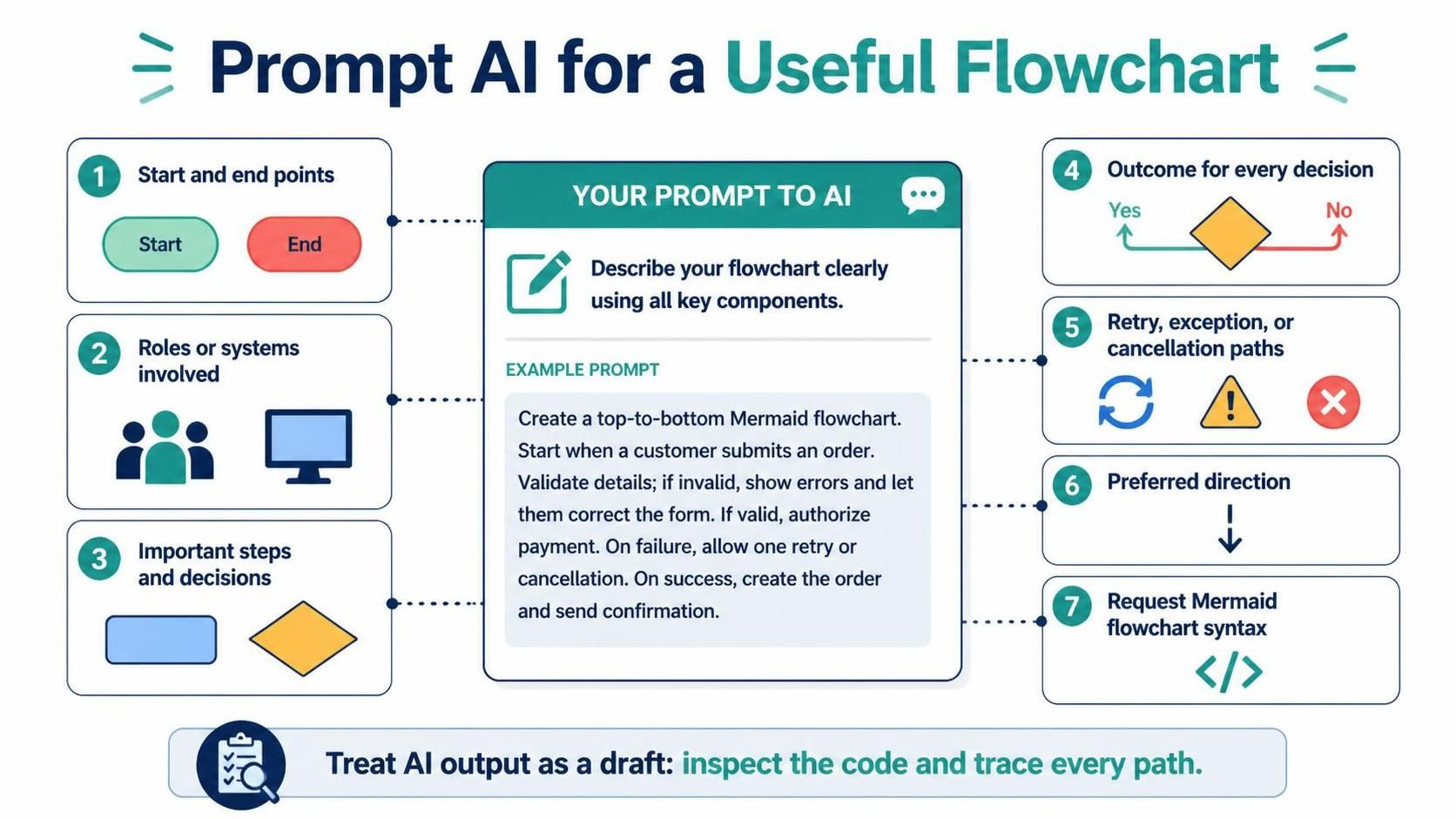
AI diagram generation works best when the prompt describes the process structure, not just its topic. Include:
-
The start and end points
-
Roles or systems involved
-
Important steps and decisions
-
Outcomes of each decision
-
Retry, exception, or cancellation paths
-
Preferred direction, such as top-to-bottom
-
Whether you want Mermaid flowchart syntax
Weak prompt:
“Make an order flowchart.”
More useful prompt:
Create a top-to-bottom Mermaid flowchart for an online order checkout. Start when the customer reviews the cart. Collect shipping and payment details, validate them, and show errors if invalid. If valid, authorize payment. If payment fails, let the customer retry with another method or cancel. If payment succeeds, create the order and send a confirmation. Include explicit Yes/No labels on every decision branch.
Treat generated diagrams as drafts. Compare every branch against the real requirements, and correct invented steps or missing exception paths.
10. Troubleshooting and good practices
-
Syntax error: Check the opening declaration, matching identifiers, and arrow syntax. Keep labels simple while debugging.
-
Unclear branch: Add labels directly to decision arrows, such as
-- Yes -->and-- No -->. -
Hard-to-read layout: Try another direction, such as
LRinstead ofTD, or split a large process into linked diagrams. -
Overcrowded diagram: Remove implementation detail that does not help explain the process, or group related steps in subgraphs.
-
Unexpected AI changes: Make targeted requests and compare the revised code against the original requirements.
-
Labels with punctuation: If special characters cause a rendering issue, simplify the label or enclose it in quotes where appropriate for the Mermaid syntax supported by the editor.
-
Long-term maintenance: Save the Mermaid source with the project documentation or repository, so the diagram can be regenerated and reviewed as text.
A good flowchart is not just syntactically valid: it should let a reader follow each path without guessing. Mermaid makes the diagram easy to edit as code; live preview and AI assistance can speed up drafting, while human review keeps the logic accurate.
Recommended Reading: Visual Paradigm Resources
-
Flowchart Tutorial (with Symbols, Guide and Examples): A comprehensive beginner’s guide covering flowchart symbols, use cases, and step-by-step creation in Visual Paradigm.
-
Master Mermaid Flowcharts for Business Logic and Product Workflows: Guide to creating text-based flowcharts using Mermaid syntax for version-controlled business logic modeling.
-
Visual Paradigm Flowchart Creator: Release announcement detailing enhanced flowchart editor with built-in validation and integration capabilities.
-
Introducing Stepwise Flowchart: AI-Powered Process Mapping: Overview of AI-driven stepwise flowchart feature that organizes complex processes into structured phases.
-
Create a Flowchart in a Presentation: Tutorial on designing and styling flowcharts within VP Online presentations.
-
Visual Paradigm Online for Office: Microsoft Office add-in enabling embedding of editable flowcharts into Word and PowerPoint documents.
-
Information Flow Diagram Software: Feature overview of Visual Paradigm’s flowchart and information flow diagram capabilities.
-
AI Flowchart Generator for Support Ticket Workflows: Guide demonstrating AI-powered flowchart generation from text descriptions for customer support processes.

 English
 Arabic
 Chinese (Simplified)
 Dutch
Dutch French
 German
 Italian
 Japanese
 Korean
 Portuguese
 Russian
 Spanish