


There isn’t just one text-to-diagram tool in the Visual Paradigm ecosystem. You can get from text to a diagram through six main routes: AI diagram generation in the visual modeling tools, the AI Chatbot, VPasCode, OpenDocs, specialized AI web apps, and a text/code-to-model workflow that ends in VP Desktop. Some routes overlap—for example, the Chatbot can hand work off to OpenDocs or Desktop—so think of these as different starting points and workflows, not six completely separate diagram engines.
The six routes
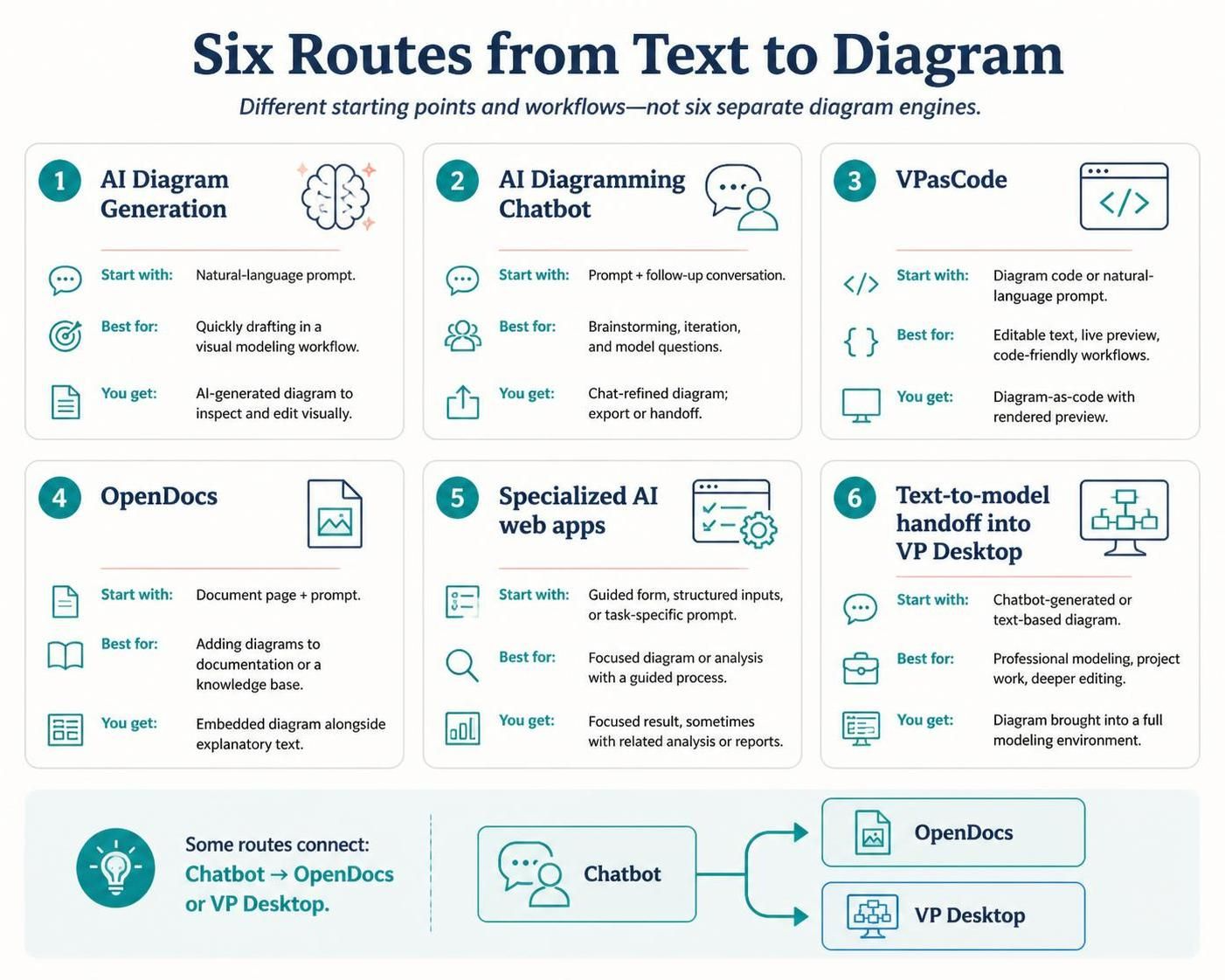
| Route | Start with | Best for | What you get |
|---|---|---|---|
| 1. AI Diagram Generation | A natural-language prompt | Quickly drafting a diagram in a visual modeling workflow | An AI-generated diagram that you can inspect and edit visually |
| 2. AI Diagramming Chatbot | A prompt and follow-up conversation | Brainstorming, rapid iteration, and asking questions about a model | A diagram you refine by chatting; it can also be exported or handed off |
| 3. VPasCode | Diagram code, or a natural-language prompt for code generation | People who want editable text, live preview, or code-friendly workflows | Diagram-as-code with a rendered preview |
| 4. OpenDocs | A document page and a prompt | Putting diagrams directly into documentation or a knowledge base | An embedded diagram alongside explanatory text |
| 5. Specialized AI web apps | A guided form, structured inputs, or a task-specific prompt | A particular diagram or analysis with a more guided process | A focused result, sometimes with related analysis or reports |
| 6. Text-to-model handoff into VP Desktop | A chatbot-generated or text-based diagram | Professional modeling, project work, or deeper editing | A diagram brought into a fuller modeling environment |
1. AI Diagram Generation: start with a prompt, then edit visually
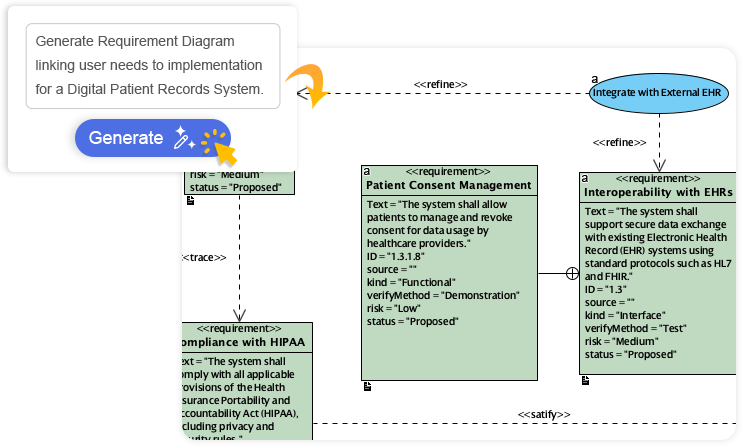
Use this route when you know the diagram you want and would rather begin with a draft than build it shape by shape. Describe the subject and name the diagram type—for example, “Create a UML class diagram for a library lending system.” Visual Paradigm describes AI diagram generation as producing diagrams from prompts, with the result available for visual refinement. Its listed examples include UML, flowcharts, ERDs, C4, ArchiMate, SysML, and other diagram types.
Basic workflow:
-
Open the AI diagram-generation workflow available in your VP environment.
-
Specify the diagram type and describe the system, process, or scenario.
-
Review what it generated: names, relationships, direction of flow, and any assumptions.
-
Edit the diagram visually and revise the prompt if the structure is wrong.
Use this when you want an editable visual draft and prefer working on a canvas after generation.
2. AI Diagramming Chatbot: create and refine through conversation
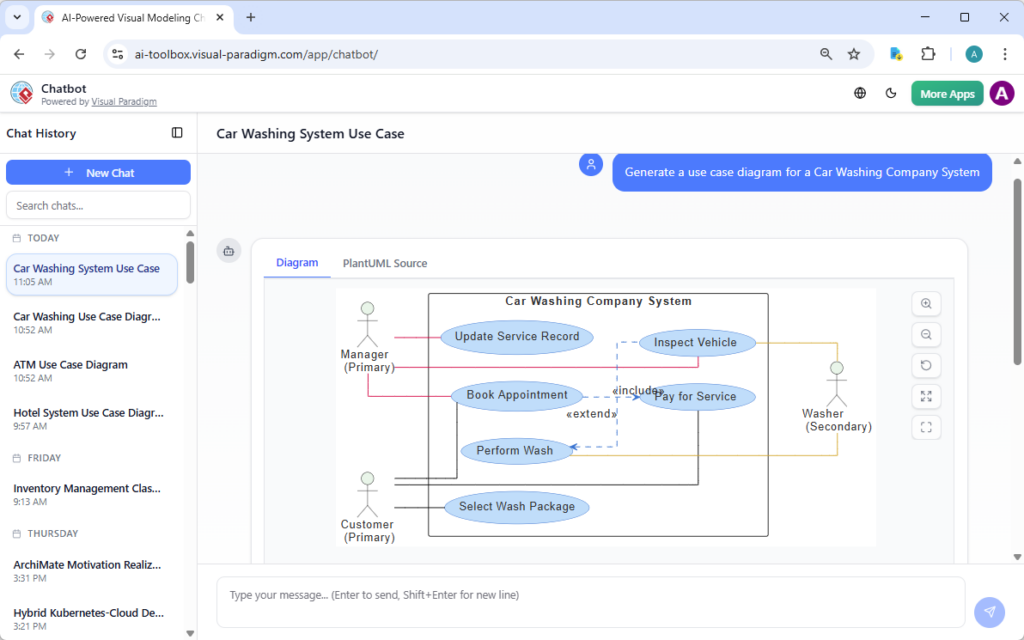
Use the Chatbot when the requirements are still changing or you want to explore the model conversationally. You can ask it to generate a diagram, then request changes such as adding an actor, renaming a class, changing a relationship, or expanding part of the model. You can also ask questions about the diagram and request summaries or documentation.
Example conversation:
-
“Create a sequence diagram for a customer placing an online order.”
-
“Add payment authorization and a declined-payment path.”
-
“Show the inventory service checking stock before payment.”
-
“Explain the alternate flow if the item is out of stock.”
The Chatbot supports exports including PNG, SVG, Markdown, and diagram text formats such as PlantUML, Mermaid, and Graphviz. Its documented handoffs include OpenDocs, VPasCode, VP Online, and VP Desktop; exact import and editing options can depend on the diagram type and your product edition.
Use it when: you want a fast first draft, need several revisions, or want to discuss a diagram before committing to a more formal model.
3. VPasCode: write or generate diagram-as-code
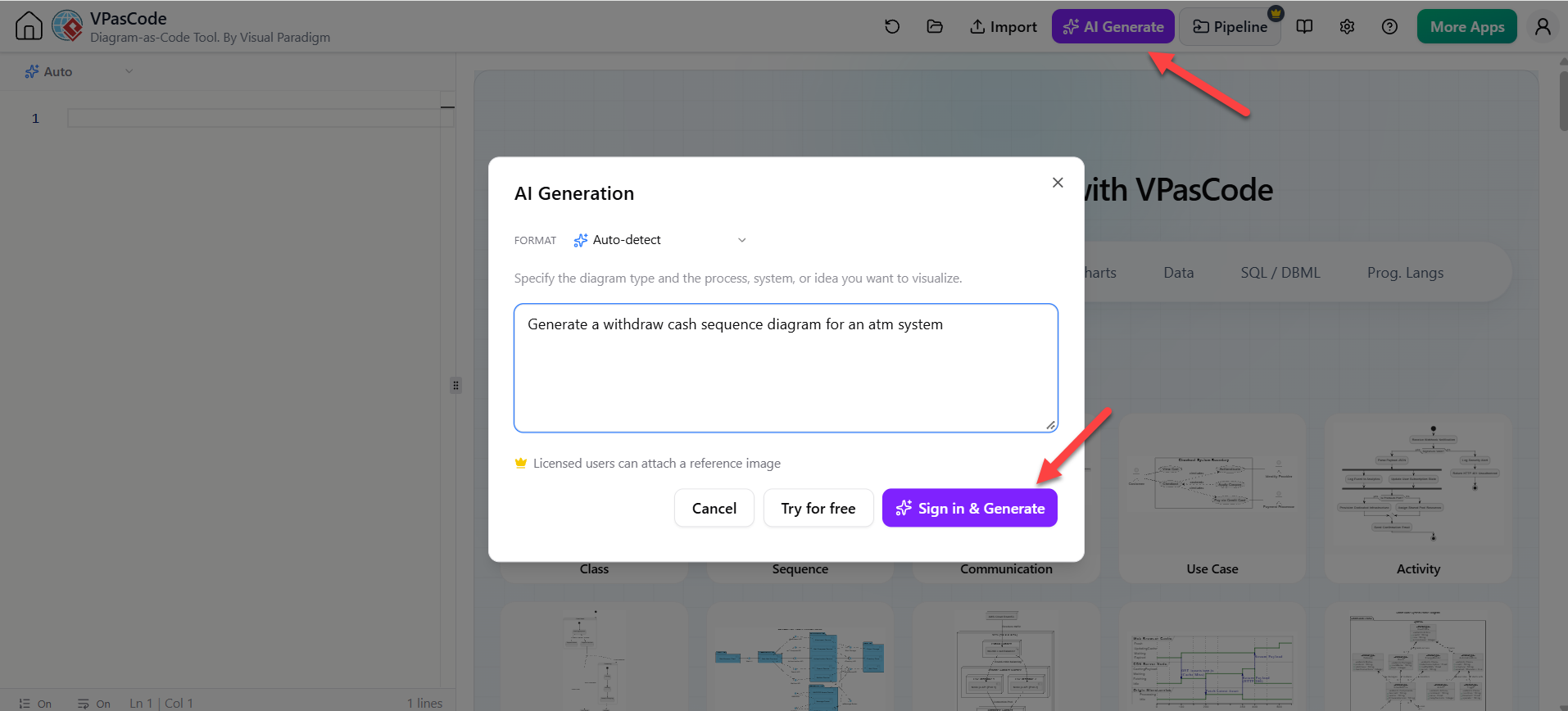
VPasCode is the text-first option. You can write supported diagram syntax and see the visual result in a live preview; it also offers AI generation and modification from natural-language instructions. Visual Paradigm lists support for formats including Mermaid, PlantUML, D2, Graphviz, and data/schema formats.
Workflow:
-
Choose the diagram language or format.
-
Either enter code directly or use the AI prompt feature to create a draft.
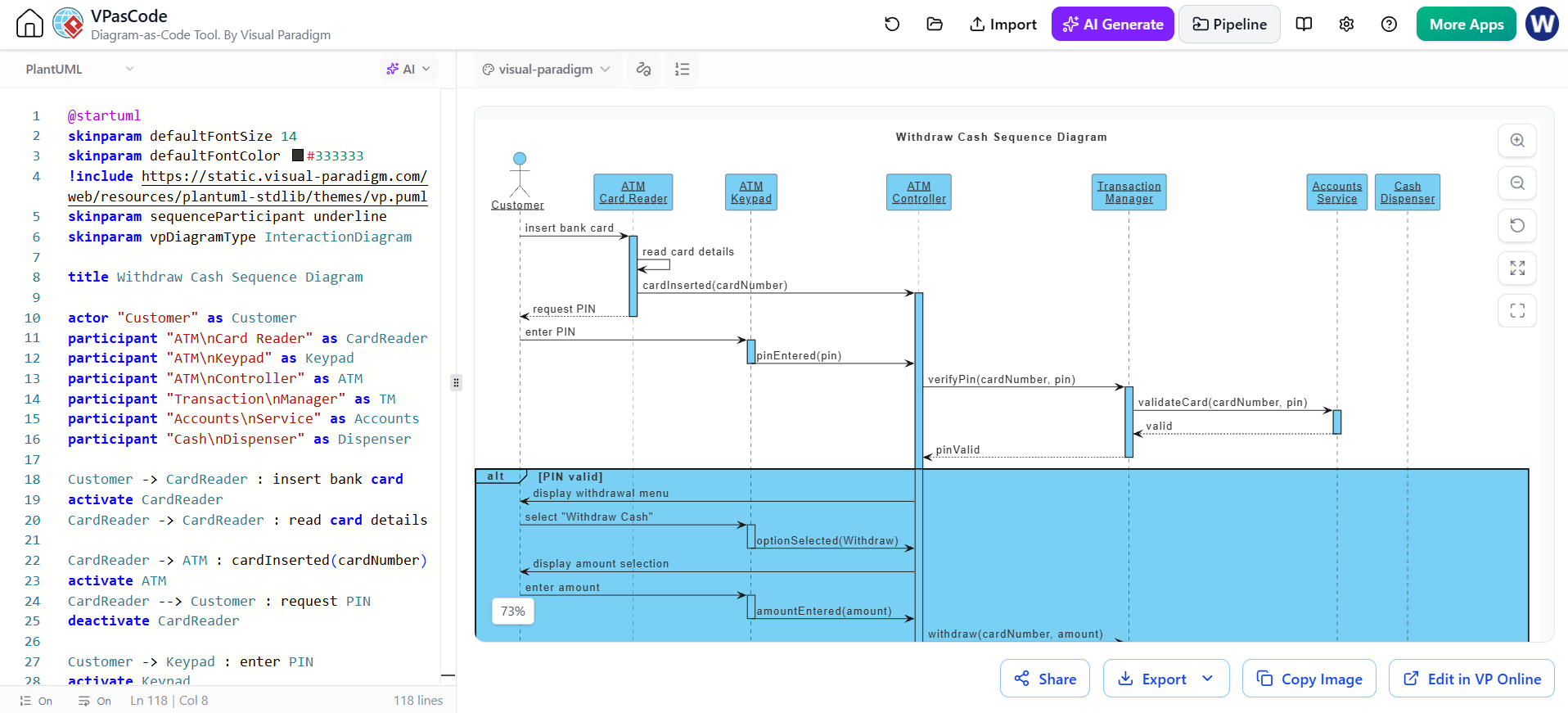
-
Inspect the live-rendered diagram.
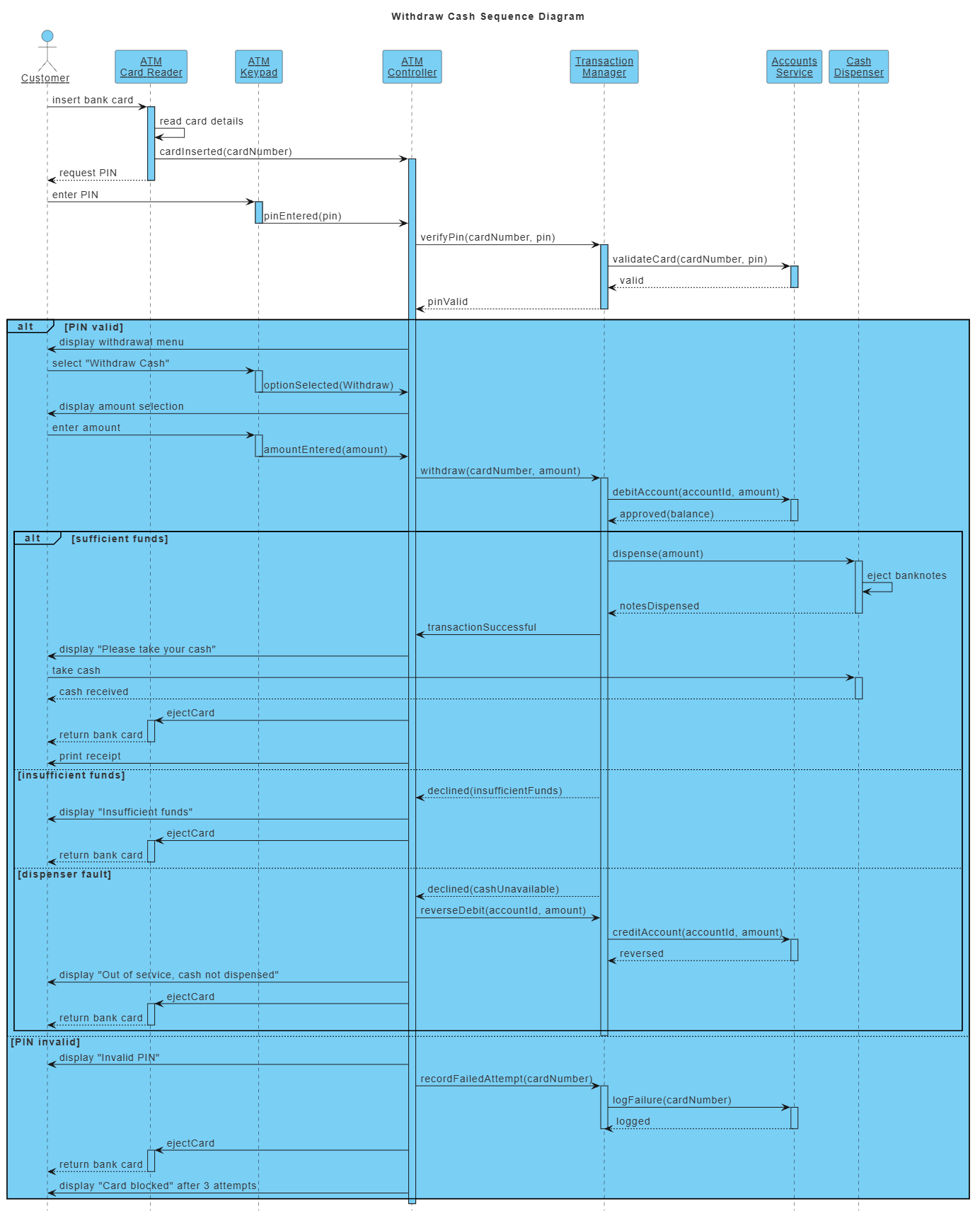
-
Edit the text to control labels, relationships, or structure.
-
Export or share the rendered result.
Note: You can refine the diagram:
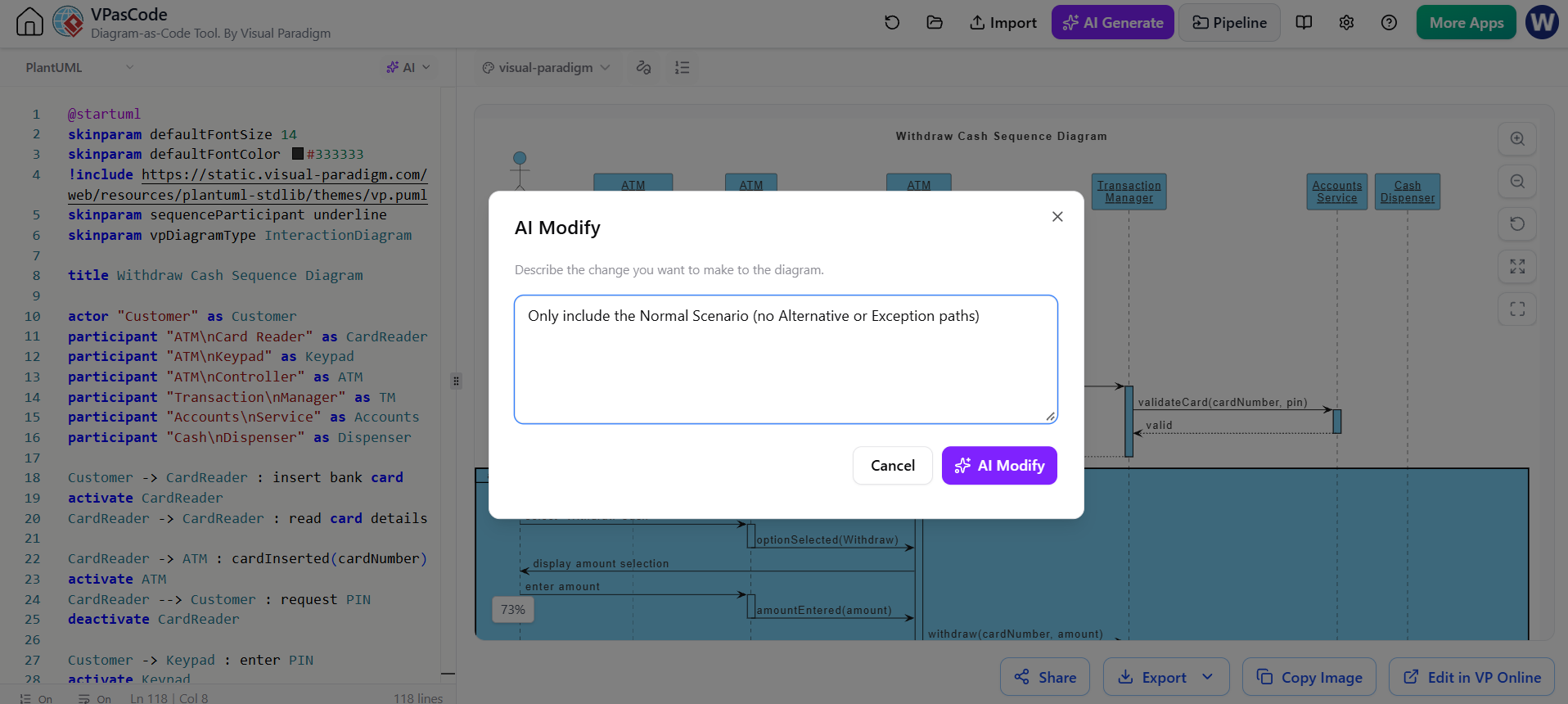
The refined result:
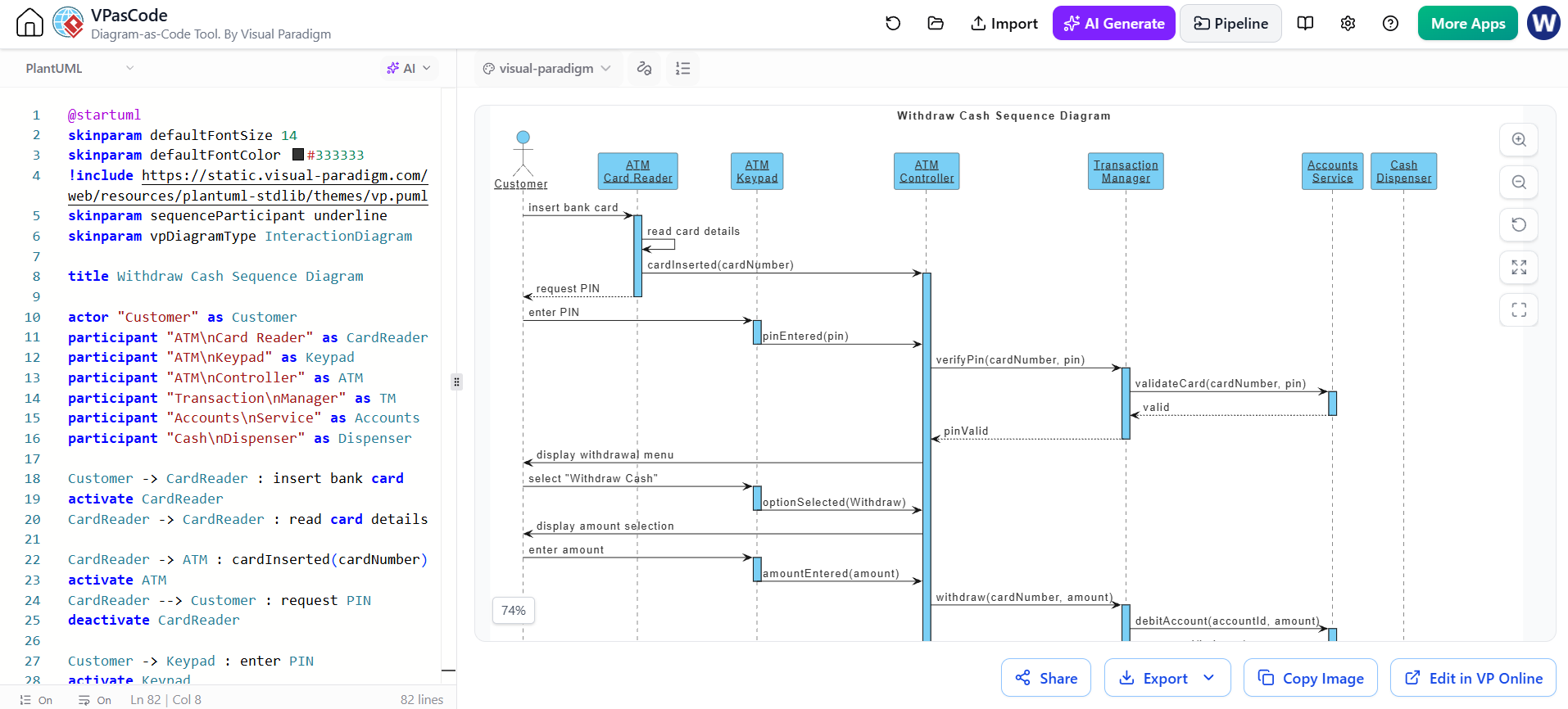
Use it when: you want a text-based source you can revise precisely, keep with code or documentation, or use in a workflow built around diagram syntax. The result is especially useful for diagram-as-code work; don’t assume that every text format automatically becomes a fully linked VP Desktop model.
4. OpenDocs: generate a diagram where the explanation lives
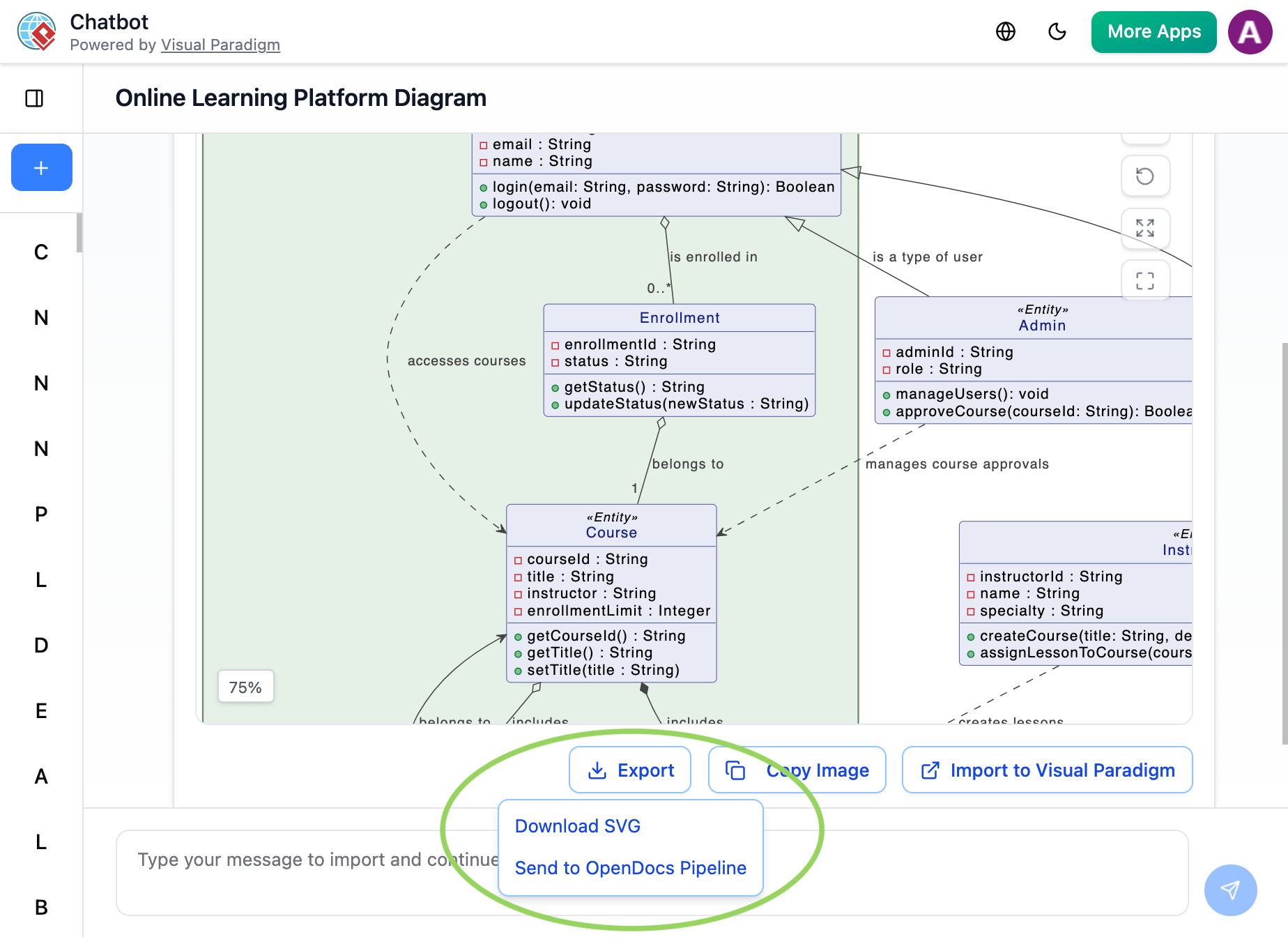
OpenDocs is the document-centered route. Use it when the diagram belongs inside a specification, wiki, report, or team knowledge base rather than as a standalone artifact. OpenDocs supports diagrams embedded in document pages, and the Chatbot can send generated diagrams through the OpenDocs Pipeline for insertion into a page.
Chatbot-to-OpenDocs handoff:
-
Generate and refine the diagram in the AI Chatbot.
-
Choose Export and send it to the OpenDocs Pipeline.
-
Open the destination OpenDocs page.
-
Use Insert > Pipeline, select the diagram, and place it in the document.
Use it when: readers need the diagram and its written context together. This is a publishing and documentation route—not necessarily the right place to maintain a large, interconnected engineering model.
5. Specialized AI web apps: use a guided tool for a specific task
The VP ecosystem also includes dedicated AI apps and guided web tools for particular modeling tasks. These can be preferable to a general prompt when the task has a defined process—for example, use-case modeling, C4 architecture work, or generating a specific diagram type. The ecosystem’s AI app directory includes task-specific generators and analysis tools; available workflows vary by app.
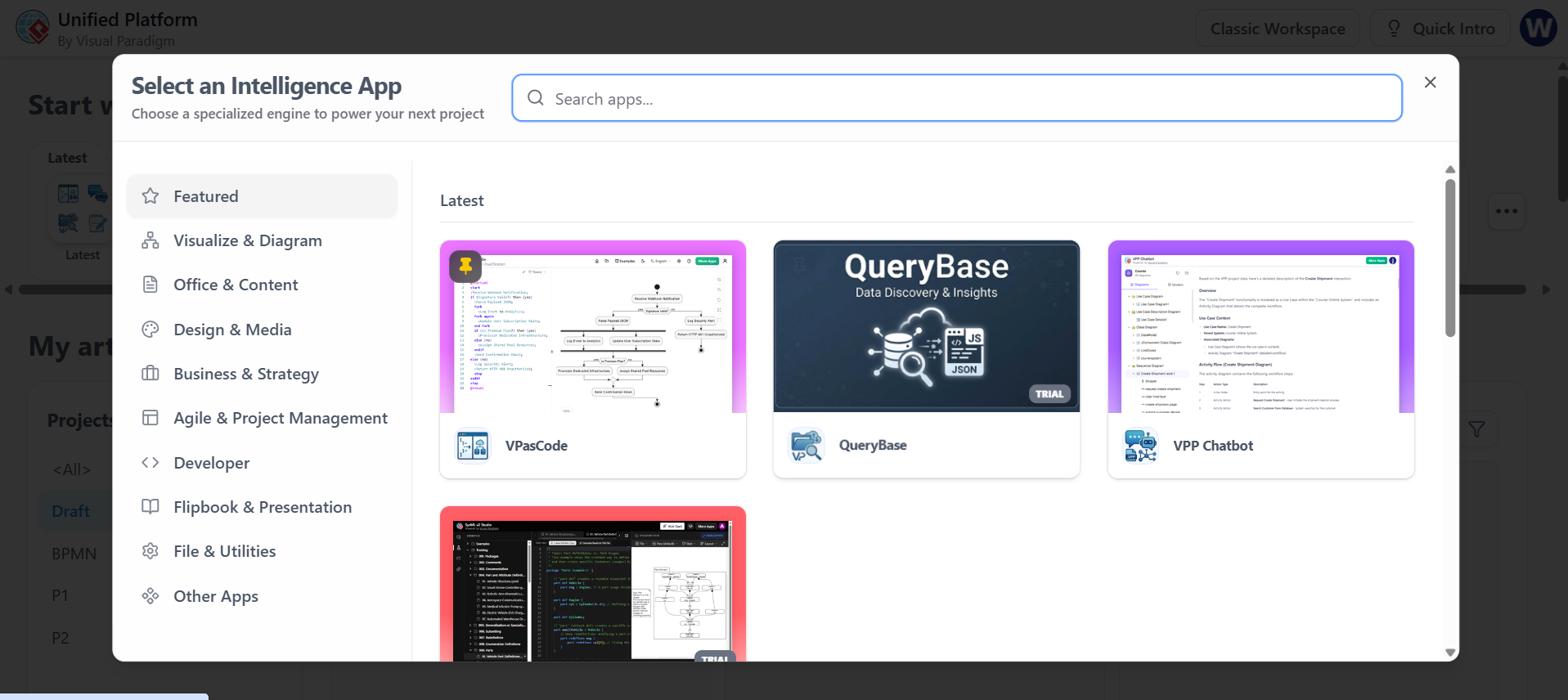
Workflow:
-
Find an app designed for the diagram or analysis you need.
-
Provide the requested details in its prompts or guided fields.
-
Review the generated diagram and any associated outputs.
-
Export, share, or continue in another VP tool if the app offers that handoff.
Use it when: you want a focused workflow with more structure than a blank chat prompt. Check the individual app’s supported input and export options rather than assuming every app works the same way.
6. Bring text-generated work into VP Desktop
VP Desktop is the route to consider when a quick draft needs to become part of a larger modeling project. Visual Paradigm documents Chatbot integration with Desktop and options to bring generated diagrams into its modeling environment; supported behavior and licensing vary by diagram type and edition.
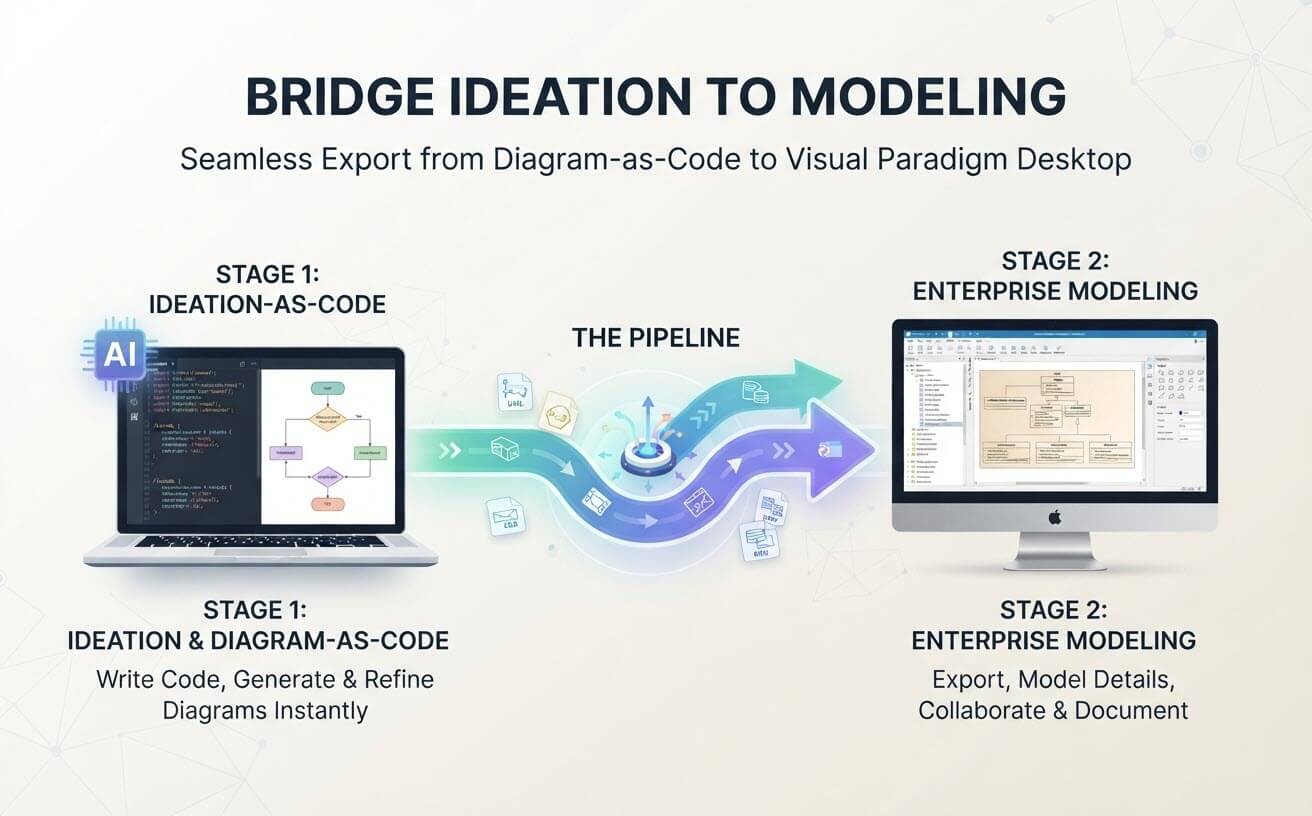
Typical workflow:
-
Generate a diagram in the Chatbot or another suitable text-based workflow.
-
Transfer or import it into the VP environment supported for that diagram.
-
Inspect the notation and model elements, then refine the diagram in Desktop.
-
Validate the result against the project’s requirements and related models.
This is the best fit when you need more than a picture—for example, when the diagram must be maintained alongside other project models. Treat AI output as a starting draft and check the actual relationships and notation before relying on it.
A prompt template that works across the ecosystem
Include the diagram type, scope, elements, relationships, important rules, and level of detail. For example:
Create a UML sequence diagram for an online order. Participants: Customer, Web App, Order Service, Inventory Service, Payment Gateway. Show the successful path and the payment-declined alternative. Inventory must be checked before payment is authorized. Keep the diagram at service level; do not include UI clicks.
For a class diagram, name the key classes and important relationships. For a process diagram, state the start, decisions, alternate paths, and end states. If a detail is unknown, say so rather than letting the tool silently invent a requirement.
How to choose
-
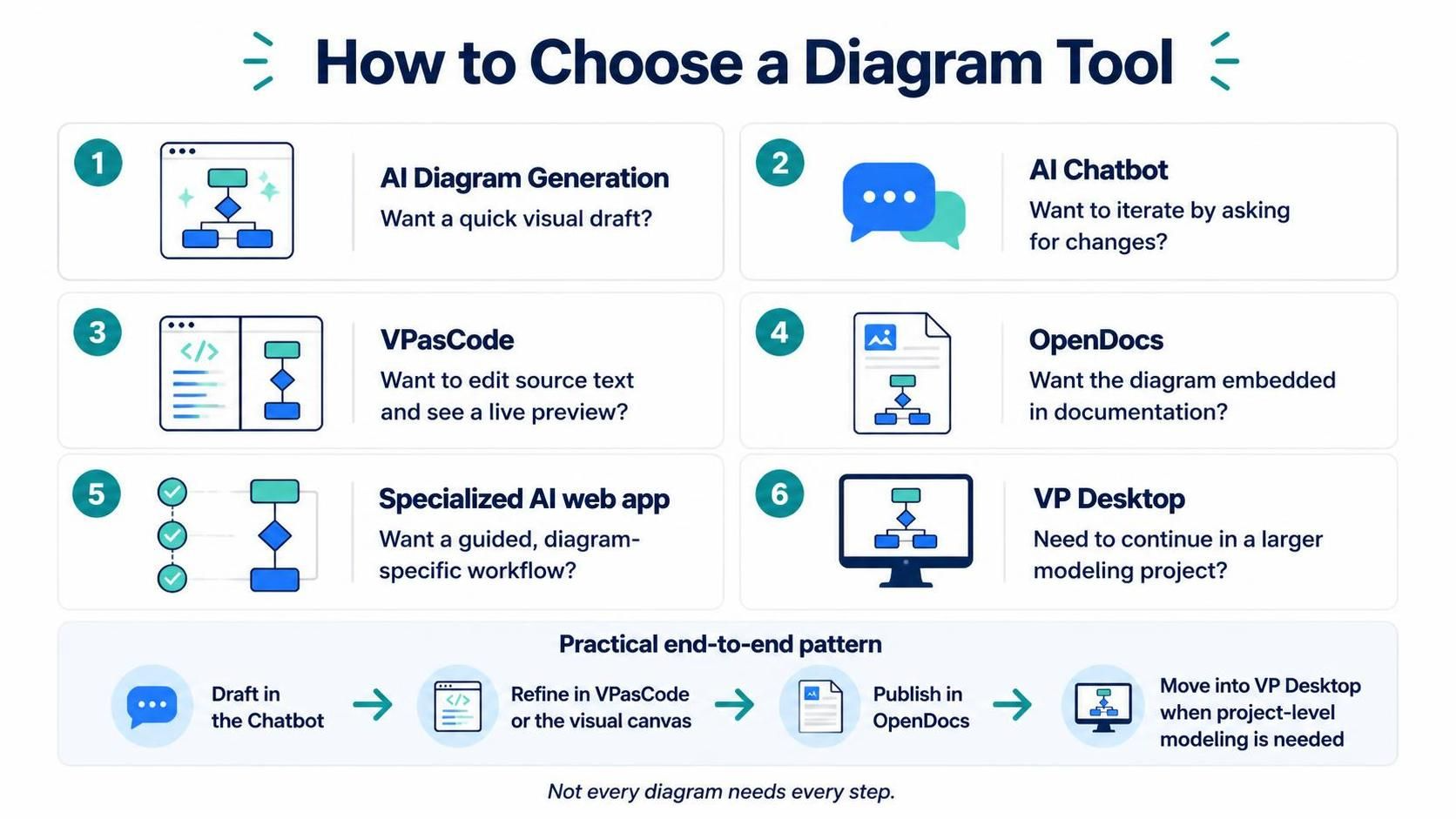
Want a quick visual draft? Start with AI Diagram Generation.
-
Want to iterate by asking for changes? Use the AI Chatbot.
-
Want to edit the source text and see a live preview? Use VPasCode.
-
Want the diagram embedded in documentation? Use OpenDocs.
-
Want a guided, diagram-specific workflow? Look for a specialized AI web app.
-
Need to continue in a larger modeling project? Hand off to VP Desktop where the diagram and edition support it.
A practical end-to-end pattern is: draft in the Chatbot, refine the source in VPasCode or the visual canvas, publish in OpenDocs, and move into VP Desktop when project-level modeling is needed. Not every diagram needs every step.
Review before you share
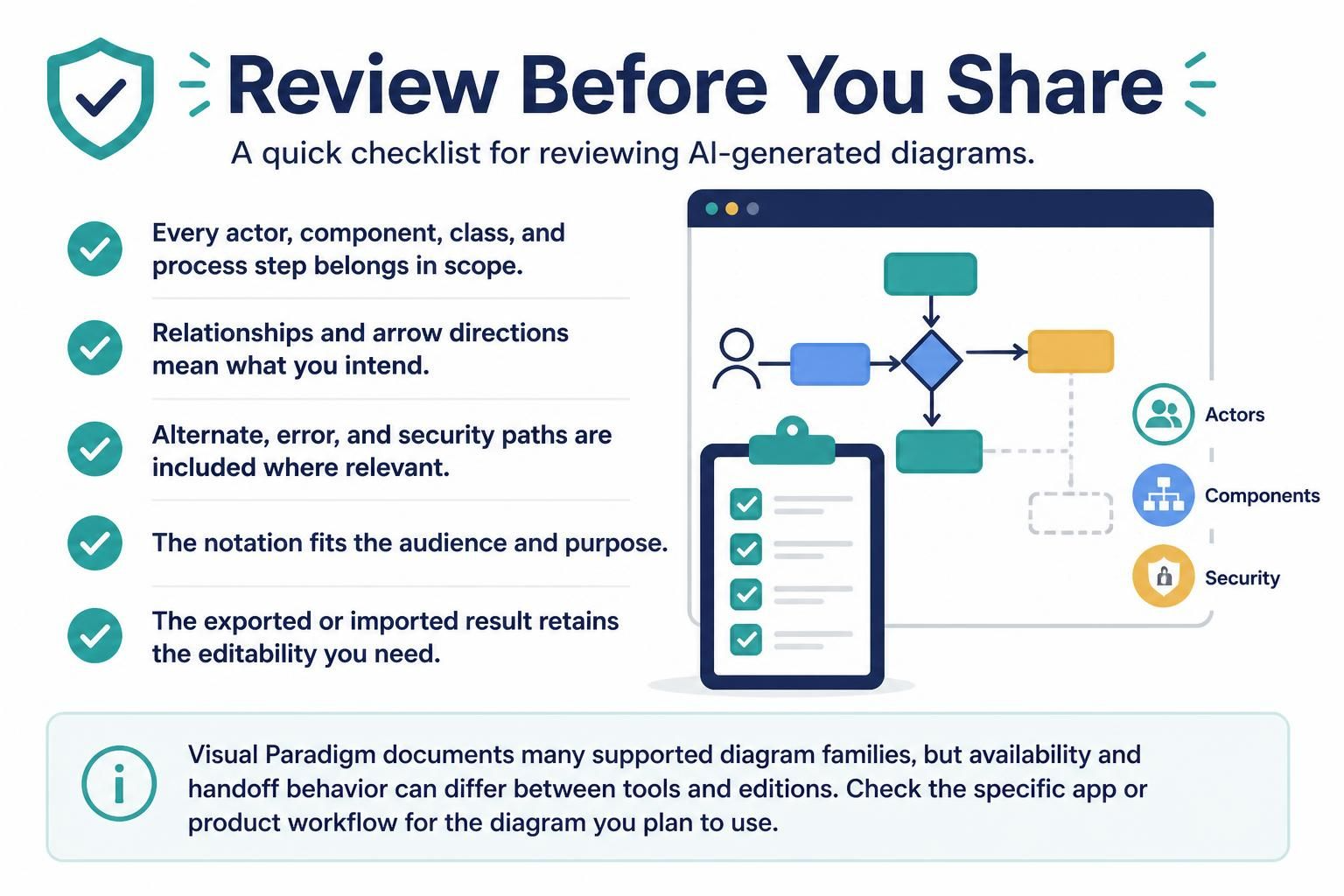
AI can produce a plausible-looking diagram that still misstates the system. Check that:
-
Every actor, component, class, and process step belongs in the scope.
-
Relationships and arrow directions mean what you intend.
-
Alternate, error, and security paths are included where relevant.
-
The notation is appropriate for the audience and purpose.
-
The exported or imported result retains the level of editability you need.
Visual Paradigm documents a broad range of supported diagram families, but availability and handoff behavior can differ between tools and editions. Check the specific app or product workflow for the diagram you plan to use.

 English
 Arabic
 Chinese (Simplified)
 Dutch
Dutch French
 German
 Italian
 Japanese
 Korean
 Portuguese
 Russian
 Spanish